
Should You Use an Online or Desktop Audio Recorder?
 By HenrikUpdated Oct 13, 202610 min read
Compare online audio recorders and desktop recorders for browser audio, streaming music, long sessions, metadata, cleanup, and support.
An online audio recorder and a desktop audio recorder can both be useful. They solve different parts of the job.
The browser tool is best when you need a quick test, a short microphone note, or a simple tab-audio sample. A desktop recorder is better when the session is long, the source is repeated, the file needs metadata, or you want support when the setup does not behave.
The Short Answer
Use an online recorder when the recording is short, the source is simple, and you are comfortable checking the file yourself.
Use a desktop recorder when you need reliability across longer sessions, cleaner post-recording review, filenames, song information, artwork, or a repeatable workflow.
| Situation | Better Fit | Why |
|---|---|---|
| Ten-second microphone test | Online recorder | Fast and low-friction |
| Short browser tab sample | Online recorder | Good for a quick local check |
| Long music playlist | Desktop recorder | Needs session reliability and organization |
| Online radio session | Desktop recorder | Long recordings need review, naming, and cleanup |
| File needs cover art and tags | Desktop recorder or metadata editor | Capture and metadata are separate jobs |
| One local file needs trimming | Online tool | No full app workflow needed |
The mistake is treating the two as competitors for every task. A good workflow often uses both: browser tools for quick checks and focused fixes, desktop software for repeated recording and library work.
If the question is specifically about browser tab capture versus system audio capture, read the browser recorder vs system audio recorder guide before choosing the tool.
When an Online Audio Recorder Is the Right Choice
Use the browser recorder when speed matters more than workflow depth.
Good examples:
- Recording a short voice note.
- Testing whether microphone audio is reaching the browser.
- Capturing a small browser-tab sample for review.
- Making a quick before-and-after support clip.
- Checking whether your system-audio share setting works before using a larger workflow.
The Online Audio Recorder is built for this kind of work. It lets you choose microphone, system or tab audio, or microphone plus system audio when the browser supports the route. After stopping, it gives you a file to preview and download.
The key word is short. Browser recording depends on browser permissions, share-audio options, tab state, and available encoders. That is fine for a quick task. It becomes uncomfortable when you leave a long stream running and only discover the saved file is silent afterward.
What the Browser Is Actually Allowed to Capture
The permission model is the reason browser capture feels unpredictable, and once you see it the failure modes stop being mysterious.
A web page cannot quietly listen to your audio output. It can only record what you explicitly hand it through the browser’s share dialog, and the dialog offers different things depending on what you pick:
- Choosing a tab usually comes with an option to share that tab’s audio, and nothing else.
- Choosing a whole screen may offer system audio, which is the closest a browser gets to a desktop loopback.
- Choosing a single window often offers no audio at all, which produces a video-only capture and a silent file.
- Choosing a microphone is a separate permission on a separate path, and it never includes playback audio.
Two consequences follow. First, the most common browser-recording failure is not a broken recorder but a share dialog where the audio option was never ticked, or was never offered for the thing you picked. Second, a browser recorder cannot capture audio that is not going through the surface you shared: sound from another tab, a desktop app, or a notification will not appear in the file even though you can hear it.
A desktop recorder works the other way round. It attaches to the operating system’s playback path, so it captures what the machine is outputting regardless of which app produced it. That is a wider reach, and it is also why it can surprise you by capturing an alert tone.
What Happens When You Press Stop
This is the difference that decides how long a session should be.
A browser recorder keeps working after you stop. The captured audio still has to be processed and encoded inside that page before a file exists, and the time that takes grows with the length of the recording. In the Online Audio Recorder, the status moves from processing to encoding, and a longer clip can sit there for a while before it offers a download.
That has three practical effects:
- The tab has to stay open and alive. Closing it, reloading the page, or letting the browser discard a background tab to save memory takes the unfinished file with it. There is no autosaved partial on disk.
- A long recording is a long unprotected window. An hour of audio is not an hour of risk for a desktop recorder, which is writing to a file as it goes, but it is an hour of waiting for the tab to finish its work before anything exists that you can open.
- Leaving the tab can slow it down. Browsers give hidden tabs less time to do work, so switching away to answer email may stretch the encode. Keep the tab in front of you until the file is downloaded.
The desktop model is simply different: the file is written while recording, so an interruption costs you the tail of the session rather than the whole thing. That single difference is why long radio shows, lectures, and playlists belong on the desktop side of this decision, and it is worth reading the best settings for long audio recording guide before attempting one in a browser tab.
When a Desktop Recorder Is the Better Fit
Use desktop recording when the recording is part of a repeatable workflow, not just a one-off capture.
Desktop software is usually the better fit when:
- You record music, radio, or browser audio regularly.
- You need a library where captured files can be reviewed.
- You want title, artist, cover art, lyrics, or useful filenames.
- You expect long sessions where sleep, device changes, or notifications can ruin the result.
- You want a clear support path when the first test does not work.
- You want the product to solve post-recording cleanup, not only capture sound.
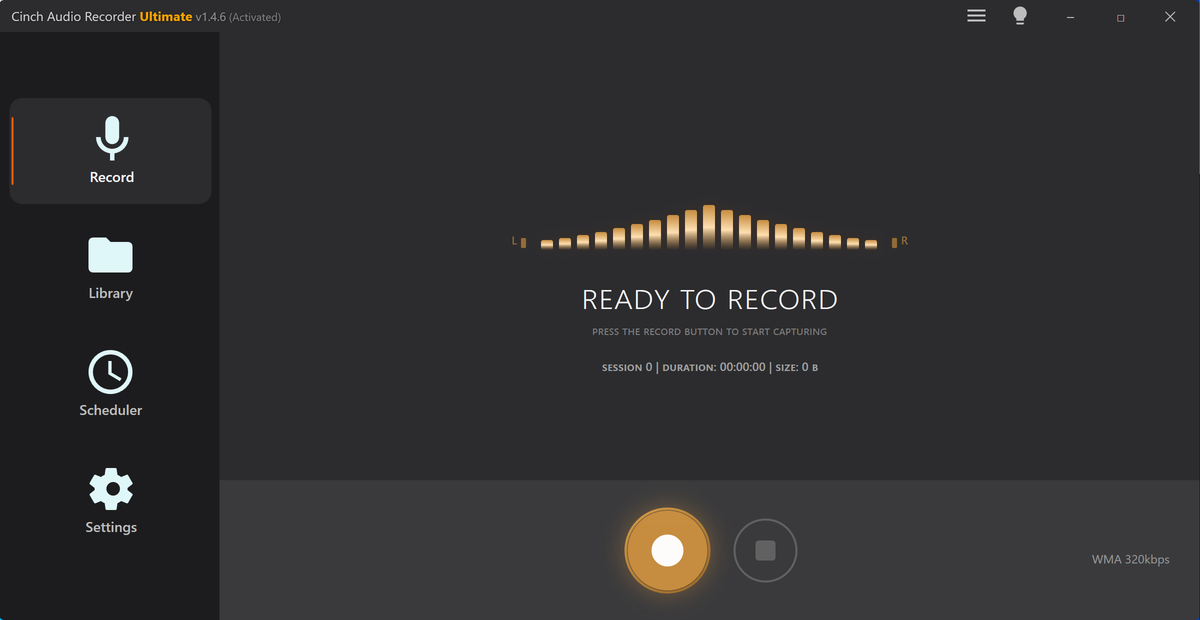
Cinch Audio Recorder is positioned around that full workflow: capture playback audio, review files in the Library, manage formats, and clean up song information where available. That is different from a small browser recorder that hands you a file and leaves the rest to you.
The Privacy Difference
Privacy depends on how the tool is built, not just whether it runs in a browser or desktop app.
For browser tools, look for clear language about local processing. If a tool says the file stays on your device, that is a good sign for simple edits. If the page is vague, avoid using it for private recordings.
For desktop software, the file is normally handled by the installed app, but some features may still need internet access, such as metadata lookup, activation, or support. Treat privacy as a feature to verify, not an assumption.
For private or sensitive audio, use a short test file first. Do not upload or process anything important until you understand where the file goes and what the tool does with it.
The Reliability Difference
A browser recorder can fail for practical reasons:
- The browser share picker did not include audio.
- The wrong tab or screen was selected.
- The active output device changed.
- The tab was muted.
- The browser did not support the selected export format.
- The computer slept during a long session.
A desktop recorder can also fail if the wrong device or source is selected, but it is usually easier to design a repeatable routine around one installed application.
The safest routine is the same either way:
- Choose the source.
- Record ten seconds.
- Stop and play the saved file.
- Check for silence, alerts, wrong source, and low volume.
- Only then start the real session.
If that first test is silent, use the no-sound troubleshooting guide before recording anything longer.
The Metadata Difference
This is where desktop recording often becomes more useful.
An online recorder usually creates a file. It may not know the song title, artist, album, cover art, lyrics, station, or useful filename. That is acceptable for a short voice note, but it becomes a mess for music and radio.
After recording, ask:
- Can I tell what this file is without opening it?
- Does the player show the right title and artist?
- Is the cover art missing or wrong?
- Is the file one giant session that should be split?
- Does the format match the purpose?
If the answer is no, use the record audio with metadata guide or the Audio Metadata Editor after you verify the recording itself.
Side By Side: What Actually Differs
| Dimension | Browser recorder | Desktop recorder |
|---|---|---|
| Setup before the first recording | Open a page and grant a permission | Install, then choose device and output folder |
| What it can capture | Only the tab, window, or screen you share, and only if that choice offers audio | The system playback path, whatever produced the sound |
| Microphone plus playback together | Only where the browser offers both in one share | Configured once, then repeatable |
| When the file exists | After you stop, once the page has finished encoding | During recording, written as it goes |
| Cost of an interruption | The whole file, if the tab closes before download | The tail of the session |
| Practical length | Short and medium sessions you can watch finish | Long sessions, scheduled starts, unattended runs |
| Where the file lands | The browser download folder, named by the page | A folder and filename pattern you decided in advance |
| Song title, artist, artwork | Not usually | Handled as part of the workflow where supported |
| Locked-down or work machines | Often the only option, since nothing is installed | Needs install rights, which may need an administrator |
| Failure you will actually hit | Silent file from a share dialog with no audio option | Wrong device selected, or a device change mid-session |
Read the right-hand column as the reason the two exist, not as a ranking. The browser wins on the first row and on row nine. The desktop wins everywhere a recording has to survive, be found, or be reused.
A Practical Decision Checklist
Choose an online recorder if all of these are true:
- The recording is short.
- You can immediately play back the result.
- You do not need automatic metadata.
- You are comfortable trimming or naming the file yourself.
- A failed test would not waste much time.
Choose a desktop recorder if any of these are true:
- The session is long.
- You record often.
- You care about titles, artwork, lyrics, or filenames.
- You need to keep multiple recordings organized.
- You want product support if the setup is unclear.
- You already tried the browser route and got silence.
Recommended Workflow
Start with the smallest test that answers the real question.
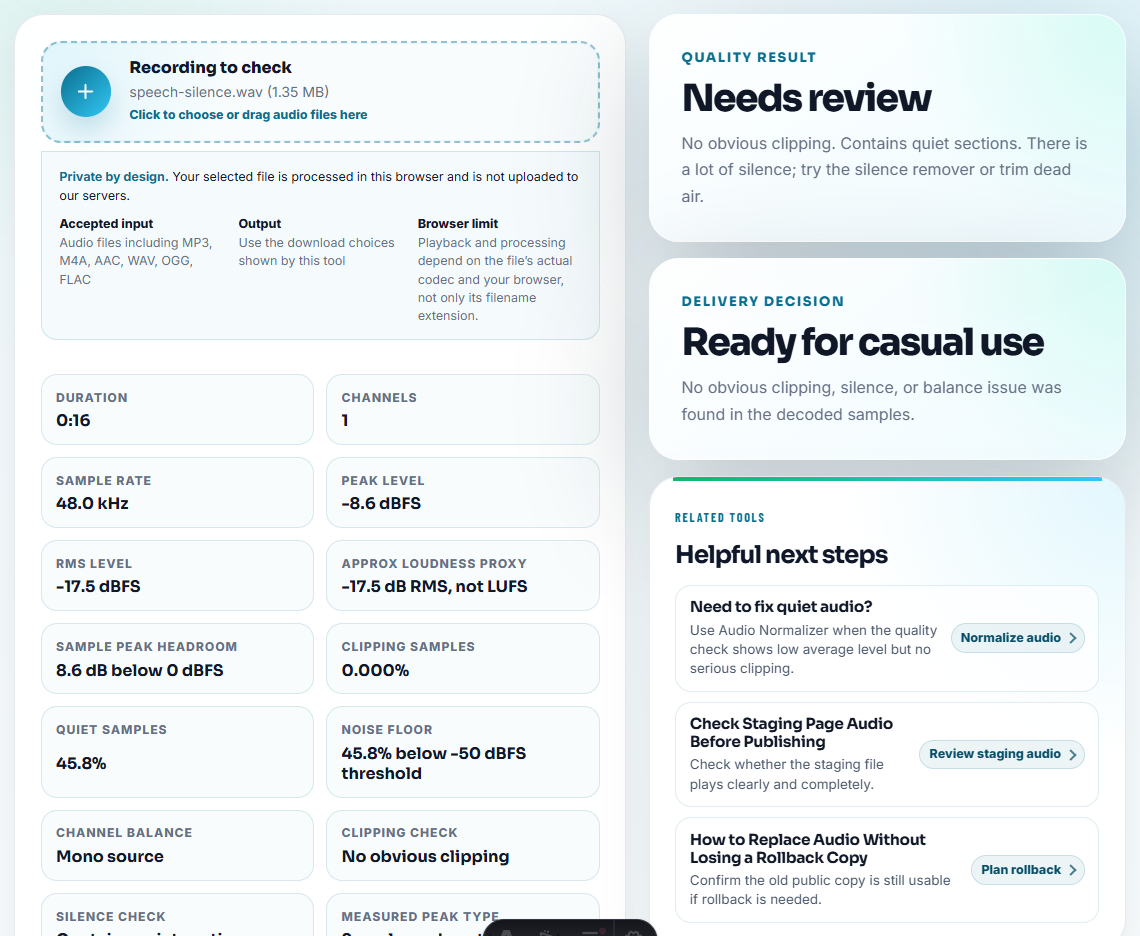
If you are unsure whether system audio can be captured, use the Online Audio Recorder for a short test. If the file works but needs cleanup, use the Recording Quality Checker, Audio Trimmer, or Audio Metadata Editor.
If the source is streaming music, online radio, playlists, or repeated browser audio, test the desktop workflow instead. Open the Download Center, install the correct build, and record one familiar source before committing a long session.
Related Guides
- How to record streaming audio without quality loss
- Browser recorder vs system audio recorder
- Record browser audio cleanly
- First recording troubleshooting
- Clean up recorded audio
- Browse free audio tools
Frequently asked questions
Is an online audio recorder enough for streaming audio?
It can be enough for a short permitted browser capture or a quick microphone test. For long streaming sessions, repeated music recording, metadata, splitting, and support, a desktop recorder is usually easier to manage.
Are online audio recorders private?
Some browser tools process files locally, but you should check the page before using it. Cinch free tools are designed around local browser processing where the page says so.
When should I stop using a browser recorder?
Switch when a short test is silent, the browser share-audio option is unreliable, the session is long, or you need automatic organization after recording.
Why did my browser recording come out silent?
Usually the share dialog had no audio option for what you picked, or it was not ticked. A window share often carries video only, and a tab share captures just that tab, so sound from elsewhere never reaches the file.
How long can I record in an online audio recorder?
Plan around short and medium sessions. The file only exists once the page finishes encoding after you stop, so the tab must stay open and in view, and a closed or discarded tab loses the recording. Long or unattended sessions belong on a desktop recorder, which writes the file while recording.