
Choose the source first
Use System or tab audio for desktop Spotify, Spotify Web Player, YouTube, or any browser tab. Use Microphone for voice notes, and Microphone + system audio when you need narration over playback.
Local processing · your recording stays on your device
Choose a source and format, then start recording.
Compatibility check: microphone capture, system-audio sharing, and selected export format will be checked before recording.
Quality check: after stopping, this card flags likely silence, clipping, low level, duration, and output size.
Download recordingMP3 192 kbps is about 86 MB per hour. Choose mono or lower bitrate for speech.
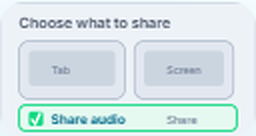
Your browser will open a screen-share picker. For desktop apps like Spotify, choose Entire screen and turn on Share system audio before clicking Share.
The Window tab often shares only the picture, not the app sound. For Spotify Web Player, choose the Spotify browser tab and enable Share tab audio.
If the Share audio switch is off or missing, this browser recording will be silent. Use Chrome or Edge on Windows, or use the desktop Cinch recorder for long Spotify sessions.
For Spotify desktop app audio, pick Entire screen and enable Share system audio. Picking only the Spotify window usually does not include sound. For Spotify Web Player, pick the browser tab and enable Share tab audio.
These are the common setup paths people miss when browser recording appears to work but saves silence.
Use System or tab audio for desktop Spotify, Spotify Web Player, YouTube, or any browser tab. Use Microphone for voice notes, and Microphone + system audio when you need narration over playback.
For the Spotify desktop app, choose Entire screen and turn on Share system audio. The Window option usually shares the image only. For Spotify Web or YouTube, choose the playing browser tab and enable Share tab audio.
After you click Stop, keep the tab open while the status changes from Processing audio to Encoding. MP3 and WAV exports can take longer on longer recordings; preview the file before downloading.
A browser recording is a useful test or short capture. Check the saved file next, trim setup noise, add metadata, and switch to Cinch when the source is a long streaming-audio session.
Estimate storage and format needs before recording a lecture, radio show, browser stream, or music session.
Plan recording timeUse the online recorder for quick browser, tab, mic, or system-audio checks before committing to a longer take.
Open recorderLook for silence, clipping, low level, channel mismatch, and format details before you spend time editing.
Check qualityRemove dead air, fix volume, convert format, or split chapters while keeping the original file untouched.
Trim audioFinish with title, artist, album, comments, and artwork so the file is easier to find in players and libraries.
Edit metadataSwitch to the desktop recorder when you need long sessions, streaming-audio capture, auto splitting, recognition, artwork, and lyrics.
Download trial


A spoken idea, pronunciation sample, script draft, or short memo should be easy to capture without installing software. This online audio recorder works for quick microphone tests, voice notes, classroom practice, and small browser-based recordings.
What you get: The user gets a short local recording that can be replayed, renamed, trimmed, converted to MP3, or shared as a clean memo.
Short browser audio captures are useful for tab audio, web players, online lessons, and quick streaming clips. When the browser allows tab or screen audio sharing, this recorder can capture a quick local sample for review, support tickets, tutorials, or personal notes.
What you get: The browser sample becomes a local file that can be reviewed, clipped, attached to a support note, or saved for personal reference.
Before recording a full webinar, podcast intro, lecture, or streaming music session, a small test clip helps catch microphone and browser-setting problems. Create a short sample first, then decide whether to switch to a desktop recorder for longer or higher-quality sessions.
What you get: A short test file confirms the microphone, tab audio, browser permission, and export format before the user records something longer.
Teachers, students, and remote workers can catch bad microphone levels before a webinar or class. Use the recorder for practice presentations, meeting checks, online class rehearsals, interview prep, and quick audio confidence checks before going live.
What you get: The speaker can hear their own level and clarity before a webinar, interview, class, or meeting begins, reducing the chance of a bad live recording.
Checked against mature online audio tools for the same job: the goal is not only to complete the task, but to make the next decision obvious.
Mature browser recorders surface source choice, format support, recording time, export options, and device/browser limits before the user records something important.
Most quick recorders are convenient but do not explain when a browser capture is enough and when a desktop recorder is safer.
This recorder positions mic, tab/system capture, export planning, and desktop follow-up in one workflow so short tests and long sessions are easier to separate.
Yes, when the browser and operating system expose the needed permission. Microphone recording is the most widely supported path; system or tab audio depends on the browser share picker and whether audio sharing is enabled.
Yes. The browser records, previews, converts, and prepares the download locally. The page does not upload the recorded audio to a server.
MP3 is the most convenient for sharing and listening, WAV is best for later editing, and WebM, OGG, or M4A are useful when the browser supports those native encoders.
Use Cinch Audio Recorder for longer streaming sessions, automatic song splitting, metadata, artwork, lyrics, scheduled recording, and a more reliable desktop capture workflow.