
Should You Use a Browser or System Audio Recorder?
 By HenrikUpdated Aug 7, 20267 min read
Compare browser recording and system audio recording for tab audio, desktop app sound, long sessions, metadata, privacy, and troubleshooting.
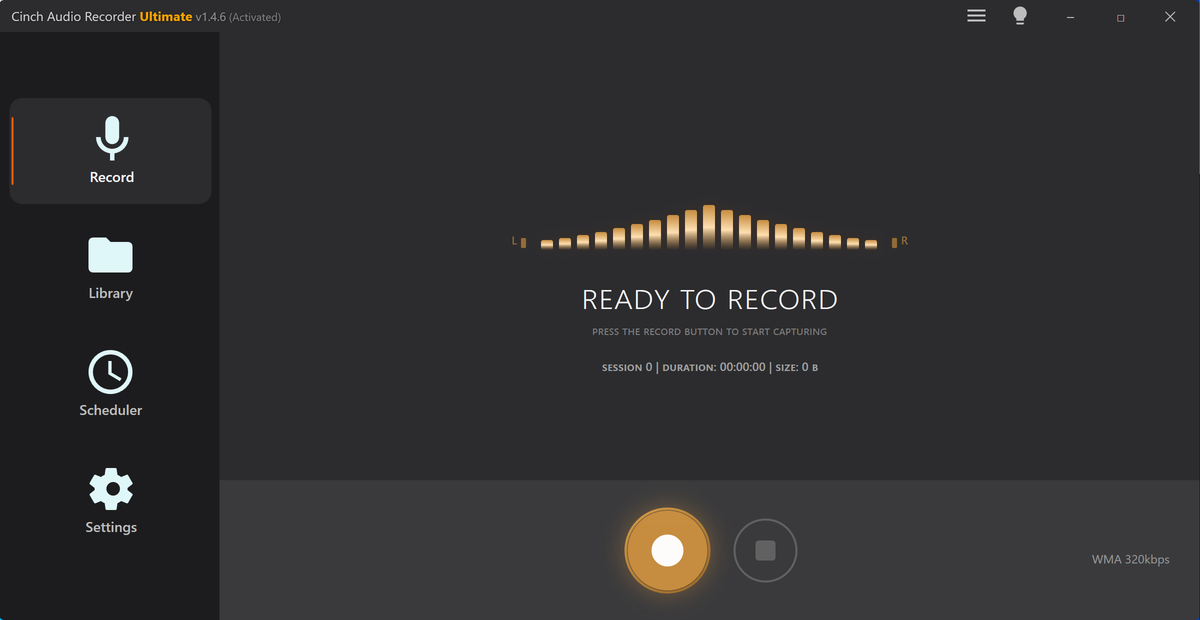
Browser recording and system audio recording are often described as the same thing, but they are not the same workflow.
A browser recorder works inside the browser. It depends on microphone permissions, tab capture, screen sharing, and the browser’s audio-sharing options. A system audio recorder captures the sound route your computer is playing through, which is usually a better fit for desktop apps, longer sessions, and repeated music recording.
The Short Answer
Use a browser recorder when the job is short, simple, and easy to test.
Use a system audio recorder when the audio is coming from the desktop, the session is long, the source changes, or the finished files need names, tags, artwork, and cleanup.
| Situation | Better Fit | Why |
|---|---|---|
| Quick microphone note | Browser recorder | Fast permission flow and immediate preview |
| Short browser-tab sample | Browser recorder | Good when Share tab audio is available |
| Desktop app audio | System audio recorder | Browser tools may not capture app sound unless screen audio is shared |
| Long radio, class, or webinar | System audio recorder | More predictable setup and easier post-session review |
| Repeated music recording | System audio recorder | Better fit for filenames, metadata, artwork, and library workflow |
| One local file needs a small fix | Browser tool | A full desktop recording workflow is unnecessary |
If you only need proof that sound can be captured, start in the browser. If the recording matters, run a short system-audio test before the full session.
What a Browser Recorder Actually Captures
A browser recorder can capture audio that the browser is allowed to access. Depending on the browser and source, that may include:
- Microphone input.
- A browser tab with tab audio shared.
- A screen or entire display with system audio shared.
- Microphone plus shared browser or system audio.
The important word is shared. If the browser’s share picker does not include audio, or if the user forgets to enable the audio checkbox, the saved file may be silent even though the page looked like it was recording.
The Online Audio Recorder is useful for this kind of short test because it shows the source, output format, preview, and quality check in one place.
What a System Audio Recorder Captures
A system audio recorder is designed around the computer’s playback path. Instead of relying only on a browser tab permission, it records the audio route used by your speakers, headphones, or selected output.
That makes it a better fit when:
- The source is a desktop app, not just a browser tab.
- You are recording streaming audio regularly.
- You need a repeatable routine for long sessions.
- You want to review files in a library after capture.
- You care about song title, artist, cover art, lyrics, filename, or format.
- You need a clear support path when the first test is silent.
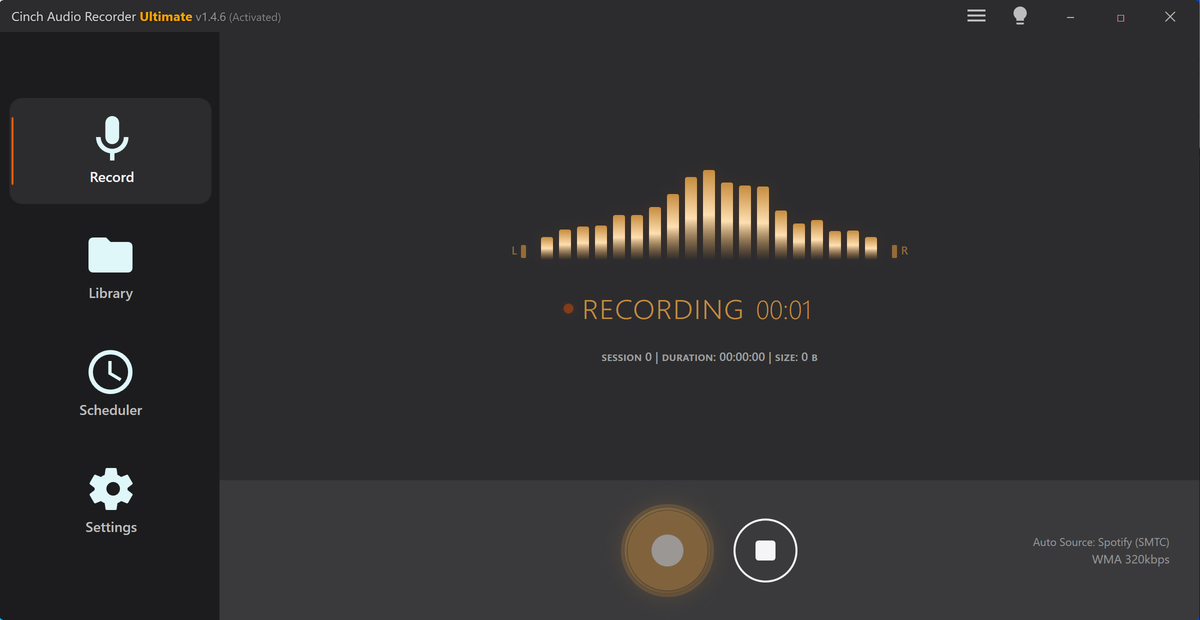
Cinch Audio Recorder fits this system-audio workflow. It is not just a page that creates one download; it is meant to help capture playback, review the result, and organize finished audio.
Decision Table
| Question | Choose Browser Recorder If | Choose System Audio Recorder If |
|---|---|---|
| Where is the sound playing? | One browser tab or microphone | Browser, desktop app, radio player, or mixed desktop playback |
| How long is the session? | Seconds or a few minutes | Long radio, classes, webinars, or playlists |
| What happens if it fails? | You can retry immediately | A failed session would waste meaningful time |
| Do you need metadata? | No, a downloaded file is enough | Yes, title, artist, artwork, lyrics, or filenames matter |
| Do you need support? | You can self-test quickly | You want a repeatable product workflow and help path |
| Are notifications a risk? | You can close tabs and apps easily | You need a quieter, planned recording environment |
This is the practical difference: browser recording is a convenient capture tool; system audio recording is a workflow.
Common Browser Recorder Failure Points
Browser recording usually fails for reasons you can see if you test carefully:
- The share picker captured video but not audio.
- The wrong tab, screen, or source was selected.
- The tab was muted.
- The source was playing through another device.
- A desktop app was selected as a window but did not share sound.
- The browser did not support the requested output format.
- The recording was long enough for sleep, buffering, or tab changes to matter.
If a browser recording is silent, do not immediately change every setting. Repeat the test with one known source, one output device, and a short recording. The browser recording no audio guide gives the symptom-specific checklist.
Common System Audio Recorder Failure Points
System audio recording has its own setup risks:
- The recorder listens to a different output device than the one playing sound.
- Bluetooth, HDMI, USB, or docked audio changes during the session.
- The source app pauses, buffers, or switches output.
- Notifications and alert sounds enter the same playback route.
- The user records a long session without checking storage, format, or power settings first.
The fix is still a short preflight. Record 30 to 60 seconds from the same source, play the saved file, then start the full session only after the test is clean.
Which One Is Better for Streaming Audio?
For a quick browser clip, a browser recorder can be enough. For repeated streaming audio, online radio, playlists, and music sessions, system audio recording is usually the more practical path.
The reason is not just capture. It is everything after capture:
- Did the file save in the expected folder?
- Is it one long file or useful tracks?
- Does it have a meaningful name?
- Is the format practical for storage?
- Does the player show the right title, artist, and artwork?
- Can you troubleshoot the same setup next time?
If those questions matter, use the desktop path. Start with the Download Center and make one short familiar-source test.
Recommended Workflow
Use both tools where they fit:
- Use a browser recorder for a short microphone or tab-audio test.
- Preview the saved file immediately.
- If the source is long, repeated, or app-based, switch to a system audio recorder.
- Record a 30- to 60-second system-audio sample.
- Check silence, volume, notification sounds, filename, and format.
- Record the full session only after the test is clean.
- Use metadata, naming, trimming, and quality tools after the audio itself is correct.
For a broader product-level comparison, read Online Audio Recorder vs Desktop Recorder. For source-specific browser setup, use Record browser audio cleanly.
Related Guides and Tools
- Online Audio Recorder
- Online audio recorder vs desktop recorder
- Record browser audio cleanly
- Browser recording has no audio
- Record internal audio without Stereo Mix
- Best settings for long audio recording
Frequently Asked Questions
Is a browser recorder the same as a system audio recorder?
No. A browser recorder depends on browser capture permissions and share-audio choices. A system audio recorder captures the computer playback route and is usually better for desktop apps, repeated sessions, and post-recording organization.
When should I use a browser recorder?
Use a browser recorder for short microphone notes, quick tab-audio tests, and simple one-off captures you can immediately preview.
When should I use a system audio recorder?
Use a system audio recorder when the source is a desktop app, a long stream, repeated music recording, or any workflow that needs filenames, metadata, artwork, and troubleshooting support.