
No Sound Recorded? Fix Silent Audio Files Step by Step
 By HenrikUpdated Aug 7, 20269 min read
Fix silent recordings by checking the playback device, recorder source, browser output, Bluetooth switching, protected playback, and test files.
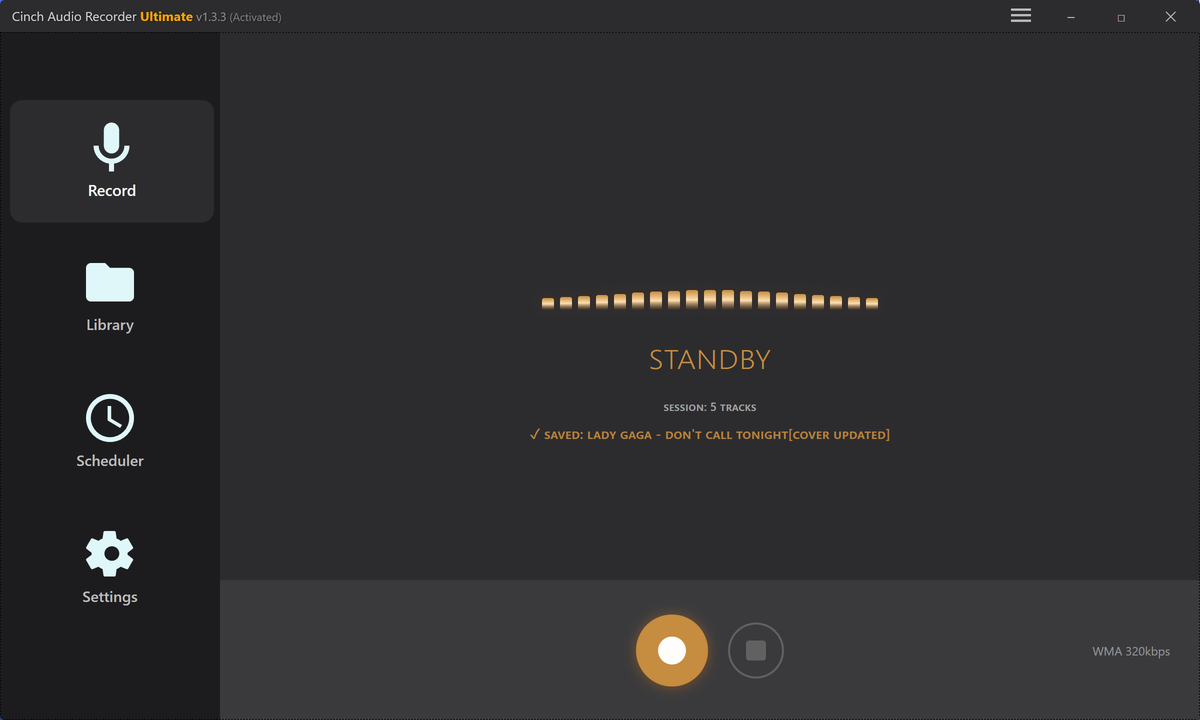
A silent recording usually means the recorder did not hear the same output you were hearing. It does not automatically mean the app is broken, the driver is missing, or the source is impossible to record.
Start with one rule: change one thing, record ten seconds, and play the file back. Do not change five settings at once.
First Decide What Kind of Silence You Have
Silent recordings are not all the same. Before reinstalling anything, put the file into one of these buckets.
| What you hear in the saved file | Most likely area to check first | What to do next |
|---|---|---|
| Completely silent from start to finish | Recorder listened to the wrong output or the source was muted | Check playback device, recorder source, and a ten-second test from another source. |
| Silent only at the beginning | Recording started before sound played or the source faded in late | Trim a copy only after confirming the rest of the file contains audio. |
| Audio appears, then disappears | Bluetooth, HDMI, dock, or browser output changed during recording | Keep one output device connected and repeat a short test. |
| Only one website or app records silence | Source-specific playback route or browser behavior | Try a simple local file or ordinary browser source to separate recorder failure from source behavior. |
| Waveform shows sound but speakers play nothing | Playback device, player volume, or unsupported format may be the issue | Test the file in another player and inspect format details before recording again. |
This table prevents a common mistake: treating every silent file as the same failure. A wrong output route, muted tab, unsupported playback copy, and source-specific browser issue need different next steps.
The Short Answer
Use this order:
- Confirm the audio is playing through the speakers or headphones you intend to capture.
- Check the recorder’s selected device or Auto setting.
- Avoid switching Bluetooth, HDMI, speakers, or headphones mid-test.
- Record a ten-second sample.
- If that file is silent, test a different ordinary source.
- If only one source stays silent, treat it as a source or browser-path issue rather than a whole-recorder failure.
The Ten-Second Test Protocol
Use the same small test each time so the result tells you something useful.
- Close extra tabs, chat apps, notifications, and other players.
- Pick one output device: speakers, wired headphones, Bluetooth, HDMI, or monitor audio.
- Play a simple source you can hear clearly.
- Start the recorder after sound is already playing.
- Record ten seconds.
- Stop, save, and play the file immediately.
- Change only one setting before the next test.
Write down the result in this format:
Source:
Output device:
Recorder source:
Result: silent / quiet / distorted / correct
Changed since last test:
This is faster than guessing because each test isolates one variable. If the first test is silent and the second works after changing only the output device, you have found a route problem, not a format problem.
Real-World Patterns Behind Silent Files
Most silent recordings fall into a few patterns. Recognizing the pattern keeps you from repeating the same failed full-length recording.
| Pattern | What usually happened | Best next action |
|---|---|---|
| Silent file after switching headphones | The output moved to a new endpoint while the recorder stayed on the old one | Reopen the recorder after choosing one output device |
| Silent browser recording but local file works | Browser tab, site player, or browser output is the variable | Test the browser route separately before changing drivers |
| Microphone records but computer sound does not | The recorder is listening to mic input, not playback output | Select a system-audio or playback route and repeat Test A |
| Long recording is silent from the start | The route was wrong before the session began | Run the ten-second test before every important long take |
| File looks normal but plays silence in one player | Playback app, codec, or output device may be the issue | Open the same file in another player and inspect metadata |
This is also the information support needs. A short route note is more useful than “it recorded nothing” because it shows where the silence entered the workflow.
Step 1: Confirm Where the Sound Is Playing
Play the source and check your system output. Is it going to laptop speakers, wired headphones, Bluetooth headphones, HDMI, a monitor, or a virtual device?
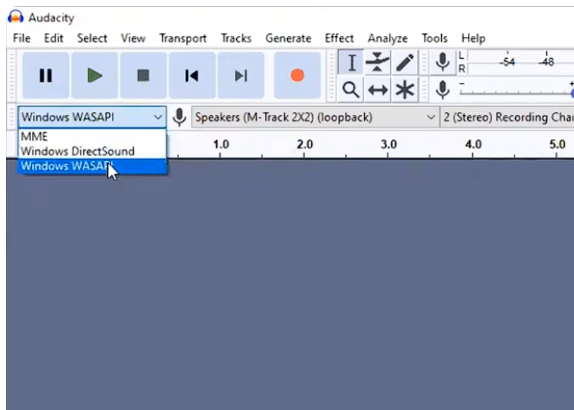
That output path matters because system-audio recording follows a playback route. If the source is playing through Bluetooth headphones while the recorder listens to speakers, the saved file can be silent.
Step 2: Check the Recorder Source
In Cinch, check the Recording Device setting and run another short test. If Auto does not capture the intended source, select the device that matches where the sound is playing.
If you use Audacity or another loopback recorder, select the loopback input that matches the active playback device.
If you use a virtual cable, confirm both sides:
- The source app sends audio into the virtual device.
- The recorder listens to that virtual device.
- Monitoring sends sound back to your real headphones or speakers.
Step 3: Stop Device Switching
Silent recordings often appear after a device changes without warning.
Common triggers:
- Bluetooth headphones reconnect.
- A laptop dock is plugged in.
- HDMI audio becomes the default output.
- A browser uses a different output than the system default.
- A virtual cable becomes the default playback device.
Pick one output device, reconnect it if needed, reopen the recorder, and test again.
Step 4: Test a Different Source
If one source records silence, try another ordinary source you are allowed to play, such as a local audio file or a simple browser video.
If the second source records correctly, your recorder and device route are probably working. The original source may use a different browser path, app output setting, protected playback behavior, or muted tab.
Step 5: Check Browser Audio Separately
Browser audio adds more variables: tabs, site permissions, browser output settings, hardware acceleration, and protected playback. If the silent source is in Chrome, Edge, or Firefox, use the browser audio recording guide after this basic routing check.
Do Not Fix the File Before You Know the Cause
Some edits make a silent-recording case harder to diagnose.
| Tempting action | Why it can make things worse | Safer action |
|---|---|---|
| Convert the silent file to MP3 | Conversion cannot restore audio that was never captured | Inspect the original and repeat a short capture test. |
| Normalize or boost the file | Boosting silence only creates louder noise floor | Check whether the waveform contains real audio first. |
| Reinstall drivers immediately | It changes many variables before you know the failure path | Confirm output device, recorder source, and browser source first. |
| Record a full playlist again | You may repeat the same silent setup for an hour | Run a ten-second test before the real session. |
| Send support a long private recording | Support still may not know where the silence starts | Send source, device, timestamp, and one short test result. |
If the saved file is silent, the first goal is not to repair that file. The first goal is to find whether the sound was routed, muted, blocked, or recorded incorrectly.
How to Confirm It Is Fixed
You are done when:
- The ten-second test file plays back with the intended sound.
- The file is not silent at the beginning, middle, or end.
- The recorder captures the same device you are listening to.
- You can repeat the test without changing settings.
Only then start the full song, video, radio show, webinar, or playlist.
What to Send Support If It Still Records Silence
Support can help faster when the message contains the same facts you just tested.
Send:
- Operating system and Cinch version.
- Source app or website.
- Output device used during the ten-second test.
- Recorder source or Auto setting used during the test.
- Whether another ordinary source recorded correctly.
- Whether Bluetooth, HDMI, dock, or browser output changed during the test.
- The newest log file if support asks for it.
Do not send private full-length audio unless support specifically needs it. A short test result plus the route details usually answers the first support questions.
When a Desktop Recorder Is the Better Path
Browser tools are useful for checking files, trimming examples, and testing simple capture paths. A desktop recorder is usually better when you need repeated long recordings, stable system-audio capture, automatic file naming, or a library of saved sessions.
If the browser path keeps producing silent files after short tests, compare the broader browser recording no audio checklist with the desktop workflow in Cinch Audio Recorder. The right tool is the one that can capture the same output you are actually hearing.
Related Troubleshooting Guides
- Cannot detect system audio
- Browser recording has no audio
- First recording troubleshooting
- Record internal audio without Stereo Mix
- Check recording quality before trusting a file
- Contact support
Frequently Asked Questions
Why did my recording save with no sound?
The most common cause is a device mismatch: the audio played through one output while the recorder listened to another.
Should I reinstall audio drivers first?
No. First confirm the active playback device, recorder input, browser output, and a short test recording. Driver changes should come later, only when the simple route is confirmed.
Can Bluetooth headphones cause silent recordings?
Yes. Bluetooth reconnects or output switches can leave the recorder listening to the wrong endpoint. Keep one output connected for the whole test.
What should I send support for a silent recording?
Send your operating system, Cinch version, playback source, selected recording device, what the ten-second test produced, and the newest log file.