
How to Record Browser Audio Without Wrong Sound
 By HenrikUpdated Jul 29, 20267 min read
Record clean browser audio from Chrome, Edge, or Firefox with fewer silent files, notification sounds, and device-routing surprises.
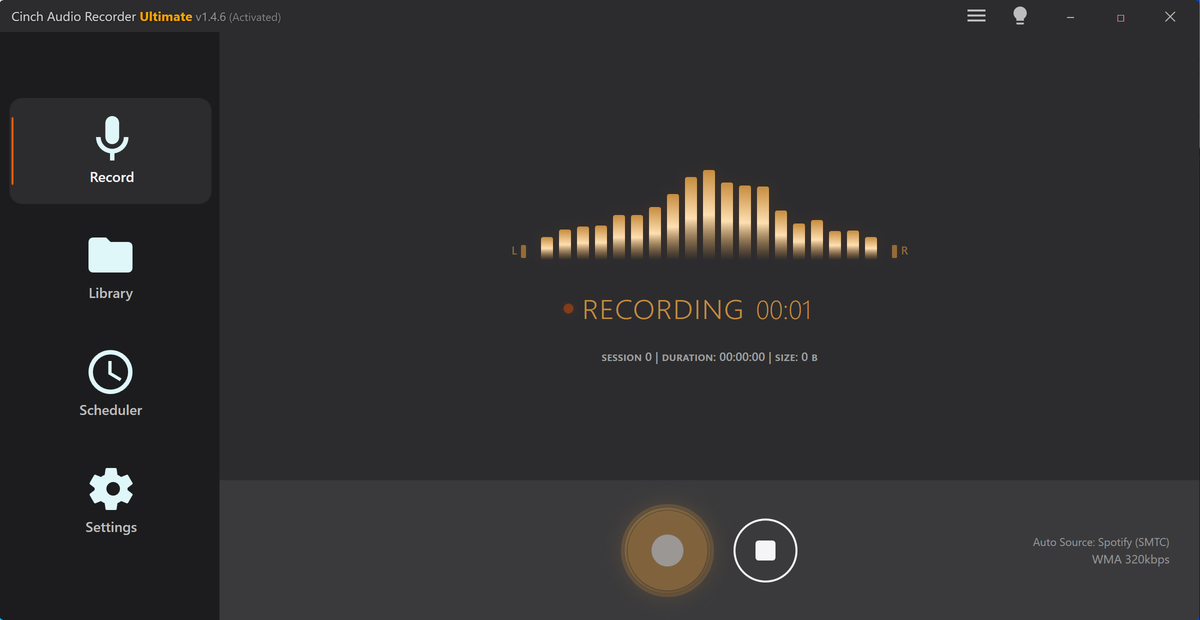
Browser audio feels simple until the recording comes back silent, includes a notification, or captures the wrong tab. The safest workflow is not “press record and hope.” It is to control the browser, confirm the playback device, record a short sample, and only then run the real session.
This guide is for audio already playing in Chrome, Edge, Firefox, or another desktop browser. It can be a web player, online radio page, course video, webinar, podcast, or music site. Always respect copyright and platform rules; use recording workflows only for audio you are allowed to capture.
The Short Answer
Use this order:
- Close noisy tabs and turn on Do Not Disturb.
- Confirm the browser is playing through the same speakers, headphones, or virtual device your recorder will capture.
- Record 10 seconds and play the file back.
- If the file is clean, record the full browser session.
- Check the saved file, filename, tags, and format before closing the source.
If you only need a short one-off clip, a simple browser or loopback recorder may be enough. If you need repeated recordings, music identification, cover art, lyrics, export formats, and library cleanup, use a dedicated desktop recorder such as Cinch Audio Recorder.
If you are deciding between a browser tab recorder and system audio recording, use the browser recorder vs system audio recorder comparison first.
Before You Record Browser Audio
Browser recording fails for practical reasons more often than mysterious technical ones. Start with the basics.
| Check | Why It Matters | What To Do |
|---|---|---|
| Active output device | The recorder may listen to speakers while the browser plays through headphones | Keep one output device connected and selected |
| Notifications | Browser/system alerts can become part of the recording | Turn on Do Not Disturb and close noisy apps |
| Other tabs | Autoplay tabs can mix into the same capture path | Mute or close unrelated tabs |
| Protected playback | Some sources may produce silence or unreliable capture | Test with a short allowed source first |
| Long sessions | Network buffering and tab changes can split or interrupt audio | Keep the tab focused enough to monitor playback |
Do not skip the test recording. A 10-second test catches most problems: silence, wrong source, Bluetooth switching, low volume, or notification bleed.
If notification bleed is the main problem, use the recording catches notification sounds guide before the next browser session. It focuses on alerts, autoplay tabs, chat apps, and device sounds that get mixed into system audio.
Method 1: Record Browser Audio With Cinch
Cinch Audio Recorder is useful when browser audio is part of a larger music or library workflow. It records desktop playback and then helps turn the result into usable files, not just raw audio.
Use it this way:
- Open Cinch Audio Recorder.
- Open the browser tab you want to record.
- Keep the browser playing through your normal speakers or headphones.
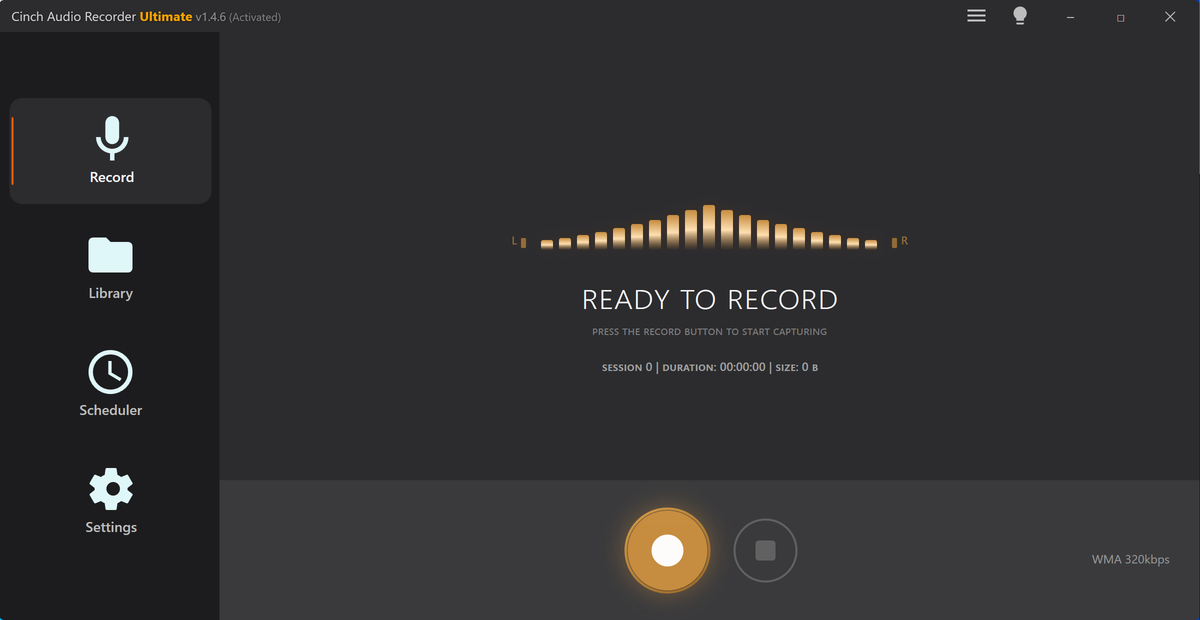
- In Cinch, go to the Record tab.
- Click Recording.
- Play the browser audio.
- Stop after 10 seconds and check the Library.
- If the sample is clean, start the real recording.
After recording, check these items before you close the tab:
- The saved file plays from start to finish.
- It contains the browser audio you intended to capture.
- It does not include unrelated tab audio or notifications.
- The export format matches your use case.
- Music recordings have title, artist, artwork, lyrics, or a useful filename where available.
This matters because browser audio is often mixed with everything else on the same output path. Cinch can reduce the cleanup burden for music and repeated sessions, but it cannot fix a notification that was already recorded into the source path. Prevent the noise first.
Method 2: Use a Simple Loopback Recorder
A free loopback recorder can be enough for a short browser clip. The workflow is similar:
- Choose the system playback or loopback input.
- Start recording.
- Play the browser audio.
- Stop and export.
- Listen to the exported file.
This is the low-cost route, but it usually leaves more manual work. You may need to trim silence, name the file, choose the format, and add metadata yourself.
Use this route when:
- You only need one short clip.
- You do not need automatic song tags or cover art.
- You are comfortable choosing input/output devices.
- You can tolerate manual export and cleanup.
Use a desktop recorder when:
- The browser source is a playlist, radio show, or long session.
- You need a library of saved files, not one raw waveform.
- You want format choices such as MP3, M4A, WAV, or FLAC.
- You want metadata, cover art, lyrics, or filename patterns where available.
Fixes for Silent Browser Audio
If the file is silent, work through the checks in order.
Check the output device
Play the browser audio and look at your system sound output. If the browser is playing through Bluetooth headphones but the recorder is listening to speakers, the file may be empty.
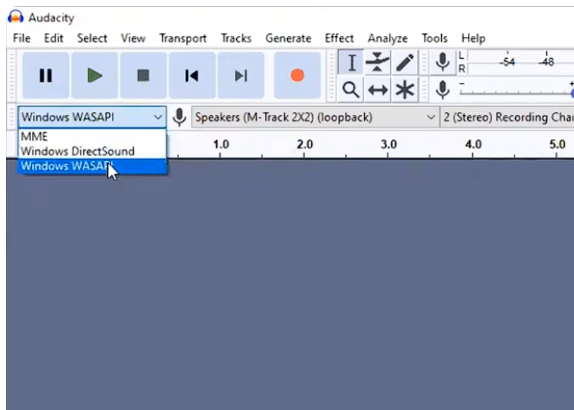
Fix it by choosing one device, restarting the short test, and avoiding device switches while recording.
Close and reopen the browser tab
Some browser sessions change behavior after a device switch, sleep/wake cycle, or tab restore. Close the tab, reopen the source, and test again.
Try another browser for allowed sources
If one browser path records silence, try another browser with the same allowed source. This helps separate a browser behavior problem from a recorder setup problem.
Avoid protected or restricted playback
Do not assume every browser source is recordable. Some protected playback can produce silence or unstable capture. If a source refuses to record cleanly, use another permitted source or stop the workflow.
Best Settings for Browser Audio
Choose settings based on what you are saving.
| Browser Audio Type | Suggested Format | Notes |
|---|---|---|
| Music or playlist | MP3 or M4A for everyday listening; FLAC/WAV for editing | Check tags and artwork after recording |
| Online radio | MP3 for compact files; WAV/FLAC for archives | Watch for long-session interruptions |
| Webinar or course | MP3 or M4A | Prioritize clear speech and manageable file size |
| Podcast clip | MP3 | Trim silence and use a descriptive filename |
Do not chase giant export settings if the browser source is already compressed. A clean capture path and useful filename matter more than a bigger bitrate number.
Related Solution Guides
- Record streaming audio without quality loss
- Browser recorder vs system audio recorder
- Record YouTube audio without background noise
- Record online radio and long streams
- Stop notification sounds in recordings
- Record internal audio without Stereo Mix
- Fix first recording problems
- Download Cinch Audio Recorder
Frequently Asked Questions
Can I record audio from a browser tab?
Yes, if the browser audio is playing through a device your recorder can capture. Start with a short test because some protected or unusual browser playback paths may record silence.
Why is my browser audio recording silent?
The most common cause is that the browser is playing through a different output device than the recorder is listening to. Bluetooth, HDMI, virtual devices, and changed default speakers are common triggers.
How do I avoid recording notification sounds?
Turn on Do Not Disturb, close noisy apps, mute unrelated browser tabs, and record a short test before a long browser session.
Is an online browser recorder enough?
An online recorder can work for short, simple browser audio. Use a desktop recorder when you need longer sessions, song identification, format control, library cleanup, or more reliable device handling.