


Record the audio you can actually hear
Converters only handle links they recognize. Cinch captures desktop playback from apps, web players, radio sites, and browser audio, even when there is no direct URL to paste.
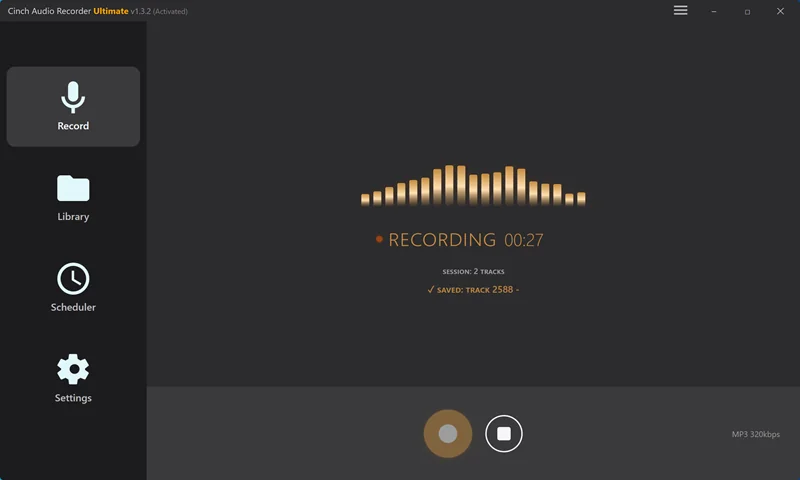
Click Record, play your music, and let Cinch save finished audio files with song names, ID3 tags, cover art, lyrics, and MP3 output by default.
Converters only handle links they recognize. Cinch captures desktop playback from apps, web players, radio sites, and browser audio, even when there is no direct URL to paste.

Cinch records the audio already playing on your computer. You do not enter streaming passwords inside the recorder, and you keep your normal listening workflow separate from capture.

Free editors often leave you with a raw waveform. Cinch can split songs, write tags, fetch artwork and lyrics when available, and filter short ad fragments before files reach your library.
Streaming services, browsers, and local media players. If it plays audio on your computer, Cinch can capture it 鈥?no plugin or virtual cable needed.
 Spotify
  Apple Music
  Amazon Music
  YouTube Music
  TIDAL
TIDAL  Deezer
  SoundCloud
  Chrome
  Edge
Edge  Firefox
  VLC
VLC  MusicBee
  AIMP
AIMP  Winamp
  MediaMonkey
 鈥nd any other app, web player, or system sound on Windows and Mac. No URL to paste, no account to connect 鈥?URL converters and account-based rippers simply cannot reach this many sources.
Cinch is designed for the common case first: record now, let the app process the music, then collect the finished files.
Open Cinch and press Record. For most users, the default MP3 output is already enough.
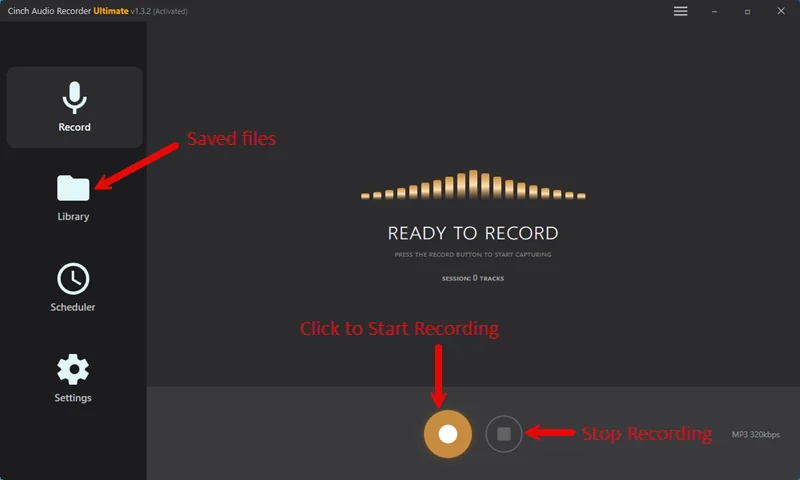
Open Spotify, Apple Music, YouTube Music, a browser player, online radio, or any app that plays audio on your computer.
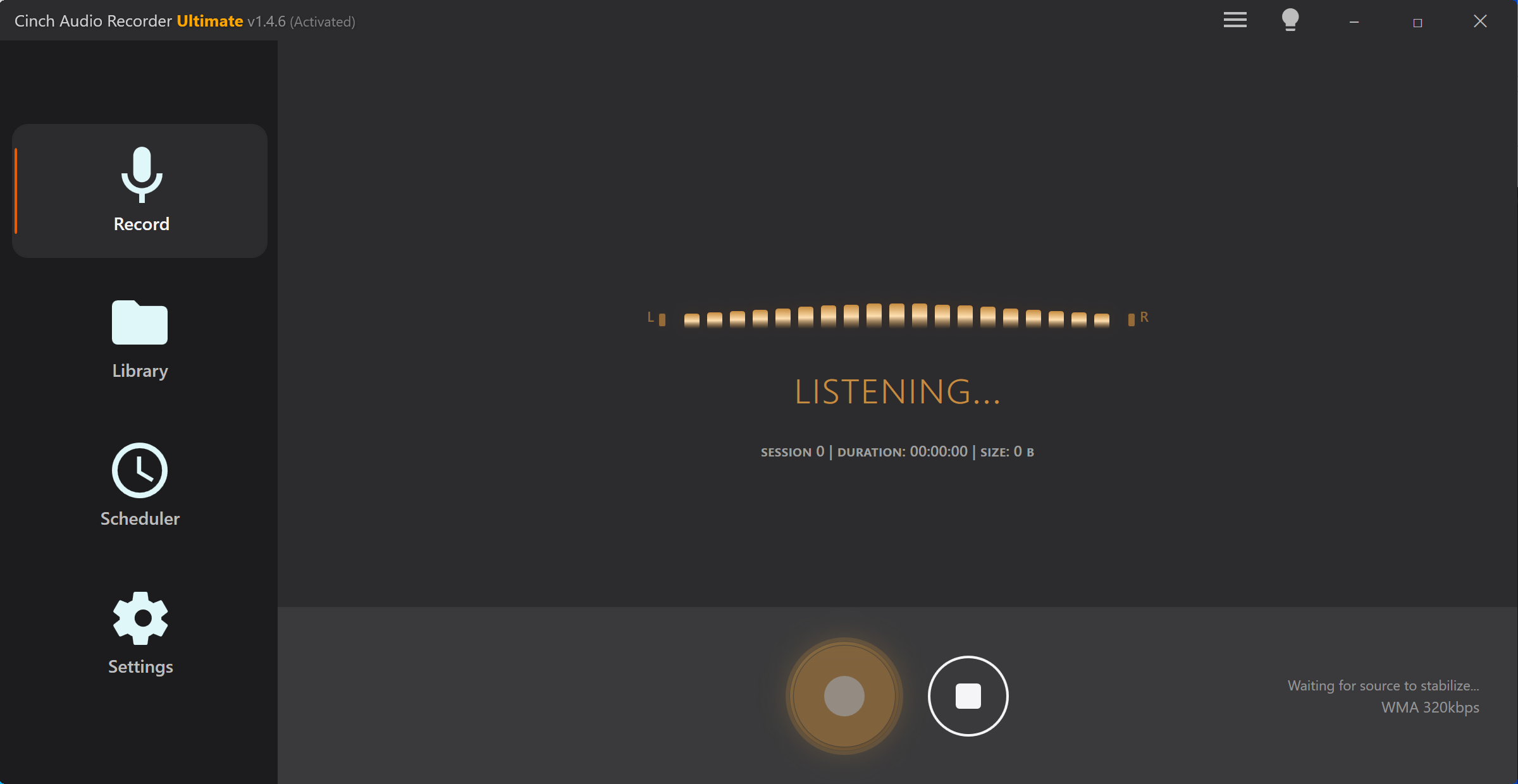
Cinch records from the sound card, splits tracks, detects song information when available, adds ID3 tags, cover art, and lyrics.
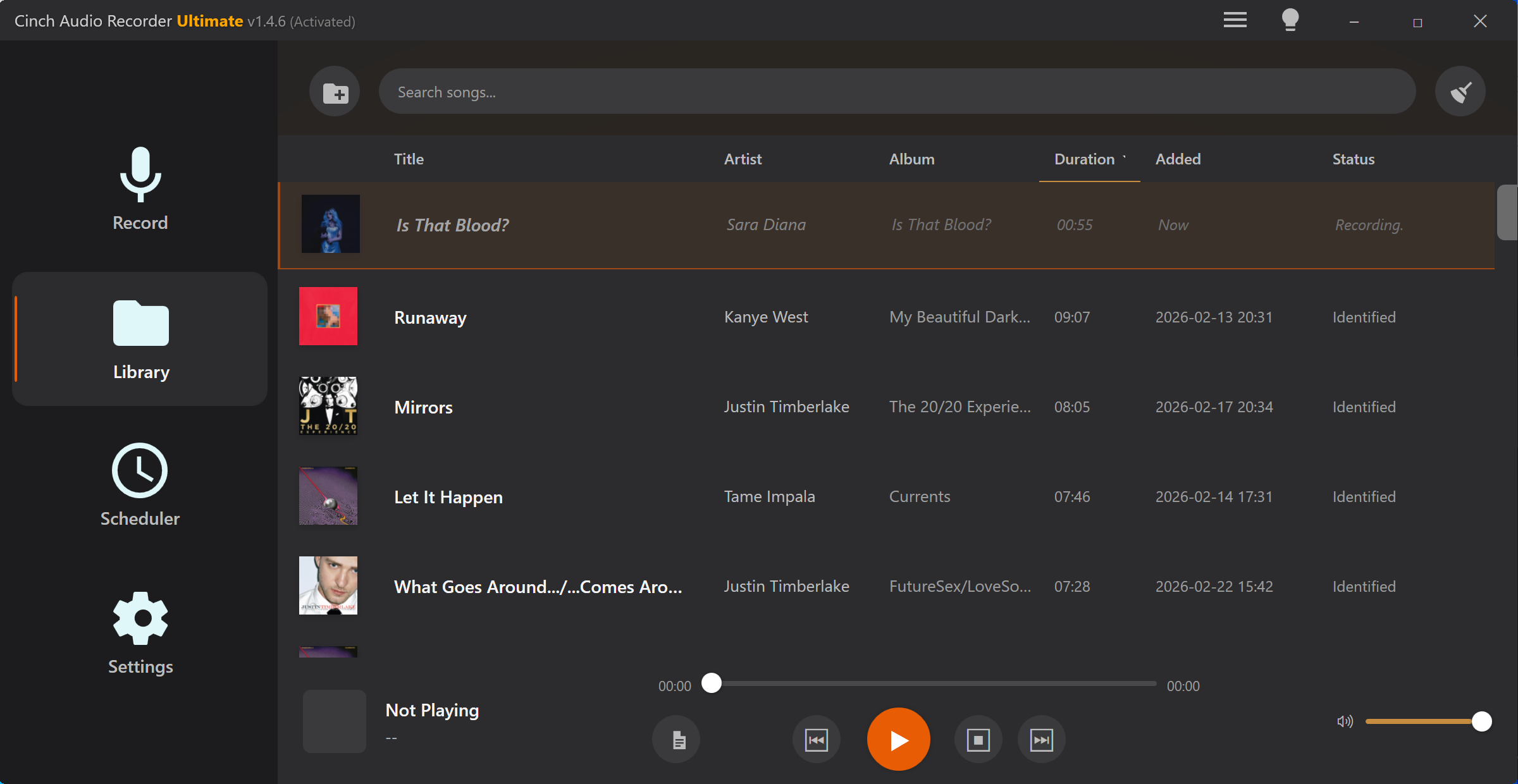
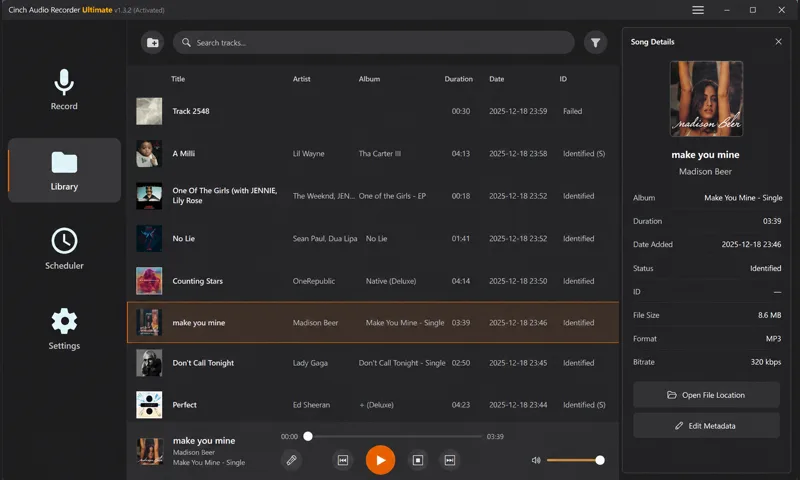
Open the Library or your output folder. Your recorded songs are saved as local audio files, ready to play, copy, edit, or back up.
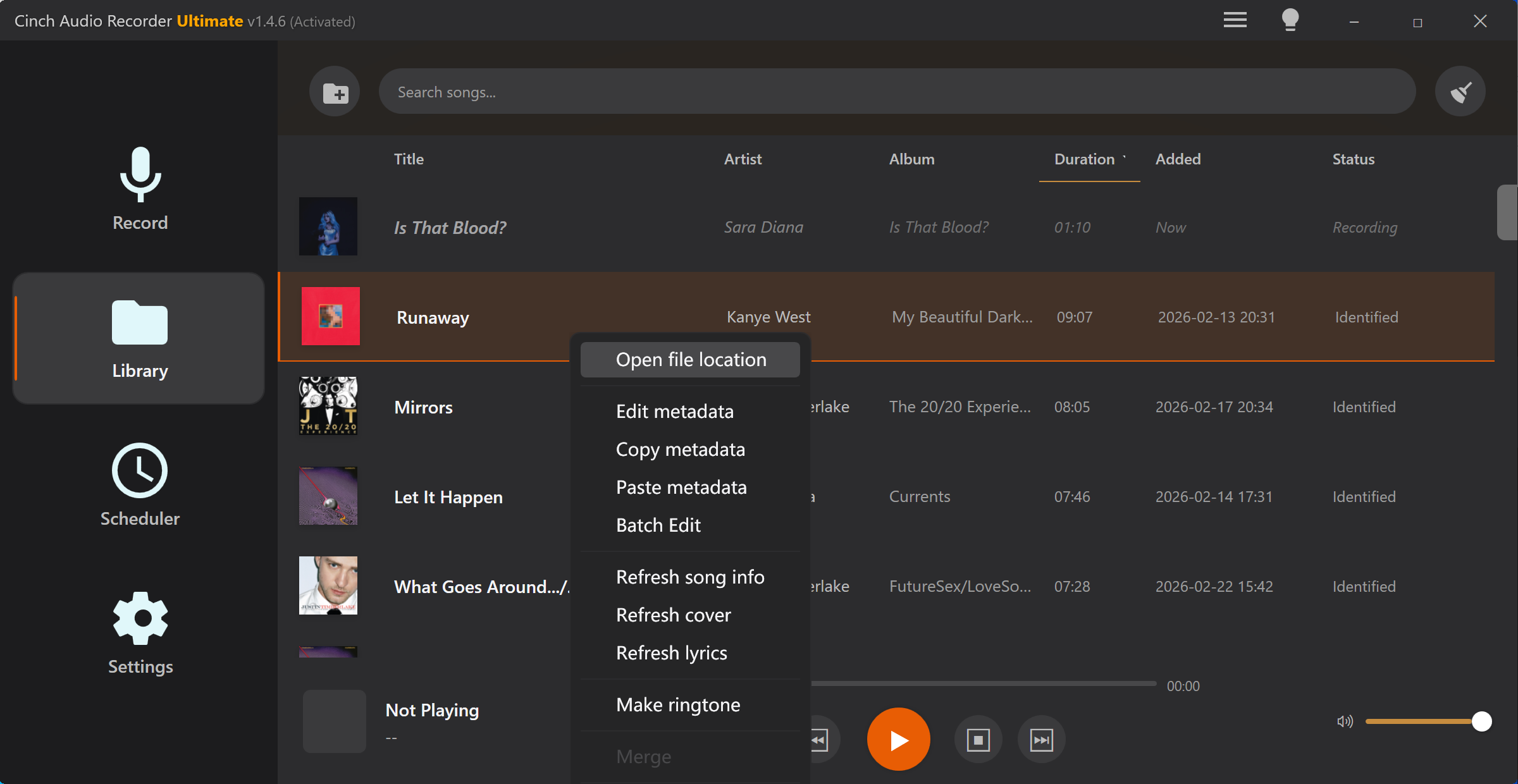
Cinch focuses on the work users usually do by hand after recording: song names, ID3 tags, artwork, lyrics, clean files, and easy access to the output folder. This is the work free editors like Audacity leave entirely to you 鈥?Cinch does it automatically.
Click Record, then play music normally. Cinch listens to the system playback stream instead of using the microphone.
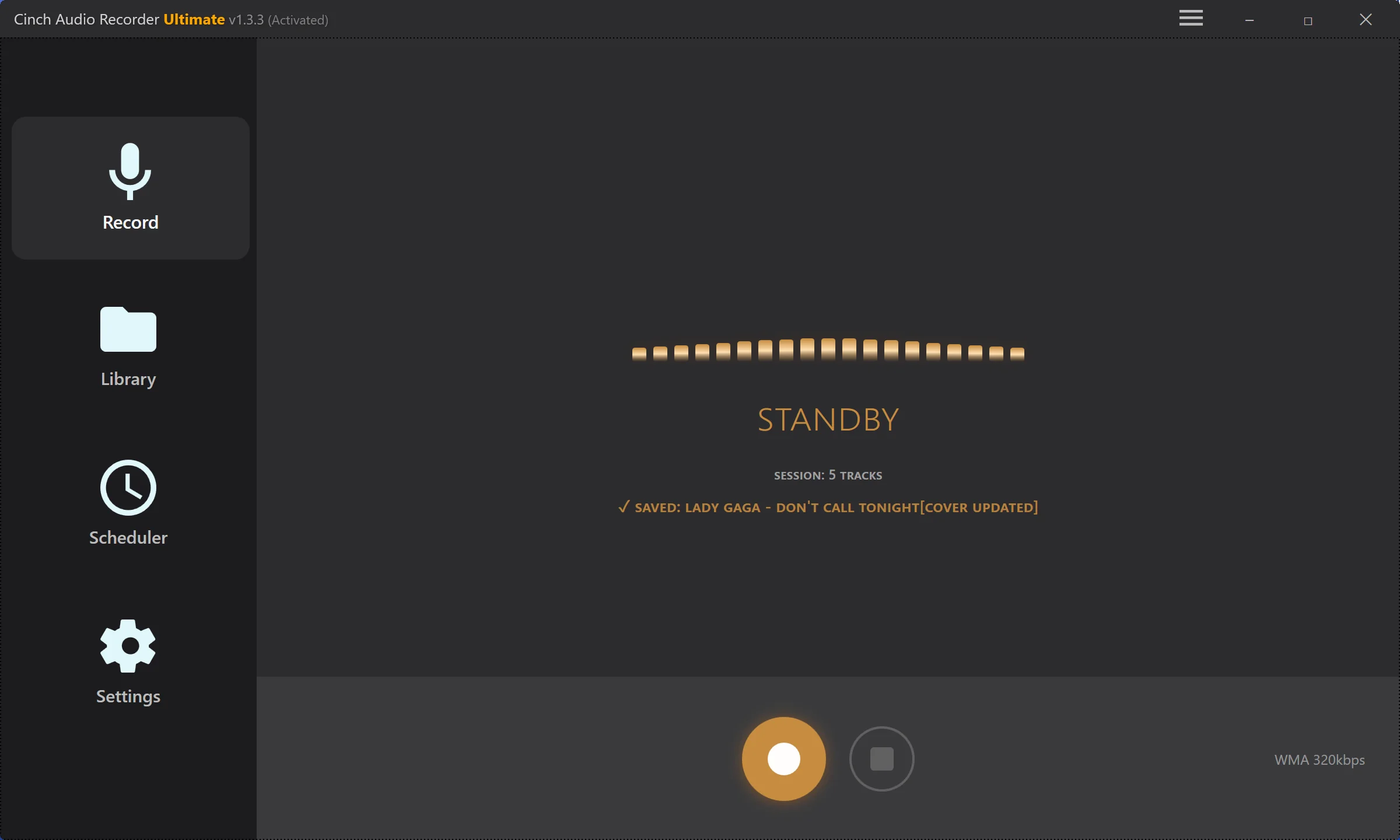
Because Cinch records from the sound card path, you can mute speaker output while the player keeps running.
Cinch turns a raw recording into a music file that is easier to browse in your Library and other players.
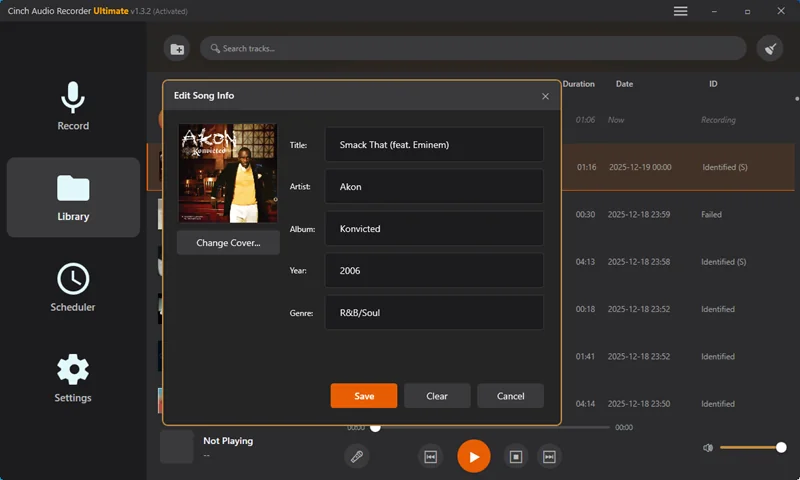
If a song name, artist, album, year, genre, track number, or cover needs cleanup, edit it inside Cinch.
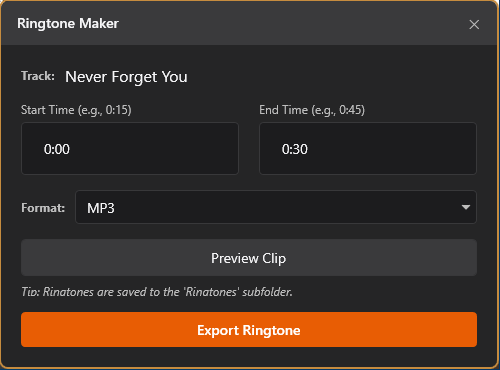
Trim a saved song into a short clip, preview it, then export a phone-ready ringtone without leaving Cinch.
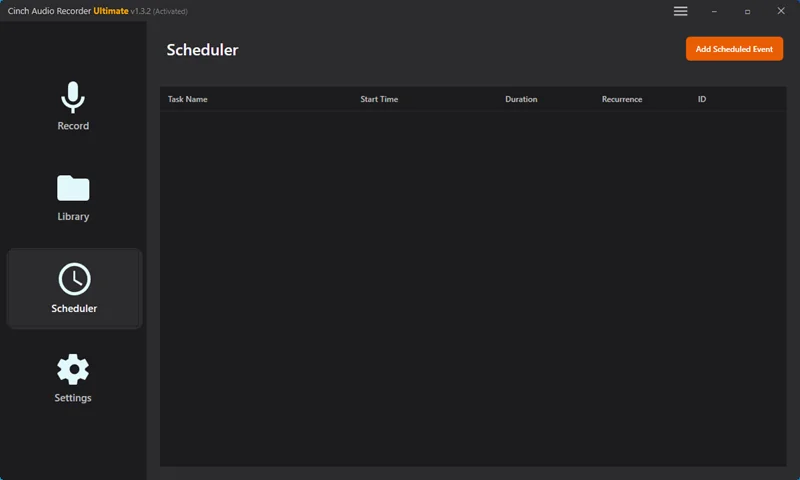
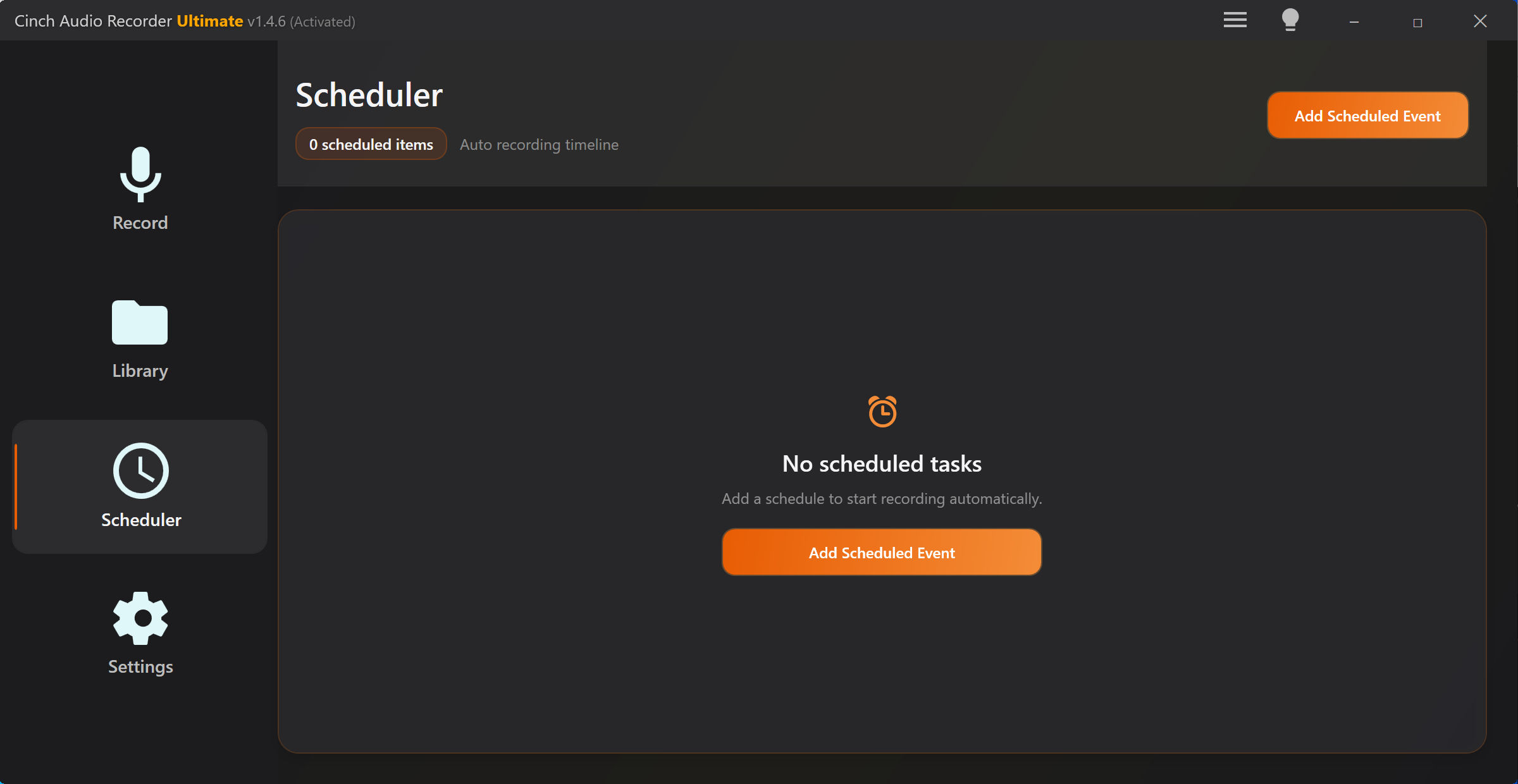
Schedule Cinch to capture live radio, streams, or shows at a set time and duration, even when you are away from the keyboard.
Cinch captures the audio stream your computer is playing. That is why it can record cleanly without microphone noise and still record while your speakers are muted, as long as the player keeps playing. Because Cinch listens to system playback instead of logging into a service, there is no account to compromise and no URL the source has to expose 鈥?which is exactly what URL converters and account-based rippers cannot do.
Record music apps, web players, radio, podcasts, lessons, and other desktop audio without placing a microphone near the speakers.
When track information is available, Cinch can use it for song names and splitting. For continuous audio, it can still save the captured stream for review.
People usually arrive here because they want more control than an app-only download button: ordinary audio files, editable names, visible cover art, lyrics, and a local folder they can back up or move between devices.
For users who want local files they can name, back up, inspect, and organize outside a streaming app, Cinch focuses on recording the playback stream and finishing the result with tags, cover art, lyrics, and file naming.
Cinch can listen to Chrome, Edge, Firefox, YouTube Music, and other browser-style sources. Try SMTC first for track-based players, then switch to Traditional mode when the stream behaves more like a continuous show.
For live radio, talk shows, ambient streams, or niche stations, use Traditional mode, a longer silence duration, and Library review. The goal is to keep useful segments and remove dead air or short fragments afterward.
When a user needs a local clip, research reference, or a cleaned personal archive from a podcast app or web player, Cinch can capture the playback and then use metadata editing, merge, and file naming to keep the result tidy.
For online lessons, training sessions, product demos, or conference replays, the practical need is stability: choose the correct playback device, prevent sleep if needed, record the full session, then export to a compatible format.
Real recordings are rarely perfect on the first pass. Use the Library when metadata is missing, a cover is wrong, lyrics are absent, or a buffered stream split one track into fragments.
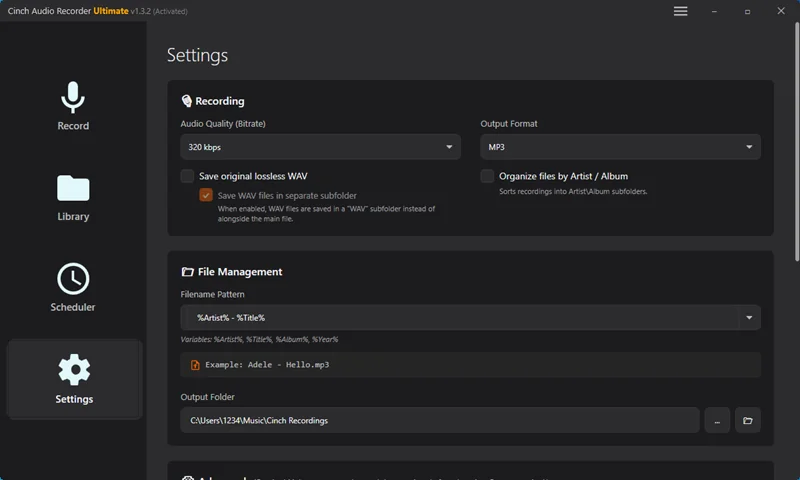
MP3 is the default for everyday listening. Advanced users can switch formats when they need smaller files, lossless archives, or ringtone clips.
MP3, M4A, AAC, WMA, OGG, OPUS, AC3, M4B, MP2
Bitrate controls appear for supported lossy formats. Defaults include 320 kbps for MP3/WMA/OGG, 256 kbps for AAC/M4A/M4B, and 160 kbps for OPUS.
WAV, FLAC, ALAC, AIFF, AU, MKA
Lossless formats preserve source sample-rate mode. FLAC and MKA expose compression-level choices.
Save Lossless WAV
Keep a converted listening file and a WAV copy. WAV copies can stay beside the main file or be organized into a WAV subfolder.
MP3, M4A, AAC, OGG, WMA, OPUS
Optional loudness normalization targets -16 LUFS and True Peak -1.0 dB for supported formats.
MP3, M4R, AAC, M4A, WMA, OGG, OPUS, WAV, FLAC
Create a shorter ringtone-style export from an existing Library track.
Everything Cinch Audio Recorder needs to run on your computer, every audio source it can capture, every output format it can save, and the official download links.
Cinch records from the system playback stream, so anything that produces sound on your computer can be captured. No URL to paste, no driver or virtual cable to install.
MP3 is the default. Switch to lossless, ringtone, or audiobook container when you need a different output.
Lossy, everyday playback
320 kbps default, 8鈥?20 kbps bitrate control
Lossy, Apple devices
256 kbps default, 64鈥?20 kbps bitrate control
Lossy, broad compatibility
256 kbps default, 64鈥?20 kbps bitrate control
Lossy, Windows ecosystem
320 kbps default, 32鈥?20 kbps bitrate control
Lossy, open container
320 kbps default, 64鈥?20 kbps bitrate control
Lossy, streaming-friendly
160 kbps default, 32鈥?56 kbps bitrate control
Lossy, surround audio
640 kbps default, 256鈥?40 kbps bitrate control
Lossy, audiobook / chapter
256 kbps default, supports chapter markers
Lossy, legacy compatibility
256 kbps default, 128鈥?84 kbps bitrate control
Lossless, uncompressed
Preserves source sample rate; up to 32-bit float
Lossless, compressed
Compression levels 0鈥?, preserves source sample rate
Lossless, Apple devices
Preserves source sample rate
Lossless, uncompressed
Preserves source sample rate
Lossless, legacy Unix audio
Preserves source sample rate
Lossless container, multi-track
Compression levels 0鈥?, multi-track capable
iPhone ringtone format
Generated from ringtone workflow, AAC inside M4A container
Direct links to the current installer, user guide, purchase page, and download center with changelogs and older builds.

Open a saved track and edit title, artist, album, year, genre, track number, disc number, and cover art.

Select multiple songs to fix repeated artist, album, genre, year, or cover issues without leaving the Library.

Trim a recorded song into a short clip, preview it, then save it into the Ringtones folder.

Add a task with start time and duration for radio shows, live streams, podcasts, or lessons.

Find recordings from the Library or open the output folder directly when you want to copy files elsewhere.

MP3 is the default. Advanced users can choose M4A, AAC, FLAC, WAV, ALAC, OPUS, OGG, and more.
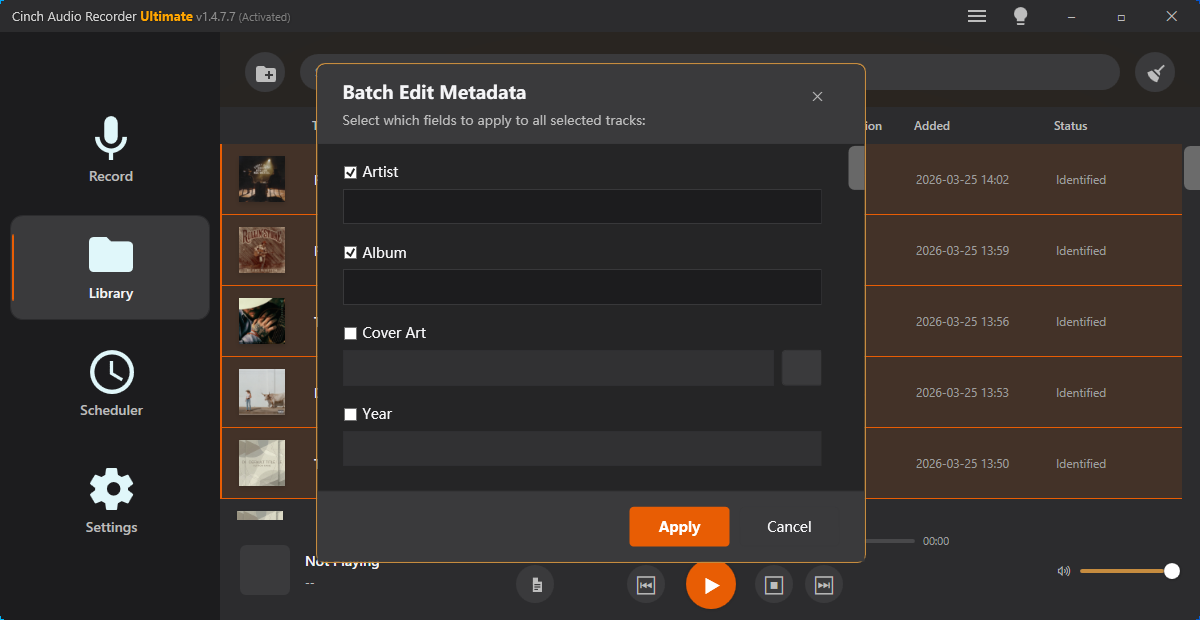
Every recording opens in the Library 鈥?the place where you review tracks, fix metadata, and export the result, without juggling a second tool.
Start with a recording guide when you are setting up, use support for an issue in the app, and use browser tools for a quick file task.
Need help with activation, device routing, logs, or recording quality? Visit Cinch Audio Recorder support.
Click Record, play one familiar track, then open the output folder and check the MP3 file, tags, cover art, and lyrics.


