
How to Set Up Long Recordings That Do Not Fail
 By HenrikUpdated Oct 13, 202613 min read
Prepare long audio recordings with the right source, format, sleep settings, storage check, notification control, and short test routine.
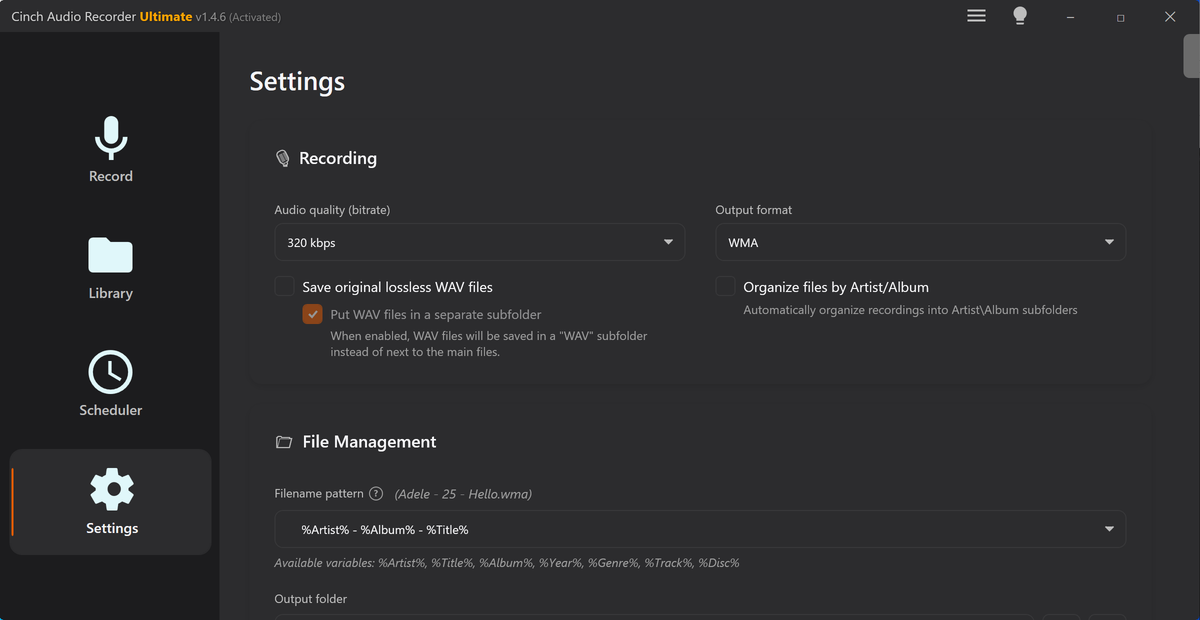
Long audio recording is less about one magic quality setting and more about reducing the ways a session can fail. A three-minute test can hide problems. A two-hour radio show, webinar, class, playlist, or live stream will expose them.
Before you record a long session, set up the source, output device, format, storage, power, and notification environment deliberately. Then make one short test with the exact same setup.
The Short Answer
Use this checklist before a long recording:
- Play the source you want to capture.
- Keep one stable speaker, headphone, or virtual output selected.
- Choose MP3 or M4A for ordinary long listening files.
- Use WAV or FLAC only when you need an editing or archive copy.
- Check that the output folder has enough space.
- Disable sleep, power saving, and notifications.
- Record 30 to 60 seconds.
- Play the test file back before starting the full session.
If the test file is silent, clipped, too quiet, or full of notification sounds, fix that before the long recording. Do not hope the full session will behave differently.
If previous sessions recorded for a while and then stopped early, open the recording stops unexpectedly checklist before starting another long capture. It separates sleep, power, storage, source playback, and device-switch issues.
Long Recording Setup Checklist
| Setting | Recommended Choice | Why It Matters |
|---|---|---|
| Source | Use the exact browser tab, app, or player you will record | Different sources can use different output routes |
| Output device | Keep one stable device connected | Bluetooth, HDMI, and docking changes can create silence |
| Recorder input | Capture the system playback route | The microphone is not the right source for streaming or radio playback |
| Format | MP3/M4A for listening; WAV/FLAC for editing | Long files make storage decisions more important |
| Storage | Confirm the output folder before recording | A full drive can ruin a long session |
| Power | Keep the computer awake | Sleep can stop the stream, recorder, or network connection |
| Notifications | Turn on Do Not Disturb | Alerts can be captured into quiet passages |
| Test file | Record 30 to 60 seconds first | It proves the real setup works |
Choose the Right Format Before You Start
For long sessions, file size matters. A short test can be WAV without much consequence. A multi-hour recording can become awkward quickly if every file is lossless.
Use this simple rule:
- MP3 or M4A for long radio, lectures, webinars, interviews, and everyday listening.
- WAV when you need a short diagnostic file or a temporary editing copy.
- FLAC when you want a lossless archive and have a reason to keep it.
If the session will be trimmed or normalized later, you can keep a working copy during editing and export a smaller final file after cleanup.
For a deeper format decision, use the best audio format for recording guide. If you know the format but still need a quality setting, the bitrate guide for recorded audio gives practical starting points for voice, music, and long sessions. To estimate storage before starting, use the Recording Time Calculator or Audio File Size Calculator.
Two Size Limits That End Long Recordings Early
A long session can fail for size reasons that have nothing to do with how full your drive is. There are two ceilings, and they come from different places.
The file format ceiling. A standard WAV file stores its own length in a 32-bit field, so it runs into trouble near 4 GiB regardless of how much free space the disk has. Against the settings in the table below, that works out to roughly:
- about four hours of 24-bit / 48 kHz stereo WAV
- about six and three-quarter hours of 16-bit / 44.1 kHz stereo WAV
The file system ceiling. FAT32 volumes, which is how many USB sticks and SD cards still ship, refuse any single file larger than 4 GiB even when the drive has gigabytes free. NTFS and exFAT do not have that per-file limit. A recording that writes perfectly to your internal drive can fail the moment the output folder is a FAT32 stick.
The practical consequences for a multi-hour session:
| Situation | What to do |
|---|---|
| Long speech capture, no editing planned | MP3 or M4A at 96-128 kbps; hours of material stays small |
| Long session you may trim or normalise later | FLAC rather than WAV, so the ceiling arrives much later |
| Output folder sits on a USB stick or SD card | Reformat to exFAT, or record to the internal drive and copy afterwards |
| A single take that genuinely exceeds 4 GiB | Split by interval or by detected silence instead of one continuous file |
For reference, one hour of stereo audio costs roughly:
| Setting | Size per hour | Three hours |
|---|---|---|
| 96 kbps MP3 | 43 MB | 130 MB |
| 128 kbps MP3 | 58 MB | 173 MB |
| 192 kbps MP3 | 86 MB | 259 MB |
| 320 kbps MP3 | 144 MB | 432 MB |
| 16-bit / 44.1 kHz WAV | 635 MB | 1.9 GB |
| 24-bit / 48 kHz WAV | 1.04 GB | 3.1 GB |
Those figures assume a constant bitrate; a variable-bitrate file moves with the content. The useful habit is to check the arithmetic before a session you cannot repeat, because discovering a size problem at hour three is not recoverable.
Keep the Audio Route Stable
Most failed long recordings come from route changes, not from the recorder suddenly forgetting how to record.
Before you start:
- Connect the speaker, headphone, or interface you will use.
- Start the source playback.
- Confirm the sound comes from the expected device.
- Avoid switching Bluetooth headphones, HDMI monitors, docks, or USB audio devices during the session.
- Keep browser tabs and apps from taking over audio unexpectedly.
If you use a browser source, check the browser tab directly. If the tab is muted, paused, or routed to a different output, the recorder may capture silence or the wrong sound.
One more route change is easy to miss because nothing appears to have happened: another application deciding the output device should run at a different sample rate. Windows shares a playback device at one format at a time, so if a second app requests a different rate mid-session, the device is resampled for everyone. The recording usually continues, which is why the change is invisible until you notice a pitch or timing drift, or a file that no longer matches the source length. Close other players, conferencing apps, and editors before a long capture, and set one default format rather than letting each app negotiate its own.
Prevent Sleep, Pauses, and Interruptions
A long session needs a quiet computer state.
Before a radio show, playlist, webinar, or class:
- Plug in the laptop if possible.
- Keep the display and computer awake.
- Disable system sleep for the session.
- Close chat, calendar, email, and alert-heavy apps.
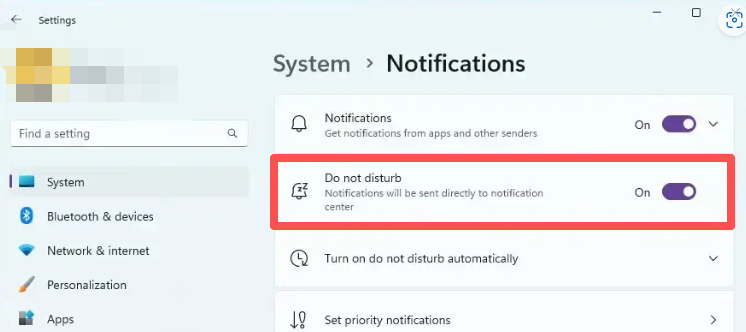
- Turn on Do Not Disturb.
- Avoid starting downloads, updates, or heavy exports in the background.
- Keep the source page or app open and visible until you know it is stable.
This is especially important for spoken audio. One alert tone during a quiet interview can be more annoying than a small volume mismatch.
The Power Settings That Actually Interrupt Recordings
“Keep the computer awake” is the goal, but a few specific switches are what usually defeat it. On Windows, the ones worth checking before a session you cannot repeat:
| Setting | Where it lives | Why it matters here |
|---|---|---|
| Sleep when plugged in | Settings, System, Power and sleep (or Battery) | The obvious one; set it longer than the session or to Never |
| Screen off versus sleep | Same panel | Turning the display off is safe; letting the PC sleep is not |
| Lid-close action | Control Panel, Power Options, Choose what closing the lid does | A laptop closed mid-session can sleep even with power connected |
| USB selective suspend | Power Options, Change advanced power settings, USB settings | Can cut power to a USB audio interface or DAC during a quiet stretch |
| Device power saving | Device Manager, your audio or USB device, Power Management tab | ”Allow the computer to turn off this device to save power” can drop an interface; the tab is not present on every device |
| Notifications | Settings, System, Notifications, Do not disturb | Alert tones are captured into the file, not just annoying |
Two of these are worth a test before you trust them. A machine set to never sleep can still hibernate on low battery, and a laptop can still be moved, which wakes the disk and the network. If the session is important, keep the lid open, keep the charger in, and keep the machine on a desk rather than in a bag.
Where the Recording Should Land
The output folder is a reliability decision, not just an organisational one.
- Write to the internal drive. It is faster, it is not removable, and it is not being read by anything else at the moment the file matters.
- Avoid a folder that a sync client watches. OneDrive, Dropbox, Google Drive, and iCloud Drive can open, upload, or in some configurations evict files. On a long recording that competes with a multi-gigabyte upload, and a partially synced file is a confusing thing to discover afterwards.
- Do not record straight onto the stick you plan to hand over. Record to the internal drive, verify, then copy to removable media. That also keeps you clear of the FAT32 limit above.
- Leave real headroom. A session that fits exactly is a session with no room for the retake, the artwork, or the export you will want afterwards.
In Cinch Audio Recorder the output folder and the optional WAV subfolder are both set under Settings, Recording, so this is worth deciding once rather than per session.
Check the Session While It Runs
A ten-second test proves the setup. It does not prove hour two.
For a long capture, add one low-effort habit: partway through, look at the output folder and confirm the file is still growing. Do not open it in a player while the recorder is writing to it; check the size and the timestamp instead. If the file has stopped growing, you have lost a few minutes rather than the whole session, and you can restart the capture with the source still available.
If a session has already stopped early more than once, do not keep retrying the same setup. Work through the recording stops unexpectedly checklist so the next attempt changes one known variable instead of all of them.
Run a Real Test, Not a Symbolic Test
A useful test uses the same setup as the full recording.
Do this:
- Open the actual source.
- Set the output device you plan to keep.
- Start playback.
- Start the recorder.
- Record 30 to 60 seconds.
- Stop and play the saved file.
- Check the beginning, volume, and whether the content is the right source.
If you are recording a long show or stream, also check whether the saved file appears in the expected folder or library view. A clean recording is only useful if you can find it afterward.
Use Cinch for Repeated Long Sessions
Use Cinch Audio Recorder when you want a repeatable desktop workflow for streaming audio, online radio, browser playback, or long music sessions.
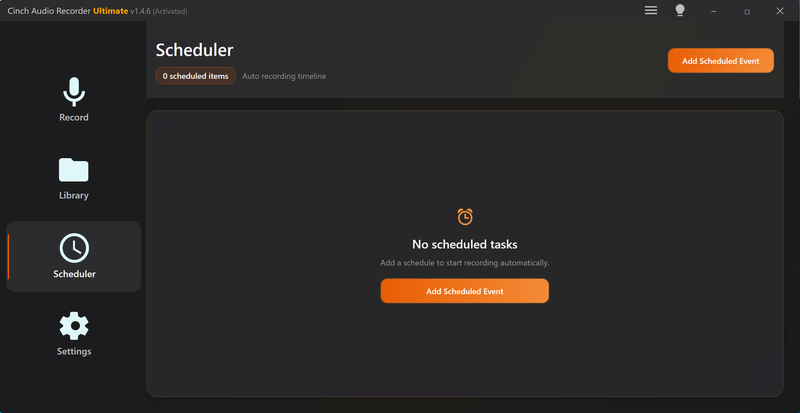
For long sessions:
- Open Cinch Audio Recorder.
- Start the source playback.
- Record a short sample.
- Check the saved result in the Library.
- Start the full session only after the sample is clean.
- Review the finished file before trimming, renaming, or editing metadata.
If you only need one short browser capture, the Online Audio Recorder may be enough. For repeated long sessions, a desktop workflow is easier to test, review, and organize.
After the Recording
Do not immediately delete, convert, or overwrite the original result.
Use this finishing pass:
- Play the beginning and end.
- Check the middle if the session is long.
- Confirm the file is not silent or clipped.
- Rename the file with a date, source, and topic.
- Trim dead air if needed.
- Normalize only if the file is consistently too quiet or uneven.
- Add metadata only after confirming the content is correct.
Useful follow-up tools:
- Recording Quality Checker for silence, clipping, and basic quality checks.
- Audio Trimmer for removing dead air or unwanted starts.
- Audio Normalizer for evening out files that are consistently too quiet.
- Audio Metadata Editor for titles, artists, artwork, and comments.
Common Long Recording Problems
The file is silent
Check the output device, browser tab, app volume, and whether the source was actually playing during the test. Then follow the no sound recorded checklist.
The recording stopped early
Check sleep, power saving, storage, source playback, and network buffering. If this becomes a repeated pattern, use the recording stops unexpectedly checklist to document the exact source, session length, output folder, and device setup before contacting support.
The file includes notification sounds
Re-record if the notification appears in an important quiet section. For the next session, turn on Do Not Disturb and close alert-heavy apps before the test recording.
The file is too large
Use MP3 or M4A for ordinary listening. Keep WAV or FLAC only when you need a working or archive copy.
The recording is one long file
That may be fine for a webinar or show. For music, radio, or class sections, review the recording first, then trim, split, or rename only the parts worth keeping.
Related Guides and Tools
- Record online radio and long streams
- Recording stops unexpectedly
- Record browser audio cleanly
- Best audio format for recording
- Choose bitrate for recorded audio
- Avoid a Failed Long Recording Session
- Estimate Storage Before a Long Recording Starts
- Record Online Radio Into Usable Files
- Fix first recording problems
- Recording Time Calculator
- Recording Quality Checker
Frequently Asked Questions
What should I check before a long audio recording?
Check the playback source, output device, recorder input, storage space, sleep settings, notifications, and a short test file before starting the full session.
Which format is best for long recordings?
MP3 or M4A is usually practical for long listening files because storage matters. Use WAV or FLAC only when you need an editing or archive copy.
How long should my test recording be?
Record at least 30 to 60 seconds, then play it back from the beginning and middle if possible. For a critical session, test with the same source and device you will use later.
Why did my long recording capture silence?
The most common causes are wrong output device, Bluetooth or HDMI switching, muted browser tabs, sleep or power changes, or starting the recorder before the source is actually playing.
Frequently asked questions
How long can a single WAV recording be?
A standard WAV file stores its length in a 32-bit field, so it runs into trouble near 4 GiB: roughly four hours of 24-bit/48 kHz stereo, or about six and three-quarter hours of 16-bit/44.1 kHz. Record long sessions as FLAC, or split them into sections.
Can I record a long session straight onto a USB drive?
You can, but it is the least reliable option. FAT32 sticks refuse single files over 4 GiB, removable drives are slower and easier to disconnect, and a power-saving setting can cut their power mid-session. Record to the internal drive, verify the file, then copy.