
Avoid a Failed Long Recording Session
 By HenrikUpdated Aug 7, 20266 min read
Estimate recording time, file size, test capture quality, and avoid silent or incomplete long audio sessions.
Long recordings fail in boring ways: the computer sleeps, the source pauses, storage runs out, the file is silent, or the selected device changes mid-session. A short preflight test is faster than discovering the problem after an hour.
A long recording is mostly won before it starts. Use a short test to catch silence, clipping, storage limits, sleep settings, and device changes while there is still time to fix the setup.
Run a Preflight by Failure Type
A good test checks the failure you are most likely to face, not every possible setting.
| Failure risk | Quick preflight | Passes when | If it fails |
|---|---|---|---|
| No audio captured | 30-60 second test recording | Playback contains the expected source | Fix source selection before the session |
| Storage runs out | Time and size estimate | Available space exceeds planned duration | Lower size, free space, or split sessions |
| Clipping or low level | Quality check on test file | Speech or music is audible without harsh peaks | Adjust level before recording long |
| Wrong format | Metadata check after test export | Format and duration match expectations | Change settings before the real take |
| Computer interruption | Longer test for important sessions | Device stays awake and source continues | Change power or recording setup |
Check the Copy Before You Change It
| Step | What to use | What it helps answer |
|---|---|---|
| 1 | Recording Time Calculator | How long can the available storage handle at the target quality? |
| 2 | Audio File Size Calculator | How large will the finished file probably be? |
| 3 | Online Audio Recorder | Does a short capture produce audible audio? |
| 4 | Recording Quality Checker | Is the test file silent, clipped, too quiet, or technically unusual? |
| 5 | Audio Metadata Viewer | Does the exported test file have the expected format and duration? |
This does not replace a stable desktop recorder, but it gives you quick evidence before a long session.
Step 1: Estimate Storage First
Use the Recording Time Calculator when you know how much free space is available. Use the Audio File Size Calculator when you know the expected duration and want to compare formats or bitrates.
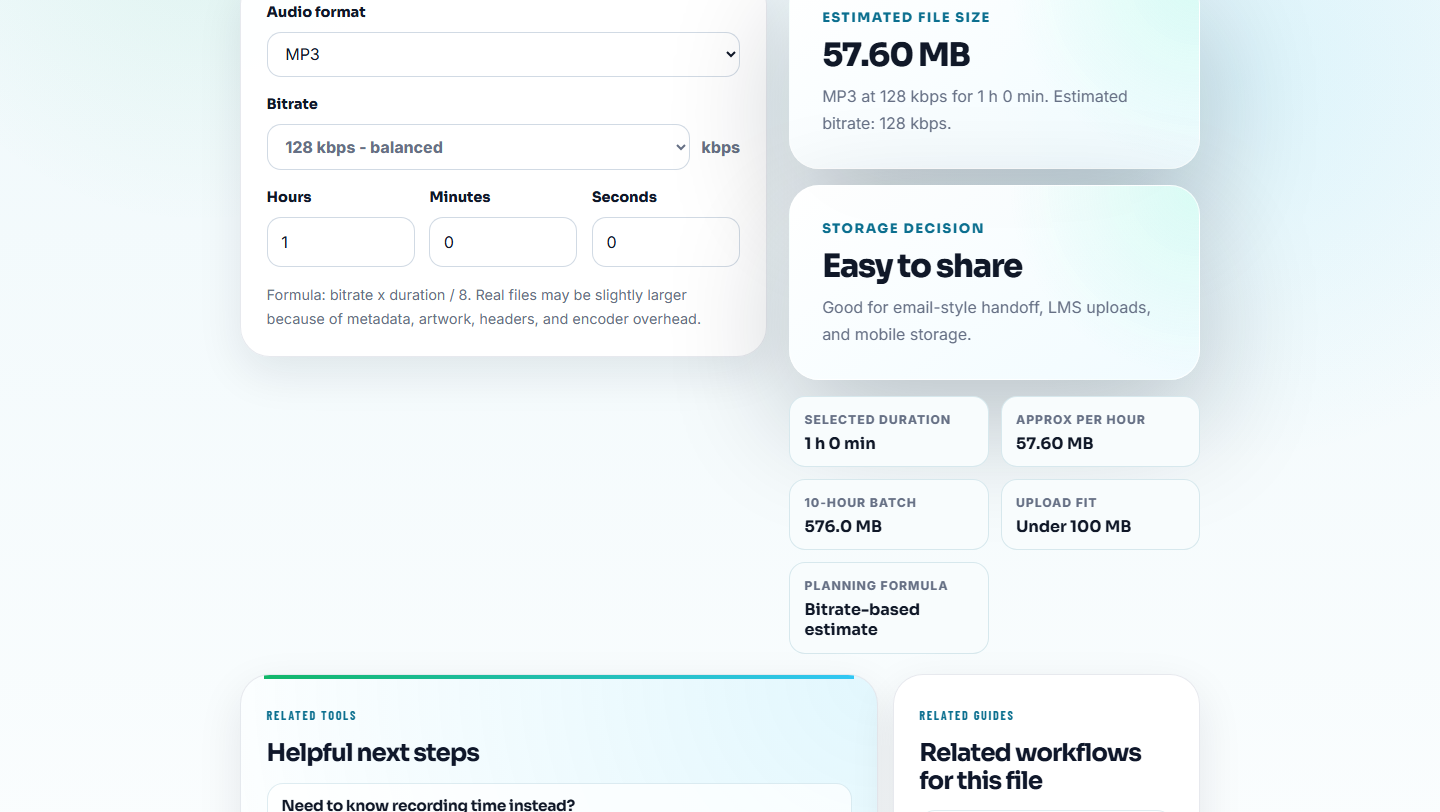
Watch for:
- WAV or lossless formats growing much larger than expected.
- Long MP3 sessions that are small enough for storage but still need stable power.
- Cloud or removable folders that may disconnect or sync during recording.
- A nearly full drive that leaves no room for temporary files.
If the estimate is too close to the available space, change the plan before recording.
Step 2: Make a Short Routing Test
Make a short test from the same source and playback device you plan to use. Do not test with one app and then record the real session from another.
Check:
- The source is actually audible.
- The chosen output device stays connected.
- The browser tab, player, or app is not muted.
- The test file opens in your normal player.
- The sound is not coming from the microphone when you expected system audio.
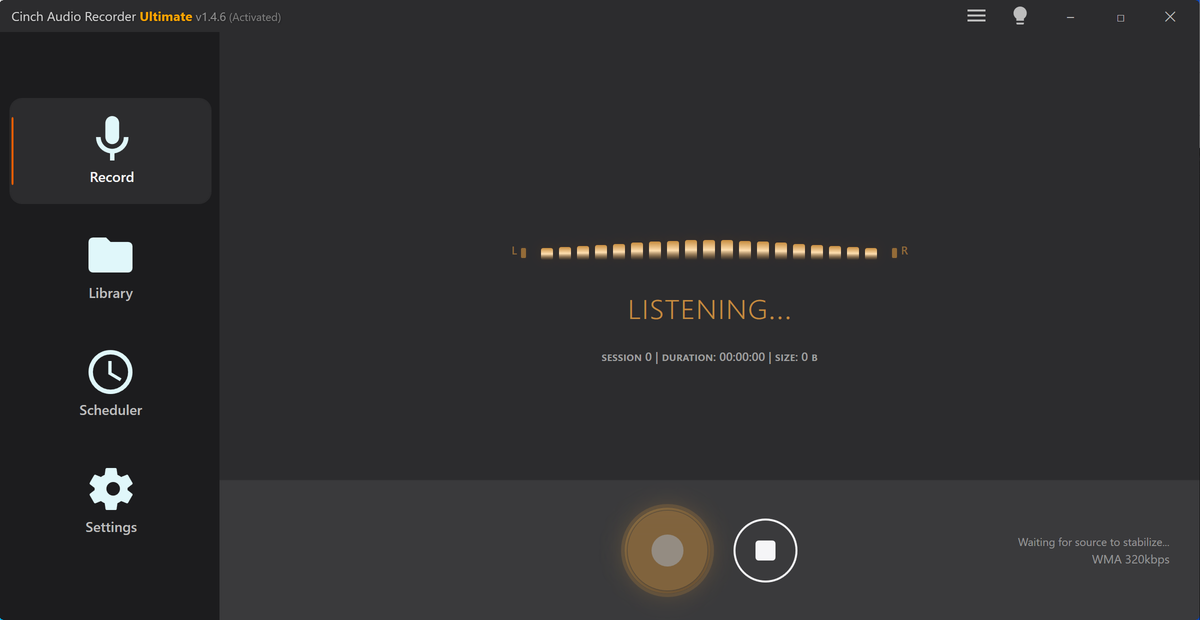
For browser-only testing, the Online Audio Recorder is enough. For repeatable desktop system-audio work, use Cinch Audio Recorder and test one familiar source before the long take.
Step 3: Inspect the Test File
Open the test file in the Recording Quality Checker. A file can look successful while still being silent, clipped, or too quiet to use.
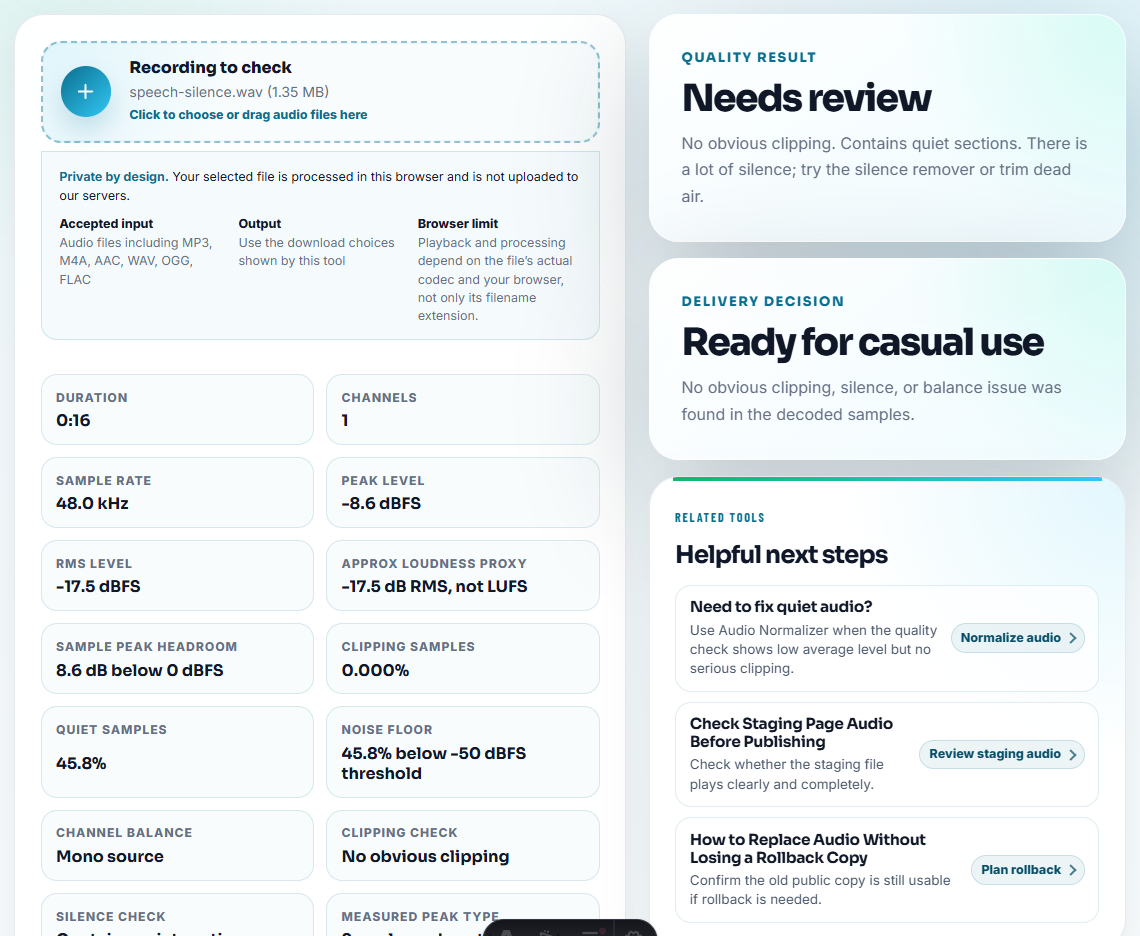
Look for:
- Duration close to the test length.
- No long silent section.
- No obvious clipping warning.
- Comfortable average level.
- Expected channels and sample rate.
If the test is silent, use the no sound recorded checklist before the long session. If the test sounds distorted or too fast, check output-device changes and Windows audio effects before recording more.
Step 4: Run a Longer Mini-Test for Important Sessions
A 30-second test proves routing. It does not prove the computer will stay awake or the source will keep playing.
For important sessions, run 10 to 15 minutes with the real setup:
- Same source.
- Same browser or app.
- Same output device.
- Same output folder.
- Same format.
- Same power state.
Do not switch Bluetooth headphones, HDMI monitors, USB docks, or browser output devices during the test. A long recording depends on the route staying stable.
Step 5: Decide Whether to Record, Change Settings, or Wait
After the mini-test, choose one path:
| Test result | Decision |
|---|---|
| File plays, duration is right, quality is acceptable | Record the long session with the same setup |
| File is silent | Fix routing before recording |
| File is clipped or harsh | Lower playback level or change audio effects before retrying |
| File size estimate is too large | Choose a compact format or shorter sections |
| Source pauses or buffers | Stabilize the source before relying on a long capture |
Do not change several settings at once. Make one change, test again, then continue.
When Preflight Checks Are Enough
Free preflight tools are enough when you need to test one local workflow, compare duration and file size, or inspect a short sample. They are not enough when the main task is repeated system-audio capture, automatic track splitting, or saving organized song information.
For recurring sessions, keep the browser checks as preflight notes and use Cinch Audio Recorder for the actual capture layer.
Where to Go Next
- Recording Time Calculator
- Audio File Size Calculator
- Online Audio Recorder
- Recording Quality Checker
- Estimate Audio File Size Before Recording
- Best settings for long audio recording
- Recording stops unexpectedly
- Test audio before a long session
Practical Answers
What should I test before a long audio recording?
Check available recording time, estimate file size, make a short test recording, inspect the test file for silence or clipping, and confirm the same source and output device will stay active.
Can a browser workflow prevent every failed long recording?
No. They help you catch storage, format, silence, and quality problems early, but they cannot control source playback, network drops, power sleep, or device switching.
How long should a test recording be?
Use a 30- to 60-second test for routing, then a 10- to 15-minute test when the final session is important or unusually long.