
Recording Stops Unexpectedly: Long Session Fixes
 By HenrikUpdated Aug 7, 20269 min read
Fix recordings that stop early by checking sleep, power, storage, source playback, output devices, buffering, and repeatable test evidence.
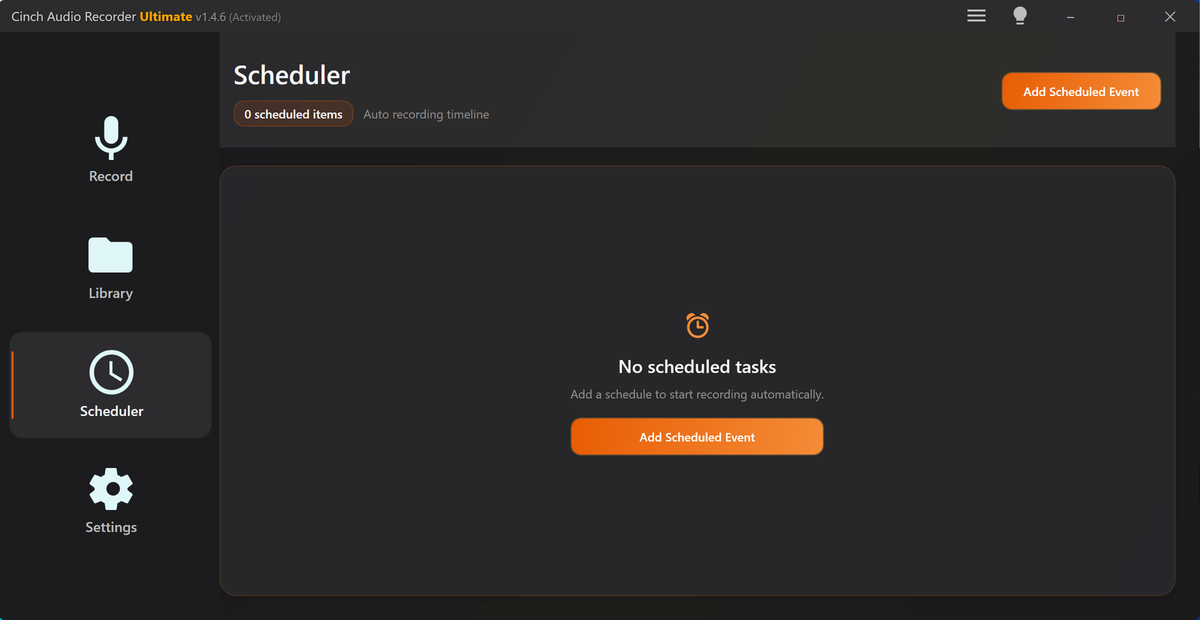
When a recording stops early, the problem is usually not one single button. Long sessions depend on the computer staying awake, the source continuing to play, the output device staying stable, and the recorder having somewhere to save the file.
Use this checklist when a radio show, webinar, class, playlist, interview, or long stream records for a while and then stops before the audio ends.
The Short Answer
Check the outside causes first:
| What stopped? | What to check first | Safe next action |
|---|---|---|
| Recording ends after the laptop sleeps | Power and sleep settings | Keep the computer awake and test again |
| File stops when headphones disconnect | Output device changed | Use one stable output device for the whole session |
| Stream keeps buffering or pauses | Source playback or network | Test the same source for a shorter period |
| File saves only part of the session | Storage or output folder | Confirm free space and write access |
| Recorder stops at the same point each time | App setting, source behavior, or repeatable fault | Record evidence before changing many settings |
Do not immediately reinstall drivers, change every recorder option, or overwrite the partial file. Preserve what you have, then isolate the failure.
Read the Stop Point Like Evidence
The time where the file stops often tells you more than the error message. Before changing settings, compare the expected session length with the saved file length.
| Where It Stops | What It Suggests | What to Check Before Retrying |
|---|---|---|
| Within the first minute | Source was not really playing, wrong capture route, or startup permission issue | Run a 30-second routing test before the full session |
| After 5-20 minutes | Sleep, screen lock, browser tab suspension, or source inactivity behavior | Keep the computer awake and keep the source visible |
| Around the same duration every time | Repeatable source, app, storage, or setting limit | Record the exact duration and test a different source |
| When headphones, HDMI, or a dock changes | Playback route changed during capture | Use one output route for the whole session |
| Near the end of a long file | Storage, file location, or source ending unexpectedly | Check free space and confirm the source kept playing |
| File continues but turns silent | Audio route changed, muted source, or source playback stopped | Use the no sound recorded checklist for the silent section |
If the stop point moves around, look for environmental causes: sleep, network buffering, device switching, notifications, or background updates. If the stop point is nearly identical, keep that exact timing in your support note.
A Support Pattern: “It Recorded Only Part of the File”
One of the most useful details in a support request is whether the recorder stopped randomly or repeatedly saved the same kind of partial file. A report like “it only recorded the first few minutes” is easier to diagnose when it includes the expected length, the actual saved length, and what was playing at the moment it stopped.
Before changing settings, write down:
- Whether the saved file ends cleanly, fades into silence, or cuts off mid-sound.
- Whether playback in the source app continued after the saved file stopped.
- Whether the issue happens only with one website, app, playlist, or stream.
- Whether a short test file records correctly.
- Whether the problem started after a Windows update, device change, reinstall, or new output device.
This turns the issue from “recording failed” into a testable pattern. If the same source saves a partial file twice, support can compare timing, device route, and logs much faster.
Ten-Minute Preflight for Important Recordings
For a class, webinar, radio show, interview, or meeting that cannot be repeated, do a real preflight instead of a 10-second confidence check.
- Restart the source playback from a harmless section.
- Set the output device and do not change it again.
- Save to a local folder, not a removable or syncing location.
- Keep the computer awake and plugged in.
- Record 10 minutes from the same source type.
- Stop and play the saved file from the beginning, middle, and end.
- Confirm the file is not silent, truncated, distorted, or full of notification sounds.
- Start the real session only after the preflight succeeds.
This is slower than clicking Record immediately, but it prevents the worst kind of failure: discovering after a two-hour session that the first few minutes were the only usable audio.
Step 1: Check Whether the Computer Slept
Sleep is the simplest explanation for many stopped recordings. The display may turn off, the network may pause, a browser tab may suspend, or the audio route may disappear.
Before repeating a long session:
- Plug in the laptop if possible.
- Keep the computer awake for the full session.
- Disable sleep and aggressive power saving while recording.
- Avoid closing the lid.
- Keep the source app or browser tab open.
- Avoid starting heavy background exports, updates, or downloads.
If the session matters, run the same setup for 10 to 15 minutes before the real recording. A 30-second test proves routing; a longer test proves the computer can stay awake.
Step 2: Confirm the Source Kept Playing
Sometimes the recorder did not stop first. The source stopped.
Check whether the stream, webinar, radio player, or music app:
- Paused after inactivity.
- Hit a buffering gap.
- Reached the end of a playlist.
- Required a sign-in refresh.
- Switched to another episode, ad, or silent intermission.
- Muted the tab or app.
If the source is unstable, a recorder cannot invent missing audio. Test a shorter segment from the same source, then decide whether the problem is capture or playback.
For online radio and long streams, the record online radio guide covers source, sleep, notification, storage, and naming preparation in one workflow.
Step 3: Keep One Output Device Connected
Bluetooth headphones, HDMI monitors, USB docks, and external sound devices can change the playback route during a long session. If the output changes, the recorder may stop receiving the same audio path or may save silence after the switch.
Use one stable route:
- Connect the speakers or headphones before testing.
- Start playback through that device.
- Select the matching recording path.
- Do not switch to Bluetooth, HDMI, a dock, or another interface mid-session.
- Repeat the short test after any device change.
If your file is silent after the stop point, use the no sound recorded checklist after checking the device route.
Step 4: Check Storage and File Location
Long recordings can fail when the output location is not ready. This is especially easy to miss when recording to a synced folder, external drive, nearly full disk, or protected location.
Before retrying:
- Confirm the output folder exists.
- Confirm the drive has enough free space.
- Avoid recording directly to a removable drive that may disconnect.
- Avoid relying on a cloud-sync folder during capture.
- Save the partial file before cleaning up the folder.
If file size is the issue, use MP3 or M4A for ordinary long listening files. Use WAV or FLAC only when you need a working or archive copy. The best settings for long audio recording guide explains the format and storage tradeoff.
Step 5: Look for a Repeatable Pattern
A one-time stop can come from sleep, network, source playback, or a device switch. A repeatable stop gives better evidence.
Write down:
| Evidence | Example |
|---|---|
| Expected session length | 2 hours |
| Actual recorded length | 23 minutes 14 seconds |
| Source | Browser radio player, webinar app, music app |
| Output device | Laptop speakers, Bluetooth headphones, HDMI monitor |
| File format | MP3, M4A, WAV, FLAC |
| Output folder | Local folder, external drive, synced folder |
| What happened on screen | Source paused, computer slept, recorder stopped, file saved partial |
Then repeat a shorter controlled test. If the same stop happens at the same duration with the same source and folder, the support team has something useful to inspect.
Step 6: Change One Thing at a Time
Avoid changing five settings and then declaring the issue fixed. You will not know which change helped.
A clean retry order:
- Keep the computer awake.
- Record to a local folder with enough space.
- Use one wired or stable output device.
- Test the same source for 10 to 15 minutes.
- Try a different ordinary source you are allowed to record.
- Try a more compact format if the file is huge.
- Contact support with the evidence if the pattern repeats.
This gives you a real diagnosis instead of a pile of guesses.
When the Partial Recording Is Still Useful
Do not delete the partial file immediately. First check whether it contains a complete section worth keeping.
You may be able to:
- Trim clean starts or endings with the Audio Trimmer.
- Remove long dead air with the Audio Silence Remover.
- Check whether the useful part clipped or went silent with the Recording Quality Checker.
- Rename it clearly as a partial file with the audio file naming guide.
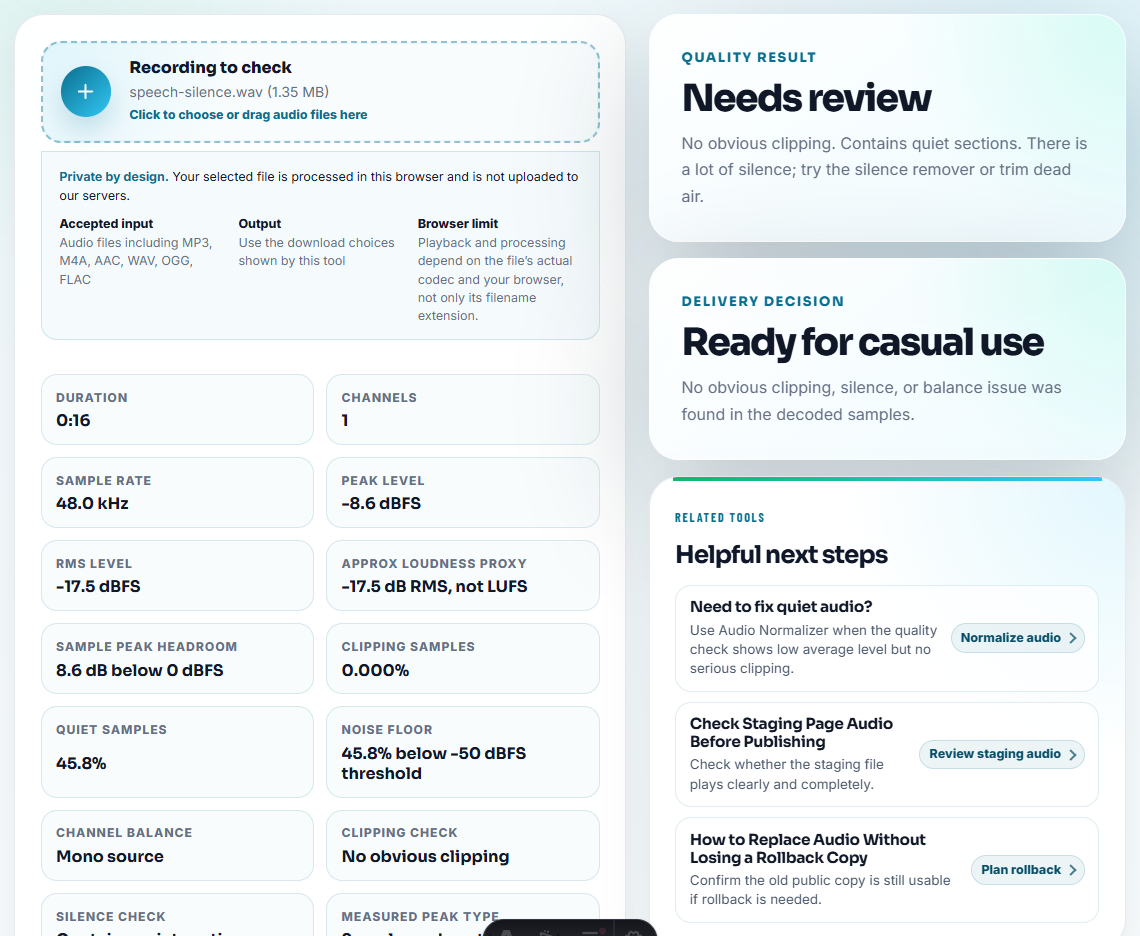
If the missing section matters, re-recording is usually better than trying to repair audio that was never captured.
What to Send Support
Use the support page when the failure repeats after the basic checks. Include:
- Product version and operating system.
- Source type, not private account details.
- Expected recording length and actual saved length.
- Output format and output folder.
- Playback device used during the session.
- Whether the computer slept.
- Whether the source was still playing.
- Whether a 30- to 60-second test succeeds.
- Whether a 10- to 15-minute test succeeds.
Support can move faster when the report describes one repeatable setup instead of “it stopped again” with no timing, source, or device detail.
Related Guides and Tools
- Best settings for long audio recording
- Test audio before a long session
- Record online radio and long streams
- No sound recorded checklist
- First recording troubleshooting
- Recording Quality Checker
- Contact support
Frequently Asked Questions
Why did my audio recording stop before the session ended?
Common causes include sleep or power saving, a full output drive, the source pausing, network buffering, Bluetooth or HDMI device changes, or starting a long session without a short test.
Should I change recorder settings first?
No. First check whether the computer stayed awake, the source kept playing, storage was available, and the playback device did not switch. Change one setting at a time after a repeatable test.
What evidence should I send support?
Send the source type, expected session length, actual recorded length, output folder, format, playback device, app version, operating system, and whether a 30- to 60-second test succeeds.