
Which Audio Format Should You Record In?
 By HenrikUpdated Oct 13, 202613 min read
Choose MP3, WAV, FLAC, or M4A for recorded audio based on listening, editing, archiving, metadata, storage, and playback needs.
The best audio format is not the biggest one. It is the one that fits what you will do with the recording next.
If the file is for casual listening, a compact format is usually better. If the file will be edited, trimmed, restored, or archived, a lossless working copy can make sense. If the file needs to show up correctly in players, metadata support matters too.
The Short Answer
Use this quick decision path:
| Need | Format to Consider | Why |
|---|---|---|
| Everyday listening | MP3 or M4A/AAC | Small, common, easy to move |
| Editing copy | WAV or FLAC | Avoids another lossy step during cleanup |
| Long radio or lecture archive | MP3/M4A for size; FLAC only if needed | Storage matters over long sessions |
| Music library with tags | MP3, M4A, or FLAC | Better player metadata support than raw WAV workflows |
| Support sample | MP3 or WAV | MP3 is compact; WAV is easy to inspect |
| Ringtone or short clip | MP3 or phone-supported format | Compatibility matters more than file size theory |
Do not export everything as WAV just because it sounds professional. WAV can be useful, but it also creates large files and does not magically improve a compressed source.
Uncompressed, Lossless, and Lossy Are Three Different Questions
People often sort audio files into “high quality” and “small”, but the useful split is three-way, and it is about what happens to the data, not about how the file sounds.
- Uncompressed stores samples directly, with no compression step at all. A typical WAV or AIFF file is in this group.
- Lossless compressed shrinks the file and restores every sample exactly when it is decoded. FLAC is the common one; ALAC is its Apple-side equivalent.
- Lossy compressed throws away detail according to a model of human hearing in order to shrink the file much further. MP3, AAC, and Opus are in this group.
The second distinction people skip is container versus codec. The extension names the wrapper, and the wrapper only describes what is inside it loosely. WAV is a RIFF container, and Microsoft’s own waveform format structure allows several different encodings inside a .wav file, including uncompressed PCM, floating-point PCM, ADPCM, and A-law or mu-law. In everyday recording you will almost always get PCM, which is why “WAV means uncompressed” is a fair working assumption, but it is an assumption rather than a guarantee.
That matters most when a file behaves strangely: a .wav that a video editor refuses, or a .mp3 that a car dashboard cannot read, is more often a container or encoding mismatch than a quality problem.
Set Sample Rate and Bit Depth Before You Set Format
Format decides how the file is stored. Sample rate and bit depth decide what was captured in the first place, and no later format choice can add detail that the capture left out.
For recordings made from playback streams and spoken sources, the practical range is narrow:
| Setting | When it fits | Trade-off |
|---|---|---|
| 44.1 kHz, 16-bit | Listening copies, archive of already-compressed sources, CD-compatible masters | Smallest uncompressed footprint |
| 48 kHz, 16-bit | Anything that may later sit beside video | Slightly larger than 44.1 kHz |
| 48 kHz, 24-bit | Long sessions you expect to trim, normalize, or denoise | More headroom while processing; noticeably larger |
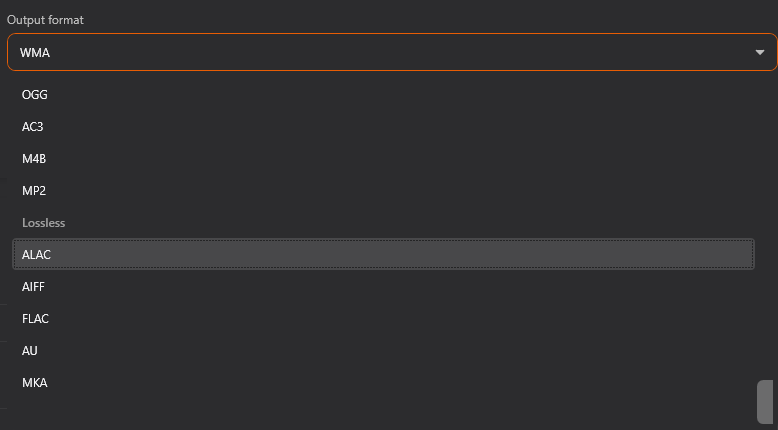
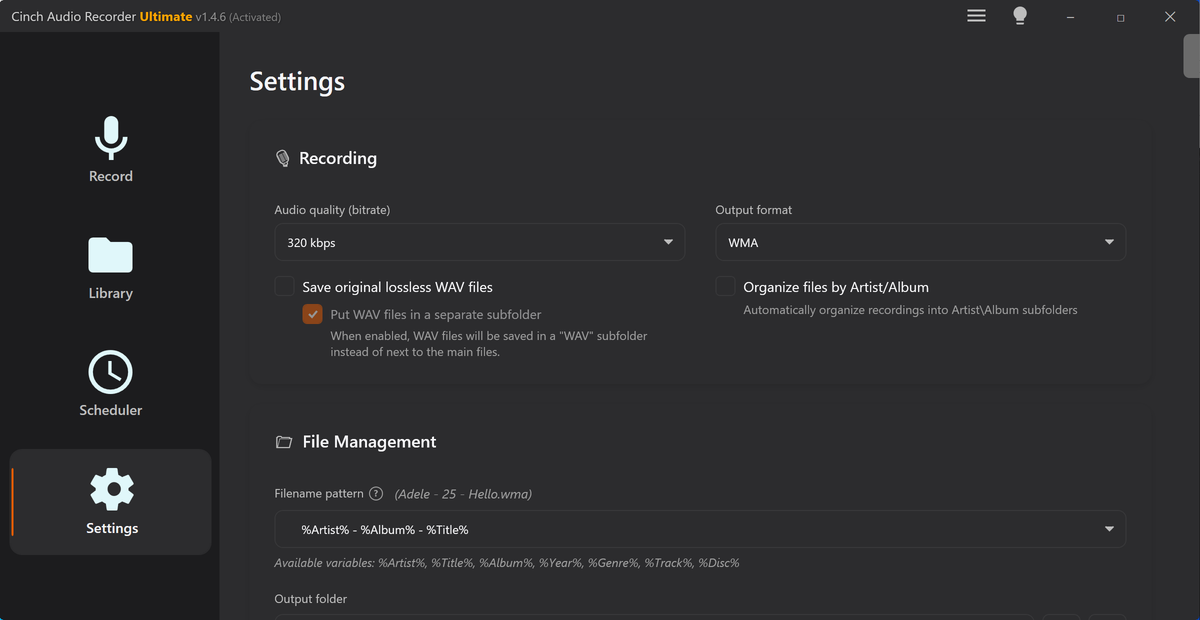
A higher sample rate than that is rarely the reason a recording sounds good or bad. If your capture path is a browser tab, a streaming service, or a conference app, the source itself is usually at or below 48 kHz, and the extra rate only costs space. In Cinch Audio Recorder the sample rate choice is 44.1 kHz or 48 kHz and the bit depth choice is 16-bit or 24-bit, and the Windows default format is worth matching to whichever you pick, because a mismatch between the two is one of the more common ways a capture ends up resampled without anyone deciding that.
MP3: The Practical Listening Copy
MP3 is still useful because it is widely playable and small enough for ordinary listening folders, USB drives, phones, and support samples.
Choose MP3 when:
- The recording is for everyday playback.
- You need a smaller file.
- You want easy compatibility.
- You do not plan heavy editing later.
- You are creating short clips, reference files, or casual archives.
The downside is that MP3 is lossy. If you repeatedly edit, export, re-import, and export again, quality can degrade. For a final listening copy, that is often acceptable. For a working copy, use something else first.
M4A/AAC: A Compact Modern Listening Format
M4A usually means AAC audio in an MP4-style container. It can be a good choice for compact listening files and many modern players.
Choose M4A/AAC when:
- Your devices already handle it well.
- You want compact files.
- You prefer a modern lossy format.
- The recorder or browser supports the export reliably.
Check compatibility before building a whole library around it. Some older players, car stereos, or simple devices may still behave better with MP3.
WAV: The Simple Editing Copy
WAV is uncompressed PCM in many common workflows. It is easy for audio editors to open, but it can be much larger than MP3 or M4A.
Choose WAV when:
- You plan to trim, normalize, reduce noise, or process the file.
- You need a simple working copy before making a smaller final file.
- You are sending a short diagnostic sample where size is not a problem.
- You want to avoid another lossy export during cleanup.
Avoid WAV when:
- The recording is long and storage is limited.
- You only need a listening copy.
- You assume it will improve a low-quality source.
WAV is honest, not magic. It can preserve what reached the recorder, but it cannot add detail that was not there.
FLAC: Lossless With Better Storage Efficiency
FLAC is lossless like a WAV working copy, but it usually uses less storage than WAV. It can also be better for music libraries because metadata and artwork are commonly used with it.
Choose FLAC when:
- You want a lossless archive.
- You care about keeping metadata with a music file.
- You have enough storage.
- You expect to revisit or reprocess the recording later.
Do not use FLAC simply because it looks premium. If the source was already compressed and you only need phone playback, MP3 or M4A may be more practical.
Why Lossless Does Not Mean Better Than the Source
This is the most common format mistake.
If the source stream was compressed, saving the result as WAV or FLAC does not recreate the original studio file. It only avoids adding another lossy compression step at export.
That can still be useful. For example, if you plan to trim, normalize, and then create a final MP3, keeping a WAV or FLAC working copy during editing can reduce avoidable degradation. But a lossless container is not a quality upgrade button.
Do Not Re-encode a Lossy File Into Another Lossy File
The rule worth memorising is about generations, not formats.
Every lossy export makes its own decisions about what to discard. When you decode an MP3, edit it, and export an MP3 again, the second encoder works from a file that already lost information, and it adds its own artefacts on top. Two lossy steps are worse than one lossy step at the same final bitrate, and the difference shows up most in quiet passages, reverb tails, and stereo imaging.
The practical version of this:
- Keep one working copy that you do not re-encode repeatedly. A lossless file is the simplest way to do that.
- Derive listening copies from that working copy, not from another listening copy.
- If you no longer have the working copy, convert the file you do have once and stop. Converting twice to “get the format right” is how files quietly get worse.
This is also why “record in MP3, then convert to FLAC for archiving” is backwards. FLAC cannot recover what the MP3 export already dropped, and the file grows in the process.
What One Hour of Recording Actually Costs
Format decisions are mostly storage decisions once quality is settled. These are the numbers for a stereo recording, one hour long:
| Setting | Approximate size per hour | Typical use |
|---|---|---|
| 64 kbps MP3 | 29 MB | Long speech archives |
| 96 kbps MP3 | 43 MB | Lectures, meetings |
| 128 kbps MP3 | 58 MB | Everyday listening copies |
| 192 kbps MP3 | 86 MB | Music you care about |
| 320 kbps MP3 | 144 MB | Short, deliberate keeps |
| 16-bit / 44.1 kHz WAV (CD PCM) | 635 MB | Editing master, archival |
| 24-bit / 48 kHz WAV | 1.04 GB | Editing with headroom |
| FLAC of the same source | Usually well under the WAV size | Lossless archive that you can still tag |
FLAC’s ratio depends on the material, so treat it as “noticeably smaller than WAV, by an amount you should measure on your own recordings” rather than a fixed percentage. Speech with silence compresses differently from dense music.
The gap between the rows is the actual decision. A weekly three-hour show costs roughly 430 MB per episode at 320 kbps and about 175 MB at 128 kbps. Neither choice is wrong, but the second one is usually invisible on a phone speaker and the first one uses two and a half times the space.
The Four-Gigabyte Ceiling That Catches Long Recordings
There is a hard limit that surprises people who record long sessions: the classic WAV/RIFF header stores the file length in a 32-bit field, so a standard WAV file tops out at 4 GiB.
That sounds generous until you do the arithmetic against the table above:
- 16-bit / 44.1 kHz stereo WAV reaches 4 GiB after roughly six and three-quarter hours.
- 24-bit / 48 kHz stereo WAV reaches it after roughly four hours.
A full-day lecture, an entire radio shift, or a long DJ set recorded lossless can therefore fail or produce a file that some players misread, and it usually fails at the end of the session rather than the start, which is the worst possible time.
Ways to stay under it:
- Record the long session as FLAC, which keeps lossless data at a fraction of the size and so reaches the ceiling much later.
- Split by interval or by detected silence so no single file approaches the limit.
- Keep a lossy capture for the long pass and make a lossless copy only of the sections you will edit.
- If you must exceed 4 GiB in WAV, the RF64 extension with a
ds64chunk exists for exactly this, but support is uneven, so do not count on a car stereo, an editor, or a phone handling it.
The Playback Chain Sets the Real Ceiling
A file can be better than the route it takes to your ears. Two examples that decide most everyday listening:
- Bluetooth usually adds its own lossy step. Streaming to earbuds or a car over Bluetooth normally re-encodes the audio through a lossy codec such as SBC, AAC, or aptX, so a lossless file does not stay lossless on the way to your ears. Newer codecs aim at CD-quality over the air, but they need matching hardware at both ends, so for a phone-and-earbuds listener the safe assumption is that the wireless hop is lossy and the lossless copy buys size, not fidelity.
- High sample rates need support at both ends. Streaming services that advertise lossless each publish their own ceiling, and the tiers above CD quality frequently cannot reach a phone or laptop built-in output without a wired path or an external DAC. Check the service’s stated maximum and the device’s supported format before treating a hi-res file as a real upgrade.
The useful conclusion is the same one the format table keeps returning to: match the file to the destination. Keep the lossless copy for the work you will redo, and keep the compact copy for the way you actually listen.
Format Choices by Recording Type
| Recording Type | Starting Format | Final Format |
|---|---|---|
| Short browser sample | MP3 or WAV | MP3 for sharing |
| Streaming music for personal listening | MP3 or M4A | MP3/M4A with checked metadata |
| Music you expect to edit | WAV or FLAC | MP3/M4A for listening, lossless copy if needed |
| Online radio show | MP3/M4A unless editing | MP3/M4A with clear date-based name |
| Lecture or webinar | MP3/M4A | MP3/M4A after trimming silence |
| Voice note | MP3 | MP3 after cleanup |
| Support diagnostic file | WAV for short files, MP3 for longer files | Whatever support asks for |
If you are not sure, start with a short test recording and run it through the Recording Quality Checker. It is easier to choose a format after you know whether the file is silent, clipped, too quiet, or already usable.
For long sessions, choose the format before you start and check storage first. The best settings for long audio recording guide covers the full preflight routine for radio, webinars, classes, playlists, and live streams.
If you already know the format but not the quality setting, use the bitrate guide for recorded audio to choose a practical starting point for voice, music, long sessions, and sharing.
If the finished file needs to play from a dashboard USB port, use the car USB audio conversion guide after choosing a format. Car playback often depends on conservative MP3 copies, simple filenames, and tags the dashboard can read.
If you already recorded the file and the extension is not what you expected, use the wrong audio format after recording guide before deleting or re-recording. Often the safer fix is to convert a copy and keep the original until playback is checked.
Metadata and Format
Format is not only about sound. It also affects how cleanly a file can carry title, artist, album, artwork, comments, and lyrics.
For music libraries, MP3, M4A, and FLAC are usually easier to manage than plain WAV. That does not mean WAV is bad; it means it is often better as a working file than a polished library file.
After recording, use this sequence:
- Play the file.
- Check whether the content is correct.
- Trim or normalize if needed.
- Choose the final format.
- Add title, artist, artwork, comments, or filename cleanup.
The record audio with metadata guide goes deeper into that finishing pass.
A Simple Rule for Cinch Users
For repeated streaming-audio recording, choose a format you will actually keep organized.
- Use MP3 or M4A for ordinary listening libraries.
- Use WAV or FLAC only when you have a reason to edit or archive.
- Use filename patterns and metadata review so the format choice does not become a folder of mystery files.
- Test one familiar source before recording a long playlist.
If you need the desktop workflow, start from the Download Center. If you only need to convert a finished local file, use the Online Audio Format Converter.
Related Guides and Tools
- Clean up recorded audio
- Wrong audio format after recording
- Convert recorded audio for car USB playback
- Record audio with metadata and cover art
- Choose bitrate for recorded audio
- Best settings for long audio recording
- Audio File Size Calculator
- Recording Time Calculator
- Audio Metadata Editor
Frequently asked questions
What is the best format for recording streaming audio?
For everyday listening, MP3 or M4A is usually practical. For editing or archiving, keep WAV or FLAC only when the larger file has a real purpose.
Does saving as WAV or FLAC improve streaming audio quality?
No. A lossless format can avoid another lossy export, but it cannot restore detail that was not in the original playback stream.
Should I keep both MP3 and WAV copies?
Keep both only when you need a small listening copy and a separate working copy for editing. Otherwise it can waste storage quickly.
Can a WAV recording be longer than four gigabytes?
A standard WAV file stores its length in a 32-bit field, so it runs into trouble near 4 GiB, which is roughly four hours of 24-bit/48 kHz stereo. Record long sessions as FLAC, split them into sections, or capture lossy and keep a lossless copy only of the parts you will edit.
Does a higher sample rate make recorded streaming audio better?
Usually not. A browser tab or streaming service already arrives at or below 48 kHz, so capturing faster stores more data without adding detail. Match the recorder to your system default format instead of raising the rate.