
How to Stop Notification Sounds in Recordings
 By HenrikUpdated Aug 7, 20266 min read
Stop notification sounds from getting into recordings. Use a quiet setup checklist, browser checks, Windows alerts, and re-record decisions.
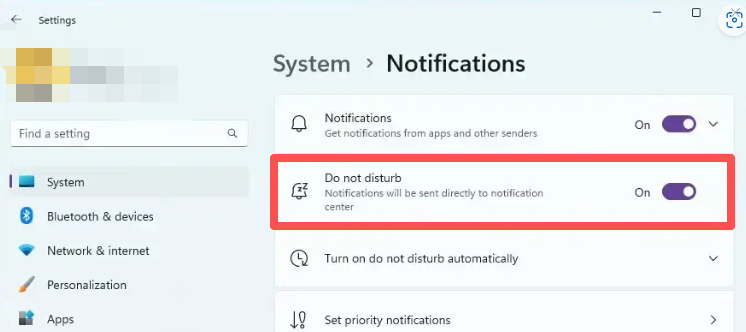
A notification sound in a recording is frustrating because the file may be technically successful and still unusable. The recorder captured audio correctly; it just captured too much.
This happens most often with system-audio and browser-audio workflows. If an email alert, chat message, calendar reminder, browser autoplay tab, Bluetooth reconnect sound, or operating-system chime reaches the same playback path as the source, it can be recorded into the file.
The fix is prevention first, editing second.
Quick Answer
Before the next recording:
- Turn on Do Not Disturb or Focus Assist.
- Close chat, meeting, mail, browser, and social apps that may play alerts.
- Mute or close unrelated browser tabs.
- Keep one playback device connected for the whole session.
- Record a 10-second test and play it back.
- Start the full recording only after the test is clean.
After a notification is already recorded, decide whether the sound sits in a clean gap. If it overlaps music, speech, or a source you cannot isolate, re-recording is usually the better fix.
Why Notifications Get Recorded
System-audio capture follows an audio path. It does not know which sounds are “the song” and which sounds are “a reminder.” If both reach the same speakers, headphones, virtual cable, or loopback route, both can end up in the saved file.
Common sources include:
- Email and calendar alerts.
- Chat apps and meeting apps.
- Browser tabs with autoplay video.
- Social-media tabs.
- System connection sounds.
- Bluetooth reconnect or battery alerts.
- Game launchers, update prompts, and background apps.
- Phone-link or desktop notification tools.
The important lesson is simple: do not rely on cleanup tools to remove sounds that should never have entered the recording.
The Quiet Setup Checklist
Use this before recording a song, radio show, webinar, podcast, course video, or any source that would be hard to repeat.
| Check | What to do | Why it helps |
|---|---|---|
| Notifications | Turn on Do Not Disturb or Focus Assist | Blocks many system and app alerts before they play |
| Chat and meetings | Quit or fully mute chat, meeting, and calling apps | Prevents message tones and device takeover |
| Browser tabs | Close or mute unrelated tabs | Stops autoplay and web notification sounds |
| Playback device | Choose one output and keep it connected | Prevents reconnect sounds and routing changes |
| Source page | Load and test the exact source | Confirms the intended audio is the only active sound |
| Short sample | Record and review 10 seconds | Catches alerts, wrong devices, silence, and low volume early |
If you are preparing for a long session, use the test recording preflight guide after this checklist. It adds storage, format, output folder, and playback-stability checks.
Windows Checks
On Windows, turn on Do Not Disturb before opening the source. Then close or mute apps that can ignore your expectations: chat, email, calendar, meeting, phone-link, cloud-sync, game, and browser apps.
Also check the active playback device. If you switch from speakers to Bluetooth headphones after the test, the system may play a reconnect sound or move audio to a different endpoint. Repeat the short recording after any device change.
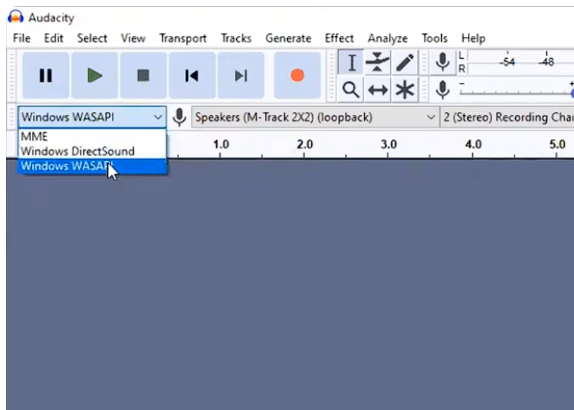
If the file is silent after these changes, the problem is no longer notification control. Use the no sound recorded guide or the first recording troubleshooting checklist to check the capture route.
Browser Checks
Browser audio is especially vulnerable because one browser window can hold several sound sources.
Before recording:
- Close tabs you are not using.
- Mute pinned tabs.
- Disable site notifications for the session if they are not needed.
- Avoid opening video previews or social feeds in another tab.
- Keep the source tab visible enough to notice buffering, ads, or pauses.
- Test the exact browser and tab you will record.
The browser audio recording guide covers the full setup for Chrome, Edge, Firefox, and similar desktop browsers.
Bluetooth, HDMI, and Device Switching
Device switching can introduce two problems at once: noise and silence.
Bluetooth headphones can reconnect, disconnect, or change profiles. HDMI monitors can become the active audio output after a display change. USB headsets and docks can disappear briefly after sleep or cable movement.
For important recordings:
- Connect the device before the test.
- Keep it connected until the file is saved.
- Avoid switching between speakers, headphones, Bluetooth, HDMI, and virtual devices mid-session.
- Re-test after any reconnection.
If the recording stops when a device changes, use the recording stops unexpectedly guide before changing unrelated settings.
Can You Edit the Notification Out?
Sometimes. The edit depends on where the notification sits.
| Where the alert appears | Best fix |
|---|---|
| In silence before or after the source | Trim it out |
| Between two spoken sections | Cut the gap if the timing still makes sense |
| Over music | Re-record if the source is available |
| Over speech | Re-record or keep only if the content remains understandable |
| Repeated throughout the file | Fix the environment and record again |
If the sound sits in a clean silent gap, the Audio Trimmer or Audio Silence Remover may help. If it overlaps the source, a noise reducer can damage the useful audio along with the alert.
What to Do After a Bad Take
Do not delete the file immediately. Review it first:
- Mark the timestamp where the notification appears.
- Check whether it overlaps useful audio.
- Save a copy before editing.
- Trim only if the cut is clean.
- Re-record if the alert masks the source.
- After re-recording, compare the new file before deleting the old one.
For a finished recording that is otherwise usable, follow the clean up recorded audio guide to check format, file name, metadata, and archive copy.
A Safer Cinch Workflow
For repeated recording with Cinch Audio Recorder:
- Open the source and set the output device.
- Turn on Do Not Disturb.
- Close noisy apps and tabs.
- Start a short Cinch recording.
- Play the saved sample from the Library.
- Confirm there are no alerts, unrelated tabs, or device sounds.
- Start the real recording only after the sample is clean.
If the first sample has unwanted sounds, fix the environment before changing format or bitrate. Format settings cannot separate a notification from music once both are recorded into the same file.
Related Guides and Tools
- First recording troubleshooting
- Record browser audio cleanly
- Record streaming audio without noise
- Test audio before a long session
- Recording stops unexpectedly
- Audio Trimmer
- Audio Silence Remover
- Cinch support
Frequently Asked Questions
Why did my recording capture a notification sound?
System-audio recording captures whatever reaches the selected playback path. If a chat alert, email chime, browser tab, or system sound plays through that path, it can become part of the recording.
Can I remove a notification sound from a recording?
Sometimes, if the alert sits in silence or a clean gap. If it overlaps speech or music, re-recording is usually cleaner than trying to repair the damaged section.
How do I stop notifications during audio recording?
Turn on Do Not Disturb, close noisy apps, mute unrelated browser tabs, disconnect unnecessary devices, and record a short test before the important session.