
How to Record YouTube Audio Without Background Noise
 By HenrikUpdated Jul 28, 20266 min read
Record YouTube audio more cleanly by controlling browser sound, testing the output device, and checking the saved file before a long session.
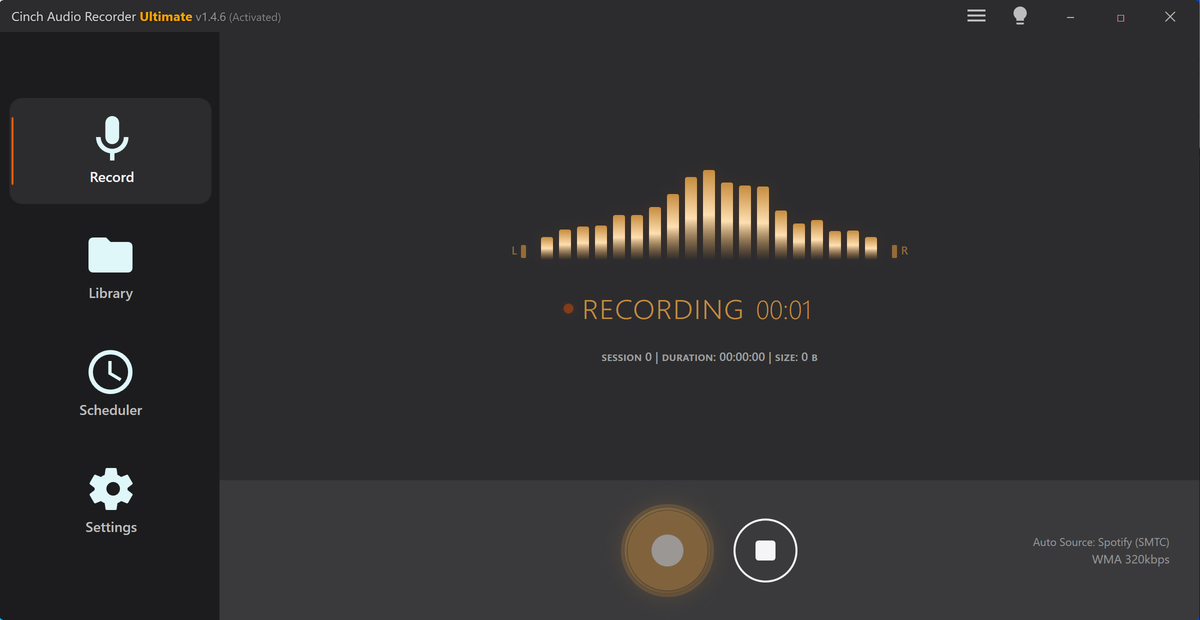
Recording YouTube audio is easy to start and surprisingly easy to ruin. A notification can land in the file, the browser can switch output devices, or the saved recording can be silent even though the video sounded fine while you were listening.
Use this guide for YouTube audio you are allowed to capture. It is a practical recording workflow, not a promise that every protected or restricted playback path will record.
The Short Answer
Start with this order:
- Open the YouTube video or playlist you want to capture.
- Turn on Do Not Disturb and close apps that can make sound.
- Keep the browser playing through one stable output device.
- Record a ten-second sample.
- Play the sample back and check for silence, wrong audio, or notification sounds.
- Record the full session only after the short sample is clean.
- Check the saved file, name, format, and any metadata before closing the browser.
For one short clip, a basic loopback recorder may be enough. For repeated YouTube music, live sets, lectures, or long sessions, Cinch Audio Recorder is more useful because it combines recording with library review, export formats, and cleanup tools.
Before You Record a YouTube Video
Most YouTube recording failures come from the same few setup issues.
| Check | What Can Go Wrong | Safer Setup |
|---|---|---|
| Browser tab | Another tab starts playing audio | Close or mute unrelated tabs |
| Output device | YouTube plays through Bluetooth while the recorder listens to speakers | Use one output device for the whole session |
| Notifications | Alerts become part of the recording | Turn on Do Not Disturb |
| Video ads or gaps | Unwanted sections are captured | Review the saved file before keeping it |
| Format choice | Large exports do not improve the original source | Pick MP3/M4A for listening, WAV/FLAC for editing |
If you are recording a long video, skip ahead in the source and make sure the audio stays stable. Long playback sessions are where device changes, buffering, and unwanted sounds usually show up.
Method 1: Record YouTube Audio With Cinch
Cinch records desktop playback, so the basic workflow is simple:
- Open Cinch Audio Recorder.
- Open YouTube in your browser.
- Set your speaker or headphone output before recording.
- In Cinch, open the Record tab.
- Click Recording.
- Play the YouTube video.
- Stop after a short sample and open the Library.
- Confirm the sample plays correctly before recording the full source.
Cinch is strongest when the saved audio needs cleanup afterward. A music video, concert segment, webinar, lesson, or playlist may need a clear filename, format choice, trimming, or library organization. That is where a desktop recorder is more practical than a one-off browser capture.
Method 2: Use a Free Loopback Recorder
A free loopback recorder can work if you only need a rough clip.
Typical workflow:
- Choose the system playback or loopback source.
- Start recording.
- Play the YouTube video.
- Stop and export.
- Listen to the exported file before closing the tab.
The cost is cleanup. You may need to trim silence, cut unwanted sections, rename the file, and choose a better format afterward.
Use this route when:
- The recording is short.
- You do not need library organization.
- Manual trimming and naming are acceptable.
- You are comfortable choosing playback and loopback devices.
Use Cinch when:
- You record YouTube audio often.
- You need format options and a local Library view.
- You want to review files before committing a long session.
- You want a smoother path from playback to organized saved audio.
How to Avoid Background Noise
YouTube audio is usually captured from the same playback path as other system sounds. Control the environment first.
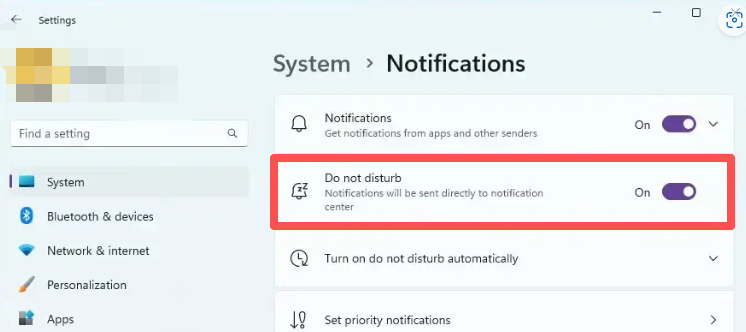
Before the full recording:
- Turn on Do Not Disturb.
- Close chat, mail, meeting, and social apps.
- Mute unrelated browser tabs.
- Avoid switching headphones or speakers during recording.
- Keep the YouTube volume at a normal level.
- Record and review a short sample.
If a notification overlaps speech or music, re-recording is usually cleaner than trying to repair it later.
Best Format for YouTube Audio
| Use Case | Suggested Format | Why |
|---|---|---|
| Everyday listening | MP3 or M4A | Compact and easy to play |
| Editing a clip | WAV | Avoids another lossy step during editing |
| Archive workflow | FLAC or WAV | Useful when storage is not a problem |
| Short reusable clip | MP3, M4A, or WAV | Choose based on the target app or device |
Do not assume a large WAV or FLAC file makes YouTube audio better. Format choice helps storage and editing; it does not add detail that was not present in the playback source.
Troubleshooting YouTube Recording
The file is silent
Check the output device first. If the browser is playing through Bluetooth headphones but the recorder is listening to speakers, the recording may be empty.
The wrong audio was recorded
Mute other tabs and apps. Browser audio can mix with other system playback if everything goes through the same output path.
The file has ads or unwanted sections
Review the saved audio, then trim only clean boundaries. For repeated recordings, test the source flow first so you know whether ads, long intros, or gaps will appear.
The sound is distorted
Lower the source volume to a normal level and turn off aggressive audio enhancements. Do not normalize a clipped recording as the first fix.
Related Solution Guides
- Record browser audio without capturing the wrong sound
- Record streaming audio without quality loss
- Record Spotify audio into cleaner files
- Clean up recorded audio
- Download Cinch Audio Recorder
Frequently Asked Questions
Can I record YouTube audio from my browser?
You can record browser playback when the audio is playing through a device your recorder can capture. Use this only for audio you are allowed to record, and test a short sample first.
Why is my YouTube recording silent?
The usual cause is an output-device mismatch. Your browser may be playing through Bluetooth, HDMI, or another endpoint while the recorder is listening somewhere else.
How do I record YouTube audio without notification sounds?
Turn on Do Not Disturb, close noisy apps and extra tabs, keep one output device connected, and record a ten-second test before the full video.
Should I use MP3 or WAV for YouTube audio?
Use MP3 or M4A for everyday listening. Use WAV or FLAC only when you need an editing or archive copy; a larger format does not improve a compressed source.