

Getting Started
Start here if you are installing Cinch for the first time or making your first test recording.
Install and first setup
Download the current installer, open the CinchAudioRecorderUltimate.exe file, and follow the on-screen steps.
Cinch runs on Windows 10/11 64-bit and macOS 13.5+ (Apple Silicon and Intel). Keep an internet connection available, and make sure you have disk space for recordings.
Cinch defaults to a Cinch Recordings folder under Music. A dedicated folder makes backup and review easier.
MP3 is the safest everyday choice. Advanced users can switch to M4A, AAC, OPUS, FLAC, WAV, and more.

System Requirements
- Windows 10/11 (64-bit) or macOS 13.5 and above
- Intel, AMD, or Apple Silicon processor
- Internet connection for recognition, metadata, and activation
- At least 100 MB free disk space for recordings
- SMTC track-change detection requires Windows 10 version 1809 or later
First Launch
Cinch can follow your Windows display language automatically on first launch. You can also switch languages manually from Menu → Language. Supported languages include English, Chinese, Spanish, Italian, Japanese, French, and German.
Recording Your First Track
Cinch is designed to feel simple: start recording, play the audio you want to save, and let the app capture the sound playing on your computer.
Open the Record tab in Cinch Audio Recorder.
Click the red Recording button before you start the song, stream, podcast, or radio program.
Play audio from your browser, music app, radio site, or another desktop source.
Cinch automatically starts recording when music plays and stops when silence or a track change is detected.
Open the Library tab to review the saved file, title, artist, album, cover art, and format.

Recording Modes
Cinch can use system media information when a player exposes it, and fall back to traditional silence detection when that information is missing.
SMTC Metadata Mode
Listens to Windows System Media Transport Controls signals such as title, artist, playback state, timeline, and cover art. Best for Spotify, browsers, and players that publish accurate now-playing information.
- Instant identification
- 100% accurate metadata
- Original cover art from player
Traditional Silence Detection
Watches the audio stream itself and splits on silence gaps. Useful when the player does not expose metadata, or for radio and continuous streams.
- Works with any audio source
- No player dependency
- Configurable silence threshold
Source Selection
If more than one player is open, use the SMTC source setting to pin the app you want Cinch to follow. This avoids track changes from a paused or unrelated player.
When to Switch Modes
Use SMTC for Spotify, Apple Music, and browsers that support media controls. Use Traditional for radio, podcasts, or sources without clean metadata.
Scheduled Recording
Never miss a live radio show or scheduled broadcast. Set Cinch to start and stop recording at specific times, even when you are away.
Click the Scheduled tab on the left sidebar (Clock icon).
Click the Add Task button.
Enter the Start Time in HH:mm format (e.g., 14:30).
Enter the Duration in minutes (e.g., 60).
Click OK to save the task.

Managing Tasks
The task list shows all scheduled recordings. Use the toggle switch to enable or pause a task, and right-click a task to delete it.
Important
Your computer must be turned on and awake at the scheduled time. Cinch cannot wake your computer from Sleep/Hibernate mode. Disable sleep mode in Windows Power Settings if you plan to record while away.
Song Recognition
Cinch uses advanced audio fingerprinting to automatically identify your recorded music. This works even when the music player does not provide track information.
How It Works
After a song finishes recording, Cinch analyzes the audio waveform.
A unique "audio fingerprint" is generated from the recording.
The fingerprint is matched against a database of millions of songs.
If matched, title, artist, album, and cover art are filled in automatically.
Recognition Modes
Automatic
Songs are identified immediately after recording (default).
Manual
Right-click a track in the Library → "Re-Identify" to trigger recognition again.
Tips for Better Recognition
- Record at higher quality (24-bit/48 kHz) for better recognition accuracy.
- Songs shorter than 10 seconds may not be recognized reliably.
- Avoid background noise and voice-overs.
- Keep an active internet connection.
When Recognition Fails
- Rare/Indie Music: Obscure tracks may not be in the database.
- Live Performances: Live versions often differ from studio recordings.
- Remixes/Mashups: Modified versions may not match original fingerprints.
- Network Issues: Check firewall/antivirus settings if recognition fails consistently.
Lyrics & Cover Art
When a song has clear metadata, Cinch can look for lyrics and artwork so the saved file feels more complete in your library or music player.
Synced Lyrics (LRC)
Time-stamped lyrics that scroll in sync with the music. Perfect for karaoke-style display.
Plain Lyrics
Standard text lyrics without timestamps. Cinch removes embedded time tags automatically for cleaner reading.
Embedded File Details
For MP3 and M4A, lyrics and artwork can be embedded into the file so they travel with your recording.
How to View Lyrics
Select a track in your Library.
Click the Lyrics button (microphone icon) in the player bar, or right-click → "View Lyrics".
A lyrics window will open showing the song's lyrics.
How to Refresh Lyrics
If lyrics are missing or incorrect, right-click the track in your Library and select "Refresh Lyrics". Cinch will search online databases again for updated lyrics.

Library Management
The Library is your workspace for reviewing recordings, fixing details, playing tracks, and cleaning up anything you do not want to keep.


Type to filter by title, artist, or album.

Click column headers to sort by date, title, artist, or duration.

Double-click a track to play it with the built-in player.

Right-click → Edit Info to modify metadata.

Remove unwanted tracks from the library or disk.

Try song recognition again if the first attempt failed.
Track Status
- Pending — Recognition in progress
-
 Success — Fully identified with metadata
 -
 Failed — Recognition failed (can retry or edit manually)
 -
 Recording — Currently being recorded
Quick Actions
Custom Table Header
Right-click any column header to show or hide columns such as Title, Artist, Album, Duration, Date, Status, Format, and Bitrate.
Clean Short Audio
Click the Clean button (🧹 icon) to remove recordings shorter than a threshold. Perfect for cleaning up ads or test recordings.
Open Folder
Right-click any track → "Open Folder" to locate the file in Windows Explorer.
Remove vs Delete
Remove from List keeps the file on disk. Delete removes both the library entry and the file.
Import / Rescan
Menu → Import / Rescan adds external audio files (MP3, M4A, FLAC, OGG, WAV) to your library and attempts to recognize them.
Bulk Operations
Select multiple tracks with Ctrl+Click or Shift+Click, then right-click to delete, merge, or batch-edit them at once.
Track Merge
Sometimes a single song is split into fragments due to buffering or brief interruptions. Cinch provides both automatic and manual merge features.
Auto Merge
When recording in Traditional mode, Cinch can automatically detect and merge consecutive fragments of the same song after successful recognition. Fragments recorded within 30 seconds of each other and under 7 minutes long may qualify.
Manual Merge
Select multiple tracks, right-click → "Merge Selected". Tracks are combined in list order and use metadata from the first selected track.
Built-in Player
The integrated audio player appears at the bottom of the interface when you play a track. Check recordings without leaving Cinch.
Playback Controls
Play/Pause, Previous, Next, volume slider, and a draggable progress bar.
Keyboard Shortcuts
Space = Play/Pause. Arrow keys = Seek when the player is focused.
Now Playing Details
The player shows current track title, artist, cover art, and progress.
Auto-Play
Cinch can automatically play through recorded tracks in the Library, so you can review without manually selecting the next item.
Ringtone Maker
Turn your favorite recordings into custom ringtones for your phone. Cinch includes a built-in audio cutter so you can select the perfect chorus or beat.
Go to your Library.
Right-click on the song you want to use.
Select "Make Ringtone" from the menu.
Set start and end time codes (e.g., 0:45 to 1:15) and choose M4R for iPhone or MP3 for Android.
Click "Export" to save your new ringtone.
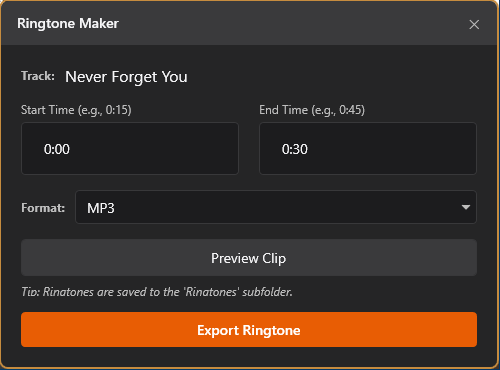
Ringtones folder inside your recording directory for easy access.
Batch Metadata Editing
The Batch Metadata Editing feature lets you quickly update artist, album, cover art, year, and genre for multiple songs at once. Useful for compilations, soundtracks, or collections.

Key Features
- Copy & Paste Metadata: Copy metadata from one song and apply it to multiple others.
- Batch Edit Dialog: Edit multiple songs with custom values in one operation.
- Selective Field Update: Choose exactly which fields to update.
- Smart File Renaming: Automatically renames files based on updated metadata.
- Cover Art Support: Handles local files, network URLs, and temporary file paths.
Method 1: Copy & Paste Metadata
Right-click the source song with correct metadata and select "Copy Metadata".
Select target songs with Ctrl+Click or Shift+Click.
Right-click any selected song and select "Paste Metadata".
Check the fields you want to apply and click "Apply".
Method 2: Direct Batch Edit
Select multiple songs with Ctrl+Click, Shift+Click, or Ctrl+A.
Right-click any selected song and select "Batch Edit".
Check the checkbox next to each field you want to update, then enter the new value.
Click "Apply" and wait for the update to complete.
Cover Art Recommendations
- Recommended format: JPG or PNG
- Recommended size: 500×500 to 1000×1000 pixels
- Square images work best for album art
- Avoid very large files (>5 MB) to keep tags small
Filename Patterns
Customize how Cinch names your recorded files using metadata placeholders. When you edit song information, files are automatically renamed to match.
Available Placeholders
%Artist%Artist name
%Album%Album name
%Title%Song title
%Year%Release year
%Genre%Music genre
%Track%Track number
Pattern Examples
%Artist% - %Title% BLACKPINK - Shut Down.mp3 %Artist% - %Album% - %Title% BLACKPINK - Born Pink - Shut Down.mp3 %Artist%\%Album%\%Title% BLACKPINKBorn PinkShut Down.mp3 (with folders) How to Change
Open Settings → File Naming.
Enter your pattern (e.g., %Artist% - %Title%).
Click Save. New recordings and edited files will use the new pattern.
\ to create folders automatically (e.g., %Artist%\%Title%).
The Main Menu
Click the three-line menu button in the top-right corner of the Cinch window to open the main menu. This dropdown is the hub for help, licensing, updates, language, and file import — everything that is not on the main toolbar.

Menu Items Reference

Pops up a few handy hints for common operations. A great starting point for new users learning the ropes.

Opens the complete online user guide (this page) in your default browser.

Opens the support / contact page where you can submit questions, bug reports, or feedback.

Visits the Cinch Audio Recorder official homepage for product information, news, and announcements.

Opens the purchase page to buy a lifetime license and unlock unlimited recordings.

Enter your license key to activate Cinch and upgrade from the free trial to the full version.

Submenu — switch the interface language. Supported: English, Chinese, Spanish, Italian, Japanese, French, German. A restart is required for the full translation to take effect.

Import external audio files (MP3, M4A, FLAC, OGG, WAV) into your library and attempt automatic identification. Also rescans watched folders for new content.
Checks whether a newer version of Cinch is available for download.

Restores the window size, position, and panel layout to factory defaults. Handy if a panel was accidentally hidden or dragged off-screen.

Shows the About dialog with software version, copyright, developer information, and current license status.
Quick Access
Most menu items also have faster alternatives: Activate License appears as a button in the trial banner, Import / Rescan is available via right-click in the Library, and Check for Updates runs automatically on launch.
When to Use the Menu
Use the menu for one-time setup tasks: changing language, activating a license, resetting the window layout, or checking your version in About. Day-to-day recording and playback stay on the main toolbar.
Settings & Configuration
Access settings through the three-line menu button in the top-right corner. Use these options to match output format, file size, and compatibility to how you plan to use the recording.

Recording Device
Choose between Auto (follows Windows default playback device) or a specific device (e.g., Speakers, Bluetooth headphones, USB DAC). This selects which device mix is captured, not which apps.
Recording Quality
Set bitrate (128–320 kbps MP3), sample rate (44.1 kHz or 48 kHz), bit depth (16-bit or 24-bit), and output format (MP3, AAC, OPUS, FLAC). For true high-quality capture, set Windows Default Format to 24-bit/48000 Hz.
Output Settings
Pick an output folder, decide whether to keep a lossless WAV copy, and choose how files are organized (flat, Artist/Album subfolders, or custom filename pattern).
Detection Behavior
- Min Song Duration: Ignore recordings shorter than this (default: 60s).
- Discard Short: Auto-delete recordings shorter than threshold (default: 5s).
- Silence Threshold: Audio level considered silence (default: 0.01, Traditional mode only).
- Silence Duration: How long silence before stopping (default: 3s, Traditional mode only).
- Enable SMTC: Use System Media Transport Controls for instant metadata.
- Auto-Identify: Automatically recognize songs using fingerprinting.
- Auto Merge Split Fragments: Automatically combine fragments in Traditional mode.
Language
Cinch follows your Windows display language automatically on first launch, or you can switch manually from Menu → Language. Supported languages: English, Chinese, Spanish, Italian, Japanese, French, and German. Restart required for full translation.
Supported Audio Formats
- Recording Output: MP3, AAC (M4A), OPUS, FLAC
- Import/Playback: MP3, M4A, FLAC, OGG, WAV
Detection Settings
Fine-tune how Cinch detects songs and splits recordings. Choose the right mode for your source to avoid merged tracks or unwanted fragments.
SMTC Metadata (Recommended)
System Media Transport Controls is a Windows feature that lets apps share "Now Playing" info. SMTC gives instant, accurate identification and original cover art from the player.
Benefits
- Instant identification
- 100% accurate metadata
- Original cover art from player
Setup
Settings → Check "Enable SMTC Metadata". Use Edge or Chrome for best compatibility. That's it.
Detection Settings Table
Preset Modes
Quality
Focus on full albums (90s minimum, very sensitive splitting).
Traditional
Balanced for streaming (5s minimum).
Fast
Capture everything (10s minimum).
Ad Filtering
Cinch can filter out commercials and system sounds based on length. Most ads are 15–30 seconds, while songs are usually longer. Set "Min Song Duration" to 45–60 seconds to discard short recordings.

Import Existing Audio Files
Cinch is not just for recording. It can also identify and tag your existing music collection. Import MP3, WAV, FLAC, or M4A files and let Cinch find the correct title, artist, album, and cover art.
Click the Menu (≡) button in the top-right corner.
Select "Import Files...".
Choose the audio files you want to import. You can select multiple files at once.
Cinch adds them to the list and immediately starts the auto-identification process.

License Activation
Activate Cinch to unlock unlimited recordings. Keep your license key safe for future reactivations.
First-Time Activation
Launch Cinch, enter your License Key in the activation dialog (or Menu → Purchase), click Activate, and wait for server verification.
Check Activation Status
Menu → About shows your license status: Trial (X recordings left) or Activated (Unlimited).
Reactivation
If you upgrade CPU, motherboard, or reinstall Windows, re-enter your License Key and click Reactivate.
Trial Mode
Free trial has a limited number of recordings. Each saved song = 1 trial recording. When expired, recording stops after a few seconds.

Tips & Performance
A few habits can help you save disk space, get better recognition, and keep your library organized.
Save Space
- Use MP3 192 kbps instead of 320 kbps (about 50% smaller).
- Disable "Save Lossless WAV" if you do not need uncompressed copies.
- Clean up failed/duplicate tracks regularly.
- Set a higher Min Song Duration to skip ads and short fragments.
Disk Usage
Performance Tips
For Large Libraries
Use search instead of scrolling, clean up duplicates regularly, and delete failed attempts.
Reduce CPU Usage
Wait for recognition to finish before starting more recordings, close unnecessary browser tabs, and lower bitrate if your computer is slow.
Best Accuracy
Enable SMTC in Settings for instant metadata from supported players without fingerprinting.
Backup
Periodically copy the entire Cinch Recordings folder, including any custom cover art cache.
Troubleshooting & FAQ
If something does not look right, start with these simple checks before contacting support.
Recording Questions
Why is the beginning of my recording cut off?
Soft intros (fade-ins) can trigger silence detection. In SMTC mode this is handled automatically in v1.1.0+. In Traditional mode, start recording slightly earlier or adjust the silence threshold.
Can I record without an internet connection?
Yes. Recording works offline, but automatic recognition needs internet. Offline recordings will be saved as "Track 1", "Track 2", etc. You can refresh song info later when online.
Why is recognition rate low in browser music services?
Browsers throttle background tabs. Keep the music tab in the foreground, do not minimize the browser, and enable Prevent Sleep. Desktop apps usually give better results than browser players.
Recording stops unexpectedly
Check trial limit, disk space (at least 500 MB free), audio driver issues, and system sleep. Also check the log file for error messages.
Too many short files (10–30s) are recorded
You are likely capturing ads or system sounds. Increase "Min Song Duration" in Settings or enable ad filtering.
Quality & Performance
Recording sounds muffled, flat, or low quality
Windows Audio Enhancements (Device Default Effects) may be interfering. Right-click the speaker icon → Sound Settings → More sound settings → Playback device Properties → Enhancements → disable all enhancements. Then restart Cinch.
Cinch is using too much CPU/memory
Large libraries (1000+ tracks), oversized cover art, or background enrichment can cause this. Close other apps, wait for recognition to finish, and clean up the library regularly.
Metadata & Recognition
Song title shows as "Track 2780" instead of real name
Auto-identification failed. Right-click → "Refresh Song Info" to retry, or manually edit metadata.
Artist or album information is incorrect
Right-click → "Edit Song Metadata", correct the fields, and save. Files will be renamed automatically if your filename pattern uses metadata.
All songs from an album have different album names
Database inconsistencies happen. Select all tracks from the album, right-click → "Batch Edit", check Album, and enter the correct name.
Cover Art
Cover art missing when using web players
Browser Efficiency Mode or Sleeping Tabs stop loading images. In Edge, turn off Efficiency Mode; in Chrome, turn off Memory Saver. Or use the desktop app.
Why did my song get no cover art?
Most common causes: computer was asleep, network issues, player did not provide cover, or temporary API limits. Right-click → "Refresh Cover Art Only" when the system is awake and online.
Cover art is low quality or pixelated
Try "Refresh Cover Art Only" to find a better source. You can also manually add a high-quality JPG/PNG (500×500 to 1000×1000 pixels) via Edit Song Metadata or Batch Edit.
File Management
Where are my recordings saved?
Default location is C:\Users\[YourName]\Music\Cinch Recordings\. WAV copies go to a WAV subfolder. You can change the output folder in Settings → Recording.
Why did my file get renamed unexpectedly?
Your filename pattern includes metadata placeholders. When you edit metadata, Cinch renames the file to match. Use a static pattern if you do not want auto-renaming.
Are WAV and MP3 files synchronized?
Yes. If "Keep WAV" is enabled, WAV files are renamed and deleted alongside the main file.
License & Activation
My trial recordings ran out
The free trial has a limited number of recordings. Each saved song consumes one trial recording. Purchase a license for unlimited recordings.
Activation failed or license deactivated
Check internet connection, re-enter the license key, and check spam folder. Hardware changes (CPU, motherboard, Windows reinstall) may require reactivation.
"Hardware changes detected" error
Major hardware changes trigger this. Reactivate with your license key. If you legitimately upgraded hardware, contact support.
General Debugging Steps
Check the Log
Located in the application folder or AppData. Look for ERROR or WARN messages and share with support if needed.
Restart the App
Fixes many temporary issues, especially after system sleep/wake.
Update to Latest
Many bugs are fixed in newer versions. Check the Help menu for updates.
Contact Support
Include the log file, screenshots, and exact steps to reproduce the issue.
Start with one song you know well.
Click Record, play one familiar track, then open the output folder and check the MP3 file, tags, cover art, and lyrics.