
How to Fix the Wrong Audio Format After Recording
 By HenrikUpdated Aug 7, 20267 min read
Fix a recording saved as the wrong audio format. Learn when conversion is enough, when to re-record, and how to protect the original file.
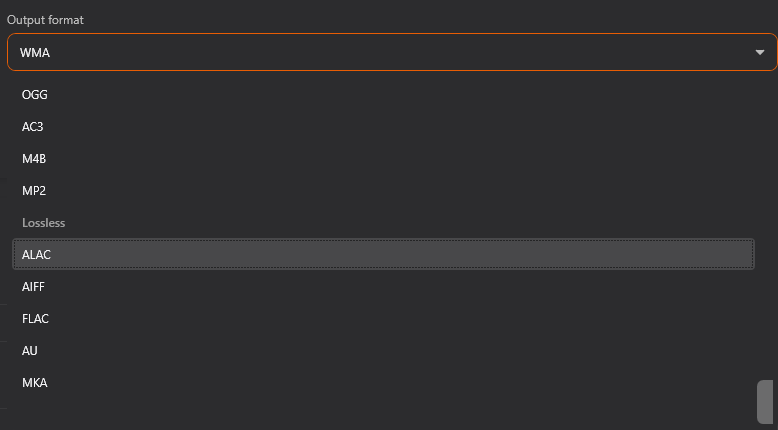
You finished a recording, opened the output folder, and the file is not in the format you expected. Maybe it is WAV instead of MP3, MP3 instead of WAV, M4A when your car wants MP3, or a huge lossless file when you only needed a small listening copy.
Do not delete the recording yet. Most format problems are workflow problems, not failed recordings. The right next step depends on whether the audio itself is usable.
Quick Answer
Use this decision path before changing settings or re-recording:
| What happened | Best next step | Why |
|---|---|---|
| The file plays correctly but the device rejects it | Convert a copy to a more compatible format | The recording content is usable; only playback compatibility is wrong |
| You saved WAV but wanted MP3 | Keep the WAV until the MP3 export is checked | WAV is large, but it can still be a good working copy |
| You saved MP3/M4A but wanted WAV for editing | Convert a copy if the edit is light; re-record only if quality is not enough | WAV will not rebuild lost detail from a lossy file |
| The file is silent, incomplete, or corrupted | Fix capture first, then record again | Format conversion cannot repair missing audio |
| The file is huge | Check duration, format, channels, and bitrate before deleting | Large files may simply be uncompressed or high-bitrate exports |
If the recording contains the right audio from start to finish, conversion is usually enough. If the recording missed the source, stopped early, or captured the wrong device, solve that symptom before thinking about format.
First, Protect the Original
Make one copy before converting, trimming, normalizing, or editing metadata. Name it clearly, for example:
2026-07-29_radio-show_original.wav
2026-07-29_radio-show_mp3-copy.mp3
This avoids the most common cleanup mistake: replacing the only good recording with a converted file you have not listened to yet.
Check the original file:
- Play the first 20 seconds.
- Jump to the middle.
- Play the final minute.
- Confirm the content, volume, and duration are correct.
- Note the current format, file size, and output folder.
If playback fails during this review, use the first recording troubleshooting checklist before converting.
When Conversion Is Enough
Conversion is usually fine when the problem is compatibility or delivery.
Examples:
- A dashboard, USB player, or older device needs MP3.
- A web upload form rejects WAV because the file is too large.
- A collaborator asks for a smaller listening copy.
- Your music player displays M4A poorly but handles MP3 cleanly.
- You need a temporary WAV copy for light editing in an audio editor.
Use the Online Audio Format Converter when you only need to convert a local file in the browser. After export, listen to the converted copy before deleting or archiving the original.
For format choice before the next session, read the best audio format for recording guide. It explains when MP3, M4A, WAV, or FLAC is the better starting point.
When You Should Re-Record
Re-recording is worth considering when the format mistake caused a quality or capture problem you cannot recover afterward.
Re-record if:
- The file is silent or contains the wrong audio source.
- The recording stopped before the source finished.
- The file is corrupted and cannot be decoded.
- The original was saved at a very low bitrate and you still need a music-quality final copy.
- You planned a serious edit but only kept a heavily compressed listening file.
- The file has clipping, dropouts, or obvious capture noise unrelated to the format.
For long sessions, use the recording stops unexpectedly guide if the file ended early. For format and bitrate setup, pair the format guide with the bitrate guide before the next full recording.
Common Format Mismatches
WAV instead of MP3
This is usually easy to fix. WAV files are large because they are commonly uncompressed, but they are also useful as a working copy.
Do this:
- Keep the WAV original.
- Convert a copy to MP3.
- Check the MP3 in the target player.
- Archive or delete the WAV only after you are sure you no longer need an editing copy.
If storage is the problem, estimate future session size with the Audio File Size Calculator.
MP3 instead of WAV
MP3 can still be usable, especially for listening, sharing, or light trimming. The important limit is that MP3 is lossy. Converting it to WAV makes editing easier in some apps, but it does not recreate information already removed by compression.
Do this:
- Keep the MP3 original.
- Convert a WAV copy only if your editor needs it.
- Avoid repeated MP3-to-MP3 exports during cleanup.
- Re-record in WAV or FLAC next time if you need a stronger editing copy.
M4A/AAC instead of MP3
M4A can be a practical listening format, but some older players, simple USB devices, and car dashboards still prefer conservative MP3 files.
Do this:
- Test the M4A in the real target device.
- If it fails, convert a copy to MP3.
- Keep filenames simple and avoid unusual characters for USB playback.
- Check metadata after conversion.
If the target is a car or USB drive, use the car USB audio conversion guide before batch converting a folder.
Lossless File When You Wanted a Small File
FLAC or WAV can be sensible for archives, but they may be unnecessary for everyday listening. Convert a copy to MP3 or M4A for portable use, then decide whether the lossless original is worth keeping.
Keep lossless when:
- You will edit the recording later.
- The recording is difficult to recreate.
- You need an archive copy.
- Storage is not a problem.
Convert and remove the lossless copy only when the content is replaceable and the smaller file has been checked.
Set the Format Before the Next Recording
After you fix the current file, change the workflow so the same mismatch does not repeat.
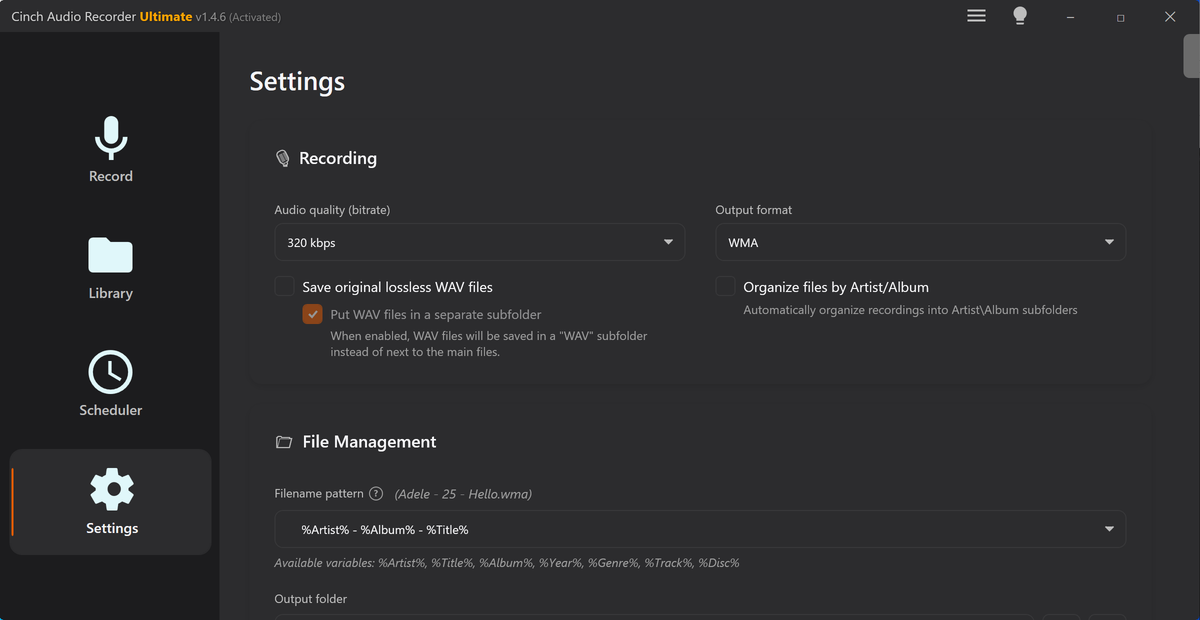
Use this preflight routine:
- Choose the target use: listening, editing, archive, car USB, upload, or support sample.
- Pick the format before starting the source playback.
- Pick bitrate only if the format is lossy.
- Record a short sample.
- Open the output folder and confirm extension, size, duration, and playback.
- Save that setting only after the sample matches the job.
For repeated long recordings, the best settings for long audio recording guide adds checks for power, storage, output folder, and source playback stability.
What Conversion Can and Cannot Fix
Conversion can fix:
- Device compatibility.
- File size for sharing.
- Editor import requirements.
- Browser or player format support.
- A delivery format requested by someone else.
Conversion cannot fix:
- Silent recordings.
- Missing sections.
- Wrong-device capture.
- Clipped or distorted audio.
- Quality lost in the original lossy export.
- A source that was already low quality before recording.
That distinction matters. Convert when the content is right but the container is wrong. Troubleshoot or re-record when the content itself is wrong.
Related Guides and Tools
- Best audio format for recording
- Choose bitrate for recorded audio
- Online Audio Format Converter
- Audio File Size Calculator
- Recording Time Calculator
- Clean up recorded audio
- Support and activation help
Frequently Asked Questions
Can I change a recorded audio file to another format?
Yes, if the file plays correctly. Convert a copy for compatibility, sharing, or editing, but keep the original until you have checked the new file.
Does converting MP3 to WAV improve the recording quality?
No. WAV can be useful for editing, but converting a lossy file to WAV does not restore detail that was not captured in the original recording.
Should I re-record if I chose the wrong format?
Re-record only when the saved file is silent, incomplete, corrupted, or too compressed for the work you still need to do. Otherwise, convert a copy and keep the original.