
How to Make Recorded Audio Play From a Car USB Drive
 By HenrikUpdated Aug 7, 20267 min read
Prepare recorded audio for car USB playback with practical checks for format, filenames, folders, stereo/mono, tags, and test copies.
Car USB playback has a different goal from a music library on a computer. The file does not need to be impressive on paper; it needs to appear on the dashboard, sort in a sensible order, play without silence, and show names you can recognize while driving.
This guide is for recorded audio you already have: music recordings, radio shows, lectures, voice files, and edited clips. It focuses on practical compatibility and avoids pretending that every car stereo reads the same formats, folders, or tags.
The Short Answer
Make a small test folder before converting the whole library.
| Problem | First fix to try | Tool or guide |
|---|---|---|
| Car does not see the file | Export a simple MP3 copy | Online Audio Format Converter |
| Song names look broken | Rewrite MP3 tags and filenames | fix garbled song names on a car USB drive |
| One side of audio is missing | Create a mono copy | Stereo to Mono Converter |
| Files sort in the wrong order | Use numbered filenames | Audio file naming guide |
| Recording is too quiet or messy | Clean the file before USB prep | Clean up recorded audio |
Do not batch-convert everything first. Test three to five files on the actual car USB port, then repeat the same settings only after the test works.
Step 1: Start From a Clean Copy
Before preparing a USB version, check that the recording itself is worth keeping.
- Play the file from beginning to end or at least spot-check the start, middle, and end.
- Remove obvious dead air, false starts, or broken fragments.
- Confirm the file is not silent, clipped, or captured from the wrong device.
- Keep the original recording in a separate folder.
If the recording still needs work, use the clean up recorded audio guide first. Car preparation should be the final delivery step, not the place where you discover the source file was wrong.
Step 2: Choose a Conservative Format
MP3 is the safest starting format for many car USB players because it is common, compact, and well supported by older dashboards. That does not mean every car requires MP3, but it is usually the best first test when compatibility matters.
Use this decision table:
| Source file | USB test copy | Why |
|---|---|---|
| M4A/AAC from a modern app | MP3 test copy | Older cars may not read M4A reliably |
| WAV recording | MP3 test copy | Smaller and easier for simple USB players |
| FLAC archive | MP3 test copy | Keeps the archive unchanged while testing playback |
| Existing MP3 | Keep MP3, fix tags if needed | Re-conversion may be unnecessary |
| Speech recording | MP3, mono only if helpful | Speech does not always need stereo |
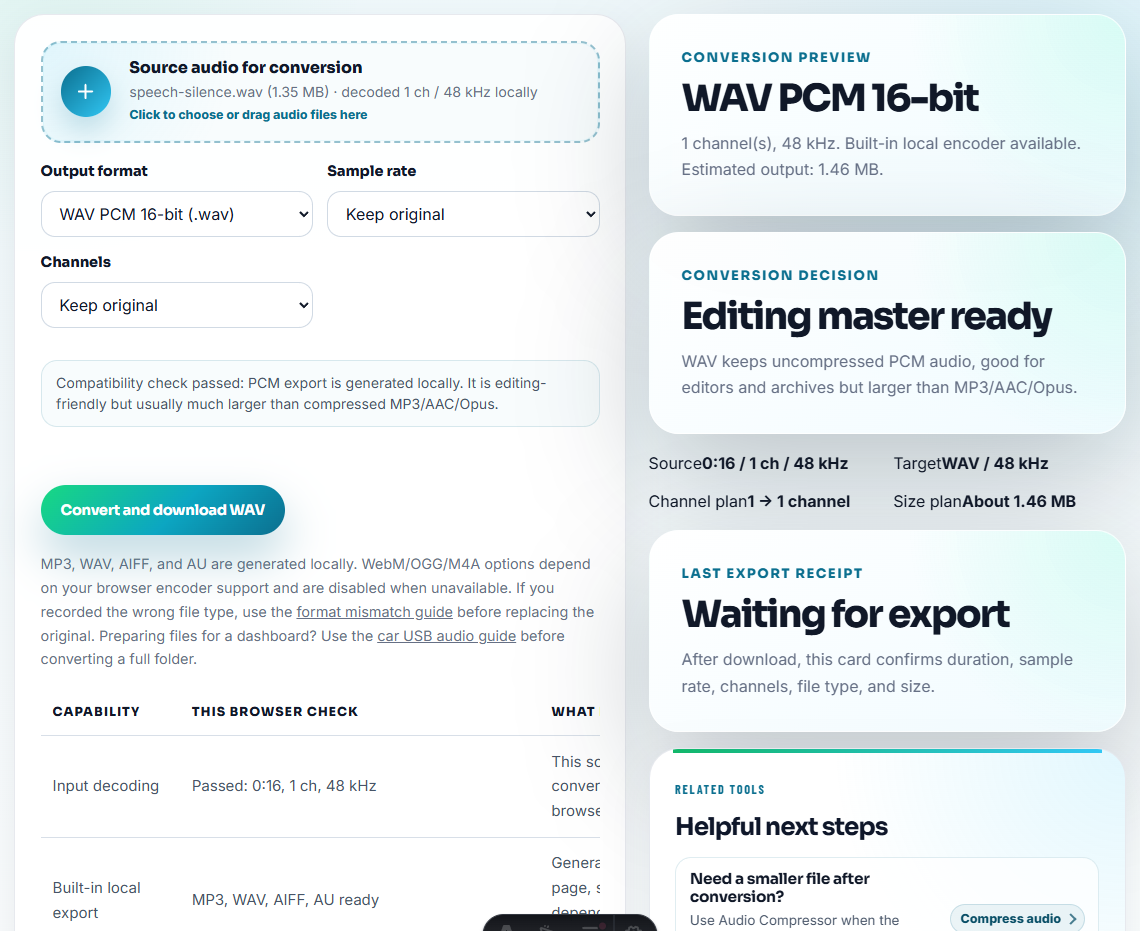
Use the Online Audio Format Converter when you need a local MP3 copy from a browser-decodable file. The converter works on a copy and keeps the original unchanged.
Step 3: Use Simple Filenames
Car stereos often sort by filename, folder order, or track number in ways that differ from desktop music players. Simple names help.
For music:
001 - Artist - Title.mp3
002 - Artist - Title.mp3
003 - Artist - Title.mp3
For radio, lectures, or spoken audio:
001 - 2026-07-29 - Radio Show - Part 01.mp3
002 - 2026-07-29 - Radio Show - Part 02.mp3
Avoid very long names, unusual symbols, emoji, slashes, quotes, and repeated punctuation. Keep one pattern per folder. If the car sorts badly, numbered prefixes are easier to debug than relying on hidden metadata.
For broader naming rules, use the audio file naming guide.
Step 4: Fix Tags Only After the File Plays
Format and tags are separate problems.
If the car does not play the file at all, fix the format first. If the file plays but the dashboard shows scrambled text, boxes, question marks, or old wrong titles, then fix the MP3 tags.
The fix garbled song names on a car USB drive is designed for MP3 files that play but display badly. It creates new MP3 copies with car-friendly ID3v2.3 UTF-16 tags and simple filename options. It does not re-compress audio, and it intentionally skips non-MP3 files instead of pretending every format can be made car-safe by changing tags.
Use this order:
- Convert or keep a playable MP3 copy.
- Put a few files on the USB stick.
- Test whether the car plays them.
- If names are broken, run those MP3 files through the tag fixer.
- Test the fixed copies before processing a large folder.
Step 5: Decide Whether Mono Helps
Most music should stay stereo. Mono is useful only when compatibility or audibility matters more than stereo width.
Consider mono when:
- The recording is speech, a lecture, or an interview.
- One channel is much quieter than the other.
- The car speaker setup makes one side hard to hear.
- The source was an old recording with important content panned to one side.
Use the Stereo to Mono Converter on a copy if the left/right balance causes listening problems. Preview the result before saving a full USB batch.
Step 6: Build a Small Test USB Folder
Do not start with 300 files. Start with a folder that exposes the main risks.
USB Test
  001 - Short Song.mp3
  002 - Long Radio Show.mp3
  003 - Non-English Title.mp3
  004 - Spoken Audio Mono.mp3
  005 - Tagged Music File.mp3
Test this folder in the car and write down what happens:
- Does the folder appear?
- Do files sort in the expected order?
- Does each file play from the beginning?
- Are names readable?
- Does the car resume playback after restart?
- Are long recordings seekable enough for real use?
Only after that should you prepare the full USB folder.
Step 7: Keep an Archive Separate From the USB Copy
The USB version is not your archive. It is a delivery copy for one car.
Keep:
- The original recording or higher-quality working copy.
- A clean library copy with normal metadata.
- A separate car USB copy with conservative format, filenames, and tags.
That separation lets you change car settings later without damaging the main library. If a future car reads FLAC or M4A perfectly, you can create a new USB copy from the archive instead of reusing a repeatedly converted file.
Finish-Line Checklist
Before filling the USB drive, confirm:
- A small test folder plays in the actual car.
- Files are in a conservative format, usually MP3 for the first pass.
- Filenames are short, numbered when order matters, and free of risky characters.
- MP3 tags are fixed only after playback works.
- Mono is used only when it solves a real listening problem.
- Originals and archive copies remain unchanged.
If you recorded the audio with Cinch Audio Recorder, finish the file first with the clean up recorded audio guide, then prepare the car copy. If you only need dashboard display cleanup for existing MP3 files, go straight to the fix garbled song names on a car USB drive.
Related Tools and Guides
- fix garbled song names on a car USB drive
- Online Audio Format Converter
- Stereo to Mono Converter
- Audio file naming guide
- Best audio format for recording
- Clean up recorded audio
Frequently Asked Questions
What audio format should I use for car USB playback?
MP3 is the safest starting point for many car USB players. Some newer systems read AAC, FLAC, or WAV, but older dashboards often behave more predictably with simple MP3 files.
Why do songs show garbled names in my car?
Many car stereos read MP3 tags before filenames. If the tag uses an encoding or ID3 version the dashboard handles poorly, the car may show boxes, question marks, or scrambled characters.
Should I convert stereo audio to mono for a car?
Keep stereo when music sounds balanced. Use mono only for speech, old recordings, or files where important sound sits mostly on one side and the car speaker setup makes it hard to hear.