
How to Split One Long Recording Into Tracks
 By HenrikUpdated Aug 7, 20266 min read
Fix a recording saved as one long file. Review the audio, choose trim or chapter splitting, name segments, and avoid bad cuts next time.
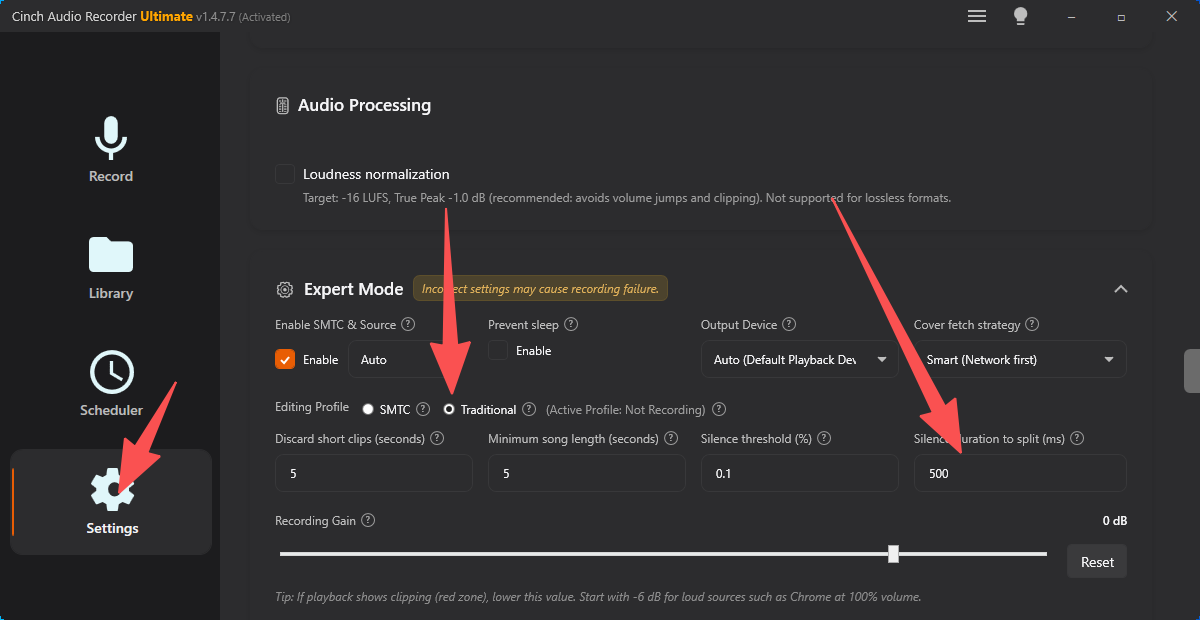
You expected separate tracks or neat clips, but the recording arrived as one long file. That does not always mean the recording failed. It may simply mean the source played as one continuous stream, or there was not enough reliable information to split it automatically.
The safest fix is to treat the long file as the master copy: review it, mark the useful boundaries, export copies, and keep the original until every segment has been checked.
Quick Answer
Use this decision path:
| Situation | Best next step | Why |
|---|---|---|
| One long show, lecture, or webinar | Keep it as one file or add chapter splits | The listener may need sections, not separate songs |
| One long music stream | Review before splitting | Ads, jingles, and talk breaks can make automatic cuts messy |
| Only the start or end is wrong | Trim the edge | A full chapter split is unnecessary |
| You know exact segment times | Use chapter splitting | Timestamp-based cuts are safer than guessing |
| The file has silence, alerts, or missing sections | Fix the capture problem before relying on edits | Splitting does not repair bad source audio |
Do not delete the long file first. It is the only complete source you have.
First, Review the Long File
Before splitting, listen in three places:
- The first minute.
- A middle section.
- The final minute.
Then answer four questions:
- Does the recording contain the intended audio?
- Did it capture notification sounds, ads, or another app?
- Are there obvious segment boundaries?
- Do you need separate files, or would one named file with notes be enough?
If the file is silent or captured the wrong source, go back to the first recording troubleshooting checklist. If the file is clean but simply long, continue with trimming or splitting.
Decide: Trim, Split, or Keep One File
Not every long file should be chopped up.
Keep one file when
- It is a complete lecture, meeting, radio show, audiobook chapter, or webinar.
- The listener needs context from start to finish.
- You do not know reliable cut points.
- The file will be searched by filename or notes rather than track title.
Use a clear name such as:
2026-07-29 - Station Name - Evening Show.mp3
2026-07-29 - Course Lesson 04 - Full Session.wav
Trim when
- Only the beginning has dead air.
- Only the ending has extra silence.
- There is a countdown, intro noise, or accidental start.
- You need one clean excerpt.
Use the Audio Trimmer for edge cleanup or short excerpts.
Split when
- You know where each section starts.
- The file contains multiple useful songs, topics, chapters, or interview segments.
- You need separate exports for sharing, tagging, or device playback.
- The boundaries are clean enough that a cut will not remove useful audio.
Use the Audio Chapter Splitter when timestamp-based cuts make more sense than one start/end trim.
How to Split One Long Recording
Use a copy of the long file and keep the original untouched.
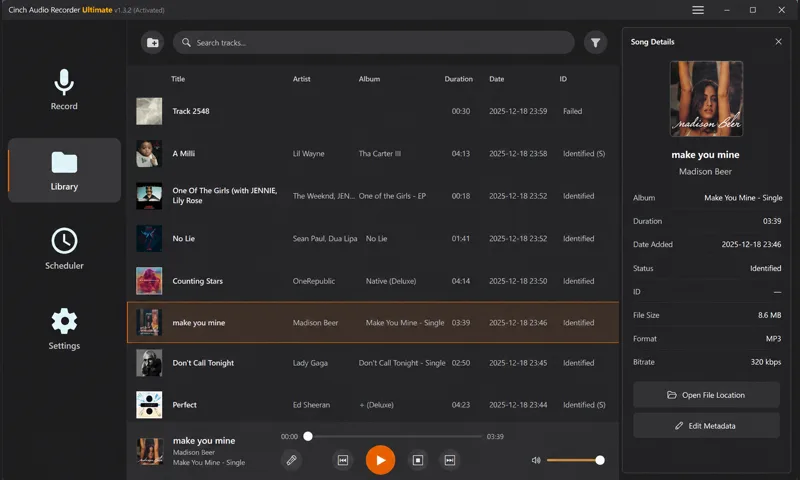
- Play the file in a player with a visible time counter.
- Write down the start time for each useful section.
- Give each section a plain working title.
- Add the timestamps to the chapter splitter.
- Export the segments.
- Play the first and last 10 seconds of each segment.
- Rename or tag the finished files only after the audio is correct.
Example chapter notes:
0:00 Intro
3:42 Interview begins
18:10 Listener questions
32:45 Closing segment
For music, do not trust a guessed title until you have listened. Station IDs, live versions, ads, and talk breaks can confuse identification. The clean up recorded audio guide covers the safer order for naming, metadata, cover art, and archive copies.
If the Long File Contains Ads or Silence
Do not split every pause automatically. A pause may be:
- Natural silence in speech.
- A station break.
- Buffering.
- A transition between songs.
- Dead air you should trim.
- A sign that the stream stopped temporarily.
If the gaps are clean and predictable, chapter splitting can work well. If the file has scattered silences, short accidental noises, or unwanted middle sections, you may need a combination of the Audio Trimmer, Audio Silence Remover, and manual review.
If the recording stopped and resumed, use the recording stops unexpectedly guide before the next long session.
If You Expected Automatic Track Splitting
Automatic splitting depends on cues the recorder can actually use. Some streams expose useful metadata. Others play as one continuous programme with no reliable track boundary. Some sources include jingles, voiceovers, ads, or crossfades that make clean automatic splitting difficult.
Use this practical rule:
- If the source behaves like an album or playlist with clear song changes, review track handling and metadata settings before recording the next session.
- If the source behaves like radio, a webinar, a lecture, or a live stream, plan for a long file and split it afterward only where it helps.
- If you need reliable chapters, write down or create timestamps while reviewing the file.
For online radio, the record online radio guide explains why long-session review matters before trimming, splitting, or renaming.
Prevent One-File Surprises Next Time
Before a long recording:
- Decide whether you want one archive file or many segment files.
- Record a one-minute sample.
- Check whether the source exposes clean track or section changes.
- Confirm the output folder and naming pattern.
- Check minimum-duration, short-clip, silence, or merge settings only if the recorder exposes them.
- Keep notes during the session if you know you will split later.
For a full long-session setup, use the best settings for long audio recording guide.
Related Guides and Tools
- Audio Chapter Splitter
- Audio Trimmer
- Clean up recorded audio
- Record online radio
- Best settings for long audio recording
- Recording stops unexpectedly
- Audio file naming guide
- Cinch support
Frequently Asked Questions
Why did my recording save as one long file?
A recorder may save one continuous file when the source plays continuously, when track detection is unavailable, or when silence and metadata cues are not reliable enough to split safely.
Can I split one long recording into tracks?
Yes. First review the file, mark the real segment starts, then use a chapter splitter or trimmer to export copies. Do not split by guesswork if ads, pauses, or announcements are mixed in.
Should I delete the original long recording after splitting?
Keep the original until every exported segment has been played and named correctly. It is your fallback if a cut point, format, or title is wrong.