
How to Make Audio Easier to Hear in Noisy Places
 By HenrikUpdated Aug 7, 20266 min read
Make voice, lessons, clips, and playback copies easier to hear in cars, kitchens, workshops, or other noisy rooms.
Audio for a noisy place has a different job from audio for headphones. A voice note that sounds fine at a desk may be hard to follow in a car, kitchen, workshop, warehouse, classroom, or busy room.
Audio that sounds fine at a desk can fail in a kitchen, car, shop, or classroom. Test speech level, harsh peaks, and mono compatibility before sending it into noisy playback situations.
Choose the Noisy-Place Listening Copy
Do not make one loud version for every situation. The best copy depends on the speaker, the background noise, and whether the listener can replay missed words.
| Listening place | Biggest problem | Better edit | Check before sharing |
|---|---|---|---|
| Car | Road noise hides quiet words | Trim waste and normalize speech | Test at normal driving volume while parked |
| Kitchen | Short sounds get masked by appliances | Remove dead air and sharpen structure | First words after pauses remain clear |
| Workshop | Stereo details disappear | Make a mono-compatible copy | Important voice works from one speaker |
| Classroom | Volume jumps distract the room | Smooth peaks before boosting | Loud moments do not feel harsh |
| Outdoor phone speaker | File starts too quietly | Trim intro and add a small final lift | Listener can hear the opening sentence |
Decide What the File Must Prove
| Pass | Tool to open | Check to make |
|---|---|---|
| 1 | Recording Quality Checker | Check clipping, silence, rough peaks, and whether the file can be improved. |
| 2 | Audio Trimmer | Remove slow starts, dead air, and sections the listener does not need. |
| 3 | reduce hiss and hum in voice recordings | Reduce steady hiss or hum only when it competes with speech. |
| 4 | Audio Normalizer | Make useful speech or cues more consistent. |
| 5 | Stereo to Mono Converter | Create a reliable one-speaker copy when stereo placement hurts clarity. |
| 6 | boost quiet audio without distortion | Add a small final lift only when the cleaned copy remains too quiet. |
Make a noisy-place copy. Do not overwrite the original, because this version may be less pleasant in headphones.
Step 1: Check Whether the Source Is Worth Fixing
Open the file in the Recording Quality Checker. If the useful audio is already clipped, missing, or buried under loud background sound, a browser workflow may only help a little.
Look for:
- Speech that is too low.
- Long silent sections before important words.
- Loud peaks that may become harsh after boosting.
- A file that is mostly background noise.
- A recording that already sounds distorted.
If the problem is wrong-source recording or missing audio, re-recording may be faster than polishing.
Step 2: Remove Anything That Competes With Attention
Use Audio Trimmer before level changes.
Trim:
- Long introductions.
- Dead air.
- Repeated instructions.
- Irrelevant setup chatter.
- Endings after the useful information is finished.
Shorter audio is easier to understand in a noisy place because the listener spends less time fighting the environment.
Step 3: Reduce Steady Noise Carefully
Use reduce hiss and hum in voice recordings only when there is steady hiss, fan noise, hum, or room noise that competes with the useful audio.
Keep cleanup gentle. If the voice becomes watery, thin, or metallic, the setting is too strong. In a noisy room, artificial-sounding cleanup can be more distracting than the original noise.
Do not try to remove changing background sounds such as traffic, clatter, voices, or music with a simple noise reducer. Those usually need manual editing or a better recording.
Step 4: Normalize the Useful Audio
Use Audio Normalizer after trimming and optional noise cleanup. The goal is consistency, not maximum loudness.
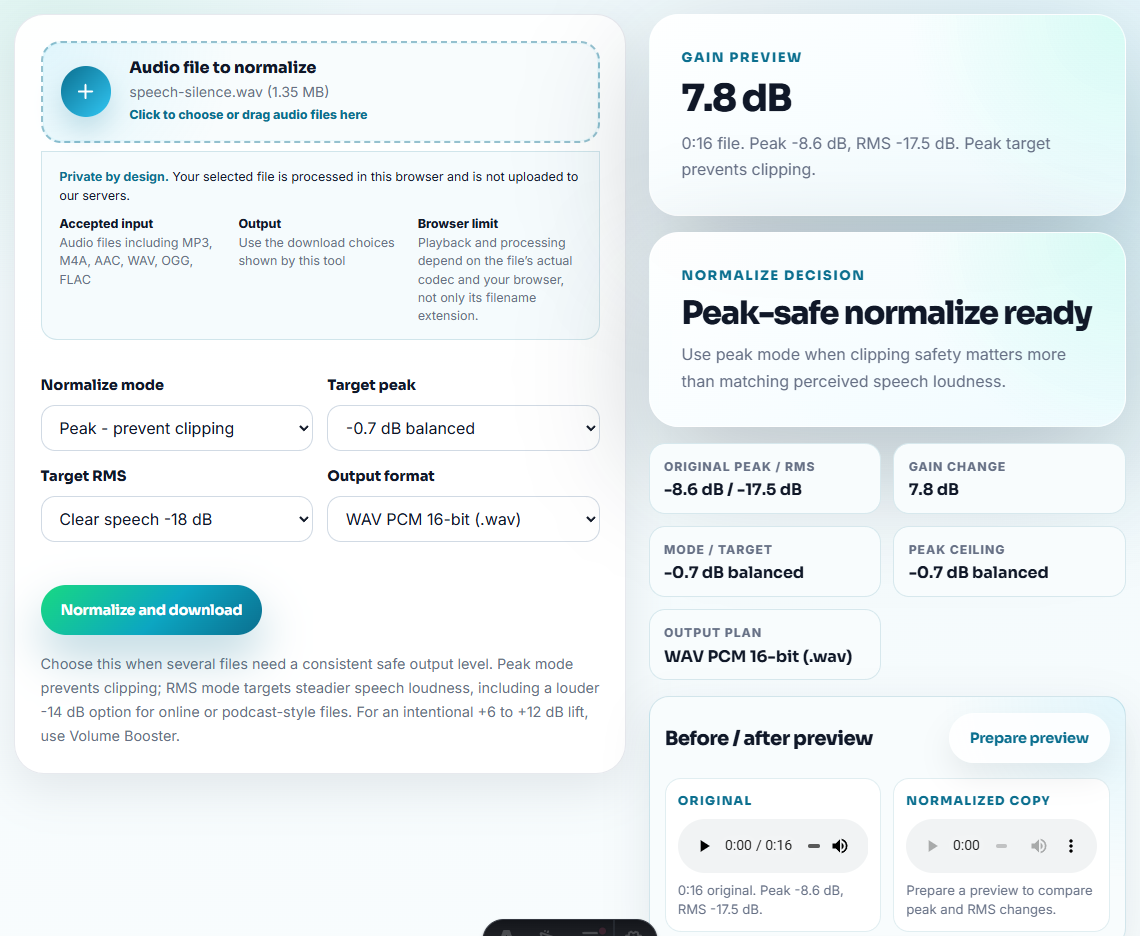
Check the result on a realistic speaker:
- Laptop speaker.
- Phone speaker.
- Car stereo.
- Small Bluetooth speaker.
- The same kind of room where it will be heard.
If the listener still needs to raise the device volume a little, that is fine. Avoid creating a file that is painful at normal volume.
Step 5: Use Mono When Stereo Gets in the Way
Use Stereo to Mono Converter when important audio is hard-panned, uneven, or likely to be played through one speaker.
Mono can help when:
- A voice sits mostly on one side.
- A classroom or workshop speaker is effectively one point source.
- The file will be played from a phone or simple speaker.
- The listener may move around the room.
Listen after conversion. If music or effects lose important detail, keep a stereo copy too.
Step 6: Boost Only After Cleanup
If the normalized copy is still not practical, use boost quiet audio without distortion lightly.
Stop when the useful content is understandable. More gain can make hiss, room tone, mouth noise, and clipped peaks more obvious.
Final Checks for Noisy Listening Places
- Do not boost a noisy file before trimming and checking it.
- Do not remove noise so aggressively that speech becomes unnatural.
- Do not assume a headphone-friendly version will work in a room.
- Do not make music mono unless the playback situation needs it.
- Do not compress or convert the only copy.
- Do not judge the final version in a silent room only.
Use Browser Tools Before a Real-World Listen
Browser prep is enough when you only need to make speech more understandable for one noisy playback setting. Use a fuller workflow when the file must work in public venues, safety instructions, paid presentations, or repeated field use.
Use a full editor when you need detailed EQ, multiband compression, manual restoration, professional venue playback, or a final release for a large audience.
Where to Go Next
- Recording Quality Checker
- Audio Trimmer
- Audio Normalizer
- Stereo to Mono Converter
- Make Audio Easier to Hear on Phone Speakers
- Make Audio Sound Better on Bluetooth Speakers
- Make Spoken Audio Easier for Older Listeners
- Make Audio Work on One Speaker
- Fix Audio That Is Louder on One Side
- Make Quiet Audio Loud Enough Without Clipping
- Make Audio Files Play at a Consistent Volume
- Test Audio on Devices Without Risking Originals
Small Decisions That Matter
What should I check so audio works better in noisy places?
Start with a quality check, trim waste, reduce steady noise only when useful, normalize speech, make mono copies when needed, and boost only after the file is already clean enough.
Should I remove all background noise before playing audio in a noisy room?
No. Remove only noise that competes with the useful audio. Heavy cleanup can make speech sound thin and harder to understand.
Is louder always better for noisy playback?
No. Clearer structure, fewer distractions, consistent level, and safe mono playback often help more than pushing the file louder.