
How to Make Audio Easier to Hear on Phone Speakers
 By HenrikUpdated Aug 7, 20266 min read
Make voice, music, and clips easier to hear on phone speakers without harsh boosting or distorted mono playback.
Audio that sounds acceptable in headphones can fail on a phone speaker. Speech may feel buried, one side of a stereo file may disappear, and heavy boosting can turn a quiet recording into a harsh one.
Phone speakers punish quiet voices and muddy mixes. Make a copy that keeps speech centered, avoids sharp peaks, and can be understood without headphones.
Start With the Source File
| Task | Tool | Result to verify |
|---|---|---|
| 1 | Recording Quality Checker | Check silence, clipping, rough peaks, and whether the file is worth fixing. |
| 2 | Lopsided Audio Pan Balancer | Find obvious left-right imbalance before choosing stereo or mono. |
| 3 | Stereo to Mono Converter | Create a one-speaker copy when speech or important sound disappears. |
| 4 | Audio Normalizer | Bring the useful audio to a more comfortable level. |
| 5 | boost quiet audio without distortion | Add a small lift only when normalization is still not enough. |
| 6 | Audio Compressor | Make a smaller final copy after the sound is already acceptable. |
Work on copies. Keep the original file unchanged so you can restart if the small-speaker version becomes too aggressive.
Step 1: Check Whether the File Has Fixable Problems
Open the file in the Recording Quality Checker before changing volume. If the file is mostly silence, badly clipped, or missing the important section, boosting it will not solve the real problem.
Look for:
- Long silent starts that make the file feel broken.
- Strong clipping that may become sharper on phone speakers.
- Very low speech level.
- Sudden peaks that make volume changes risky.
- A file that is already loud but still unclear.
If the file is already clipped, keep changes gentle. A phone speaker often makes harsh peaks feel worse.
Diagnose the Small-Speaker Problem
Phone speakers expose different problems than headphones. Pick the fix based on what actually fails.
| What happens on the phone | Likely cause | First fix to try | Stop if… |
|---|---|---|---|
| Speech is too quiet | Low recording level | Normalize after trimming | Hiss becomes louder than the voice. |
| Voice disappears or leans sideways | Hard-panned stereo | Try a mono copy | Music loses important stereo detail. |
| File sounds sharp or buzzy | Clipping or over-boosting | Use a gentler copy | Lowering volume still leaves distortion. |
| Bass-heavy music feels weak | Phone cannot reproduce low bass | Do not keep boosting bass | The mix gets muddy or harsh. |
| Starts too slowly | Long lead-in or silence | Trim the opening copy | Context or first word is cut off. |
The best phone-speaker copy is usually clearer and simpler, not just louder.
Step 2: Check Stereo Before Raising Volume
Some small-speaker problems are not volume problems. The file may lean hard left or right, or important details may sit in a channel that does not translate well.
Use Lopsided Audio Pan Balancer to inspect channel balance. If the file is speech, instructions, a voice note, or a support example, reliability matters more than stereo width.
Do not convert music to mono automatically. Test first, especially when stereo space is part of the listening experience.
Step 3: Make a Mono Copy Only When It Helps
Use Stereo to Mono Converter when:
- One side contains speech that must not disappear.
- A listener may hear the file from one phone speaker.
- The clip will be shared in a context where playback devices are unknown.
- A lopsided recording feels uncomfortable in earbuds and weak on speakers.
After conversion, listen to the mono copy. Check that the voice, beat, cue, or important sound is still present. If the mono copy loses important detail, go back and keep a stereo version.
Step 4: Normalize Before Boosting
Use Audio Normalizer after trimming or mono conversion. Normalization gives you a controlled level change instead of guessing with repeated boosts.
Good phone-speaker goals:
- Speech is understandable at normal device volume.
- The file does not jump suddenly.
- Background noise is not louder than the words.
- The copy still sounds acceptable in headphones.
Avoid making the file loud just because the phone can play it. Loud but distorted audio is harder to listen to than slightly quiet audio.
Step 5: Add a Small Boost Only If Needed
If the normalized copy is still too quiet, try the boost quiet audio without distortion lightly.
Use a small change and test again. Stop when speech becomes clear. If hiss, room noise, mouth clicks, or distortion become more obvious, the boost is starting to expose the wrong details.
For music, avoid pushing bass-heavy tracks too hard. Many phone speakers cannot reproduce low bass clearly, so boosting may only make the rest of the file rough.
Step 6: Compress Only the Final Sharing Copy
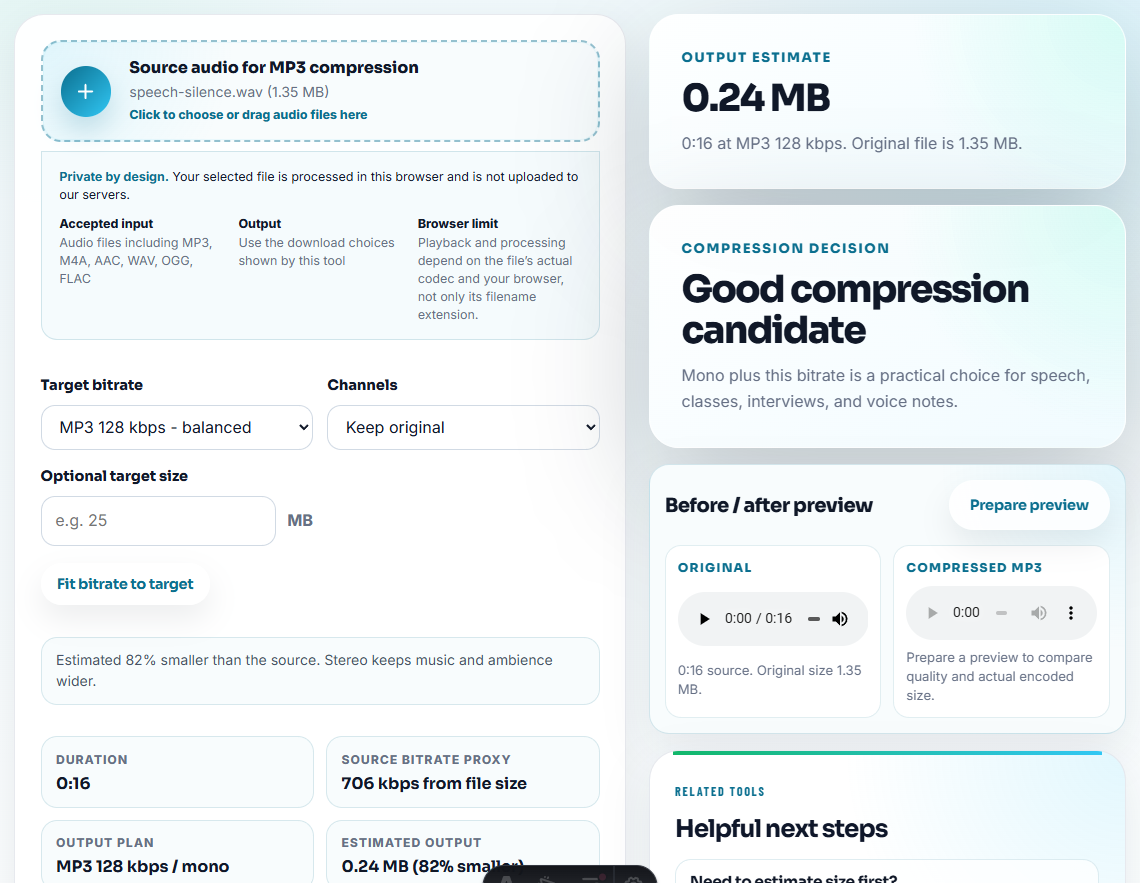
Use Audio Compressor after the phone-speaker copy sounds acceptable. Compression is for delivery size, not for fixing clarity.
Name the file clearly:
Interview-clip-phone-speaker-copy.mp3
Lesson-03-phone-review.mp3
Support-example-phone-playback.mp3
Keep the original and the edited copy in separate folders.
Phone Speaker Check Before Exporting
- Do not boost first and diagnose later.
- Do not make every music file mono.
- Do not normalize before trimming long silence.
- Do not compress the only copy of an important file.
- Do not judge the result only with headphones if the audience will use phone speakers.
- Do not push loudness until the file sounds sharp, buzzy, or tiring.
When You Do Not Need a Desktop Recorder
For phone-speaker playback, browser tools are enough when you need to make speech clearer on a small speaker. Test on the actual phone, avoid excessive bass or volume boosts, and keep the original in case the phone-friendly copy sounds thin elsewhere.
Use a full audio editor when you need detailed EQ, de-essing, manual clip repair, multi-track mixing, or professional loudness targets.
Related File Prep Guides
- Recording Quality Checker
- Stereo to Mono Converter
- Audio Normalizer
- boost quiet audio without distortion
- Make Audio Work on One Speaker
- Make Audio Sound Better on Bluetooth Speakers
- Make Audio Easier to Hear in Noisy Places
- Make Spoken Audio Easier for Older Listeners
- Make Quiet Audio Loud Enough Without Clipping
- Test Audio on Devices Without Risking Originals
- Turn a Recording Into a Clean Ringtone
Last Review Points
What should I check so audio sounds better on phone speakers?
Use a quality checker, stereo-to-mono converter when needed, audio normalizer, light volume booster, and compressor only for the final sharing copy.
Should I make every phone-speaker file mono?
No. Make a mono copy only when important sound disappears, speech leans to one side, or the file will be heard through a single small speaker.
Why does audio sound fine in headphones but bad on a phone?
Phone speakers expose different problems: weak speech level, hard-panned stereo, heavy bass that does not translate, clipping, and over-boosted highs.