
How to Make Audio Sound Better on Bluetooth Speakers
 By HenrikUpdated Aug 7, 20267 min read
Prepare Bluetooth speaker copies with realistic room tests, checked levels, smoother starts, and safer exports.
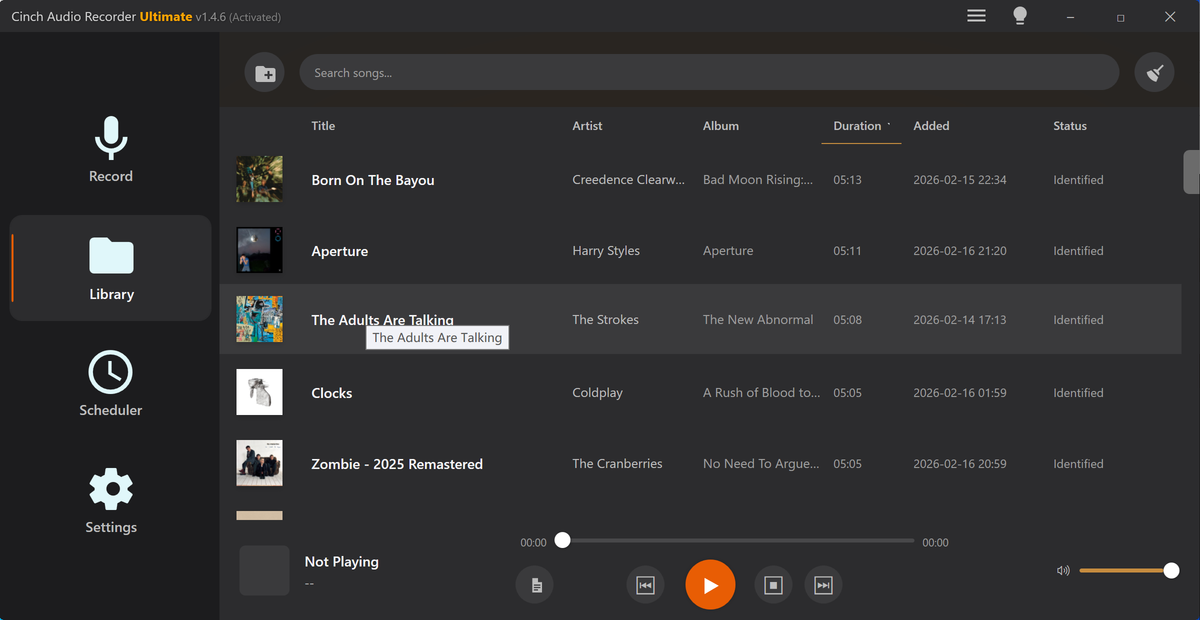
Bluetooth speakers are convenient, but they are not neutral test monitors. A file can sound clear in headphones and still feel muddy, too quiet, too sharp, or uneven from a small portable speaker.
Bluetooth speakers can expose problems that headphones hide: low volume, lopsided stereo, harsh peaks, or weak speech. Test a copy before assuming the file will play well in a room.
Decide What the File Must Prove
| Pass | Tool to open | Check to make |
|---|---|---|
| 1 | Audio Metadata Viewer | Check duration, format, size, and channel details before editing. |
| 2 | Recording Quality Checker | Catch silence, clipping, rough peaks, or very low level. |
| 3 | Audio Trimmer | Remove dead starts, rough endings, and unwanted setup sections. |
| 4 | Audio Normalizer | Make playback level more consistent. |
| 5 | smooth harsh starts and endings | Smooth starts and endings that feel abrupt on a speaker. |
| 6 | Online Audio Format Converter | Create a compatible copy only when the playback device or app needs it. |
Prepare one tested speaker copy first. Then make smaller or alternate-format versions only if needed.
Step 1: Check the File Details
Open the file in Audio Metadata Viewer. This tells you what kind of file you are about to test.
Check:
- Format.
- Duration.
- File size.
- Channels.
- Bitrate.
- Existing title or labels.
If you are preparing several files for the same speaker, note which ones are voice, music, cues, loops, or long recordings. Mixed folders often need different treatment.
Match the Copy to the Room
Bluetooth playback changes with the room and speaker position. Make the copy for the actual listening situation.
| Playback situation | Main risk | Better adjustment | Real test |
|---|---|---|---|
| Small meeting room | Speech too quiet from the back | Normalize a speech copy | Walk to the far side of the room. |
| Outdoor speaker | Quiet parts disappear | Slightly stronger level after clipping check | Test at normal outdoor volume. |
| Background music | Start or loop feels abrupt | Trim and add short fades | Let the loop repeat. |
| Product demo | Sound does not prove the point | Keep the exact proof moment clear | Compare to the claim on the page. |
| Party or casual playlist | Sudden volume jumps | Normalize only problem files | Shuffle several tracks. |
The speaker test matters because a headphone pass can miss the real failure.
Step 2: Catch Broken or Risky Audio First
Use Recording Quality Checker before playing the file loudly.
Look for:
- Clipping that may sound harsh.
- Long silence before playback begins.
- Rough peaks that jump out.
- Very quiet audio.
- Files that are much louder than the rest.
If a file already clips badly, avoid heavy boosting. The speaker may make the distortion more obvious.
Step 3: Trim Dead Starts and Rough Endings
Use Audio Trimmer to remove sections that make speaker playback awkward.
Common fixes:
- Cut a long blank start.
- Remove setup talk before a cue.
- Remove an accidental ending.
- Keep only the loop or instruction section.
This matters more on Bluetooth speakers because listeners often press play and expect the useful sound immediately.
Step 4: Normalize Before Testing the Room
Use Audio Normalizer after trimming. Then test the copy on the actual speaker at a realistic volume.
Move around the room. Listen for:
- Speech becoming hard to follow.
- Music overpowering voice.
- Sudden level jumps.
- A file that feels too sharp or too quiet.
- Parts that vanish when the speaker is not pointed at you.
If one file is still too quiet compared with others, normalize that copy again carefully or create a separate speaker version.
Step 5: Smooth Abrupt Starts and Stops
Use smooth harsh starts and endings when speaker playback makes edits feel harsh.
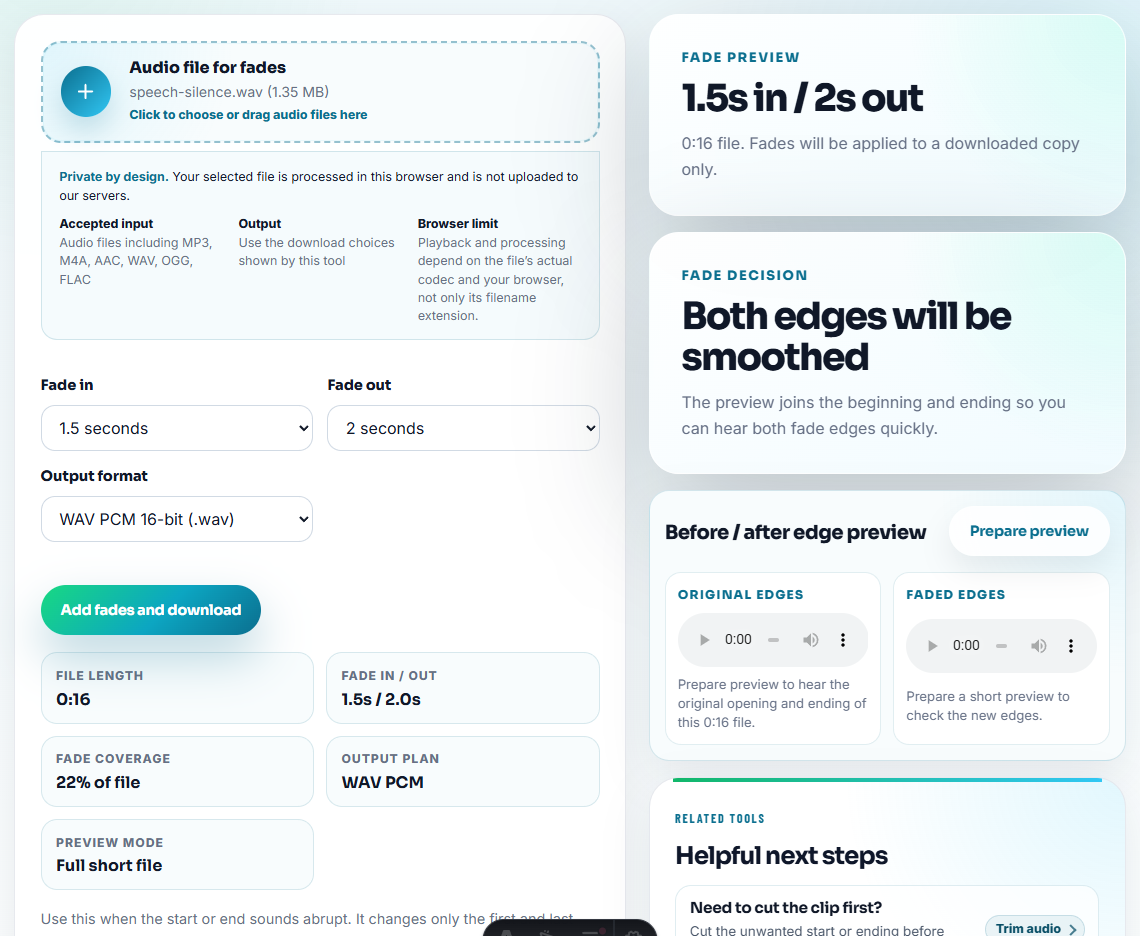
Short fades help when:
- A loop starts with a click.
- A cue ends too suddenly.
- A voice file begins before listeners are ready.
- A background music copy needs a cleaner entrance.
Keep fades short for speech. Do not fade over important words.
Step 6: Convert or Compress Only After Testing
Use Online Audio Format Converter only when the app, phone, speaker source, or sharing workflow needs another format.
Use Audio Compressor only when the final copy is too large to send, store, or load quickly.
Do not use compression as a first step. If the file sounds wrong before compression, a smaller version usually keeps the same problem.
Test the Speaker Like the Listener Will Use It
Bluetooth problems are often context problems. A file that passes a headphone check can still fail when a listener is across the room, the phone volume is low, or speech competes with background music.
| Real playback setting | What to listen for | Best adjustment | Avoid this shortcut |
|---|---|---|---|
| Small room announcement | Words disappearing at normal volume | Normalize speech and trim dead starts | Turning the phone to max and calling it fixed. |
| Music under voice | Voice getting buried after pairing | Test the mixed copy on the speaker | Judging only from studio headphones. |
| Outdoor or noisy room | Quiet phrases becoming unusable | Create a louder speaker copy after checking clipping | Boosting a distorted file. |
| Loop or event cue | Clicks, harsh starts, or awkward endings | Add short fades and retest the loop point | Compressing before the loop feels smooth. |
Write down the speaker model or room if the copy will be reused. That note is often more helpful than another export with a vague filename.
Fix the Listening Situation Before Re-Editing
Some Bluetooth complaints are not file problems. Check the playback setup before making another export.
| What happens in the room | Try before editing again |
|---|---|
| Speech is hard to understand from the back | Move the speaker, raise normal volume slightly, then retest the same copy |
| Bass makes voice muddy | Test with the speaker off the floor or away from a corner |
| One phone sounds much quieter | Check phone volume, app volume, and Bluetooth volume separately |
| First word gets cut off | Add a short lead-in or fade only after confirming the speaker wakes slowly |
| Music covers spoken words | Lower the music bed or make a voice-focused copy instead of boosting everything |
This prevents over-processing a file when the real issue is speaker placement, room noise, or paired-device volume.
Final Checks Before Bluetooth Playback
- Do not judge Bluetooth playback only with headphones.
- Do not boost a clipped file.
- Do not compress before checking sound quality.
- Do not leave long silence before a cue or announcement.
- Do not make every file mono unless the playback setup needs it.
- Do not rely on one speaker position as the whole test.
Use Browser Tools Before the Room Test
Browser prep is enough when you only need a quick phone, laptop, or Bluetooth-speaker listening copy. Keep the source untouched and switch to a full audio workflow when the file will be used for public playback, events, paid production, or repeated testing.
Use a full audio editor when you need EQ, multi-track mixing, detailed speaker tuning, professional PA playback, or a mastered release.
Next Audio Workflow Steps
- Audio Metadata Viewer
- Recording Quality Checker
- Audio Normalizer
- smooth harsh starts and endings
- Make Audio Easier to Hear on Phone Speakers
- Make Audio Easier to Hear in Noisy Places
- Prepare Event Audio That Plays Without Surprises
- Make Background Music Loop Without a Jolt
- Test Audio on Devices Without Risking Originals
Questions Worth Asking
What should I check before preparing audio for Bluetooth speakers?
Test the copy on a small speaker, listen for missing channels or harsh peaks, and keep speech centered enough to hear across the room.
Why does audio sound different on a Bluetooth speaker?
A small speaker, room placement, device volume, stereo width, and file level can expose problems that are less obvious in headphones.
Should I compress audio before testing it on a Bluetooth speaker?
No. First prepare and test a good listening copy, then compress only the final sharing or storage version.