
How to Test Audio on Devices Without Risking Originals
 By HenrikUpdated Aug 7, 20267 min read
Prepare audio test copies for phones, laptops, speakers, car stereos, earbuds, and upload forms without risking originals.
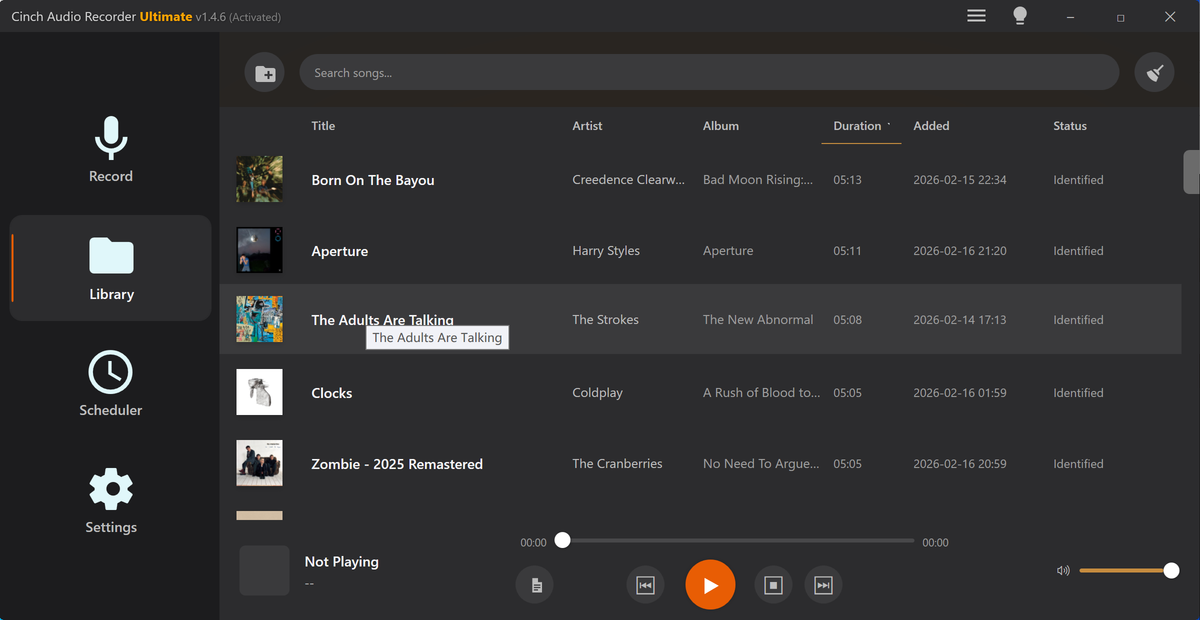
Audio that sounds fine on your main computer can still fail on a phone speaker, old car stereo, classroom laptop, Bluetooth speaker, earbuds, or upload form. The problem might be format, level, stereo layout, file size, or a rough start that feels worse on small speakers.
This guide helps you create safe test copies before you publish or send audio to other people.
Test the Failure Type, Not Every Device Randomly
Start with the most likely listener device, then make one controlled change at a time.
| Device or context | Common failure | First test copy | What to write down |
|---|---|---|---|
| Phone speaker | Quiet speech or missing stereo detail | Normalized mono-compatible copy | Whether words stay clear |
| Car stereo or USB | Format, filename, or tag issues | Compatible format with clean metadata | File appears and plays |
| Bluetooth speaker | Boomy or harsh playback | Checked level with smooth start | Room and volume setting |
| Upload form | File size or format rejection | Smaller converted copy | Error message and limit |
| Earbuds | Left/right imbalance | Balance or mono test copy | Whether both ears hear the same content |
Make One Test Copy at a Time
| Step | Free tool | What to confirm |
|---|---|---|
| 1 | Audio Metadata Viewer | Check format, duration, bitrate, size, channels, and labels before testing. |
| 2 | Recording Quality Checker | Catch silence, clipping, low level, and missing audio before blaming the device. |
| 3 | Audio Trimmer | Create a short test clip that includes the section most likely to fail. |
| 4 | Audio Normalizer | Make a listening copy easier to hear on small speakers. |
| 5 | Stereo to Mono Converter | Test whether one-speaker playback hides important audio. |
| 6 | Online Audio Format Converter | Create a compatibility copy when a device rejects the source. |
| 7 | Audio Compressor | Make a smaller test copy when upload size or mobile access matters. |
Device testing works best when each copy answers one question. If you change the format, volume, stereo layout, and length at once, a passing test will not tell you which change solved the problem.
Step 1: List the Real Playback Places
Do not test every device you own. Test the places where the audience will hear the file:
- Phone speaker.
- Earbuds.
- Laptop speaker.
- Bluetooth speaker.
- Car stereo.
- Classroom or meeting-room computer.
- Website or app upload form.
If the file is for one audience, that audience’s device matters more than your editing setup.
Step 2: Inspect the Source
Use Audio Metadata Viewer before changing anything. Write down the current format, duration, size, and channels.
If a file is much larger than expected, too short, missing labels, or has unusual channel information, that clue may explain the device issue.
Step 3: Check Audio Health
Use Recording Quality Checker to confirm the source actually contains usable sound.
If the file is silent, clipped, or missing the ending, conversion will not solve the real problem. Fix or replace the audio before testing devices.
Step 4: Create a Short Test Clip
Use Audio Trimmer to create a short section that includes:
- A quiet part.
- A loud part.
- Speech or the most important sound.
- A stereo moment if the file uses left and right channels.
- The start and ending if those are part of the complaint.
A 20-second test clip is easier to compare than a long file.
Step 5: Test Level and Stereo
Use Audio Normalizer when the file is healthy but too quiet for the target device.
Use Stereo to Mono Converter when the file may be heard through one speaker, one earbud, or a phone. Listen for missing voice, missing instruments, phasey sound, or important details that disappear.
Step 6: Convert Only a Copy
Use Online Audio Format Converter when the source plays in one place but fails in another. Export one compatibility copy and test again.
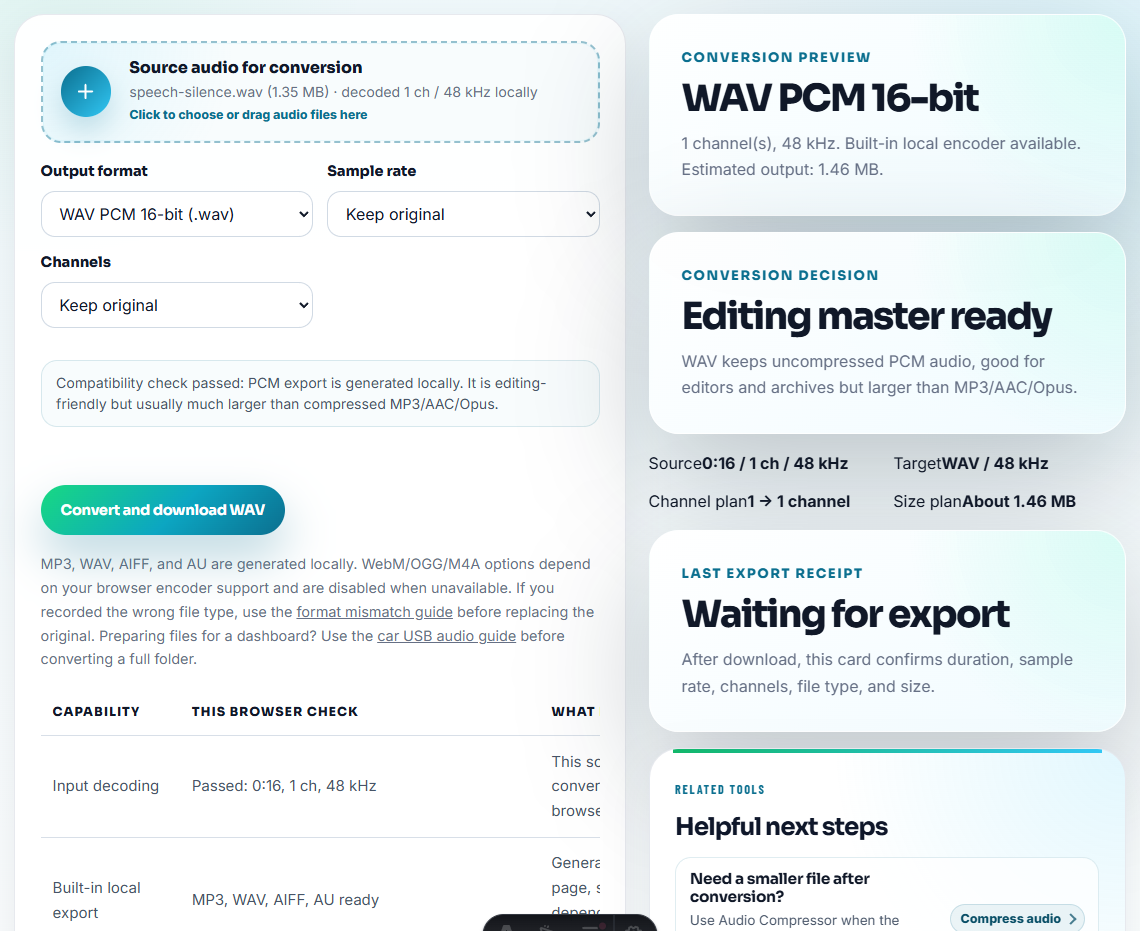
Name the copy clearly:
device-test-source.wav
device-test-phone-mp3.mp3
device-test-mono-copy.mp3
device-test-compressed-upload.mp3
Use Audio Compressor only if size is part of the test.
Do Not Change Two Variables at Once
The most useful device test is boring and controlled. Change one part of the file, test it, then decide whether another copy is needed.
| Variable | Change it when | Do not change it at the same time as |
|---|---|---|
| Format | A device or form rejects the source. | Level, trim length, and stereo layout. |
| File size | Upload, email, or mobile transfer is the problem. | Format experiments unless the size limit is confirmed. |
| Level | Speech is clear but too quiet on the target device. | Mono conversion or heavy compression. |
| Mono or stereo | One speaker, one earbud, or phone playback misses content. | Volume changes that make the test feel better for the wrong reason. |
| Trimmed start | The device plays the file but the useful part begins too late. | Format conversion unless the device also rejects the source. |
This makes the final copy easier to defend: you know exactly which edit fixed the device problem.
Step 7: Keep a Small Test Log
A simple note prevents confusion:
phone speaker: works, voice clear
Bluetooth speaker: works, intro too loud
car stereo: MP3 copy works, WAV source rejected
upload form: compressed MP3 accepted
That note tells you which copy should become the delivery version.
Compare Devices With One Short Sentence Each
A device test log should be easy to scan later. Do not write a paragraph for every device; write the decision each device proves.
| Device test result | What the sentence should say |
|---|---|
| Phone speaker passes | ”Phone speaker: words stay clear at normal volume.” |
| Bluetooth speaker is harsh | ”Bluetooth speaker: loud peaks feel sharp; need lower/normalized copy.” |
| Car USB rejects the file | ”Car stereo: source WAV rejected; MP3 copy appears and plays.” |
| Upload form rejects the file | ”Upload form: source too large; compressed MP3 accepted.” |
| One earbud misses content | ”Earbuds: right-channel detail disappears; test mono-compatible copy.” |
These notes help you choose the final delivery file without guessing which export was the successful one.
Red Flags While You Test Audio on Devices Without Risking Originals
- Do not overwrite the original while testing.
- Do not convert repeatedly and forget which version worked.
- Do not blame the device before checking silence and clipping.
- Do not test only on studio headphones if the audience uses speakers.
- Do not make stereo narrower or mono unless you listen to the result.
- Do not compress unless size is part of the problem.
When Browser Device Checks Are Enough
Browser prep is enough when you are testing a few copies on real listener devices and recording which one works. Use controlled QA when the result supports public release, customer delivery, device-lab coverage, or compatibility claims.
Use a deeper production workflow when you need broadcast standards, accessibility review, loudness compliance, multi-language masters, or controlled device lab testing.
Tools That Pair With This Task
- Audio Metadata Viewer
- Recording Quality Checker
- Audio Normalizer
- Stereo to Mono Converter
- Online Audio Format Converter
- Make Audio Easier to Hear on Phone Speakers
- Make Audio Sound Better on Bluetooth Speakers
- Make Audio Work on One Speaker
- Make Audio Play Correctly From a Car USB Drive
- Build a USB Audio Folder That Plays Simply
Reader Notes
How do I test audio across devices?
Keep the source, make short test copies, check format and level, compare stereo or mono playback, and write down where each copy works or fails.
Should I convert audio before testing it?
Inspect and listen first. Convert a copy only when the original seems healthy but a specific device or upload form rejects it.
Which devices should I test first?
Test the device your audience will actually use, then one backup device such as a phone speaker, laptop speaker, earbuds, or car stereo.