
How to Make Audio Work on One Speaker
 By HenrikUpdated Aug 7, 20266 min read
Prepare mono-compatible audio copies that keep important voice, music, and effects audible on one speaker.
Some audio sounds fine in headphones but fails on a phone speaker, small Bluetooth speaker, one-ear listening setup, or public playback system. The problem is often not volume alone. It can be stereo placement.
Mono playback is a practical safety check for phones, small speakers, and accessibility use. Make sure important sound does not disappear when left and right channels are combined.
Decide If Mono Is a Fix or a Delivery Format
Mono is not automatically better. Use it when one-speaker reliability matters more than stereo space.
| Situation | Mono role | First check | What should pass |
|---|---|---|---|
| Interview with one channel weak | Repair step | Balance left and right first | Both speakers remain audible |
| Phone speaker playback | Delivery copy | Convert a copy to mono | Main voice does not disappear |
| Public announcement | Safety copy | Test on the actual speaker | Message stays centered and clear |
| Music preview | Compatibility check | Compare stereo and mono versions | Important instruments stay present |
| Accessibility handoff | Simpler listening option | Keep stereo original too | Listener gets the clearest version |
Build the Mono Test Copy in Order
| Review pass | Tool | What it catches |
|---|---|---|
| 1 | Audio Metadata Viewer | Check whether the file is mono or stereo before editing. |
| 2 | Lopsided Audio Pan Balancer | Fix audio that leans too far left or right. |
| 3 | Stereo to Mono Converter | Create a mono listening copy for single-speaker playback. |
| 4 | Recording Quality Checker | Check the mono copy for clipping, silence, and level problems. |
| 5 | Audio Normalizer | Make the final listening copy more comfortable when needed. |
| 6 | Online Audio Format Converter | Export a compatible copy if the target device needs another format. |
Keep stereo originals. Mono compatibility is usually a delivery copy, not a replacement for the master.
Step 1: Inspect the Channels
Open the file in Audio Metadata Viewer and check whether it is mono or stereo. Then listen briefly on headphones.
If the voice or main sound is almost entirely on one side, fix balance before making a mono copy.
Step 2: Fix Lopsided Audio First
Use Lopsided Audio Pan Balancer when the file leans too far left or right. This is useful for interviews, screen recordings, old captures, and files where one channel feels much stronger.
Do not over-center music that depends on stereo width unless the mono copy is only for simple playback.
Step 3: Create a Mono-Compatible Copy
Use Stereo to Mono Converter to make a copy for one-speaker listening. This helps when the file will be played through phone speakers, a small PA, classroom speakers, simple embeds, or accessibility-focused listening.
After conversion, listen for missing content. If important parts disappear, go back to the source and adjust balance or choose a different export path.
When Mono Can Make the File Worse
Mono is useful only when the important sound survives the fold-down. Some stereo files lose clarity or character when both channels are combined.
| Warning sign | What may happen in mono | Better decision |
|---|---|---|
| Voice is out of phase or sounds hollow | Speech may become thin or partly disappear | Keep stereo and create a separate balanced copy. |
| Music relies on wide stereo effects | Instruments may feel smaller or unstable | Use mono only as a compatibility check. |
| One channel contains useful ambience | The scene may lose context | Keep a stereo archive and label the mono copy clearly. |
| Left and right levels are very different | Combining channels may create jumps or clipping | Balance first, then convert. |
| File is a production master | You may remove information needed later | Export mono as delivery, not replacement. |
Step 4: Check the Mono Copy
Run the result through Recording Quality Checker. Watch for clipping or rough level changes caused by combining channels.
If the mono copy is usable but too quiet, use Audio Normalizer carefully on the final delivery copy.
Step 5: Export for the Target Device
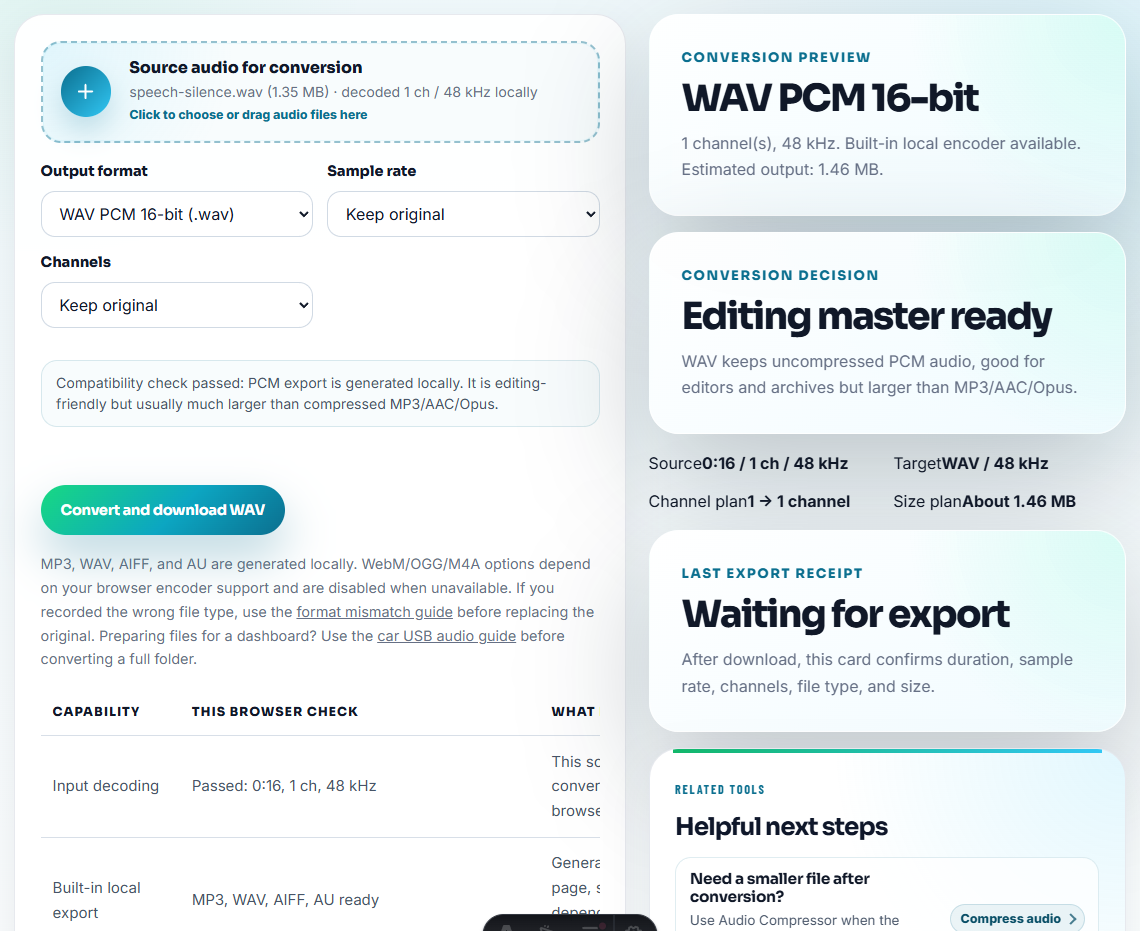
Use Online Audio Format Converter only when the target app, speaker system, or sharing workflow needs another format.
Clear filenames help prevent confusion:
interview-original-stereo.wavinterview-balanced-stereo-review.wavinterview-mono-speaker-copy.mp3classroom-audio-mono-final.wav
Decide When Mono Is the Delivery Copy
Mono compatibility is useful only when the listening context needs it. Keep the stereo source and make a separate mono copy for specific destinations.
| Destination | Mono copy useful? | Check after conversion | Keep stereo? |
|---|---|---|---|
| Phone speaker or small device | Yes | Main voice stays centered and clear | Yes |
| Classroom or simple PA | Often | Important cues do not disappear | Yes |
| Music preview | Maybe | Stereo effects do not collapse badly | Yes |
| Archive or production master | Usually no | Preserve original channel information | Yes |
This avoids replacing a richer source file with a convenience copy.
Use Free Tools for a Quick Mono Check
For mono compatibility, browser tools are enough when you need to check whether speech, music, or a phone-speaker copy still sounds balanced after conversion. Keep the stereo source, test the mono export on a small speaker, and listen for missing instruments or shifted dialogue.
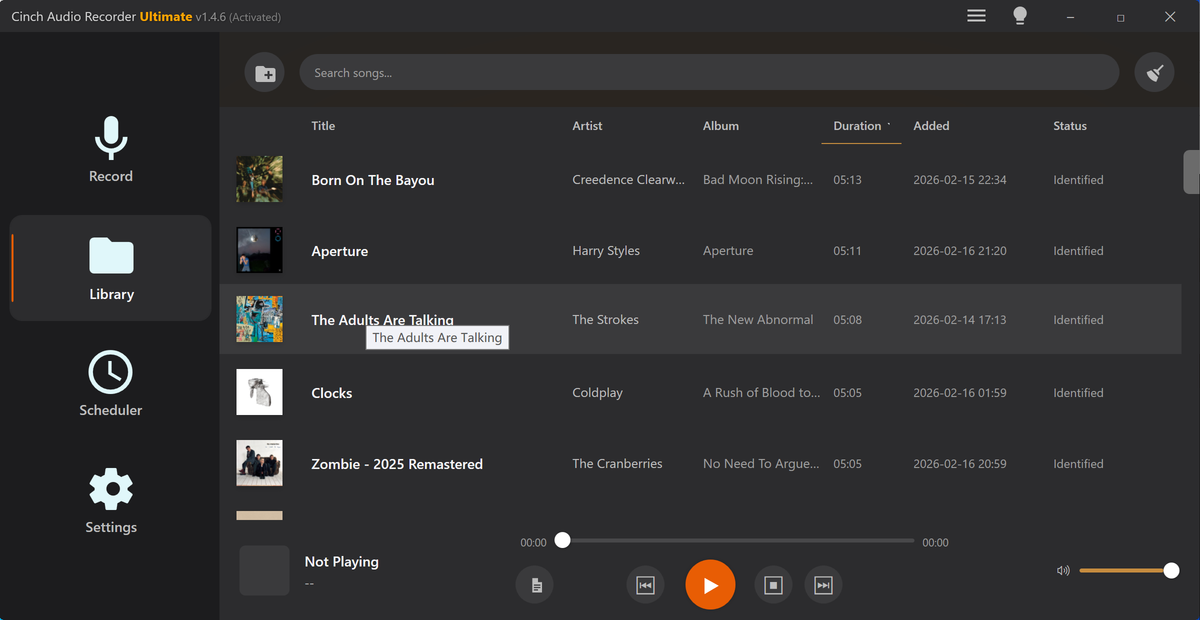
For repeated recording work, Cinch Audio Recorder can help keep source files organized before you create delivery copies.
Where to Go After This Check
- Stereo to Mono Converter
- Lopsided Audio Pan Balancer
- Audio Metadata Viewer
- Recording Quality Checker
- Fix Audio That Is Louder on One Side
- Make Audio Easier to Hear on Phone Speakers
- Make Audio Easier to Hear in Noisy Places
- Prepare Event Audio That Plays Without Surprises
Questions People Usually Ask
How do I make audio safe for mono playback?
Inspect the channels, fix obvious left-right imbalance when needed, create a mono copy, then listen for missing voice, instruments, or important effects.
Should every stereo file be converted to mono?
No. Make a mono-compatible copy only when the listening context needs it, such as one-speaker playback, phone speakers, accessibility, or simple speech sharing.
What should I check after converting stereo to mono?
Listen for missing content, phase-like thinness, level changes, distorted peaks, and whether the important voice or music remains centered and clear.