
How to Write Audio Fix Notes Users Can Understand
 By HenrikUpdated Aug 7, 20266 min read
Record what changed in an audio fix, which file was replaced, who approved it, and how to roll back if needed.
An audio fix is not finished when the file sounds better. It is finished when the next person can understand what changed and which copy is safe to trust.
Resolution notes are the small record you leave after fixing a broken, wrong, oversized, outdated, or risky audio file.
Make the Review Copy Easy to Trust
| Stage | Free tool | What it helps you decide |
|---|---|---|
| 1 | Audio Metadata Viewer | Record old and new file identity, duration, format, size, and source notes. |
| 2 | Recording Quality Checker | Confirm the fixed copy is audible, complete, not clipped, and correct. |
| 3 | Audio Waveform Generator | Keep visible evidence when the fix involved silence, cutoffs, or timing. |
| 4 | Audio File Size Calculator | Note size changes when compression, conversion, or delivery format changed. |
| 5 | Audio Metadata Editor | Add safe status, version, replacement, owner, and review notes to the fixed copy. |
| 6 | Online Audio Format Converter | Document format changes when compatibility was the fix. |
The note should be short. It should answer what changed without forcing someone to replay the whole investigation.
Step 1: Start With the Original Issue
Write one plain sentence:
Issue: Public demo audio ended early on the support article download.Avoid vague wording like “fixed audio” or “updated file”. Say what was wrong.
Step 2: Record Old and New File Details
Use Audio Metadata Viewer on both copies.
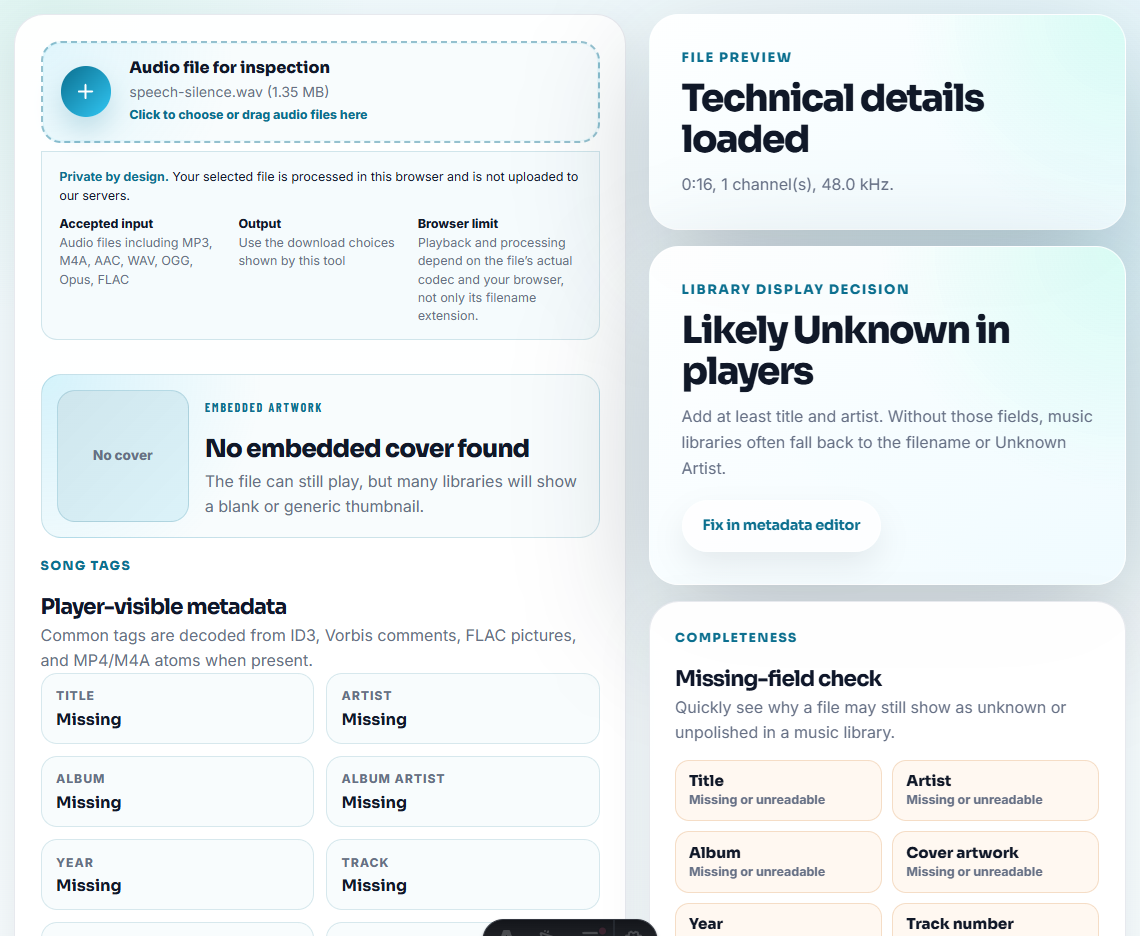
Capture:
- Old file name.
- New file name.
- Source file name.
- Duration before and after.
- Format before and after.
- Size before and after.
- Page, folder, or download link.
- Whether old file was archived, retired, or kept for rollback.
This helps when two files have similar names later.
Step 3: Confirm the Fixed Copy
Use Recording Quality Checker before closing the issue.
Check:
- Starts correctly.
- Important section is present.
- Ending is complete.
- Not silent.
- Not clipped.
- Not unexpectedly quiet.
- Matches the page or support context.
If the issue was timing-related, use Audio Waveform Generator to confirm the visible gap, cutoff, or trim was addressed.
Step 4: Explain the Type of Fix
Use one clear fix type:
| Fix type | Example |
|---|---|
| Replaced | Wrong public file replaced with approved copy. |
| Trimmed | Long silent lead-in removed from delivery copy. |
| Converted | Delivery copy changed to a supported format. |
| Compressed | Smaller public copy created from approved source. |
| Relabeled | Metadata/status corrected; audio content unchanged. |
| Closed no change | Audio passed; page/link/cache needs separate review. |
This prevents future reviewers from guessing whether the content or only the label changed.
Add Acceptance Evidence
Resolution notes should show why the fix can be trusted, not only what changed.
| Acceptance item | What to record | Why it matters |
|---|---|---|
| Playback result | Opening, problem section, and ending checked | Confirms the user-facing issue is actually gone |
| File identity | Old file, new file, source, duration, and format | Prevents similar names from being mixed later |
| Location proof | Page, download, folder, or support reply updated | Confirms the fix reached the place users use |
| Metadata status | Public labels are clean and safe | Prevents private notes or draft labels from shipping |
| Rollback status | Old copy preserved, retired, or unsafe to restore | Makes the next emergency decision faster |
If a fix lacks acceptance evidence, keep the status as “candidate fix” rather than “resolved.”
Step 5: Add Safe Metadata Notes
Use Audio Metadata Editor only for safe public labels.
Example:
Status: fixed public copy. Replaces demo-v1.mp3. Checked 2026-07-31. Source preserved.Keep private customer details, internal ticket numbers, and support conversations outside public files unless your team has a clear policy for that metadata.
Step 6: Leave a Rollback or Follow-Up Note
Every fix should say what happens if the new copy fails:
Rollback: old public copy saved in 01-previous-public-copy.
Follow-up: check page playback after deployment.
Owner: web content team.
If rollback is not allowed because the old file was wrong, private, or outdated, say that too.
Resolution Note Template
issue:
old file:
new file:
source:
fix type:
test result:
size or format change:
public location:
rollback:
owner:
follow-up:
This can live in a ticket, changelog, website checklist, or file handoff note.
Resolution Details Users Actually Need
- Do not close with “fixed” and no file names.
- Do not publish a replacement before checking playback.
- Do not hide whether the old file was retired or kept.
- Do not add private report details to public metadata.
- Do not skip size notes when the fix changed delivery format.
- Do not leave rollback status unknown.
When Browser Prep Is Enough for Fix Notes
Browser prep is enough when the resolution note needs a short proof clip, not a full release package. Keep the untouched source beside the fixed copy, describe the exact audible change, and make sure the exported sample matches the wording in the note.
Use formal change management when fixes affect contracts, paid campaigns, privacy-sensitive audio, legal claims, or large public content systems.
Helpful Next Steps
- Audio Metadata Viewer
- Recording Quality Checker
- Audio Metadata Editor
- Roll Out an Audio Fix Without Missing Checks
- Tell Users What to Do During an Audio Fix
- Close an Audio Fix Without Losing Proof
- Prioritize Audio Fixes by User Impact
- Log Audio Changes So Replacements Stay Traceable
- Ask Customers to Confirm One Fixed Audio Section
- Replace Broken Public Audio With Rollback Proof
Questions People Usually Ask
What are audio fix resolution notes?
They are short notes that explain what audio issue was found, what file changed, what copy replaced it, how it was tested, who owns it, and whether rollback is possible.
Why write resolution notes after an audio fix?
Resolution notes prevent the same issue from being retested, help future reviewers trust the right file, and make rollback or follow-up easier.
What should another person be able to understand?
Document the source file, the change made, the before-and-after result, and any compression or conversion added only for delivery.