
How to Replace Broken Audio During a Hotfix
 By HenrikUpdated Aug 7, 20267 min read
Prepare a fast replacement copy with proof, rollback notes, clean metadata, and follow-up review.
Sometimes an audio problem needs a fast fix: a public clip is silent, the wrong file was uploaded, a support example no longer matches the page, or a replacement is needed before a full content review can happen.
A hotfix should be fast, but it should not be careless. The old file, source notes, and rollback path still matter.
Prepare the Replacement Without Touching the Source
| Step | Free tool | What to confirm |
|---|---|---|
| 1 | Audio Metadata Viewer | Confirm the broken or old file identity before replacing it. |
| 2 | Recording Quality Checker | Verify the replacement is audible, complete, and not clipped. |
| 3 | Audio Trimmer | Cut a focused replacement section when only part of the source is needed. |
| 4 | Online Audio Format Converter | Export a compatible copy for the page, download, or player. |
| 5 | Audio File Size Calculator | Check whether the replacement size is reasonable for public use. |
| 6 | Audio Metadata Editor | Add version, source, owner, and hotfix status labels. |
The hotfix file should be a delivery copy. Do not modify the source original just because the public page is urgent.
Step 1: Copy the Old Public File
Before replacing anything, copy the old file into a safe folder:
hotfix-review
01-old-public-copy
02-source-or-backup
03-new-hotfix-copy
04-notes
If the hotfix fails, this gives you a rollback option and helps explain what changed.
Step 2: Confirm What Is Wrong
Use Audio Metadata Viewer and Recording Quality Checker on the old file.
Record whether the issue is:
- Silent file.
- Wrong section.
- Outdated content.
- Missing ending.
- Bad clipping.
- Low volume.
- Wrong format.
- Too large for the page.
- Old or risky metadata.
This prevents replacing the wrong file or solving the wrong problem.
Step 3: Prepare the New Copy
Start from the best available source or backup.
Use Audio Trimmer if the replacement should be shorter. Use Online Audio Format Converter if the public target needs a different format.
Name the hotfix clearly:
product-demo-hotfix-2026-07-31.mp3
support-example-hotfix-web-copy.mp3
Do not call it final unless the full review is complete.
Choose Temporary, Hotfix, or Final Status
A fast replacement can mean different things. Label the status so nobody treats a rushed copy as a permanent source.
| Status | Use it when | Public use | Required note |
|---|---|---|---|
| Temporary workaround | The original problem is real, but source or full review is still pending | Only if it reduces user harm and is clearly safer than the broken copy | Expiry date, owner, and final-review task |
| Hotfix replacement | A checked delivery copy can safely replace the public file now | Yes, after playback, metadata, size, and rollback checks pass | Source, old file, new file, and rollback path |
| Final replacement | The source, content, permission, page context, and playback are all confirmed | Yes | Closeout note and future prevention check |
| Rollback | The new copy fails or creates a worse issue | Restore the preserved old public copy if it is safe | Reason for rollback and next candidate |
This status label prevents “temporary” audio from quietly becoming the trusted master file.
Step 4: Check Playback Before Publishing
Use Recording Quality Checker on the new file.
Check:
- It is not silent.
- The ending is present.
- The level is usable.
- It is not obviously clipped.
- The section is correct.
- The file opens in the expected player.
If the hotfix is going public, listen to the first seconds, the problem section, and the ending.
Step 5: Check Size and Metadata
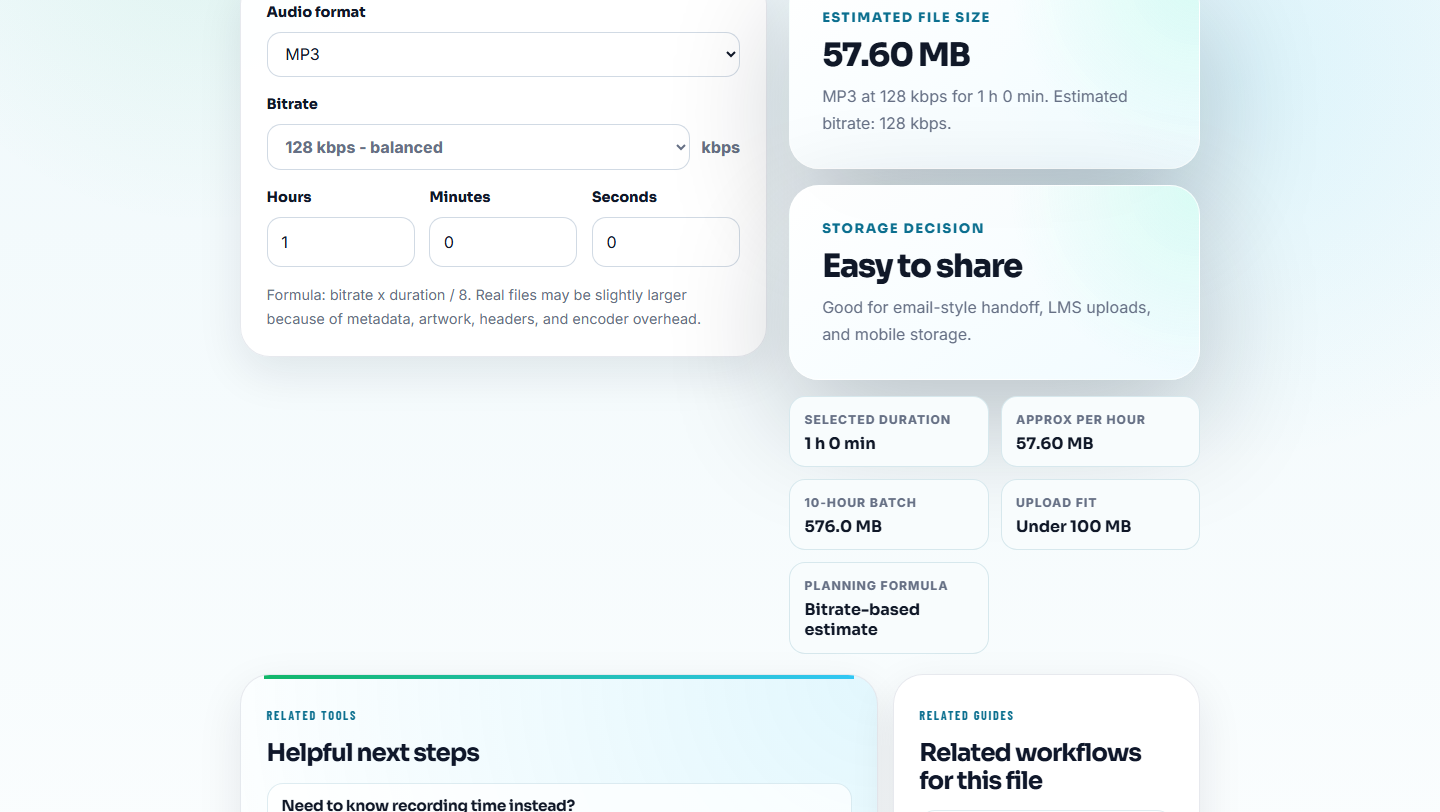
Use Audio File Size Calculator if the new file is much larger than the old file.
Use Audio Metadata Editor to add safe labels:
- Hotfix date.
- Source file.
- Owner.
- Reason.
- Public copy.
- Replacement needed later, if true.
Avoid private notes in public metadata.
Step 6: Publish With Rollback Notes
When the hotfix goes live, record:
- Old file.
- New file.
- Page or folder.
- Reason.
- Source.
- Reviewer.
- Rollback file.
- Follow-up review.
A hotfix without follow-up can become a mystery file later.
Hotfix Checklist
- Old public copy preserved.
- Source or backup identified.
- Issue classified.
- Replacement created as a separate copy.
- Playback checked.
- File size checked.
- Public metadata cleaned.
- Rollback note saved.
- Follow-up review assigned.
Decide Whether the Hotfix Is Safe to Ship
Speed is the reason to make a hotfix, but the replacement still needs a minimum release standard. Use a small decision gate before it reaches a public page, support reply, or download folder.
| Gate | Ship now if… | Hold if… | Follow-up note |
|---|---|---|---|
| Source identity | The replacement came from a known source or backup | Nobody can confirm where the audio came from | Record the source path or owner. |
| Playback proof | The first seconds, problem section, and ending pass | The fix only passed an export check | Add a manual playback result. |
| Public metadata | Labels are clean and customer-safe | Internal notes, names, or temporary comments remain | Clean metadata before upload. |
| Rollback | The old public copy is preserved | The old copy was overwritten or deleted | Recreate rollback from backup first. |
If one gate fails, the safer status is “temporary workaround under review,” not “final replacement.”
Hotfix Closeout Note
After publishing, write a short closeout note while the details are still fresh:
hotfix status:
old public file:
new public file:
source used:
checks passed:
public locations updated:
rollback copy:
temporary or final:
owner:
follow-up review:
The closeout note is what makes the next fix faster. Without it, people may see two similar files later and choose the wrong one.
Red Flags While You Replace Broken Audio During a Hotfix
- Do not edit the only source file.
- Do not delete the old file immediately.
- Do not skip playback because the file exported successfully.
- Do not publish a hotfix with private notes.
- Do not forget a follow-up review.
- Do not leave multiple hotfix files in the active folder.
When to Stay With Browser-Based Checks
Use browser prep for a hotfix replacement only when the change is narrow and easy to verify by listening. Keep the broken file, replacement file, and rollback copy separate, then test the final asset in the page or message where users will encounter it.
Use a formal deployment or incident workflow when the audio affects paid campaigns, legal proof, privacy-sensitive content, or many public pages.
Tools That Pair With This Task
- Audio Metadata Viewer
- Recording Quality Checker
- Audio Trimmer
- Report Broken Audio Playback With Clear Evidence
- Give Users a Temporary Audio Workaround Safely
- Prepare Rollback Audio Before Replacing Files
- Log Audio Changes So Replacements Stay Traceable
Before You Start
What is an audio hotfix replacement?
It is a fast replacement for a broken, wrong, outdated, or risky audio file, prepared without losing the old file, source notes, or rollback option.
Should a hotfix replace the source file?
No. A hotfix should replace only the public or delivery copy while source and backup files stay preserved.
What would make this result unsafe to share?
Prepare the replacement, backup the broken public file, test the new link, and keep a rollback path before publishing the hotfix.