
How to Roll Out an Audio Fix Without Rebreaking It
 By HenrikUpdated Aug 7, 20267 min read
Use a practical checklist before replacing live audio files, including playback, links, metadata, file size, and rollback copies.
An audio fix can still fail during rollout. The right file may be prepared but not uploaded. A page may still point to the old copy. A temporary file may go live as final. A large source file may replace a small public copy.
An audio fix rollout checklist makes the final step deliberate.
Check Where Rollout Can Fail
Most rollout mistakes happen after the audio itself is fixed. Check the path from approved file to user-facing playback.
| Rollout point | Failure to catch | Check before closing | Fix if it fails |
|---|---|---|---|
| File upload | Old copy still live | Open the final user-facing file | Replace the public asset or link |
| Page or help article | Text describes old behavior | Compare wording with the new audio | Refresh the article copy |
| Support reply | Macro still sends workaround | Review saved response text | Update the macro and link |
| File size | Public copy is too heavy | Compare expected delivery size | Compress only the public copy |
| Rollback | No one knows the previous file | Keep old copy and status note | Add rollback or no-rollback note |
Separate Source, Review, and Final Copies
| Stage | Free tool | What it helps you decide |
|---|---|---|
| 1 | Audio Metadata Viewer | Confirm source, fixed copy, duration, format, size, tags, and comments before rollout. |
| 2 | Recording Quality Checker | Confirm the fixed public copy is audible, complete, and not clipped. |
| 3 | Audio File Size Calculator | Check whether the rollout copy fits page, download, upload, or email limits. |
| 4 | Audio Waveform Generator | Verify timing when the fix involves endings, silence, gaps, or proof moments. |
| 5 | Audio Metadata Editor | Add safe fixed, approved, owner, version, and rollback notes. |
| 6 | Audio Compressor | Create a smaller public copy only after source and playback are approved. |
Rollout is where “fixed locally” becomes “fixed for the user.”
Step 1: Confirm the Approved Fixed Copy
Use Audio Metadata Viewer before rollout.
Check:
- Fixed file name.
- Approved source.
- Duration.
- Format.
- Size.
- Public-safe metadata.
- Owner.
- Version or replacement note.
Do not roll out a file if source identity is still unclear.
Choose the Rollout Scope
Rollout scope changes how much proof you need. A single support attachment is not the same as a public sitewide asset.
| Scope | Examples | Minimum rollout proof |
|---|---|---|
| One private reply | Confirmation sample or replacement attachment | File identity, playback, and customer-safe metadata |
| One public page | Product demo, tutorial sample, help article audio | Page link, playback, metadata, size, and rollback status |
| Reused public asset | Same file appears on several pages or macros | Primary page plus one reused location checked |
| Migration or batch update | Many links or folders changed together | Sample set, spot checks, and monitoring trigger |
| Sensitive or claim-bearing audio | Legal, testimonial, paid campaign, or consent-sensitive file | Owner approval, permission status, and no-rollback rule if needed |
Start with the smallest accurate scope. Under-scoping is how fixes appear complete while old copies remain live elsewhere.
Step 2: Preserve the Previous Public Copy
Keep the old public file or record why rollback is not allowed:
previous-public-copy/demo-v1.mp3
new-public-copy/demo-v2-approved.mp3
rollback: allowed until 2026-08-07
If the old file exposed private, outdated, or wrong content, note:
rollback: not allowed. Old public copy retired because content was wrong.Step 3: Check Playback Before Upload
Use Recording Quality Checker and listen to the fixed copy.
Confirm:
- It starts correctly.
- Important section is present.
- Ending is complete.
- It is not silent.
- It is not clipped.
- It matches the page or customer issue.
If the fix involves timing, use Audio Waveform Generator for one more check.
Step 4: Check Delivery Fit
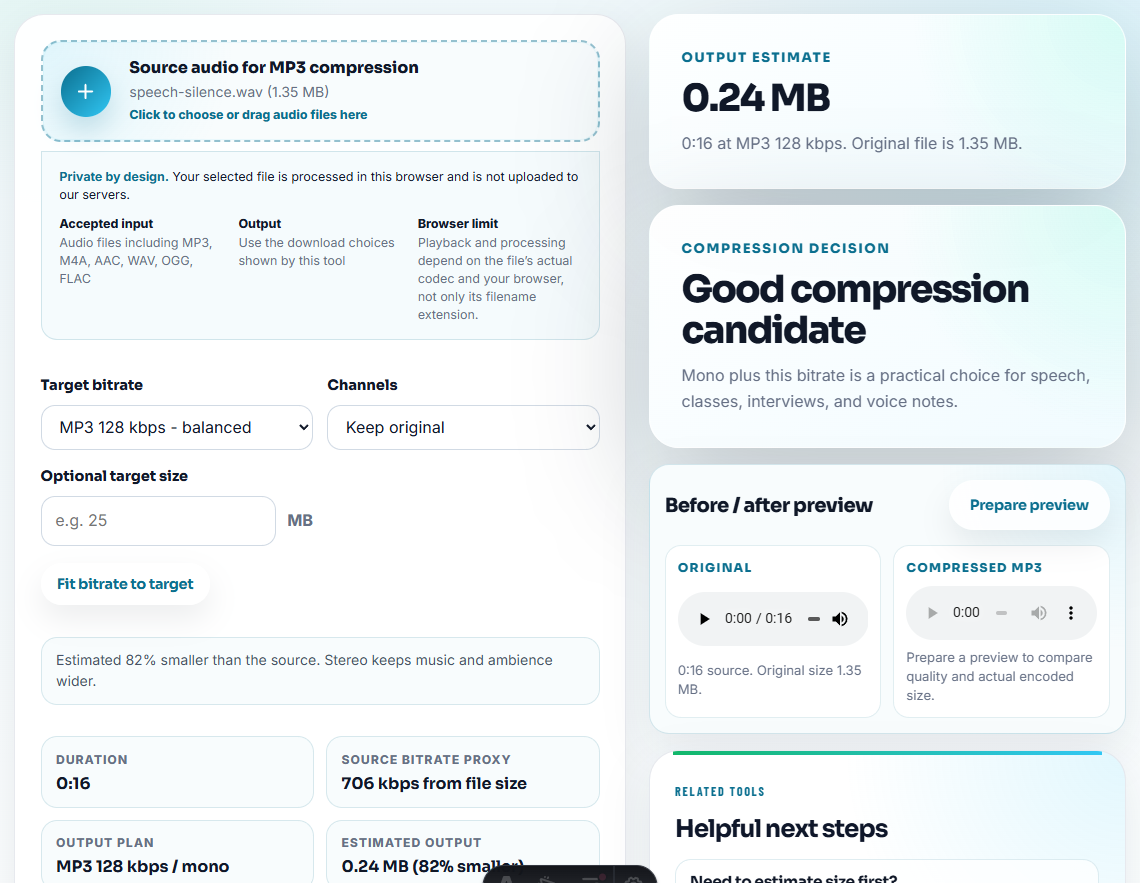
Use Audio File Size Calculator before publishing.
Watch for:
- Source file used as public copy.
- Over-compressed preview used as final.
- File too large for page embed.
- File too large for email or help desk.
- Format wrong for the destination.
Use Audio Compressor or Online Audio Format Converter only on approved copies.
Step 5: Update Labels and Page References
Use Audio Metadata Editor for safe labels:
Fixed public copy. Replaces demo-v1.mp3. Source checked. Rollout date 2026-07-31.Then update the page, download link, support reply, or shared folder reference.
After rollout, open the final location and test the audio from there. Local playback is not enough.
Step 6: Record the Rollout Result
Use a short note:
Rolled out demo-v2-approved.mp3 to product demo page. Playback checked after upload. Old copy preserved for rollback.If the rollout fails, record that too:
Rollout paused. New copy plays locally but public page still points to old file.Rollout Batch Note
When several files move together, record the batch instead of leaving scattered one-line notes.
batch name:
files changed:
pages or replies updated:
files checked after rollout:
old copies preserved:
temporary files retired:
known gaps:
owner:
next monitoring trigger:
The batch note helps future monitoring because reviewers can test the surfaces most likely to break again.
Rollout Checklist
- Approved source confirmed.
- Fixed copy checked.
- Old public file preserved or retired.
- Metadata safe.
- File size acceptable.
- Page or link updated.
- Public playback checked after rollout.
- Owner and follow-up recorded.
- Rollback status clear.
Rollout Checks That Catch Audio Regressions
- Do not treat local playback as rollout proof.
- Do not publish a temporary workaround as final without relabeling.
- Do not overwrite the old public file without rollback notes.
- Do not skip metadata review.
- Do not upload a large source file when a delivery copy is needed.
- Do not close the fix before checking the final public link.
When Browser Prep Is Enough for Rollout Checks
Browser tools work for rollout checklists when you need small evidence files that prove each audio fix is ready. Keep one sample per checklist item, record the test result beside it, and use formal release control when the files affect customers at scale.
Use a formal release workflow when rollout affects many pages, contracts, paid campaigns, privacy-sensitive files, regulated claims, or business-critical assets.
Helpful Next Steps
- Audio Metadata Viewer
- Recording Quality Checker
- Audio File Size Calculator
- Confirm an Audio Fix Is Ready to Accept
- Ask Customers to Confirm One Fixed Audio Section
- Document What Changed in an Audio Fix
- Monitor Public Audio Playback Before Users Complain
Questions People Usually Ask
What is an audio fix rollout checklist?
It is a final rollout list that confirms the approved source, fixed copy, playback, metadata, file size, public link, owner, follow-up, and rollback status.
How do I safely roll out an audio fix?
Check the fixed copy before publishing, keep the old public file, update the link or page, verify playback after rollout, and record rollback or no-rollback status.
What should I check for audio fix rollout?
Check the final sample, backup copy, replacement location, rollback file, and owner before the fix goes live or gets sent to users.