
How to Track Audio Changes So Rollbacks Stay Clear
 By HenrikUpdated Aug 7, 20267 min read
Track audio edits, file replacements, format changes, approvals, and rollback notes so later teams know what changed.

Audio changes are easy to lose. A file is trimmed, converted, compressed, relabeled, replaced on a page, and then nobody remembers which copy is source, which one is public, and why the old version changed.
A simple audio change log fixes that. It does not need to be a heavy process. It just needs to record enough detail that the next edit, rollback, or review starts from facts instead of memory.
Check the Copy Before You Change It
| Pass | Tool to open | Check to make |
|---|---|---|
| 1 | Audio Metadata Viewer | Record the old and new file details before comparing versions. |
| 2 | Recording Quality Checker | Document whether the change fixed silence, clipping, low level, or missing content. |
| 3 | Audio Metadata Editor | Add version, status, reason, owner, and replacement labels to the saved copy. |
| 4 | Audio Trimmer | Record trimmed sections and the reason for each excerpt. |
| 5 | Online Audio Format Converter | Record format changes and why the new format was needed. |
| 6 | Audio Compressor | Record size-reduction changes for email, web, download, or sharing copies. |
The change log should describe the decision, not only the tool used.
Step 1: Start With the Old File
Use Audio Metadata Viewer on the current or old file before changing it.
Record:
- File name.
- Duration.
- Format.
- Size.
- Existing tags.
- Page or folder where it is used.
- Known issue.
If you do not capture this first, it becomes harder to prove what changed.
Step 2: Describe the Reason
Good change reasons are specific:
- Removed 12 seconds of silence at the start.
- Replaced old product demo audio after UI update.
- Converted WAV to MP3 for web download.
- Compressed public copy for faster page loading.
- Retired customer quote after permission changed.
- Restored backup copy after broken upload.
Weak reasons such as fixed audio or updated file do not help later.
Choose the Right Change Granularity
Do not make one log entry too vague, but do not create noise for every tiny export either.
| Change size | Log as one entry when | Split entries when |
|---|---|---|
| Small edit | One file was trimmed, cleaned, relabeled, or converted for one purpose | The edit affects source, public copy, and support wording separately |
| Replacement | One old public copy becomes one new public copy | Multiple pages, macros, or downloads change at different times |
| Batch update | Several similar files change for the same reason | Some files are final, some temporary, and some still under review |
| Rollback | A previous safe copy is restored | Rollback also creates a new replacement plan |
The log should match how someone would undo, review, or explain the change later.
Step 3: Check the New Copy
Use Recording Quality Checker after the change.
Record whether the new copy is:
- Audible.
- Complete.
- Not clipped.
- Not mostly silence.
- Correct duration.
- Correct section.
If the change created a problem, write that too. A failed edit is still useful history.
Step 4: Add Version Labels
Use Audio Metadata Editor to add labels when the file format supports it.
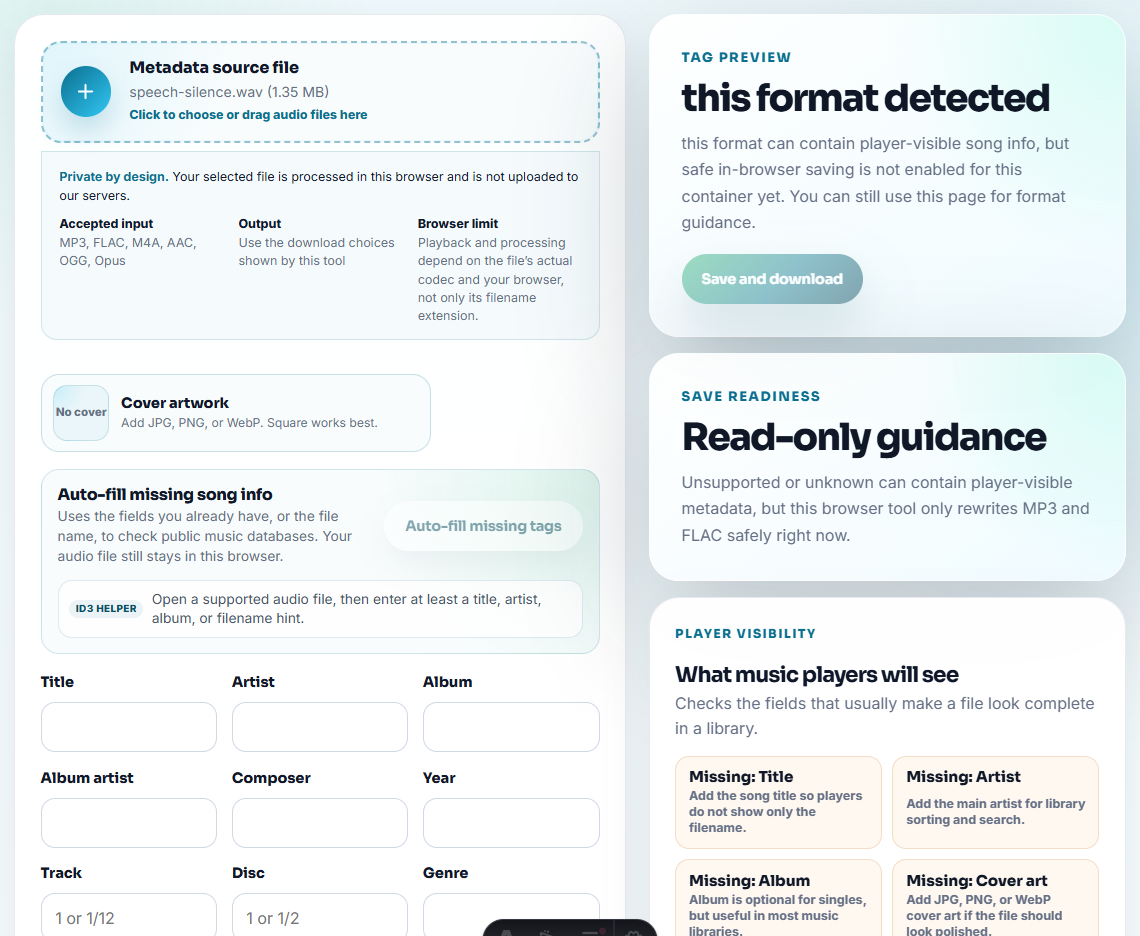
Useful notes:
- Version.
- Review status.
- Change reason.
- Owner.
- Source file.
- Replacement file.
- Public or internal use.
Example:
v2 public copy | trimmed intro silence | source: v1 archive | checked 2026-07-31Keep sensitive details out of public copies. Use your internal log for anything private.
Step 5: Keep the Change Log Short
A practical log can be a simple table:
| Date | Old file | New file | Change | Checked | Rollback |
|---|---|---|---|---|---|
| 2026-07-31 | demo-v1.wav | demo-v2.mp3 | Trimmed intro and converted for web | Plays complete | Keep v1 in backup |
This is enough for most manual audio workflows.
Add Decision Fields for Public Changes
For public or customer-facing audio, add a few extra columns:
| Field | Why it matters |
|---|---|
| Affected surface | Shows whether a page, download, macro, or shared folder changed |
| Proof checked | Confirms the final user path was tested |
| Approver | Shows who accepted source, permission, or content meaning |
| Temporary status | Prevents a workaround from becoming final |
| Retired file | Shows what should not be reused |
These fields are the practical difference between a private editing note and a publishable change record.
Step 6: Link Changes to Rollback and Removal
Whenever a change affects public content, add a rollback note:
- Previous public file.
- Backup location.
- Replacement file.
- Page or download link affected.
- Person who approved the change.
This matters when a new file fails, a page needs to be restored, or a retired clip accidentally returns.
Write Changes as Decisions, Not Activity
A change log should explain why a file changed. Tool activity alone is not enough because trimming, conversion, and compression can mean very different things.
| Activity | Weak log entry | Better log entry | Rollback clue |
|---|---|---|---|
| Trimmed file | ”Trimmed audio" | "Removed 12s blank lead-in from public copy.” | Keep old public copy in backup. |
| Converted file | ”Made MP3" | "Converted WAV source to MP3 delivery copy for web page.” | Source WAV path. |
| Compressed file | ”Reduced size" | "Compressed support attachment copy; source unchanged.” | Uncompressed review copy. |
| Replaced file | ”Updated demo" | "Replaced outdated UI demo after page refresh.” | Previous demo filename and page. |
This keeps future editors from repeating the same investigation.
Quality Checks Before You Track Audio Changes So Rollbacks Stay Clear
- Do not overwrite old files without recording what changed.
- Do not call multiple files final.
- Do not skip playback checks after conversion or compression.
- Do not store change notes only in a chat thread.
- Do not rely on hidden metadata alone.
- Do not delete the rollback copy immediately after publishing.
When Browser Prep Is Enough for a Change Log
For an audio change log, browser tools should support the record, not replace it. Keep source and revised copies separate, write the change in plain language, and attach enough detail that another person can verify the update later.
Use a formal change-management or asset system when multiple teams approve files, legal retention matters, or public pages depend on many audio assets.
Next Audio Workflow Steps
- Audio Metadata Viewer
- Recording Quality Checker
- Audio Metadata Editor
- Prepare Rollback Audio Before Replacing Files
- Plan Audio Replacement Without Broken References
- Restore the Right Audio Backup Safely
Questions Worth Asking
What belongs in an audio change log?
Track the old file, new file, reason, tool step, quality status, owner, affected page or folder, backup location, and rollback note.
Is an audio change log different from metadata?
Yes. Metadata travels with a file, while a change log records what happened across versions, pages, folders, and review decisions.
What should I test with a short sample first?
Log what changed, why it changed, which file was used, and whether the exported copy is only for review, delivery, or long-term records.