
Cannot Detect System Audio? Fix the Recording Route
 By HenrikUpdated Aug 7, 20267 min read
Fix system-audio detection problems by checking the active output, recording device, Stereo Mix expectations, virtual cables, and app routing.
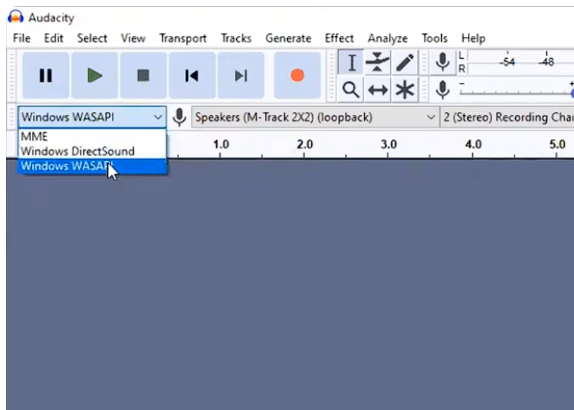
“Cannot detect system audio” usually means the recording route is unclear. Windows may be playing through one output, the recorder may be listening to another, or an old Stereo Mix tutorial may be sending you toward a device your PC does not expose.
Do not start by reinstalling drivers. Start by proving the audio route.
The Short Answer
Use this order:
- Play a familiar audio source.
- Confirm the active output device.
- Check the recorder’s selected device.
- Avoid switching headphones or speakers during the test.
- Record ten seconds and play it back.
- If Stereo Mix is missing, use loopback capture, Cinch, or a virtual routing tool instead.
First Map the Route You Are Trying to Capture
System audio is not one single pipe. A recorder can only capture the route that actually carries playback audio. Before changing settings, write the route in one line:
source app -> playback output -> recorder input -> saved file
Examples:
| Source App | Playback Output | Recorder Should Follow | Common Mistake |
|---|---|---|---|
| Browser tab | Laptop speakers | Speaker loopback or system playback route | Recorder is set to microphone |
| Music app | Bluetooth headphones | Bluetooth playback route, if stable | Headphones reconnect after recording starts |
| Webinar app | HDMI monitor audio | HDMI/monitor output route | User hears sound from monitor but recorder listens to laptop speakers |
| Desktop player | USB audio interface | Interface playback route | Recorder follows default speakers instead |
| App routed to virtual cable | Virtual cable output | Matching virtual cable input | Monitoring works, but recorder is attached to the wrong virtual endpoint |
If you cannot name the playback output, you are not ready to change recorder settings yet. First play the audio and confirm where you actually hear it.
Stereo Mix Is Not Required
Some older guides assume Stereo Mix is the only way to record internal audio. On many newer PCs, it is not available even after showing disabled devices.
If Stereo Mix is missing, use the full internal audio without Stereo Mix guide. The practical choices are:
- A dedicated recorder such as Cinch.
- A free WASAPI loopback recorder.
- A virtual cable or mixer for advanced routing.
Do Not Confuse These Three Things
Many “cannot detect system audio” cases come from mixing up three different signals:
| Signal | What It Means | Why It Matters |
|---|---|---|
| Microphone input | Sound entering through a mic | Useful for voice, not for browser or app playback by itself |
| Playback output | Speakers, headphones, HDMI, Bluetooth, or interface where audio is heard | This is usually the route a system-audio recorder needs |
| Monitoring path | How you listen while recording | Monitoring can work even when the recorder is attached to the wrong route |
If a test file captures your voice but not the computer sound, the recorder is probably seeing the microphone, not the system playback route.
Check the Active Output First
The active output is the route your recorder needs to follow.
Check whether audio is playing through:
- Laptop speakers
- Wired headphones
- Bluetooth headphones
- HDMI or monitor audio
- USB audio interface
- Virtual cable
If the output changes during recording, stop and test again.
Run Two Separate Tests
Do not test microphone and system audio at the same time first. Split them.
Test A: Prove Playback Capture
- Mute or ignore the microphone.
- Play a simple non-private audio source.
- Confirm the sound is audible through one output device.
- Select the matching system or playback route in the recorder.
- Record 10-30 seconds.
- Play the file back in a separate player.
The test passes only if the saved file contains the source audio.
Test B: Prove Mixed Voice and Playback Only If Needed
After playback capture works, test voice plus system audio if your workflow needs both.
- Keep the same playback output.
- Enable the microphone route.
- Record a short phrase while the source plays quietly.
- Check whether both parts are present and balanced.
If Test A fails, do not spend time adjusting microphone settings. The system-audio route is still unresolved.
Evidence That Proves the Route, Not Just the Symptom
A support message that says “system audio cannot be detected” is usually too broad. The useful evidence is the route you proved and the route that failed.
Use this short note format:
Source app:
Playback output:
Recorder route selected:
Microphone needed: yes / no
Ten-second test result:
Second source result:
What changed before failure:
Two details matter most: whether another ordinary source records correctly, and whether the audio was playing through speakers, HDMI, Bluetooth, USB, or a virtual device. Those details narrow the problem faster than screenshots of every sound setting.
Fixes by Setup Type
| Setup | Likely Issue | What To Do |
|---|---|---|
| Cinch Audio Recorder | Wrong recording device or source route | Try Auto first, then choose the actual playback device |
| Audacity / loopback recorder | Wrong loopback endpoint | Select the loopback input matching the active output |
| Virtual cable | Source and recorder are not on the same virtual route | Align source output, recorder input, and monitoring |
| Browser source | Browser output differs from system output | Test browser audio separately |
| Bluetooth headphones | Endpoint changed or reconnected | Keep one output connected for the whole test |
Special Cases That Look Like Detection Failure
| What You See | What May Be Happening | Better Next Step |
|---|---|---|
| Recorder meter is flat but speakers are audible | Recorder follows a different output device | Re-select the active playback route and repeat a short test |
| Recorder meter moves but saved file is silent | Wrong export, muted playback, or playback-player issue | Open the saved file in another player and inspect the output file |
| Only browser audio is missing | Browser source or tab route differs from other apps | Use the browser recording no audio guide |
| It works until headphones reconnect | Bluetooth or device switch changed the route | Use wired output or keep one device connected |
| Virtual cable records silence | Source, cable, recorder, and monitor are not aligned | Draw the virtual route before changing devices again |
How to Confirm Detection Works
The recorder is correctly detecting system audio when:
- The saved test file contains the intended sound.
- The same test works twice in a row.
- The output device did not change between playback and recording.
- The file is not relying on a muted or hidden endpoint.
What to Send Support If Detection Still Fails
If the recorder still cannot detect system audio after the route test, send support a route-based note instead of only saying “no audio.”
Include:
- Operating system and recorder version.
- Source app or browser used for the test.
- Playback output used during the test: speakers, wired headphones, Bluetooth, HDMI, USB interface, or virtual cable.
- Recorder device or route selected.
- Whether the saved file is silent, contains microphone only, contains the wrong app, or records for a few seconds then stops.
- Whether a different ordinary source records correctly.
- Whether the problem started after a device, driver, OS, or recorder update.
A 10-30 second non-private test file is usually more useful than a full private recording.
Related Troubleshooting Guides
- No sound recorded
- Record internal audio without Stereo Mix
- Browser recording has no audio
- Recording stops unexpectedly
- Record browser audio cleanly
- First recording troubleshooting
- Download Cinch Audio Recorder
Frequently Asked Questions
Why can’t my recorder detect system audio?
Usually the recorder is not attached to the same route where audio is playing, or Windows does not expose the older Stereo Mix device.
Do I need Stereo Mix to record system audio?
No. Modern workflows can use loopback capture, a dedicated recorder, or a virtual routing tool instead of Stereo Mix.
Can a virtual cable cause detection problems?
Yes. If the source app, virtual device, recorder, and monitoring path are not aligned, the recorder may see silence or the wrong endpoint.
What is the fastest first test?
Play a familiar source through one output device, select that route in the recorder, record ten seconds, and play the file back.