
Browser Recording Has No Audio? Fix the Cause
 By HenrikUpdated Aug 7, 20269 min read
Fix browser recordings with no audio by checking tab sound, output devices, browser routing, hardware behavior, and short test files.
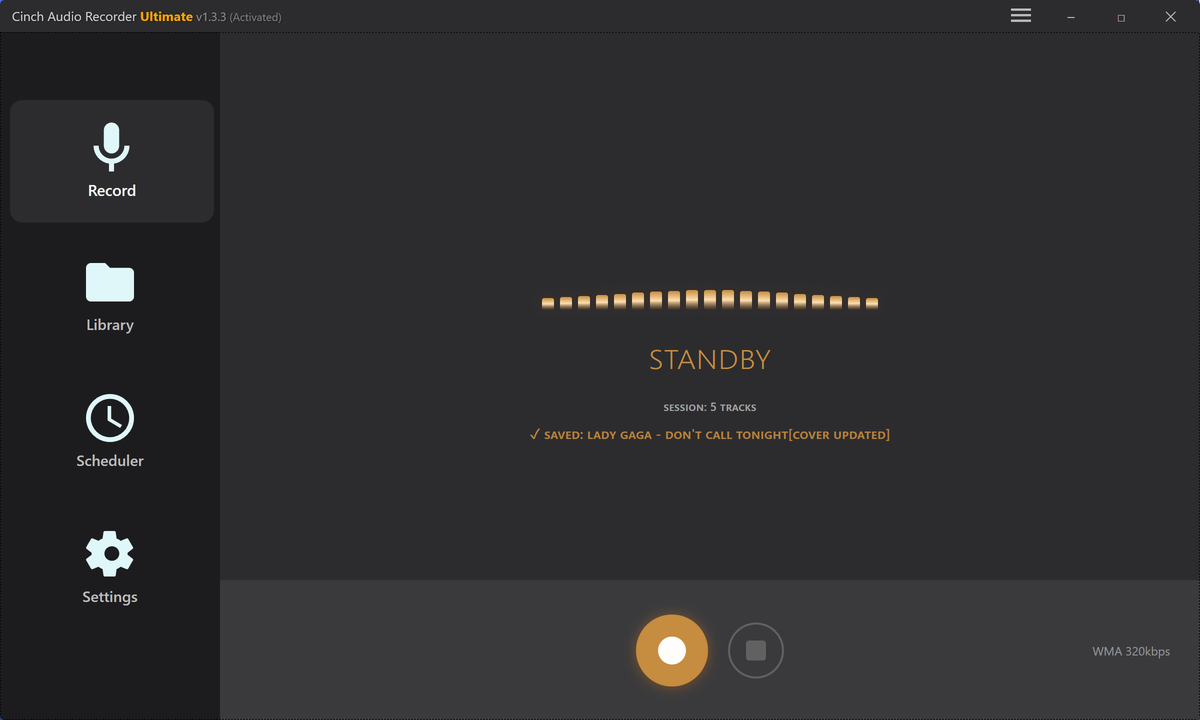
Browser recording problems are usually routing problems with extra browser-specific traps. A tab can be muted, a browser can use a different output, Bluetooth can switch endpoints, or one source can behave differently from another.
This page is for Chrome, Edge, Firefox, and other desktop browsers when the saved file has no sound.
The Short Answer
Use this order:
- Confirm the browser tab is not muted.
- Confirm the site player is actually producing sound.
- Check the system output device.
- Make sure the recorder listens to that same output.
- Record ten seconds and play the result.
- Try another ordinary browser source.
- If only one site stays silent, treat it as a source-specific issue.
First Identify the Browser Audio Failure
Do not start by reinstalling the browser or changing every sound setting. First decide what kind of browser audio failure you have. That tells you whether to fix the tab, the output route, the capture choice, or the source.
| What You Hear While Recording | What the Saved File Contains | What It Usually Means | First Useful Check |
|---|---|---|---|
| You hear the browser normally | Complete silence | Recorder is not capturing the browser’s output route | Confirm the recorder input matches the active output device |
| You hear nothing in the browser | Complete silence | The browser tab, player, site, or system output is muted | Fix playback before changing recorder settings |
| You hear the browser, but the file captures another app | Wrong audio source | Other tabs, apps, or notifications are mixed into the system route | Close extra playback and repeat a short test |
| The first seconds record, then silence appears | Partial audio | Output device changed, Bluetooth reconnected, or the source paused | Keep one output device connected during the whole test |
| One website is silent, but other browser audio records | Source-specific issue | The capture path works, but that source is not reliable in this setup | Test another allowed source before blaming the recorder |
If every desktop app and every browser source records silence, use the broader no sound recorded guide first. If only browser audio fails, stay on this page.
Check the Tab and Player First
Before changing recorder settings, check simple browser sound:
- Is the browser tab muted?
- Is the video or audio player’s volume muted?
- Is the browser routed to a different output in system sound settings?
- Is another tab playing at the same time?
- Did Bluetooth headphones reconnect after the recorder opened?
These are small checks, but they fix many “no audio” recordings.
Confirm the Output Device
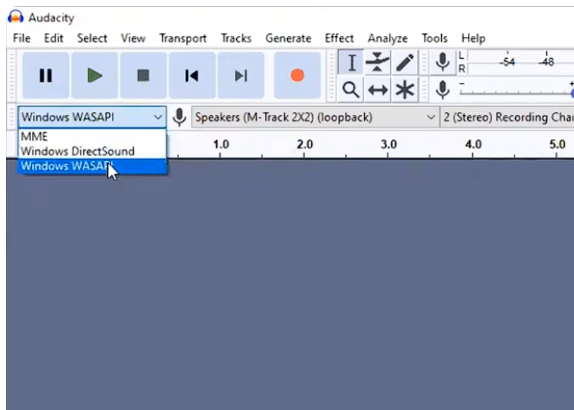
The browser must play through the same route your recorder captures. If the browser plays through headphones while the recorder listens to speakers, the file can be silent.
Pick one output device and keep it stable for the whole test.
Check the Share or Capture Choice
If you are using a browser-based recorder or a screen-sharing style capture prompt, read the source picker carefully. A screen, window, tab, microphone, and system-audio option are not the same thing. Choosing the visible page does not always mean the browser’s sound is included.
Use this quick decision gate:
| Goal | Better Choice | Watch Out For |
|---|---|---|
| Capture audio from one browser tab | The tab or browser source that includes audio | Do not choose a silent tab or a paused player |
| Capture a desktop app plus browser sound | A system-audio or desktop capture route, if available in that workflow | Close apps that may add alerts or background sound |
| Capture your voice and browser audio together | A workflow that clearly supports both microphone and playback audio | Test sync and volume before recording a long session |
| Capture long streaming playback repeatedly | A desktop recorder that listens to system playback | Browser prompts and tab choices are easier to mis-set |
If the capture prompt has an audio checkbox or source-specific audio option, make the choice deliberately, then record a short file before the real take.
Run a Clean Thirty-Second Browser Test
Use a boring test before you use the real source. The goal is to remove distractions and prove the route.
- Close extra tabs that can play sound.
- Choose one output device, such as speakers or one pair of headphones.
- Play a simple browser source that you are allowed to record.
- Start the recorder after the browser audio is already audible.
- Record 30 seconds.
- Stop, save, and play the file in a separate player.
- Repeat once without changing devices.
If the first test works but the second one fails, note exactly what changed: browser, tab, headphones, HDMI display, volume control, sleep/wake, or source website.
Clues That Often Get Missed in Browser Cases
Browser audio cases are easy to misread because the user can honestly say “I heard it playing” while the recorder captured a different route. Before you call it a recorder failure, look for these clues:
| Clue | Why it matters | What to write down |
|---|---|---|
| The sound came from a monitor or TV | HDMI display audio can become a separate output from laptop speakers | The exact output name shown by the system |
| Headphones connected after the page opened | Bluetooth can change the endpoint after the recorder is already armed | Whether reconnecting headphones changes the test result |
| Only one website fails | The browser route works, but that source behaves differently | One ordinary browser source that records correctly |
| Notifications appear in the file | The recorder is capturing shared system playback, not only one tab | Which apps were open during the test |
| The first clip works and the long clip fails | Sleep, pause, buffering, or device switching may happen later | The approximate minute when silence begins |
This kind of note is useful because support can separate “the browser never reached the recorder” from “the source changed during a long session.”
Try Another Browser or Source
If Chrome records silence, test the same allowed source in Edge or Firefox. If that works, the problem is likely browser-specific. If every browser source is silent, return to the broader no sound recorded guide.
If one website stays silent while ordinary browser audio records correctly, the source may be using a playback path that is not reliable for your capture workflow.
When the Online Recorder Is Not the Right Tool
An online recorder is useful for quick tests, short clips, and situations where installing software is not practical. It is not always the best choice for long browser sessions or repeated streaming captures.
Use an online recorder when:
- The clip is short.
- The browser source picker is clear.
- You only need a quick sample.
- You can replay the source if the first take fails.
Use a desktop recorder when:
- You need the same setup every day.
- The source is long and difficult to replay.
- Browser prompts or tab choices keep causing mistakes.
- You need automatic splitting, tags, or a more stable system-audio workflow.
For repeated browser playback recording, start with record browser audio cleanly or compare the desktop workflow on the Cinch Audio Recorder product page.
Browser Recording Checklist
| Symptom | Likely Cause | Fix |
|---|---|---|
| File is silent | Wrong output or muted tab | Confirm tab sound and recorder device |
| Other app recorded instead | Mixed system playback | Close noisy apps and tabs |
| Audio starts then disappears | Output device changed | Stop switching headphones or HDMI |
| One site records, another does not | Source-specific playback behavior | Try another browser or allowed source |
| Online recorder has no tab audio | Browser capture permission or wrong share choice | Reopen the capture flow and choose the source carefully |
What to Send Support If Browser Audio Still Fails
A useful support note is short, but it should include the route you tested. That prevents the conversation from starting with guesswork.
Send:
- Operating system and browser name.
- Cinch Audio Recorder version, if you are using the desktop app.
- Whether the browser was audible through speakers, headphones, Bluetooth, or HDMI.
- Whether the saved test file is fully silent, partially silent, or captures the wrong app.
- Whether another browser source records correctly.
- Whether the problem happens in one browser or several browsers.
- A 10-30 second non-private test file if support asks for audio evidence.
Do not send a private full-length recording first. A short, harmless test file is usually better for diagnosis.
How to Confirm It Is Fixed
You are ready for a real browser recording when:
- The test file contains the browser source.
- It does not contain other tabs or notifications.
- The output device remains unchanged.
- The test works twice in a row.
Related Troubleshooting Guides
- Record browser audio cleanly
- No sound recorded
- Cannot detect system audio
- Recording stops unexpectedly
- Check recording quality before sharing
- Record YouTube audio without background noise
- Contact support
Frequently Asked Questions
Why does browser recording have no audio?
The browser may be playing through a different output, the tab may be muted, the recorder may listen to the wrong device, or the source may behave differently under protected playback.
Should I try another browser?
Yes. If one browser source records silence, test the same allowed source in another browser after confirming the output device.
Can muted tabs cause silent recordings?
Yes. Check the tab, site player, system volume, browser output, and recorder device before a long recording.
What should I test first?
Record ten seconds from a simple browser source through one stable output device, then play the saved file before changing more settings.