
Move Website Audio Without Breaking References
 By HenrikUpdated Aug 7, 20266 min read
Prepare audio files before a website migration, CMS rebuild, static-site move, or page URL change.

Website migrations often focus on pages, redirects, titles, and images. Audio files can be forgotten until a visitor reports that a demo, support sample, or download no longer works.
Before you move a site, treat audio as a real content asset. Each file should have a source, a public use, a destination, and a quick playback check.
Check the File Before Sharing
| Checkpoint | Tool | Why it matters |
|---|---|---|
| 1 | Audio Metadata Viewer | Inspect source notes, old page labels, duration, format, and hidden comments. |
| 2 | Recording Quality Checker | Confirm migrated copies still play and are not silent, clipped, or incomplete. |
| 3 | Audio File Size Calculator | Estimate migration storage, backup space, and large download risk. |
| 4 | Audio Waveform Generator | Keep visual timing clues when old and new clips look similar. |
| 5 | Audio Compressor | Create smaller delivery copies only after source and playback checks. |
| 6 | Online Audio Format Converter | Export compatible delivery copies when the new site needs another format. |
| 7 | Audio Metadata Editor | Add migration status, old URL, new URL, owner, source, and redirect notes. |
Use this migration check when moving from WordPress to a static site, rebuilding support articles, changing page URLs, cleaning a media library, or moving public downloads.
Step 1: Build a Small Audio Move List
Start with a simple inventory:
old page: /old-support/example-audio/
old file: support-example-v1.mp3
source file: source-support-example-original.wav
new page: /support/
new file: support-example-v2.mp3
status: needs playback check
Do this before renaming or compressing anything. A migration is easier when every public copy can be traced back to an original source.
Step 2: Inspect the Old Files
Use Audio Metadata Viewer to check title, comments, format, duration, size, and embedded notes.
Look for:
- Page names from the old site.
- Product names that changed.
- Review or approval comments.
- Source clues.
- Private notes that should not be published.
- Formats that may not fit the new site.
If metadata carries useful history, preserve it in a migration note before making a clean delivery copy.
Step 3: Decide What Moves, Changes, or Retires
Use a migration decision table:
| File status | Action |
|---|---|
| Current and approved | Move and verify playback |
| Current but oversized | Compress a delivery copy |
| Correct source but wrong format | Convert a delivery copy |
| Old page only | Archive or retire |
| Unknown source | Hold for review |
| Private or sensitive | Do not publish until cleaned |
This keeps a site migration from becoming a blind media dump.
Step 4: Check Playback After Copying
After moving the file into the new site folder or media library, run Recording Quality Checker on the copied file.
Confirm:
- It is the expected clip.
- It plays from start to finish.
- It is not mostly silence.
- The duration matches the old record.
- It is not clipped or obviously damaged.
If a page embeds the file, test the page too. A good audio file can still fail if the page path is wrong.
Step 5: Prepare Delivery Copies
Use Audio Compressor only when the new site needs a smaller public copy. Use Online Audio Format Converter only when the new environment needs another format.
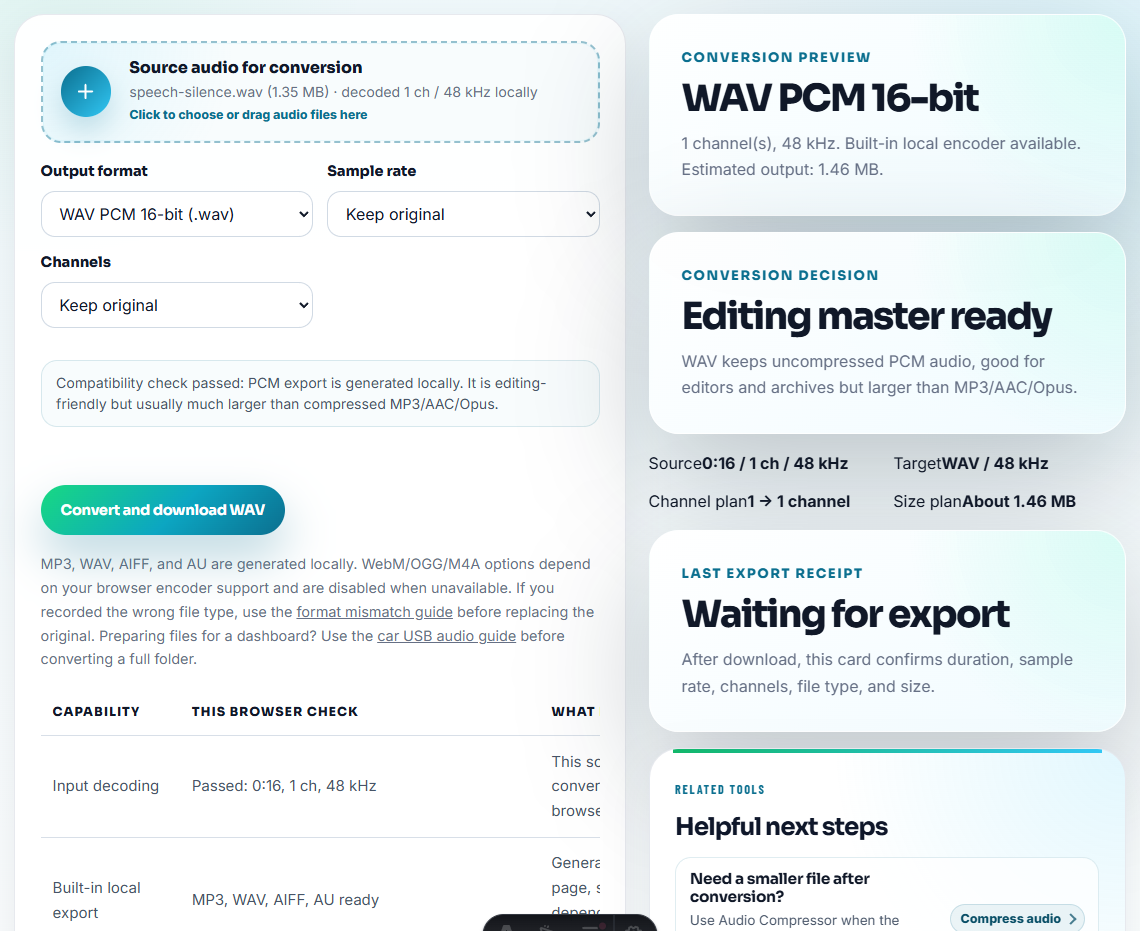
Keep this separation:
source: source-product-demo-original.wav
migration review: migration-product-demo-v2-review.mp3
public delivery: product-demo-v2-public.mp3
Do not let a compressed migration copy become your only source file.
Step 6: Record Old and New Locations
Use Audio Metadata Editor to add a note such as:
Migrated from /old-demo/ using source-product-demo-original.wav. New use: /record-streaming-audio-windows/. Public copy approved 2026-07-31.If the old URL will redirect, record that too. If the old file should never be reused, mark it retired.
Step 7: Check the Final Page
Before finishing the migration, check:
- The new page links to the correct file.
- The old page redirects or is intentionally removed.
- Download buttons point to the new copy.
- Captions or surrounding text match the migrated audio.
- Source and replacement notes remain traceable.
Migration quality is not only about whether the file exists. It is about whether the page still makes sense.
Create an Old-to-New Audio Map
For migration work, the most useful artifact is a mapping table. It prevents old media-library files from being copied blindly.
| Old asset | Current use | New asset | Decision | Check |
|---|---|---|---|---|
/uploads/demo-v1.mp3 | Old product demo page | /assets/audio/product-demo-v2.mp3 | Replace | Playback and page copy match. |
/uploads/support-gap.mp3 | Support article example | Same public file | Keep | Metadata cleaned before move. |
/uploads/customer-call.mp3 | Private source only | No public copy | Hold | Permission not approved. |
/uploads/tutorial-old.wav | Retired tutorial | Archive | Retire | Remove links or redirect page. |
This map is more valuable than a bulk file copy because it records why each file moved, changed, or stopped.
Problems to Catch Before You Move Website Audio Without Breaking References
- Do not move audio files without a page or source record.
- Do not publish old media-library files just because they were present.
- Do not rename files without recording the old filename.
- Do not convert the only source file.
- Do not assume a copied file works until it has been played.
- Do not leave private comments inside public delivery copies.
When a Quick Local Check Is Enough
For website migration, browser tools are useful for checking migrated audio one file at a time. Keep old and new URLs mapped, compare playback before deleting legacy assets, and review permissions again if files move from private storage to public pages.
Use a formal migration checklist when audio supports legal claims, paid campaigns, customer approvals, large archives, or many redirected public URLs.
Related File Prep Guides
- Audio Metadata Viewer
- Recording Quality Checker
- Check Live Audio Before Refreshing a Page
- Find Every Embedded Audio File Before a Redesign
- Plan Audio Replacement Without Broken References
- QA Public Page Audio Before Users Find Issues
- Trace Public Audio Back to the Source File
Questions People Usually Ask
What is the easiest detail to miss?
Confirm the source file, public copy, page use, format, size, playback quality, metadata notes, and old-to-new location before the migration.
Should I rename audio files during a website migration?
Rename only when the new name improves clarity and you can record the old filename, page location, source file, and replacement path.
What should I check for website audio migration?
Map every audio file to its old and new page, test playback after the move, and keep a rollback copy for anything public or customer-facing.