
How to Check Live Audio Before Refreshing a Page
 By HenrikUpdated Aug 7, 20267 min read
Review live audio before refreshing a page, claim, product section, tutorial, or customer proof example.
A content refresh can quietly break audio trust. The page wording changes, a product flow gets updated, a customer quote is shortened, or an old proof clip remains beside a newer claim.
Before replacing everything, review the live audio like an editor. The goal is not to make the file newer. The goal is to decide whether it still belongs on that page.
Make the Review Copy Easy to Trust
| Task | Tool | Result to verify |
|---|---|---|
| 1 | Audio Metadata Viewer | Inspect source notes, dates, title fields, duration, format, and hidden comments. |
| 2 | Recording Quality Checker | Confirm the current public copy is audible, complete, and not clipped or silent. |
| 3 | Audio Waveform Generator | Compare timing, silence, and before-and-after sections against the refreshed page. |
| 4 | Audio Trimmer | Create a review excerpt when only one part still supports the page. |
| 5 | Audio Normalizer | Level a review copy when volume differences make comparison unfair. |
| 6 | Online Audio Format Converter | Create a compatible delivery copy only after the refreshed use is approved. |
| 7 | Audio Metadata Editor | Add refresh status, page URL, source, owner, decision, and replacement notes. |
Use this review style on public pages, comparison pages, case studies, tutorial pages, support articles, and download pages that include audio examples.
Step 1: Start With the Live Context
Write down where the audio appears before touching the file:
page: /record-streaming-audio-windows/
section: setup example
current use: short public demo clip
refresh reason: page screenshots and workflow changed
decision needed: keep, trim, replace, or retire
If the same audio appears on more than one page, review every use. A clip can still fit one page and be wrong for another.
Step 2: Inspect the File Before Editing
Use Audio Metadata Viewer to check whether the file already contains source notes, date clues, product labels, or comments.
Look for:
- Product or feature names that no longer match the page.
- Old review dates.
- Private notes that should not be in a public copy.
- A source filename that points to a retired recording.
- A format or duration that differs from the page description.
Do not rely only on the visible filename. Metadata often carries the clue that explains why the file was created.
Step 3: Check Playback and Quality
Run the current public copy through Recording Quality Checker. Mark whether the file is:
- Audible.
- Complete.
- Free of obvious clipping.
- Not mostly silence.
- The expected length.
- Still the same clip referenced by the page.
If the file fails a basic playback check, treat it as a repair task before deciding whether the content still matches.
Step 4: Compare the Clip to the Refreshed Wording
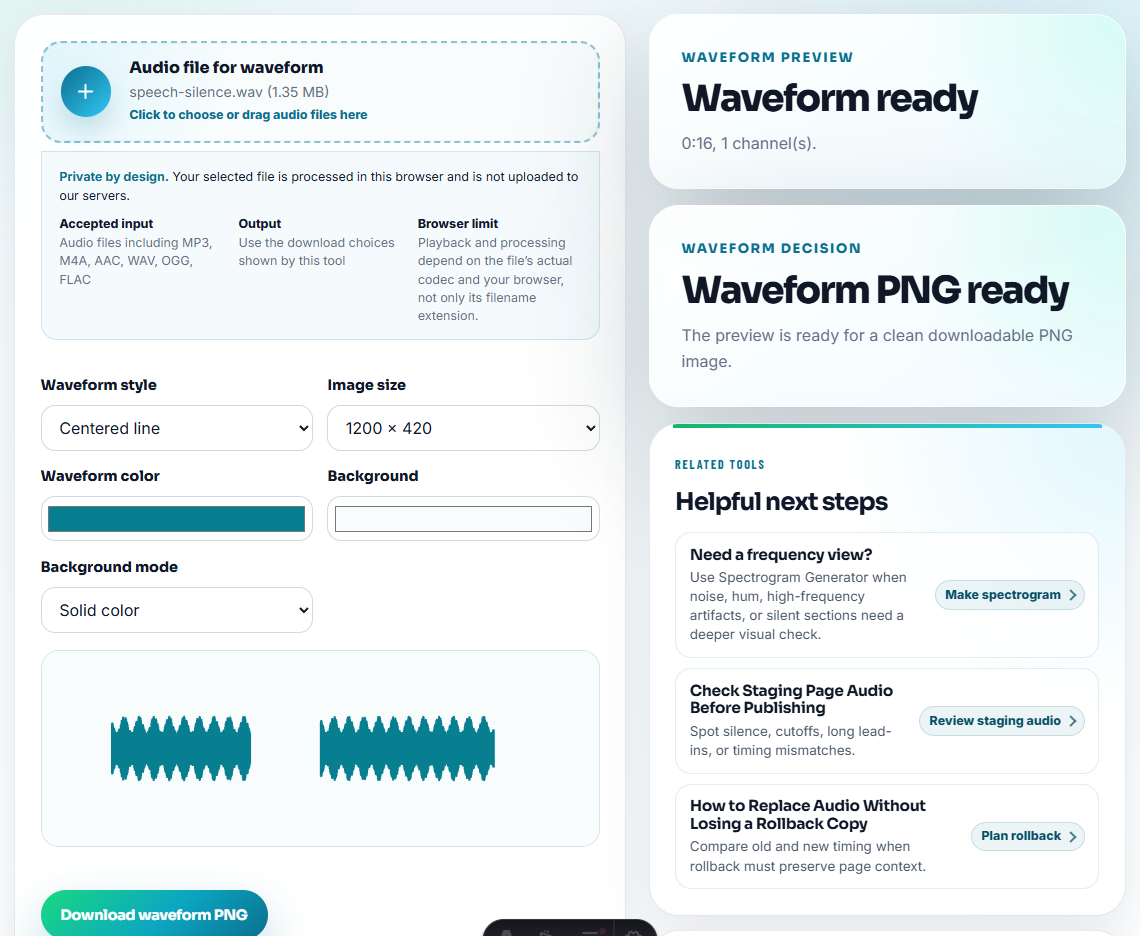
Use Audio Waveform Generator when timing matters. For example, a page may describe a “short before-and-after sample,” but the current file may include a long introduction, silence, or only the after section.
Use a simple decision grid:
| Question | Keep | Trim | Replace | Retire |
|---|---|---|---|---|
| Does the clip support the refreshed wording? | Yes | Partly | No | No |
| Is the source still approved? | Yes | Yes | Maybe | No |
| Is the audio easy to understand? | Yes | Mostly | Maybe | No |
| Does the page need the same example? | Yes | Mostly | No | No |
This makes the refresh decision visible instead of emotional.
Step 5: Create Review Copies Only
If only part of the old clip is still useful, use Audio Trimmer on a copy. Name it as a review file:
refresh-review-setup-demo-clip-a.mp3
refresh-review-case-study-shorter-v2.mp3
refresh-review-before-after-section-only.mp3
If the old clip is quieter than the new candidate, use Audio Normalizer on review copies so the louder file does not win unfairly.
Step 6: Record the Refresh Decision
Use Audio Metadata Editor to add a clear status note:
Refresh review: keep. Page: /support/. Source still matches current setup copy. Reviewed 2026-07-31.Or:
Refresh review: replace. Old clip mentions retired workflow. New source needed before page update.This prevents the next refresh from starting at zero.
Step 7: Prepare the Approved Delivery Copy
Only after the decision is made, create a delivery copy with Online Audio Format Converter or Audio Compressor if the page needs a smaller or more compatible file.
Keep the review copy, source copy, and delivery copy separate:
source-product-demo-original.wav
refresh-review-product-demo-v2.mp3
public-product-demo-v2.mp3
Decide Whether the Refresh Changes the Audio Date Signal
Do not update a page simply to look fresh. Use the audio decision to choose the right freshness signal:
| Refresh result | Update page date? | Reason |
|---|---|---|
| Audio kept after review. | Usually no. | The visible asset did not change. |
| Audio trimmed or replaced. | Yes. | Visitors see or hear a new public asset. |
| Page wording changed to match audio. | Yes. | The explanation changed materially. |
| Metadata cleaned only in source records. | Usually no. | Public content may be unchanged. |
| Old audio retired from the page. | Yes. | The page proof set changed. |
This keeps freshness meaningful instead of turning dates into decoration.
Use a Refresh Decision Tree
When the page is being updated, choose the audio action from the reason for the refresh.
| Refresh trigger | First audio question | Likely action |
|---|---|---|
| Product workflow changed | Does the clip show the old workflow? | Replace or rewrite the surrounding copy. |
| Claim wording changed | Does the clip still support the exact sentence? | Keep only if the evidence boundary still fits. |
| Page moved or redesigned | Does the embed, download, or file path still work? | Recheck playback and page performance. |
| Customer proof updated | Is permission and account context still valid? | Reconfirm owner or retire the old clip. |
| Tutorial simplified | Is the old clip too long or too broad? | Trim a focused excerpt or remove the audio. |
This helps editors avoid two common mistakes: refreshing text while leaving stale proof, or replacing useful audio just because the page date changed.
Verify the Live Audio Before Refreshing the Page
- Do not refresh page copy while leaving old audio proof unchecked.
- Do not replace a working clip just because it is old.
- Do not keep a clip that supports an older product claim.
- Do not normalize only one side of a before-and-after comparison.
- Do not overwrite the old file without a replacement note.
- Do not publish a new delivery copy before checking source and permission status.
When You Do Not Need a Desktop Recorder
For content-refresh review, browser prep works when you are checking whether an existing audio asset still matches the page, offer, or tutorial. Keep the live file traceable, compare it against the proposed copy, and flag outdated claims before refreshing the page.
Use a stricter asset system when the audio supports legal claims, signed customer approvals, regulated statements, large public libraries, or paid media campaigns.
Helpful Audio Tools
- Audio Metadata Viewer
- Recording Quality Checker
- QA Public Page Audio Before Users Find Issues
- Check Whether Audio Supports a Marketing Claim
- Trace Public Audio Back to the Source File
- Stop Outdated Audio Proof From Being Reused
- Check Reused Audio Before It Becomes Outdated
Decisions to Confirm
What is audio content refresh review?
It is a check before updating a live page or article to confirm whether the audio still matches the current wording, product, claim, source notes, and allowed use.
Should I replace audio every time I refresh a page?
No. Replace it only when the clip is outdated, mismatched, unclear, unsupported, or tied to a claim that changed.
What should I check during a content refresh?
Check whether the audio still matches the page, product version, permission status, and claim before refreshing the surrounding content.