
QA Public Page Audio Before Users Find Issues
 By HenrikUpdated Aug 7, 20267 min read
QA public page audio by checking permission, claim fit, metadata, download behavior, playback, and replacement triggers.

Public page audio has a higher standard than an internal review clip. Once it appears on a website, visitors may download it, share it, compare it with claims on the page, or treat it as proof of what the product can do.
That means audio QA is not only “does it play?” It is also “is this the right file, in the right context, with the right permission and a traceable source?”
Check the File Before Sharing
| Checkpoint | Tool | Why it matters |
|---|---|---|
| 1 | Audio Metadata Viewer | Check hidden labels, source notes, format, duration, and file size. |
| 2 | Recording Quality Checker | Confirm the final public copy plays clearly from start to end. |
| 3 | Audio Trimmer | Remove unintended starts, endings, or private sections from a copy. |
| 4 | Audio Waveform Generator | Check timing, silence, or before-and-after sections visually. |
| 5 | Audio Compressor | Create a smaller public copy after quality and permission checks. |
| 6 | Online Audio Format Converter | Export a compatible delivery copy only when the page needs it. |
| 7 | Audio Metadata Editor | Add public status, source, page, version, and owner notes. |
The QA copy should match the page exactly. If the page says one thing and the audio proves another, fix the page or replace the clip.
Step 1: Match the Audio to the Page Purpose
Start with the section where the audio will appear:
- Product demo.
- Before-and-after comparison.
- Tutorial example.
- Support article.
- Customer proof.
- Case study.
- Download sample.
- Website embed.
The clip should support that section directly. Do not add audio just because it sounds good.
Step 2: Inspect the Delivery File
Use Audio Metadata Viewer before publishing. Look for internal project names, customer names, rough comments, old approval status, or filenames that do not match the page.
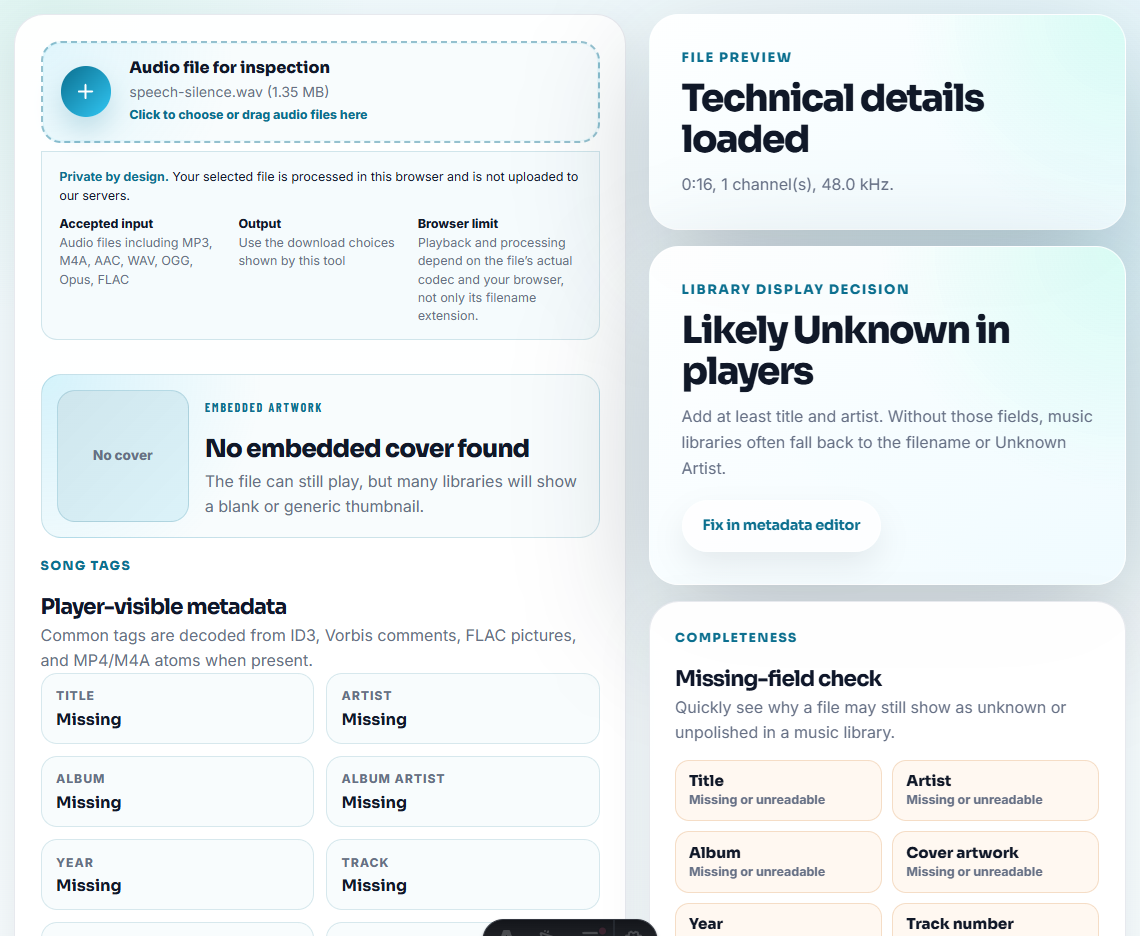
If the public page lets visitors download the file, metadata matters even more because the file may leave the website context.
Step 3: Check the Full Playback Path
Use Recording Quality Checker to confirm the public copy has no missing beginning, clipped ending, long silence, or unexpected volume change.
Then listen as a visitor would:
- Does the page explain what the listener is hearing?
- Does the clip start quickly enough?
- Does the example support the nearby claim?
- Does the audio still work after compression?
- Does the file name make sense after download?
Step 4: Trim Only What Should Not Be Public
Use Audio Trimmer on a copy if the clip has setup noise, private discussion, dead air, or unrelated endings.
Useful filenames:
public-page-demo-audio-approved.mp3
public-page-before-after-section-2.mp3
public-page-support-example-reviewed.mp3
public-page-download-sample-v1.mp3
Avoid filenames that reveal internal status, customer identity, or draft history.
Step 5: Add Visual Context When Needed
Use Audio Waveform Generator when the page needs a visual cue, such as a before-and-after section, a short sample, or an explanation of silence and peaks.
Do not add waveform visuals just for decoration. They should help the user understand the audio.
Step 6: Create the Public Copy
Use Audio Compressor after the file is approved. Use Online Audio Format Converter only when the page or browser support plan requires another format.
Keep the source, reviewed copy, and public copy separate. The public copy is the delivery file, not the master record.
Step 7: Label the Public Status
Use Audio Metadata Editor to add:
- Public page.
- Use case.
- Approved status.
- Source reference.
- Version.
- Owner.
- Review date.
- Replacement note.
Example note:
Public page audio for support example. Approved delivery copy. Source retained separately; replace if product UI or claim changes.Decide Whether the Page, File, or Claim Should Change
When public-page QA fails, do not automatically edit the audio. Choose the smallest honest fix:
| What fails | Better fix | Why |
|---|---|---|
| Audio is correct, page claim is too broad. | Rewrite the nearby sentence. | The proof should not be stretched. |
| Page claim is correct, audio is outdated. | Replace the public copy. | Visitors need the current example. |
| Permission is unclear. | Remove or hold the clip. | A playable file is not automatically publishable. |
| Download metadata is private. | Rebuild a clean delivery copy. | Metadata can travel outside the page. |
| File is heavy but useful. | Compress a delivery copy only. | Source quality stays preserved. |
This makes QA a publishing decision, not just an audio repair task.
Run a Public-Page Audio Gate
Before audio goes live, check more than playback. The page, file, claim, and permission must all agree.
| QA gate | Pass condition | Fix before publishing |
|---|---|---|
| Claim fit | The clip supports the exact nearby sentence. | Rewrite the page or replace the clip. |
| Permission | Public use is approved for this page or asset. | Keep it internal until the use is cleared. |
| Metadata | Downloaded file has clean title, source note, and no private labels. | Remove account, draft, or ticket clues. |
| Playback | The final compressed or converted file plays from start to end. | Rebuild from source, not from a degraded copy. |
| Freshness | Product/version context still matches the page. | Retire or replace old proof. |
This is the difference between audio that merely plays and audio that is safe to publish.
Problems to Catch Before You QA Public Page Audio Before Users Find Issues
- Do not publish a file with internal metadata or private labels.
- Do not use a customer clip publicly because it was approved for internal review.
- Do not let the audio claim more than the page explains.
- Do not compress the only source copy.
- Do not publish audio without checking the downloaded filename.
- Do not leave old public audio live after the product or permission changes.
When a Quick Local Check Is Enough
For public-page QA, browser prep is useful only after you know which file, page, and claim are being checked. Test playback on the actual page, confirm the copy around the audio is accurate, and keep source files traceable for future audits.
Use a stricter workflow when the page uses named customers, legal claims, paid campaign audio, accessibility transcripts, localization, or many public assets.
More Ways to Check the File
- Audio Metadata Viewer
- Recording Quality Checker
- Audio Metadata Editor
- Get Audio Approved by the Right Content Owner
- Check Staging Page Audio Before Publishing
- Make Website Audio Embeds Play Cleanly
- Check Whether Audio Supports a Marketing Claim
- Stop Outdated Audio Proof From Being Reused
Before You Share the File
How do I QA audio before publishing it on a page?
Check the source, confirm permission, play the final copy, trim only the intended section, remove private labels, add source notes, and test the published format.
Is public page audio QA only about sound quality?
No. It also checks permission, file naming, source traceability, page context, claim fit, and whether the clip still works after compression or conversion.
What should I check for public page audio QA?
Check the public page, the linked file, the playback controls, the copy around the audio, and whether the sample still belongs on that page.