
How to Replace Audio Without Breaking Old Links
 By HenrikUpdated Aug 7, 20268 min read
Plan replacement audio by recording why the old file changed, what replaces it, and where references must be updated.
Replacing audio sounds simple until someone asks why the old file changed. Maybe the product flow changed, the sample had a rough ending, the page moved, or the old clip was approved only for a narrow use.
Good replacement planning keeps the new file clean while making the old-to-new trail easy to understand.
Separate Source, Review, and Final Copies
| Review pass | Tool | What it catches |
|---|---|---|
| 1 | Audio Metadata Viewer | Read old file details, source notes, duration, format, and comments before replacing anything. |
| 2 | Recording Quality Checker | Confirm whether the old file is actually broken, outdated, incomplete, or still usable. |
| 3 | Audio Waveform Generator | Compare the old and new timing when the replacement must cover the same section. |
| 4 | Audio Trimmer | Cut a replacement excerpt from a source copy without changing the original. |
| 5 | Audio Compressor | Create a smaller delivery copy after the replacement is approved. |
| 6 | Online Audio Format Converter | Export a compatible public or support copy when the destination requires it. |
| 7 | Audio Metadata Editor | Add replacement reason, old filename, new filename, owner, source, and status. |
The most important part is the record. A replacement file without context can become another mystery file later.
Step 1: Decide Why Replacement Is Needed
Use a short reason code before editing:
reason: product workflow changed
reason: public copy clipped at the ending
reason: old source no longer approved
reason: page now needs a shorter example
reason: format not supported by target page
If the reason is unclear, review the old file first. Do not replace audio just because it is hard to identify.
Build a Replacement Map
Create a one-row map before changing files or links.
| Field | What to record |
|---|---|
| Old public file | The exact file users currently reach |
| New candidate | The replacement being tested |
| Source | The trusted source used to build the replacement |
| Reason | Why the old file changes |
| Affected surfaces | Pages, downloads, macros, folders, or emails |
| Rollback | Previous file status and trigger |
| Owner | Person or team that can approve the change |
If you cannot fill the old file, source, affected surfaces, and owner fields, the replacement is not ready to move.
Step 2: Inspect the Old File
Use Audio Metadata Viewer to capture:
- Old filename.
- Duration.
- Format.
- Existing source notes.
- Page or campaign labels.
- Review or approval notes.
- Any private comments that should not move into the new delivery file.
This gives you a clean handoff note for the replacement.
Step 3: Confirm the Old Problem
Use Recording Quality Checker to verify whether the old file has a real issue.
Possible outcomes:
| Result | Replacement action |
|---|---|
| Plays well and still matches the page | Keep and relabel if needed |
| Plays well but supports old wording | Replace after page review |
| Silent, clipped, or incomplete | Replace from source |
| Correct content but wrong format | Convert a delivery copy |
| Too large for the destination | Compress a delivery copy |
This avoids unnecessary replacement work.
Step 4: Prepare the New Source Copy
Start from the best available source file. If only part of it should replace the old clip, use Audio Trimmer on a copy.
Useful filenames:
replacement-source-setup-demo-v2.wav
replacement-review-setup-demo-v2.mp3
replacement-public-setup-demo-v2.mp3
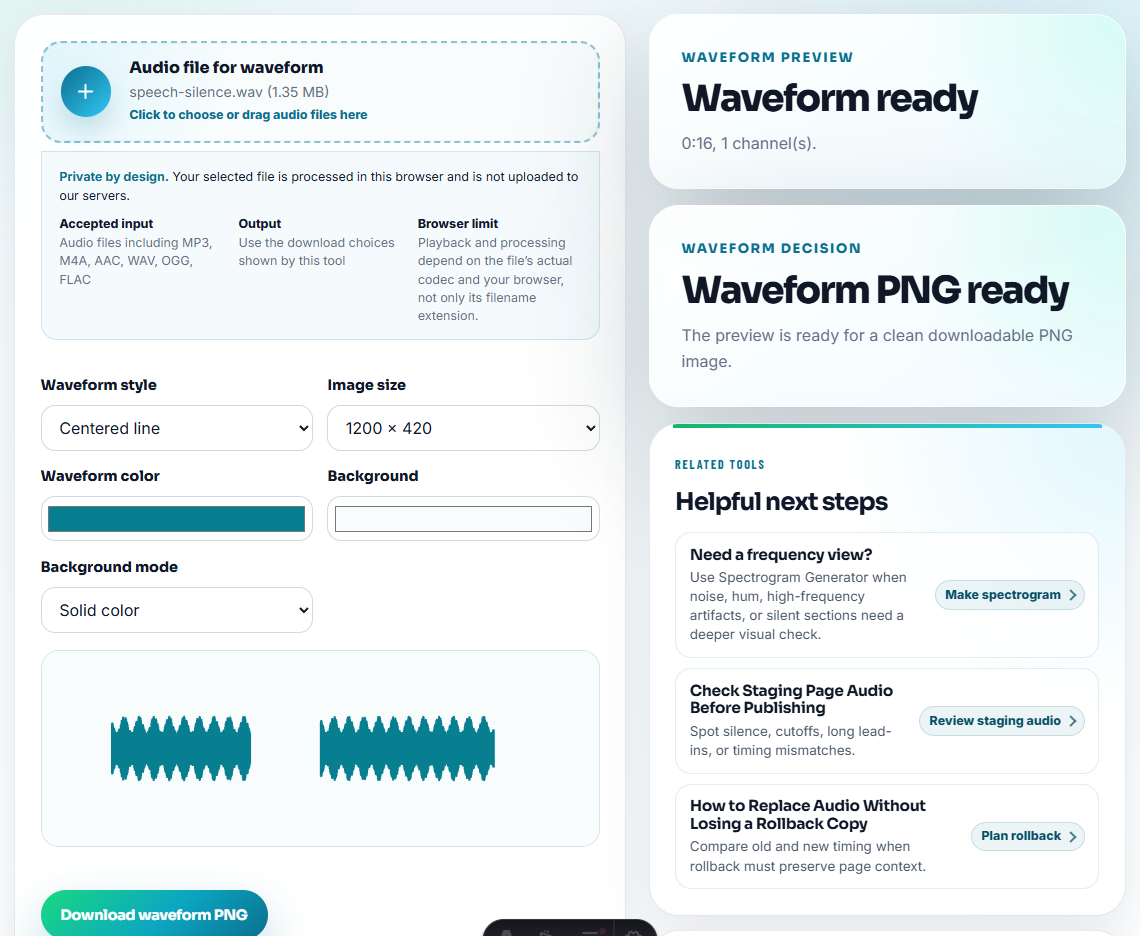
Use Audio Waveform Generator when the replacement should match the old timing. This is helpful for tutorials, comparison pages, and pages where surrounding text refers to a specific moment.
Step 5: Create the Delivery Copy
Once the replacement is approved, create the public or support delivery copy.
Use Audio Compressor when size is the problem. Use Online Audio Format Converter when format compatibility is the problem. Do not compress or convert the only source file.
Keep this naming pattern:
old: public-setup-demo-v1.mp3
new: public-setup-demo-v2.mp3
source: replacement-source-setup-demo-v2.wav
status: v1 retired after v2 goes live
Step 6: Add Replacement Metadata
Use Audio Metadata Editor to add a concise note:
Replacement for public-setup-demo-v1.mp3. Reason: workflow changed. Source: replacement-source-setup-demo-v2.wav. Approved for tutorial page.If the old file remains in an archive, mark it clearly:
Retired. Replaced by public-setup-demo-v2.mp3. Do not reuse on refreshed pages.Step 7: Check Links and References
Before you consider the replacement finished, check where the old audio may still be referenced:
- Public page embeds.
- Download buttons.
- Support articles.
- Email templates.
- Sales or customer proof folders.
- Internal review notes.
Replacement planning is incomplete if the new file exists but users still reach the old one.
Choose a Replacement Pattern
Not every replacement should be handled the same way. Pick the pattern before changing links.
| Pattern | Use when | What changes |
|---|---|---|
| Silent replacement | Same content, fixed export problem. | File changes, page wording usually stays. |
| Versioned replacement | Product, workflow, or proof changed. | File, metadata, and page notes change. |
| Format replacement | Same content, new format needed. | Delivery format changes, source stays. |
| Removal with replacement | Old file should not remain live. | Old links are updated, redirected, or retired. |
| Hold for review | Source, permission, or claim is unclear. | Nothing public changes until owner decides. |
This avoids treating every replacement like a simple upload.
Do a Reference Sweep Before Calling It Replaced
A replacement is not complete when the new file exists. It is complete when old references stop pointing users to the wrong evidence.
| Reference surface | What to check | Risk if skipped |
|---|---|---|
| Public page embed. | Player source, nearby claim, and download label. | Page still proves the old point. |
| Support article. | Example text and troubleshooting steps. | Users hear an example that no longer matches the fix. |
| Sales or proof folder. | Approved copy and old status labels. | Sales reuses retired proof. |
| Email or macro. | Attachment name and linked file. | Customers receive the old sample after replacement. |
This makes replacement planning a user-facing quality step, not just file housekeeping.
Replacement Completion States
Use states so the team does not call a replacement complete too early.
| State | Meaning | Next action |
|---|---|---|
| Candidate prepared | New file exists but is not approved | Run acceptance checks |
| Accepted for rollout | New file passed source, playback, metadata, and size review | Update public references |
| Rolled out | Links or folders now point to the new file | Collect post-rollout proof |
| Replaced and verified | User-facing path is checked | Retire or archive old copy |
| Replacement paused | Source, permission, or reference sweep failed | Resolve blocker before public change |
This keeps the old-to-new trail visible until users actually receive the right audio.
Replacement Check Before Old Links Break
- Do not delete the old file before finding where it is used.
- Do not replace source files with compressed delivery copies.
- Do not keep two files with the same public purpose and no status labels.
- Do not carry private metadata from the old file into the new public copy.
- Do not change format and content at the same time without noting both changes.
- Do not assume the replacement is live until the page or workflow reference is checked.
Use Free Tools to Compare Replacement Candidates
For replacement planning, browser tools help compare the current audio, proposed replacement, and fallback file before anything goes live. Keep the live asset unchanged until review is complete, and write down what problem the replacement is meant to solve.
Use a formal asset management process when replacements affect legal approvals, paid campaigns, customer contracts, media releases, or large public libraries.
Where to Go After This Check
- Audio Metadata Viewer
- Audio Metadata Editor
- Trace Public Audio Back to the Source File
- Stop Outdated Audio Proof From Being Reused
- How to Troubleshoot Audio Files Before Sharing
Common Questions
What is audio replacement planning?
It is the process of replacing an audio file without losing the old source, review history, page context, approval notes, or reason for the change.
Should I delete the old audio after replacing it?
Usually no. Keep an archive or source record until you are sure old pages, downloads, emails, and review notes no longer need it.
What should I check before planning replacement audio?
Identify the current file, the replacement, the reason for the swap, and the rollback copy before changing links or public pages.