
How to Organize Customer Audio Proof by Permission
 By HenrikUpdated Aug 7, 20267 min read
Sort customer audio clips by consent, proof point, expiry, and public-use limits before using them in sales or marketing.

A customer proof library is not just a folder full of positive clips. It is a controlled place where teams can find the right customer evidence without guessing what the file means, where it came from, or whether it can be used.
That control matters. Sales may need a short proof clip for a similar prospect. Support may need a customer outcome example. Product may need evidence tied to a feature. Marketing may need approved material for a page.
If every file is named “recording-final.mp3”, the library becomes risky instead of useful.
Check the Copy Before You Change It
| Pass | Tool to open | Check to make |
|---|---|---|
| 1 | Audio Metadata Viewer | Identify source details, duration, format, and private labels. |
| 2 | Recording Quality Checker | Check whether the proof moment is audible and complete. |
| 3 | Audio Trimmer | Create short proof excerpts from working copies. |
| 4 | Audio Waveform Generator | Add timing context for quotes, pauses, or before-and-after examples. |
| 5 | Audio Compressor | Create compact review and sharing copies. |
| 6 | Online Audio Format Converter | Export a compatible copy only when a destination needs it. |
| 7 | Audio Metadata Editor | Add proof point, source, permission, product, and usage labels. |
The library should help someone choose a clip confidently without reopening the original call.
Step 1: Define the Proof Point
Start by deciding what the clip proves. Use plain categories:
- Faster setup.
- Better recording quality.
- Solved support issue.
- Easier workflow.
- Recovered missing audio.
- Clearer internal process.
- Useful comparison.
- Positive renewal signal.
Do not put every nice sentence into the library. A proof clip should support one clear point.
Step 2: Keep a Source Register
Keep originals separate from library copies. A simple source register can include:
- Source file name.
- Date collected.
- Customer or segment status.
- Internal owner.
- Permission status.
- Approved use.
- Related page, campaign, or note.
Use Audio Metadata Viewer to check whether the file already contains private or confusing metadata before you add it to the working folder.
Step 3: Create Short Review Excerpts
Use Recording Quality Checker before trimming. If the useful proof moment is buried under noise, missing words, or unclear context, mark it as “needs review” instead of adding it to the approved library.
Use Audio Trimmer to create a short excerpt from a copy. Keep enough context that the proof point is fair.
Useful filenames:
proof-library-setup-speed-internal-review.mp3
proof-library-support-resolution-approved-copy.mp3
proof-library-quality-comparison-source-linked.mp3
proof-library-renewal-signal-not-public.mp3
Step 4: Add Context Without Overloading the File
Use Audio Waveform Generator when timing matters. A waveform can help reviewers find the exact point in a clip, especially when the proof depends on a pause, before-and-after section, or repeated playback issue.
Keep written notes short. The library should be searchable, not buried under paragraphs of interpretation.
Step 5: Make Usable Copies
Use Audio Compressor to create smaller review copies after the clip is approved internally. Keep the source and high-quality copy separately.
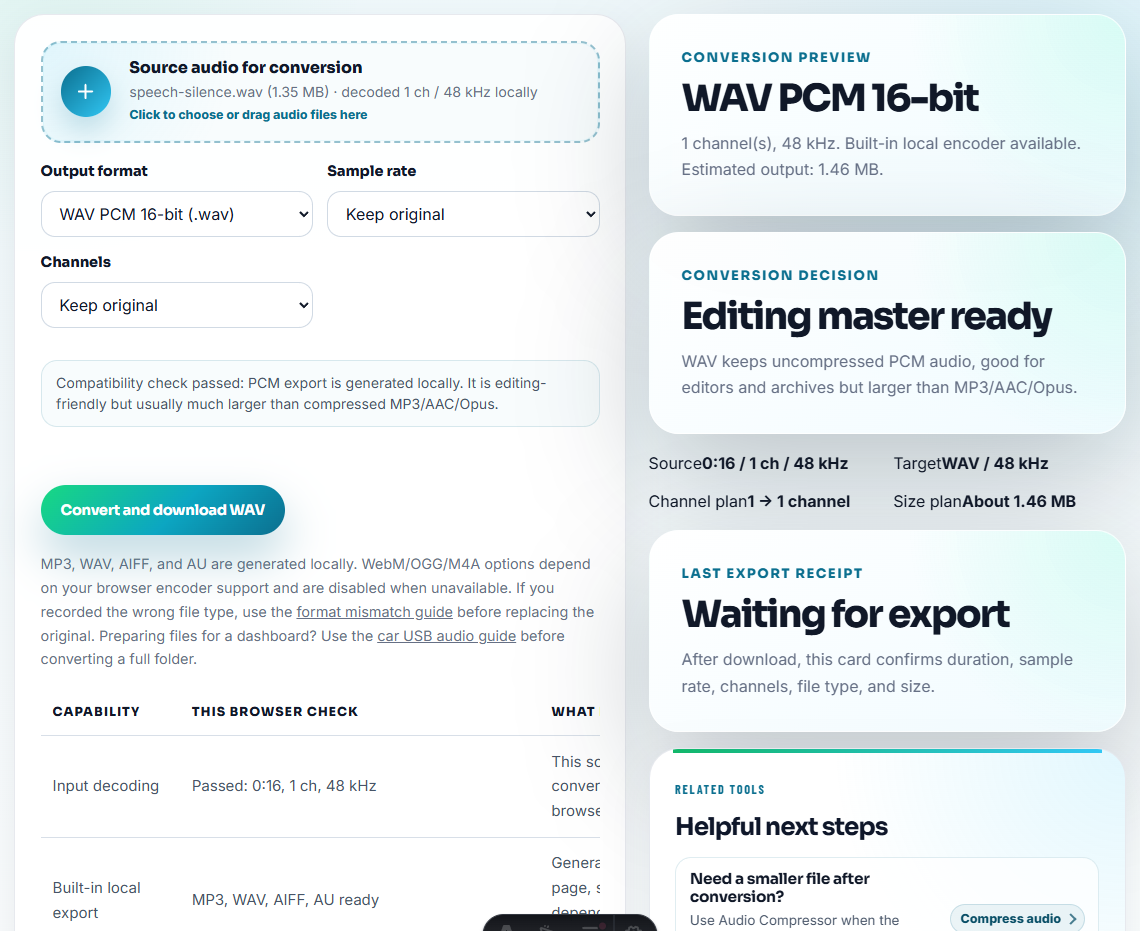
Use Online Audio Format Converter only when a tool, page, or reviewer requires a different format.
Avoid making five copies of every clip. Version sprawl is one of the fastest ways to lose trust in a proof library.
Step 6: Label Usage Status
Use Audio Metadata Editor to add fields that prevent misuse:
- Proof point.
- Product or feature.
- Source status.
- Permission scope.
- Public-use status.
- Internal owner.
- Review date.
- Expiration or re-check date.
Example note:
Proof point: easier setup after onboarding. Internal sales reference only. Public audio use not approved.Add a Proof Card Before Anyone Reuses It
Every reusable proof clip needs a small record that travels with the file:
| Field | Why it matters |
|---|---|
| Proof point | Stops the clip from being used for unrelated claims. |
| Source owner | Shows who can answer questions later. |
| Permission scope | Separates internal, private-share, and public-use rights. |
| Expiration or recheck date | Catches old product, page, or permission changes. |
| Safe wording | Gives teams approved language to use beside the clip. |
| Retire trigger | Explains when the proof should stop being used. |
Without this card, a proof library slowly turns into a folder of attractive but risky audio.
Step 7: Build a Simple Folder Structure
Use folders that describe the allowed use:
01-source-restricted
02-review-needed
03-approved-internal
04-approved-public
05-retired-do-not-use
This is more reliable than storing everything by month. A person opening the folder should know what they are allowed to do before they play the file.
Review Proof Clips by Reuse Risk
A proof library becomes valuable when teams can reuse evidence without guessing. Give each clip a reuse risk level before it enters the library.
| Reuse level | Allowed use | Required label |
|---|---|---|
| Internal signal | Product, support, or success review only. | Source, theme, owner, and not-for-public-use status. |
| Private customer proof | One sales, renewal, or reference context. | Audience, permission scope, and do-not-forward note. |
| Public proof candidate | Needs final permission and claim review. | Exact claim, page/campaign, and reviewer. |
| Approved public proof | Named page or asset use. | Expiration/recheck date and replacement owner. |
This lowers the risk that a helpful private clip gets reused as a public claim later.
Quality Checks Before You Organize Customer Audio Proof by Permission
- Do not treat a raw customer call as a proof library asset.
- Do not mix public-use and internal-only files.
- Do not delete source context after trimming a useful excerpt.
- Do not label clips with claims the audio does not support.
- Do not use old proof clips without checking whether the product or permission status changed.
- Do not let compressed copies replace controlled originals.
When a Clip Should Be Retired
Retire a proof clip when the product result changed, permission expired, the claim was rewritten, the customer context is no longer representative, or a cleaner approved replacement exists. Mark it clearly instead of deleting source context.
When Browser Prep Is Enough for Proof Library Clips
Use free tools for a proof-library candidate only before it enters formal approval. Keep source permission notes nearby, separate private review copies from public-ready assets, and do not add a clip to the library until the claim and consent are clear.
Use a stricter system when your library contains legal-sensitive customer names, contract references, regulated claims, paid advertising assets, or formal approval records.
Where to Go Next
- Audio Metadata Viewer
- Recording Quality Checker
- Audio Trimmer
- Audio Metadata Editor
- Use Audio Proof Safely on Case Study Pages
- Help Internal Champions Explain Audio Fixes
- Prepare Customer Reference Audio Safely
- Review Testimonial Audio Before Public Use
- Turn Customer Audio Into Safe VOC Evidence
Practical Answers
What is a customer proof audio library?
It is a controlled folder of reviewed audio clips that show customer outcomes, objections, use cases, or product moments with clear source and usage status.
How do I organize customer proof audio?
Separate originals from review copies, group clips by proof point, check playback, trim only useful excerpts, label permission status, and keep public-use copies separate.
What should I test with a short sample first?
Store only approved proof clips, record what each sample demonstrates, keep source files separate, and retire clips when the claim or product version changes.