
How to Explain Audio Fixes to Your Team
 By HenrikUpdated Aug 7, 20266 min read
Turn audio bug evidence into short, clear clips your team can review, share, and act on without exposing private customer files.
A champion often needs to repeat the same explanation to people who were not in the original meeting. A short audio clip can help, but only if it is safe, focused, and easy to forward.
Champion enablement audio should not be a raw call recording. It should be a small reviewed copy that supports one point: why the product matters, what changed, what problem was solved, or what decision needs attention.
Use the Tools in This Order
| Pass | Tool to open | Check to make |
|---|---|---|
| 1 | Audio Metadata Viewer | Check file details and remove confusing or private source labels. |
| 2 | Recording Quality Checker | Confirm the value point is audible and complete. |
| 3 | Audio Trimmer | Cut one focused champion-ready excerpt from a copy. |
| 4 | Audio Normalizer | Make speech easier to hear without changing the message. |
| 5 | Audio Compressor | Create a compact copy for email, CRM, chat, or customer follow-up. |
| 6 | Online Audio Format Converter | Convert only when the recipient or platform needs another format. |
| 7 | Audio Waveform Generator | Add timing context when the champion needs to reference one moment. |
| 8 | Audio Metadata Editor | Add value point, permission, audience, product, and follow-up labels. |
The best champion clip is easy to understand without the full meeting.
Step 1: Choose the Champion’s Job
Start with the job the clip needs to do:
- Explain the value to a manager.
- Support a renewal discussion.
- Show setup progress.
- Clarify a blocker.
- Share a customer outcome.
- Help a teammate understand the workflow.
- Reinforce why the project should continue.
One clip should serve one job. If you need to explain three points, make three labeled excerpts.
Step 2: Remove Risk Before Editing
Use Audio Metadata Viewer to inspect the source copy. Champion clips may be forwarded beyond the first recipient, so remove private ticket numbers, internal notes, billing references, or account-specific labels from the shared copy.
Keep the original source in a controlled folder. The champion should receive the excerpt, not the archive.
Step 3: Check Whether the Clip Can Stand Alone
Use Recording Quality Checker and listen as if you were not in the meeting. Ask:
- Is the speaker clear?
- Is the value point complete?
- Is there enough context?
- Does the clip reveal anything unnecessary?
- Does the clip sound fair when separated from the full conversation?
If the answer is no, write a short summary instead of forcing the audio to do the whole job.
Step 4: Trim a Focused Clip
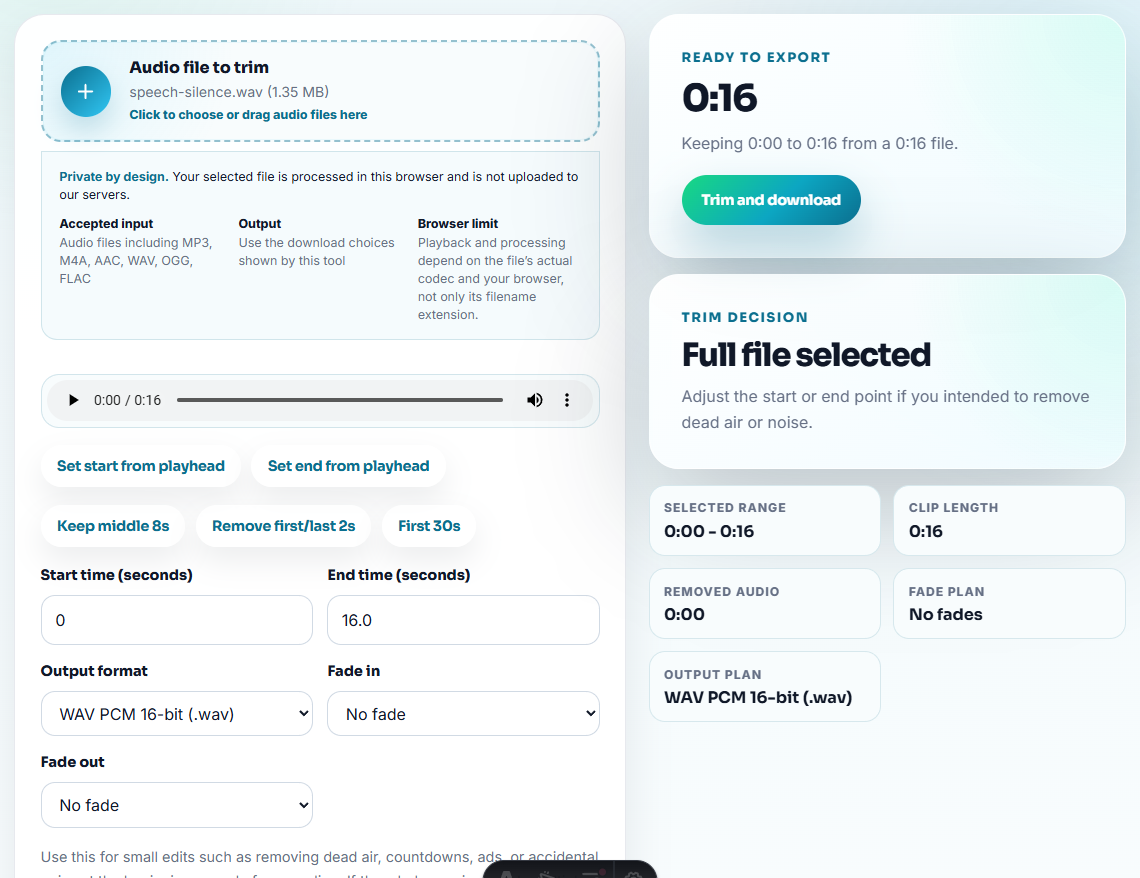
Use Audio Trimmer on a copy. Keep the smallest section that still makes sense.
Good filenames:
champion-enablement-renewal-value-review.mp3
champion-enablement-setup-progress-share-copy.mp3
champion-enablement-blocker-context-internal.mp3
champion-enablement-outcome-approved-forward.mp3
Avoid filenames that pressure the recipient, such as “must-win” or “urgent-proof”.
Step 5: Make It Easy to Hear
Use Audio Normalizer only when the speech is too quiet for normal listening. Do not over-process the clip or remove natural hesitation if it affects the meaning.
Use Audio Waveform Generator when the champion needs to point to a timestamp or a specific answer in the clip.
Step 6: Create the Delivery Copy
Use Audio Compressor after the clip is reviewed. A smaller copy is easier to attach, upload, or send through a chat tool.
Use Online Audio Format Converter only when the recipient cannot open the source format. Keep the conversion as a delivery copy, not the new source of truth.
Step 7: Add Usage Labels
Use Audio Metadata Editor to add:
- Champion purpose.
- Audience.
- Product or feature.
- Permission status.
- Internal or external use.
- Review date.
- Follow-up owner.
- Source reference.
Example note:
Purpose: help champion explain setup progress to internal stakeholders. Approved for private forwarding only; do not publish.Champion Clips Need a Decision Frame
Real support and sales follow-ups rarely fail because a champion lacks “more audio.” They fail because the clip does not answer the exact worry another stakeholder has. Build the excerpt around the decision the champion needs to defend.
| Stakeholder worry | Best audio evidence | Keep out of the shared copy |
|---|---|---|
| ”Will this still work after a device change?” | A short before-and-after note showing the account or setup path is understood. | License strings, email addresses, order numbers, or machine identifiers. |
| ”Is the output actually usable?” | A clean sample plus a note about whether distortion, speed, or scratching was reproduced. | Angry wording, refund pressure, or unrelated troubleshooting history. |
| ”Can the files be organized later?” | A clip paired with metadata labels that explain title, track, source, and review status. | Raw library dumps or filenames that include private customer context. |
| ”Who owns the next step?” | A 20- to 40-second clip with owner, blocker, and next action in the metadata note. | Full meeting audio that forces the stakeholder to interpret the issue alone. |
This gives the champion a usable proof point instead of a loose attachment. It also keeps the clip from becoming accidental public testimonial material.
Quality Checks Before You Explain Audio Fixes to Your Team
- Do not send a full meeting recording when one excerpt is enough.
- Do not include unrelated objections, names, or private project details.
- Do not edit the clip until it sounds more certain than the original speaker.
- Do not use a champion clip as public testimonial audio without approval.
- Do not create many versions without clear labels.
- Do not remove the written context that explains why the clip matters.
When Browser Prep Is Enough for Champion Enablement
Use browser prep for champion enablement when one internal advocate needs a clean example to explain value or answer objections. Strip unrelated customer details, keep the original call in approved storage, and make the clip easy to cite in a follow-up.
Use a stricter workflow when the clip will be shared publicly, used in sales materials, tied to legal commitments, or sent into a large customer organization where forwarding cannot be controlled.
Where to Go Next
- Audio Metadata Viewer
- Recording Quality Checker
- Audio Trimmer
- Audio Compressor
- Use Audio in Renewal Emails Without Overclaiming
- Organize Customer Proof Audio by Permission
- Brief Stakeholders With Safe Audio Evidence
- Attach Proposal Audio Without Overpromising
Before You Start
What is champion enablement audio?
It is a short, reviewed clip that helps an internal or customer champion explain value, progress, feedback, or next steps to other stakeholders.
What makes the file easier to review later?
Choose one value point, remove private context, check playback, trim a fair excerpt, add a short note, label usage limits, and share a compact copy.
Which free tools are useful for champion enablement clips?
Give internal champions a short approved clip, plain context, and clear wording they can repeat without improvising product claims.