
Find Audio That Is No Longer Safe to Publish
 By HenrikUpdated Aug 7, 20266 min read
Find audio that may be outdated, permission-limited, replaced, broken, or no longer safe for public use.
Audio does not need a literal expiration date to become risky. A clip can expire because the product changed, permission changed, the source is unclear, the customer quote is no longer approved, or a better replacement now exists.
Old audio can become risky when claims, permissions, product versions, or customer details change. Review what the clip proves now before leaving it on a public page or in a shared folder.
Start With the Source File
| Stage | Free tool | What it helps you decide |
|---|---|---|
| 1 | Audio Metadata Viewer | Find old dates, source clues, product labels, comments, and existing status notes. |
| 2 | Recording Quality Checker | Check whether the file is technically expired because it is broken, silent, clipped, or incomplete. |
| 3 | Audio Metadata Editor | Add expiry-review, retired, replacement, owner, or permission notes. |
| 4 | Audio Trimmer | Save a short internal reference excerpt when the full public file should be removed. |
| 5 | Audio File Size Calculator | Flag old large files that should be replaced with smaller delivery copies. |
| 6 | Audio Compressor | Create smaller internal review copies after preserving the source. |
Expiry review is about status, not panic. A file can be expired for public use but still useful as a source record.
Step 1: Look for Expiry Signals
Use Audio Metadata Viewer to inspect files that may be old or risky.
Watch for:
- Old product version labels.
- Outdated page names.
- Customer or speaker notes.
- Permission comments.
- Old campaign names.
- Unknown source.
- Replaced or retired labels.
- Duration that does not match the page.
Do not rely only on file modified date. Metadata and page context often tell a better story.
Use Expiry Triggers Instead of Guessing by Age
Old audio is not automatically bad, and new audio is not automatically safe. Review the file when a real trigger appears.
| Trigger | Why it matters | First action |
|---|---|---|
| Product or UI changed | The clip may demonstrate an old workflow | Compare page wording and source notes |
| Permission changed | Public use may no longer be allowed | Move to permission review before editing |
| Public page refreshed | Nearby claims, buttons, or instructions may no longer match | Check page context and replacement need |
| Better replacement exists | The old proof may still be linked somewhere | Plan replacement and retired status |
| Owner changed | Nobody may know whether the clip is still approved | Assign ownership handoff review |
| Playback fails | The file may be technically expired | Route to broken playback or hotfix review |
This keeps expiry review tied to user risk, not arbitrary cleanup.
Step 2: Separate Content Expiry From Technical Expiry
Use Recording Quality Checker to decide whether the problem is technical.
Technical expiry signs:
- Silent file.
- Heavy clipping.
- Missing ending.
- Very low voice.
- Corrupt or incomplete playback.
- Wrong excerpt.
Content expiry signs:
- Old product claim.
- Permission no longer valid.
- Old customer proof.
- Better replacement exists.
- Page context changed.
- Owner no longer responsible.
The next action depends on which kind of expiry you find.
Step 3: Mark the Status Clearly
Use Audio Metadata Editor for labels that can safely travel with the file.
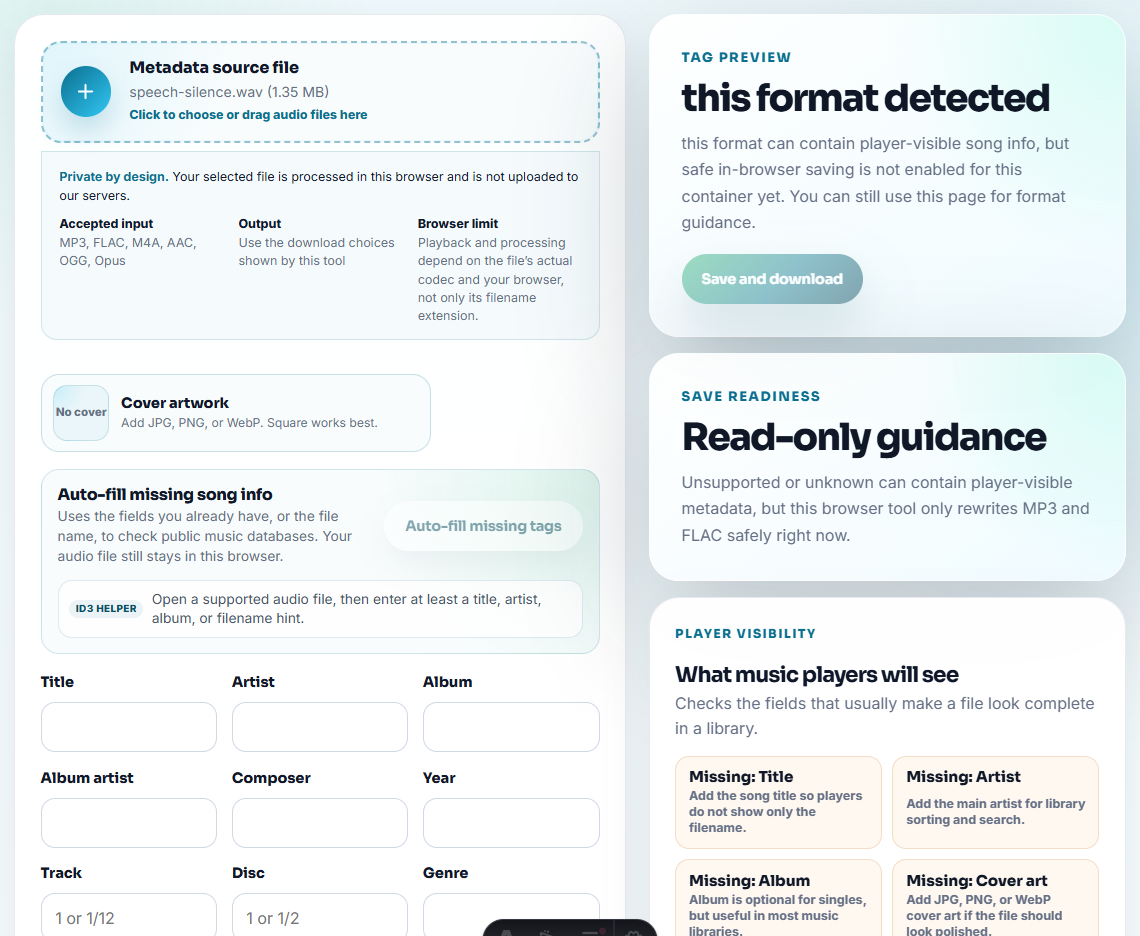
Useful status labels:
- Active.
- Review.
- Expired.
- Retired.
- Internal only.
- Needs replacement.
- Permission review.
- Do not publish.
Example:
expiry review | old product demo | replacement needed | do not republishKeep private or sensitive notes in an internal tracking sheet, not in public file metadata.
Step 4: Decide Whether to Keep a Reference
If expired public audio still explains an old decision, use Audio Trimmer to create a short internal reference copy.
Use careful names:
expired-demo-reference-internal-only.mp3
old-proof-retired-do-not-publish.mp3
If the content is sensitive, do not create extra copies unless your own rules allow it.
Step 5: Replace or Retire
After review, choose one:
- Keep active.
- Replace with updated audio.
- Retire from public pages.
- Keep only as source record.
- Move to permission review.
- Move to broken-playback review.
- Delete later after confirmation.
Do not leave expired files in the same folder as approved files without a clear label.
Expiry Status Ladder
Use a ladder so files do not jump from active to deleted too quickly.
| Status | Meaning | Allowed public use |
|---|---|---|
| Active | File is current, approved, and context still matches | Yes |
| Review needed | Something changed, but the decision is not complete | Usually pause new reuse |
| Internal only | File is useful as source or evidence, not public proof | No |
| Retired | Replaced or no longer safe for live use | No |
| Delete candidate | Retired, backed up if needed, and no longer required | No |
Only delete after the file has passed through review or retirement unless your team has a clear emergency removal rule.
Expiry Review Table
| Field | Example |
|---|---|
| File | old-demo-public.mp3 |
| Expiry signal | Old product UI |
| Public location | Tutorial page |
| Replacement | demo-2026-public.mp3 |
| Status | Retired |
| Source kept | Yes |
| Next action | Remove old link after page update |
This makes the decision visible without turning every file into a project.
Expiry Review Checks That Prevent Mistakes
- Do not delete an old file before checking whether it is source evidence.
- Do not keep expired public audio beside approved files.
- Do not assume old audio is wrong without checking page context.
- Do not republish files with do-not-use labels.
- Do not hide expiry notes only in memory or chat.
- Do not compress an expired file and call it fixed.
When Free Browser Tools Are Enough
For expiry review, browser prep helps you decide whether an audio asset should stay live, be refreshed, or be removed. Keep the current live file as evidence, note where it appears, and do not replace or delete public audio until the owner confirms the decision.
Use formal review workflows when permission, privacy, contracts, or legal retention affect whether audio can stay available.
Helpful Next Steps
- Audio Metadata Viewer
- Recording Quality Checker
- Audio Metadata Editor
- Hand Off Audio Ownership With Clear Next Actions
- Close an Audio Fix Without Losing Proof
- Stop Outdated Audio Proof From Being Reused
- Confirm Audio Permission Before Public Use
- Check Audio Risk Before Removing a File
Common Questions
What does audio expiry mean?
Audio expiry means a file should be reviewed because its content, permission, product context, owner, source, or public use may no longer be valid.
Should expired audio be deleted?
Not immediately. Move it to review or retired status first, keep source and replacement notes, then delete only when the decision is confirmed.
What should I check for audio expiry review?
Check whether the clip still has permission, accurate claims, current product context, and a reason to remain public before keeping it live.