
How to Confirm Audio Permission Before Public Use
 By HenrikUpdated Aug 7, 20267 min read
Prepare permission review audio by naming the exact use, audience, restrictions, expiration, and approved delivery copy.
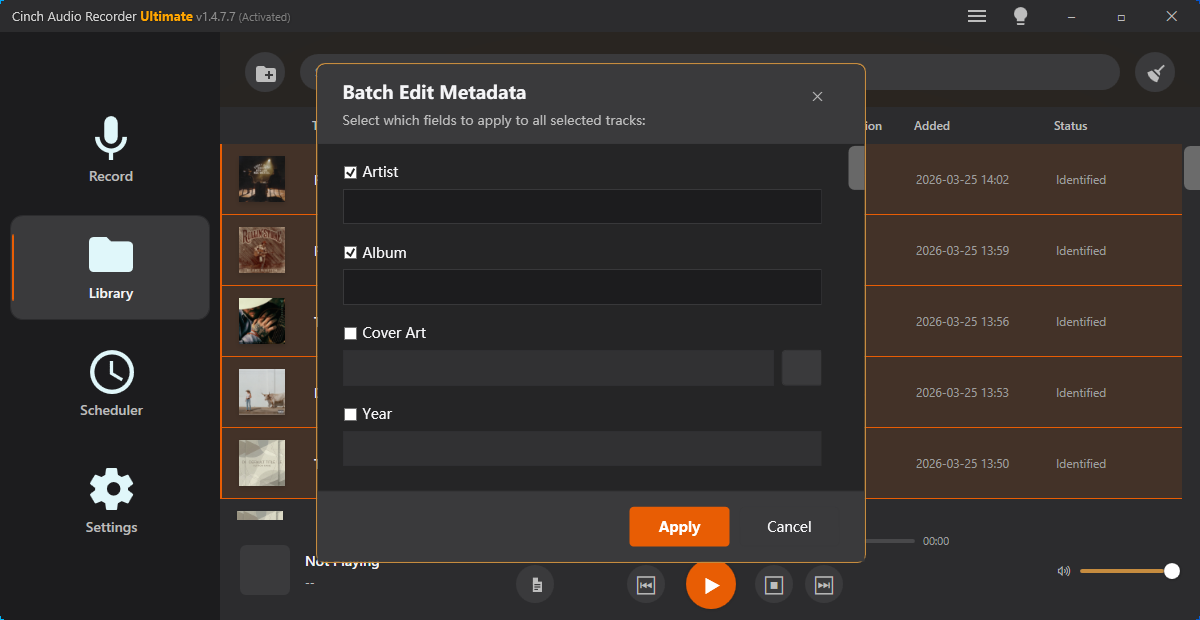
Permission review is not the same as asking whether a clip sounds good. A file can be clear, useful, and still unsafe to publish or forward.
Use a permission review workflow when audio contains a customer voice, private conversation, internal support details, product claims, or any clip that might leave the team that created it.
Make the Review Copy Easy to Trust
| Stage | Free tool | What it helps you decide |
|---|---|---|
| 1 | Audio Metadata Viewer | Check hidden labels, source clues, duration, and private notes. |
| 2 | Recording Quality Checker | Confirm the review excerpt is audible enough to judge fairly. |
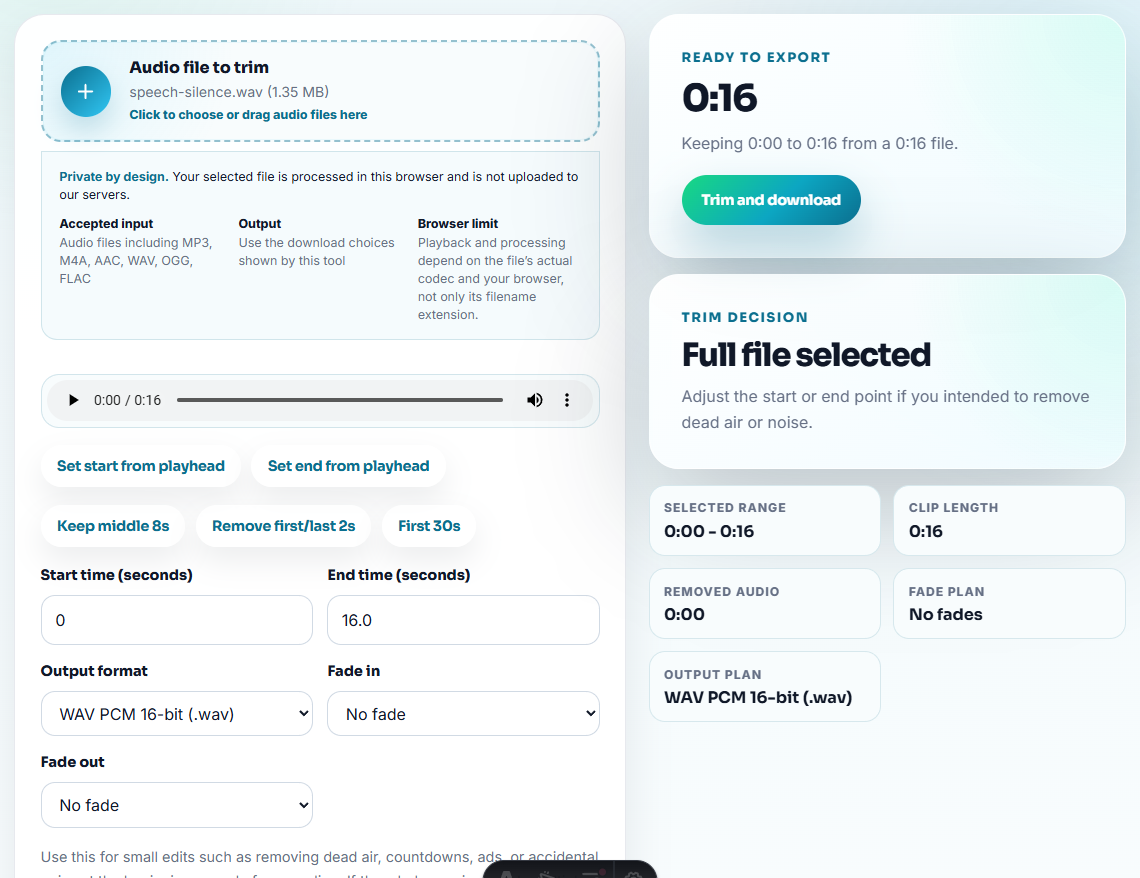
| 3 | Audio Trimmer | Cut only the section being reviewed for use permission. |
| 4 | Audio Compressor | Create a smaller review copy after the excerpt is selected. |
| 5 | Online Audio Format Converter | Convert only when the reviewer needs another format. |
| 6 | Audio Metadata Editor | Add requested use, approval status, reviewer, date, and restrictions. |
The review copy should make the requested use explicit. Do not make reviewers guess.
Step 1: Name the Requested Use
Permission should be reviewed for a specific use:
- Internal training.
- Private sales follow-up.
- Customer reference check.
- Website testimonial.
- Support article example.
- Partner kit.
- Paid ad.
- Do not publish.
“Can we use this?” is too vague. “Can we use this 22-second excerpt in a private renewal email?” is reviewable.
Step 2: Keep the Source Restricted
Do not send the original recording around just to ask for permission. Keep the source in a restricted folder and make a review copy.
Use Audio Metadata Viewer to inspect whether the file includes account names, internal notes, ticket numbers, or old approval status.
Step 3: Trim the Review Excerpt
Use Audio Trimmer to cut the section that needs review. Keep enough surrounding context to judge whether the requested use is fair.
Useful filenames:
permission-review-private-sales-follow-up.mp3
permission-review-website-testimonial-not-approved.mp3
permission-review-support-example-internal-only.mp3
permission-review-partner-kit-needs-owner.mp3
Do not use vague names such as “approved-customer-audio.mp3” before approval is actually complete.
Step 4: Check the Review Copy
Use Recording Quality Checker to make sure the clip can be understood. If reviewers cannot hear the statement clearly, they cannot evaluate the permission request properly.
If audio quality is poor but permission still matters, say so:
Permission review only. Audio quality may require a separate replacement or rerecording decision.Step 5: Create a Practical Review File
Use Audio Compressor if the review copy is too large. Use Online Audio Format Converter only when the reviewer needs a different format.
Keep the source, review copy, and approved delivery copy separate.
Step 6: Label the Decision
Use Audio Metadata Editor after review to add:
- Requested use.
- Approved use.
- Not approved uses.
- Reviewer or owner.
- Review date.
- Expiration or re-check date.
- Source location.
- Notes.
Example note:
Approved for internal training only. Not approved for public testimonial, ads, partner kits, or website use.Record the Permission Scope in One Place
A permission decision is only useful if future teammates can find it. Keep these fields together before any file moves into an active folder:
| Field | What to record |
|---|---|
| Exact excerpt | Source file and timestamp, not just the exported copy. |
| Allowed audience | Internal team, named prospect, partner, public page, or paid campaign. |
| Allowed channel | Email, support article, case study, website embed, ad, or training. |
| Expiration trigger | Date, product change, customer status change, or campaign end. |
| Reviewer | The person or role that can approve the use. |
| Restricted uses | Public, paid, partner, or forwardable uses that are not allowed. |
This turns permission from a vague yes into a usable boundary.
Use a Permission Status Before Sharing
Permission review is strongest when every file has a visible status before it moves. Use the status to decide what the next person may do with the clip.
| Status | What it allows | What to do next |
|---|---|---|
| Source only | Internal storage and traceability. | Do not send outside the owner group. |
| Review copy | Named reviewers may listen for a specific decision. | Keep the audience and question attached. |
| Approved private use | A named team, account, or recipient may use it. | Block public pages, ads, and partner sharing unless separately approved. |
| Approved public use | The exact clip may appear in the approved public context. | Record page, channel, expiry trigger, and reviewer. |
| Hold or denied | No reuse until the gap is resolved. | Keep it away from public and campaign folders. |
This gives the user a practical permission gate. The file is not simply “good” or “bad”; it has a boundary that prevents accidental reuse.
Separate Permission From Quality and Usefulness
A clip can be useful and clear but still not allowed for the use someone wants. Permission review needs its own decision record.
| Decision question | Approval can mean | It does not mean |
|---|---|---|
| Can support use it internally? | The team may learn from the example. | It can be posted in a public help article. |
| Can sales share it privately? | A named recipient or account team may hear it. | It can be reused in future campaigns. |
| Can it appear on the website? | The exact page and copy are approved. | It can be used in ads, press, or partner kits. |
| Does permission expire? | Recheck after a date, product change, or customer status change. | The clip stays approved forever. |
This protects both the customer and the team using the asset.
Permission Details That Decide Use
- Do not treat good audio quality as permission to publish.
- Do not reuse private reference clips as public testimonials.
- Do not hide restrictions in a separate email thread.
- Do not send full source recordings when one excerpt is enough.
- Do not remove context that affects consent or meaning.
- Do not keep unapproved clips beside approved public copies.
When Free Browser Tools Are Enough
For permission review, use browser tools only to create a listening copy that makes the usage request clear. Preserve the full source, note who is speaking or performing, and never treat a cleaned clip as permission by itself.
Use a stricter workflow when permission involves legal teams, signed releases, regulated customers, paid media, named customer logos, or formal consent records.
Helpful Next Steps
Quick Answers Before You Continue
What should I check before using audio for permission review?
Keep the source restricted, inspect metadata, trim only the section under review, check playback, label the requested use, and keep approved and unapproved copies separate.
Is permission review the same as audio quality review?
No. Quality review checks whether the audio plays clearly. Permission review checks who can use it, where it can appear, and whether it can be forwarded or published.
What should I check for permission review audio?
Check who owns the recording, who is heard in it, where it will appear, and whether the current permission still covers that use.