
How to Check Audio Risk Before Removing a File
 By HenrikUpdated Aug 7, 20268 min read
Review audio before removal by checking usage, replacement status, source notes, permission changes, and retired-file risk.

Removing audio from a page, folder, help article, or shared library can create new problems if the file was used somewhere else, supported a claim, or was the only copy with useful source notes.
Before removing audio, make sure the team understands what will disappear. Keep a reference copy, capture the reason, and check whether the file is still linked from public or internal pages.
Check the Evidence Before Removing Audio
| Step | Free tool | What to confirm |
|---|---|---|
| 1 | Audio Metadata Viewer | Confirm file identity, duration, format, tags, comments, and source clues. |
| 2 | Recording Quality Checker | Decide whether the issue is content age, playback quality, or file damage. |
| 3 | Audio Trimmer | Save a short internal reference excerpt before removing a larger public file. |
| 4 | Audio Metadata Editor | Add retired, removal-review, replacement, owner, and reason notes. |
| 5 | Audio File Size Calculator | Compare old and replacement file size when page performance or downloads matter. |
| 6 | Audio Compressor | Create a smaller internal proof copy after source preservation. |
Removal review is not only about deleting. It is about making sure the site, team, or archive still understands what changed.
Step 1: Confirm the Exact File
Use Audio Metadata Viewer before moving or deleting anything.
Record:
- File name.
- Duration.
- Format.
- Size.
- Existing tags.
- Source or comments.
- Page, article, or folder where it appears.
If two files have similar names, inspect both. Many mistakes happen when a public delivery copy and a source copy look almost identical in a folder list.
Step 2: Decide Why It Is Being Removed
Use Recording Quality Checker to separate content problems from file problems.
Common removal reasons:
- Outdated product screen, feature, or claim.
- Permission changed.
- Better replacement exists.
- Audio is silent, clipped, or damaged.
- Page no longer needs audio.
- File is too large for the current page.
- Duplicate appears elsewhere.
Write the reason down. A future editor should not have to guess whether the file was wrong, risky, old, or simply unused.
Step 3: Save a Reference Copy When Needed
If the public audio should disappear but the team still needs evidence of what changed, use Audio Trimmer to create a short internal reference excerpt.
Good reference names:
retired-proof-reference-keep-internal.mp3
old-demo-removed-2026-07-31-reference.mp3
Do not create a reference copy for private or restricted material unless it is allowed by your own rules. When in doubt, keep the source record but avoid making extra copies.
Use a Removal Safety Gate
Before removing public or shared audio, confirm the deletion will not break proof, recovery, or support context.
| Gate | Remove only if… | If not, do this first |
|---|---|---|
| Usage | No live page, macro, download, or folder still needs it | Run a reference sweep |
| Source | Source or backup record is preserved if needed | Move to source traceability review |
| Replacement | Replacement is approved and checked | Prepare replacement before removal |
| Permission | Owner agrees removal is allowed and required | Route to permission or customer owner |
| Rollback | Rollback status is known | Create rollback or no-rollback note |
| Notes | Reason and affected surface are written down | Add removal note before moving |
This gate prevents the common cleanup mistake: removing the file but leaving users, support, or future editors without context.
Step 4: Label the Retired File
Use Audio Metadata Editor on retained copies.
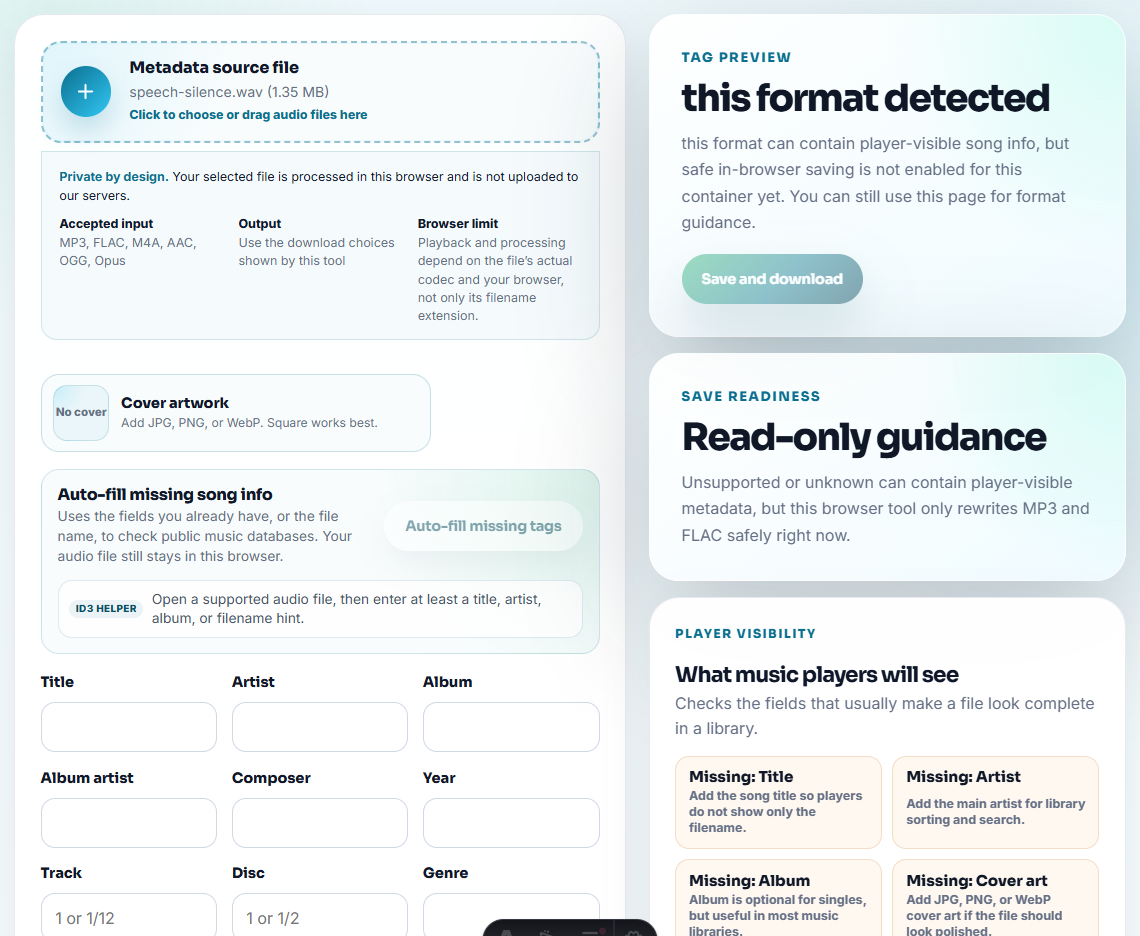
Useful notes:
- Retired.
- Removal review.
- Reason.
- Old page.
- Replacement file.
- Owner.
- Review date.
- Do not publish.
Example:
retired | old tutorial page | replaced by 2026-07 example | do not publishThis prevents an old clip from returning to a new page by mistake.
Step 5: Check the Replacement
If another file will replace the removed audio, inspect it before switching links.
Use Audio Metadata Viewer and Recording Quality Checker to confirm:
- Correct duration.
- Correct format.
- Clear playback.
- No missing ending.
- No hidden old labels.
- Source notes still make sense.
Use Audio File Size Calculator if the replacement is much larger than the old file.
Step 6: Keep Removal Notes With the Folder
Even if the final page no longer links to the removed audio, keep a small note in your working folder:
removed file:
old page:
reason:
replacement:
backup location:
reviewed by:
date:
This is especially useful for website migrations, support articles, product screenshots with audio, and customer proof pages.
Decide Who Can Approve Removal
A file can look unused to one team and still matter to another. Assign the removal decision to the right owner before moving anything.
| File use | Removal owner | Ask before removal |
|---|---|---|
| Public page example | Page or content owner | Does the page lose proof, context, or download value? |
| Support evidence | Support owner | Is this still needed for troubleshooting or escalation? |
| Sales proof | Sales enablement owner | Has an approved replacement been added? |
| Customer proof | Permission or customer owner | Does removal affect approval, archive, or consent records? |
| Source archive | Asset or product owner | Is this the only source record? |
This stops cleanup from accidentally breaking proof, support, or audit trails.
Removal Review Checklist
- The exact file identity was confirmed.
- Public locations were checked.
- The removal reason is written down.
- A backup or retained source copy exists if needed.
- Replacement audio was checked before publishing.
- Old metadata was not copied into the new file by accident.
- Retired files are labeled as not for public reuse.
- The public page is checked after removal.
Removal Note Template
removed file:
source file:
old public location:
reason:
replacement:
source retained:
rollback:
owner:
approved by:
delete after:
If the note cannot answer source, replacement, and rollback, treat the file as removal-review rather than deleted.
Classify the Removal Before You Move the File
Not every removal means the same thing. A damaged file, an outdated proof clip, and a permission change all need different handling.
| Removal reason | Best action | Keep as evidence? |
|---|---|---|
| Product or page changed. | Replace the public copy and label the old file retired. | Keep a short internal reference if it explains the old page. |
| Permission changed. | Remove public access and keep only the minimum required source record. | Usually no extra copies; preserve only what policy allows. |
| Audio quality is broken. | Replace from source or remove until a clean copy exists. | Keep the broken sample only if it helps QA or support. |
| Duplicate or unused asset. | Confirm no live page, email, or library still links to it. | Keep source notes if the file supported a prior claim. |
| Claim no longer matches the clip. | Remove or rewrite the claim before reusing the audio. | Keep claim-review notes so it does not return later. |
This prevents the most common removal mistake: deleting a delivery file while leaving the same claim, link, or outdated proof somewhere else.
Red Flags While You Check Audio Risk Before Removing a File
- Do not delete a file just because one page no longer uses it.
- Do not keep retired audio in the same folder as approved public clips.
- Do not publish a replacement without checking playback.
- Do not rely on memory for why a file was removed.
- Do not make extra private copies without a clear allowed use.
- Do not remove source notes when deleting a delivery copy.
When to Stay With Browser-Based Checks
For removal review, browser tools help reviewers hear what is being considered for takedown or replacement. Keep the current live file and page URL recorded, separate review copies from production assets, and do not remove anything until the owner confirms the reason.
Use a formal asset system when removals need approval records, legal retention, privacy workflows, or team permissions.
Useful Follow-Up Steps
- Audio Metadata Viewer
- Recording Quality Checker
- Audio Metadata Editor
- Stop Outdated Audio Proof From Being Reused
- Plan Audio Replacement Without Broken References
Quick Checks Before You Finish
What should I check before removing public audio?
Check where the audio is used, what source it came from, whether it has a replacement, whether it still supports the page, and whether a backup copy exists.
Should removed audio be deleted immediately?
Usually no. Move it to a retired or removal-review folder first, keep source notes, and delete later only when the removal is confirmed.
What should I check for audio removal review?
Before removing a file, check where it is linked, why it was used, whether it needs an archive copy, and who should approve the removal.