
How to Record a Quick Audio Message That Is Usable
 By HenrikUpdated Aug 7, 20266 min read
Record a short audio message that is clear, trimmed, easy to open, and appropriate for the recipient.
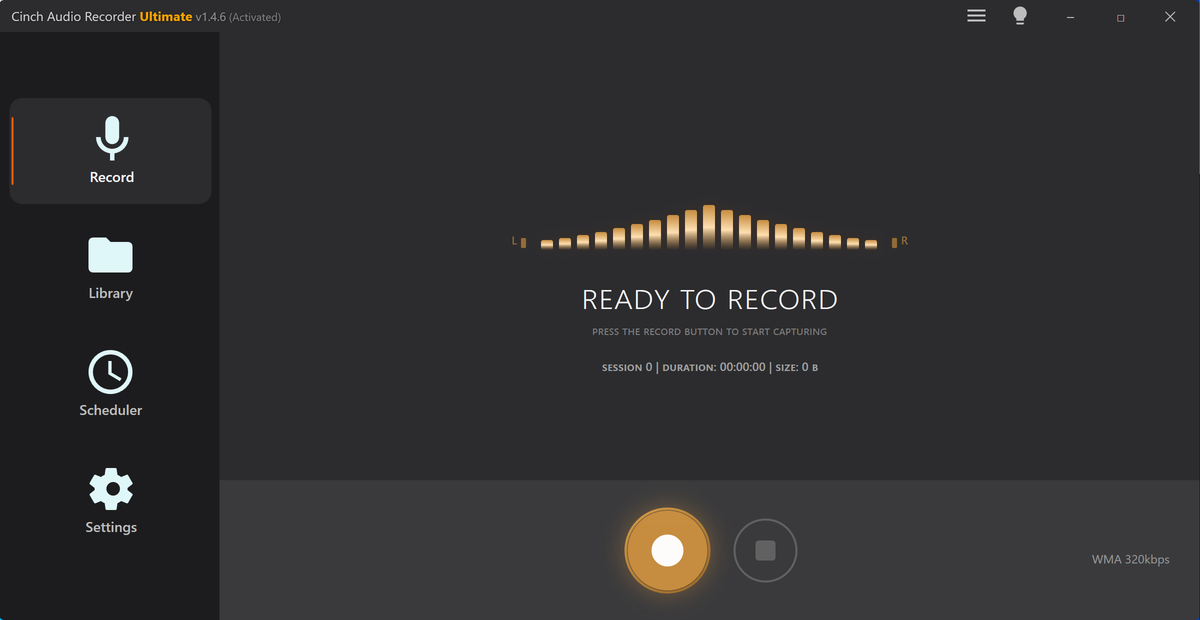
A quick audio message should feel clear, direct, and easy to open. It does not need a full studio workflow, but it should not start with ten seconds of fumbling or end with a huge file.
A quick audio message still needs a clean start, audible voice, and a file the recipient can open. Test the short recording before sending it into a chat, email, or support thread.
Keep One Good Take as the Source
| Pass | Tool to open | Check to make |
|---|---|---|
| 1 | Online Audio Recorder | Record a short microphone message in the browser. |
| 2 | Recording Quality Checker | Confirm the message is audible and not mostly silence. |
| 3 | Audio Trimmer | Remove false starts, long gaps, and rough endings. |
| 4 | Audio Normalizer | Make speech easier to hear when the take is quiet. |
| 5 | Audio Compressor | Create a smaller sharing copy when needed. |
| 6 | Online Audio Format Converter | Create a compatible copy if the recipient needs another format. |
Keep the first good take as your source. Make sharing copies from that file instead of repeatedly editing the same export, especially when the message may be forwarded or reused later.
Step 1: Record a Short Take
Use Online Audio Recorder in a quiet place. Speak one sentence before the real message so you can confirm the browser is using the right microphone.
Keep the message focused. If the recording becomes a long explanation, write a quick outline and record again.
Step 2: Check the Recording
Open the file in Recording Quality Checker. Look for silence, clipped speech, very low level, or a recording that accidentally used the wrong input.
If the message is missing words, re-recording is faster and better than trying to repair a broken take.
Re-Record Instead of Repairing These Problems
For a quick message, the best fix is often a cleaner second take. Editing can remove small mistakes, but it should not turn a broken recording into a time sink.
| Problem | Why repair is not worth it | Better move |
|---|---|---|
| First sentence is missing | The listener loses the purpose immediately | Record again with a short lead-in. |
| Wrong microphone was used | Cleanup cannot restore the intended voice quality | Switch input and record a new take. |
| Background conversation is clear | Trimming may not remove all private context | Move location and record again. |
| Message rambles for several minutes | Editing takes longer than rewriting the point | Make a three-bullet outline and rerecord. |
| Voice clips on key words | Normalizing will not rebuild damaged speech | Lower input level and repeat the message. |
Step 3: Trim the Mistakes
Use Audio Trimmer to remove setup noise, repeated starts, long thinking pauses, and the awkward ending after you stop speaking.
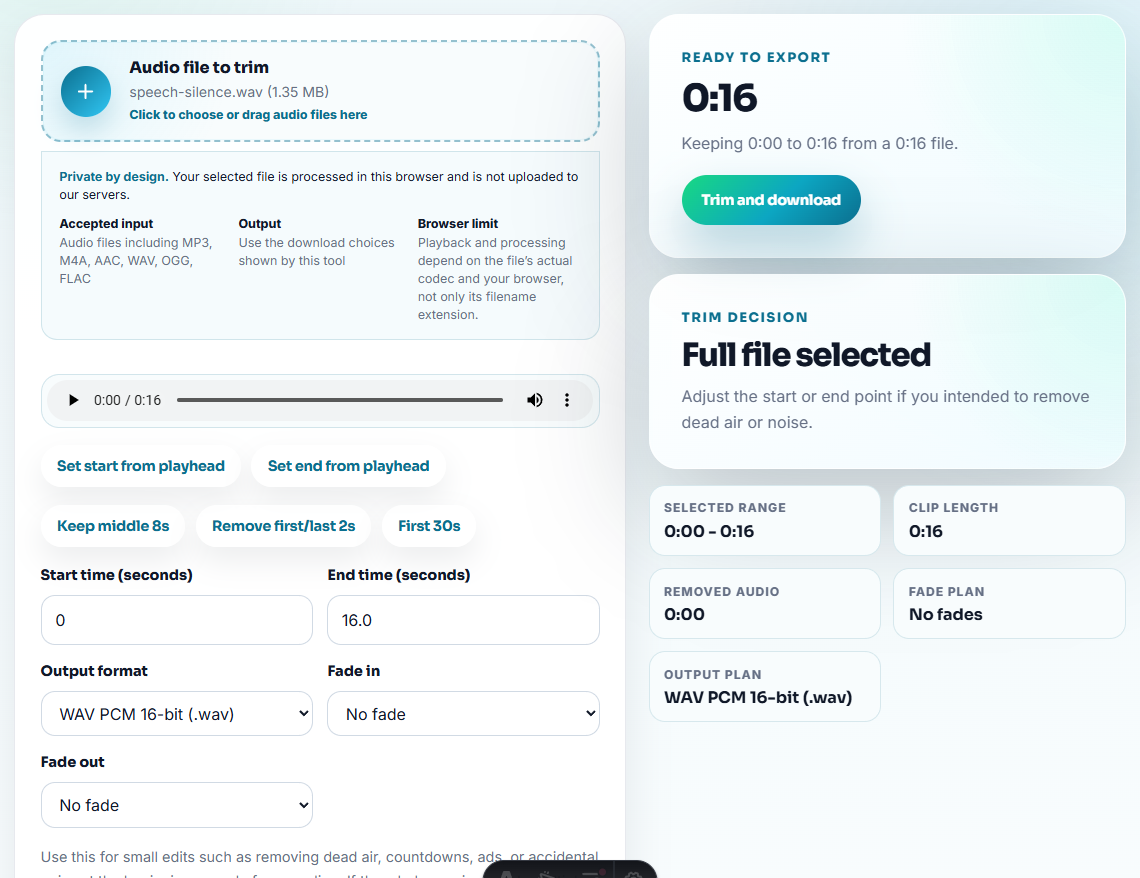
Leave a tiny bit of space before the first word so the message does not feel cut off.
Step 4: Make It Easy to Hear
Use Audio Normalizer if the voice is too quiet. Avoid boosting a recording with loud background noise unless the words are still the priority.
For private or informal messages, natural speech is better than over-processed audio.
Step 5: Export a Sharing Copy
Use Audio Compressor if the file is too large for email or chat. Use Online Audio Format Converter only when the recipient needs a different format.
Good filenames:
project-feedback-message-v1.mp3voice-note-for-review.mp3family-update-original.wavclient-audio-comment-share.mp3
Choose the Message Type Before Editing
A quick message should stay quick, but the editing standard changes depending on who receives it.
| Message type | Keep natural | Clean more carefully | Before sending |
|---|---|---|---|
| Family or personal update | Tone, pauses, and warmth | Only false starts and long silence | Listen once from start to end. |
| Client or review note | Clear point and useful context | Trim rambling and label the file | Make sure the first sentence explains purpose. |
| Support example | The exact sound or explanation | Remove private or unrelated detail | Confirm the issue or answer is audible. |
| Team handoff | Decision and next step | Reduce background distraction | Filename says what action is needed. |
This prevents over-editing personal messages and under-checking work messages.
Keep Private Context Out of Quick Messages
Short messages are easy to forward, so check whether the recording contains details that should not travel with the file.
| Risk | Safer choice |
|---|---|
| You say an email address, order number, or private name | Re-record a neutral version instead of trying to beep it out |
| The message includes unrelated background conversation | Trim it away or record again in a quieter place |
| The filename reveals a customer, case, or private project | Rename the sharing copy by purpose, not identity |
| The clip explains a support issue | State one symptom and one next step, not the whole private history |
| The recipient may forward it | Use a short, self-contained message that still makes sense out of context |
For anything sensitive, a clean second take is usually faster and safer than heavy editing.
Use Browser Tools for One Fast Voice Message
Browser prep is enough when you are recording one short message, checking the microphone, trimming a false start, and sending a single share copy. Use a more controlled workflow when the message includes customer context, legal claims, paid work, or public reuse.
Cinch Audio Recorder is better for ongoing recording work where the source files matter beyond one short message.
Tools That Pair With This Task
- Online Audio Recorder
- Recording Quality Checker
- Audio Trimmer
- Audio Compressor
- Convert Voice Notes to MP3 Without Losing Context
- Turn a Recording Into a Clean Ringtone
- Send Client Audio Review Copies They Can Judge
Checks Worth Making First
How do I record and send a clear audio message?
Record a short take, check that speech is audible, trim false starts, normalize gently, export a copy, and listen once before sending.
Should I edit a voice message heavily?
No. For a quick message, remove only mistakes, long silence, or obvious level problems. Heavy processing can make a personal message sound unnatural.
What format should I use for a short audio message?
Use a common format your recipient can open. MP3 is usually convenient for sharing, while WAV is larger and better for keeping an editable source.