
New users testing their first recording
Focus the walkthrough on a short test file, playback verification, output folder, and the first problem a viewer can actually see.
Use this page to plan a video, article, comparison, or walkthrough that helps viewers test recording, check the saved file, choose a format, and organize the result without overstating what the software does.
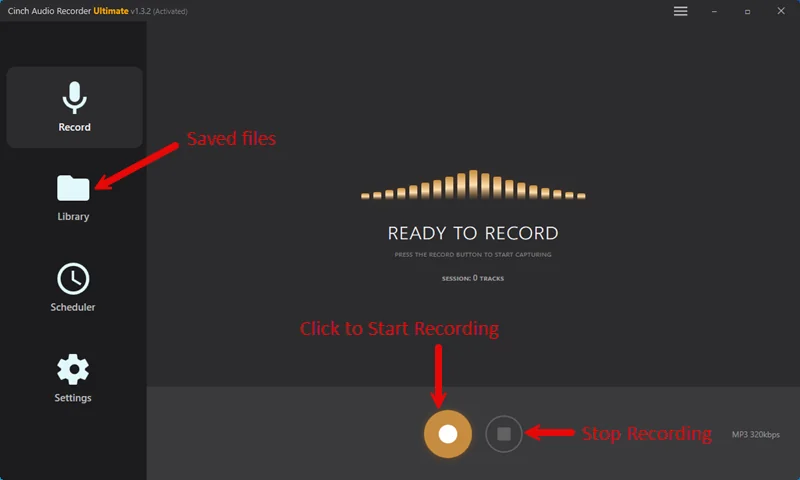
Strong tutorials start with a specific recording situation. These angles give creators a useful structure without repeating a generic product review.
Focus the walkthrough on a short test file, playback verification, output folder, and the first problem a viewer can actually see.
Plan around power, notifications, storage, source stability, naming, and a review step before someone records a full radio show or lesson.
Show the path after capture: confirm the file plays, choose a format, clean the name, check tags, and decide whether artwork or lyrics matter.
Compare quick browser tools with the desktop recorder by session length, repeatability, metadata needs, and support expectations.
This structure keeps the tutorial practical: viewers see what to check first, where mistakes happen, and when a small browser tool is enough for finishing work.
Adapt these lines in your own voice. They are intentionally conservative so the tutorial stays useful without promising unsupported results.
Use screenshots to explain a specific step, not just to decorate the tutorial. For broader product facts, keep the Review Kit as the source page.
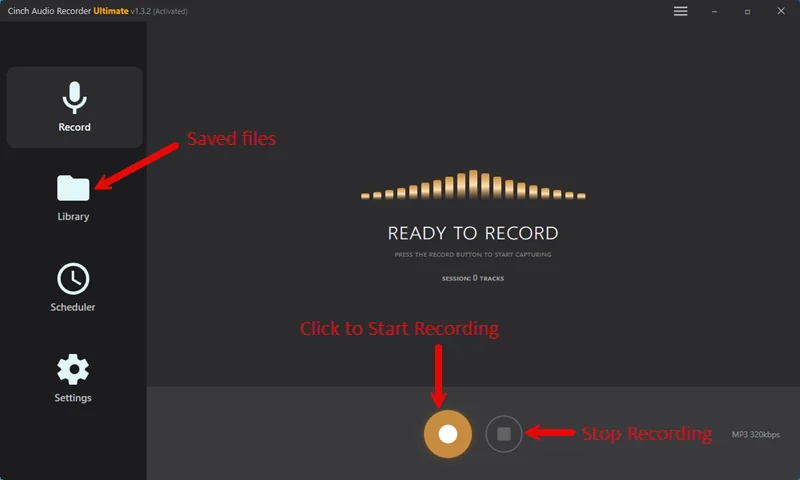
Use when the tutorial introduces the recorder and the viewer needs to recognize the main control area.
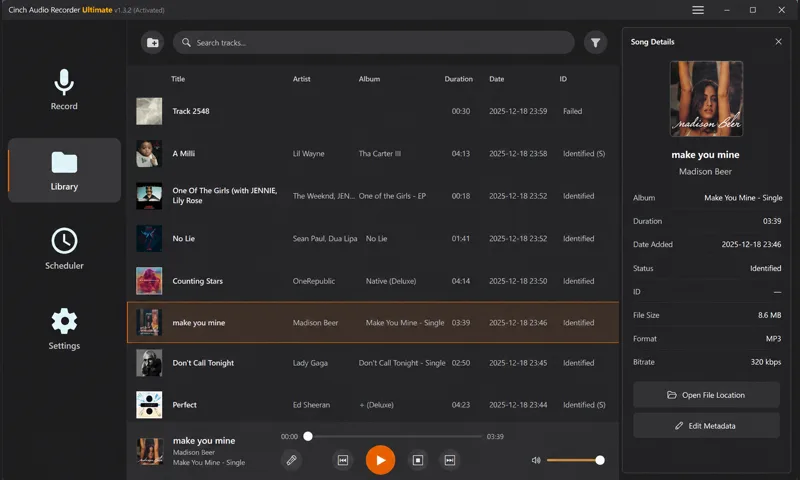
Use when the tutorial moves from recording to checking titles, artwork, lyrics, filenames, and saved files.
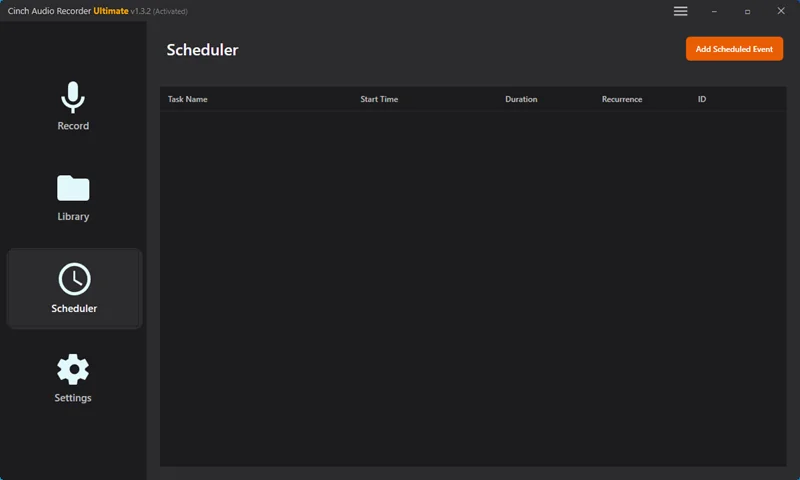
Use when discussing radio shows, webinars, classes, or any recording session that should not be interrupted.
These source pages help creators keep tutorials current and give viewers a next step after watching or reading.
Use this when you need product positioning, source pages, review angles, and current screenshots.
Open source pageUse this before publishing claims about downloads, platform availability, testing, screenshots, or audio-quality wording.
Open source pageUse this to choose source-specific guides for streaming audio, browser audio, online radio, metadata, cleanup, and troubleshooting.
Open source pageUse this when a video needs a fair comparison between a quick browser recorder and a repeatable desktop recorder.
Open source pageUse this when your tutorial covers silent files, wrong-device capture, notifications, or a failed first test.
Open source pageUse this when explaining MP3, M4A, WAV, or FLAC without promising quality that was not present in the source.
Open source pageThese boundaries protect the tutorial from stale, exaggerated, or legally confusing language.
Send the planned topic, source page, screenshot need, or draft claim to support before publishing a tutorial or resource listing.