
How to Explain a Known Audio Issue Clearly
 By HenrikUpdated Aug 7, 20266 min read
Explain an audio issue with affected files, user impact, temporary guidance, owner, and review timing.
Not every audio problem can be fixed immediately. Sometimes the issue is real, but the right source file is missing, engineering needs more time, a public page needs a temporary note, or support needs consistent wording.
A known issue note keeps everyone from rediscovering the same problem in different words.
Choose the Right Known-Issue Scope
A useful note is specific enough to prevent confusion and careful enough not to overstate the problem.
| Scope | Say this | Do not say | Next review |
|---|---|---|---|
| One file | The named file has a confirmed issue | All files are affected | Replace or retire that file |
| One device or format | Playback fails in that context | The audio is universally broken | Test a compatible copy |
| One page or link | This public location points to the wrong copy | The product is broken | Update and verify the link |
| Temporary workaround | Use this checked copy for now | This is the final fix | Set a review owner and date |
| Unconfirmed report | We are checking the sample | Known issue | Wait for evidence before publishing |
Make the Review Copy Easy to Trust
| Stage | Free tool | What it helps you decide |
|---|---|---|
| 1 | Audio Metadata Viewer | Confirm affected file identity, format, duration, size, tags, and source clues. |
| 2 | Recording Quality Checker | Confirm the issue is real before it becomes a known issue. |
| 3 | Audio Waveform Generator | Show timing evidence for silence, cutoffs, gaps, peaks, or missing endings. |
| 4 | Audio File Size Calculator | Record size-related scope when pages, downloads, or uploads are affected. |
| 5 | Audio Metadata Editor | Add safe known-issue, owner, source, and workaround labels to review copies. |
| 6 | Audio Trimmer | Create a short evidence clip when the full file is too long to review. |
The note should not sound dramatic. It should make the current state clear.
Step 1: Confirm the Issue Before Naming It
Use Recording Quality Checker and Audio Metadata Viewer before writing the note.
Check:
- Exact file.
- Affected page, folder, or download.
- Format.
- Duration.
- Size.
- Whether the issue is technical, content, permission, source, or delivery.
- Whether a temporary workaround already exists.
Do not create a known issue note from a vague complaint alone.
Step 2: Define the Scope
Write the affected scope plainly:
Known issue: some public demo audio copies exported before 2026-07-31 may be missing the final spoken section.
Affected: product demo page samples and support reply copies made from demo-v1-export.mp3.
Not affected: source WAV files and new v2 replacement copies.
This prevents broad panic and avoids hiding the real risk.
Step 3: Add Evidence
Use Audio Waveform Generator when a visual timing clue helps.
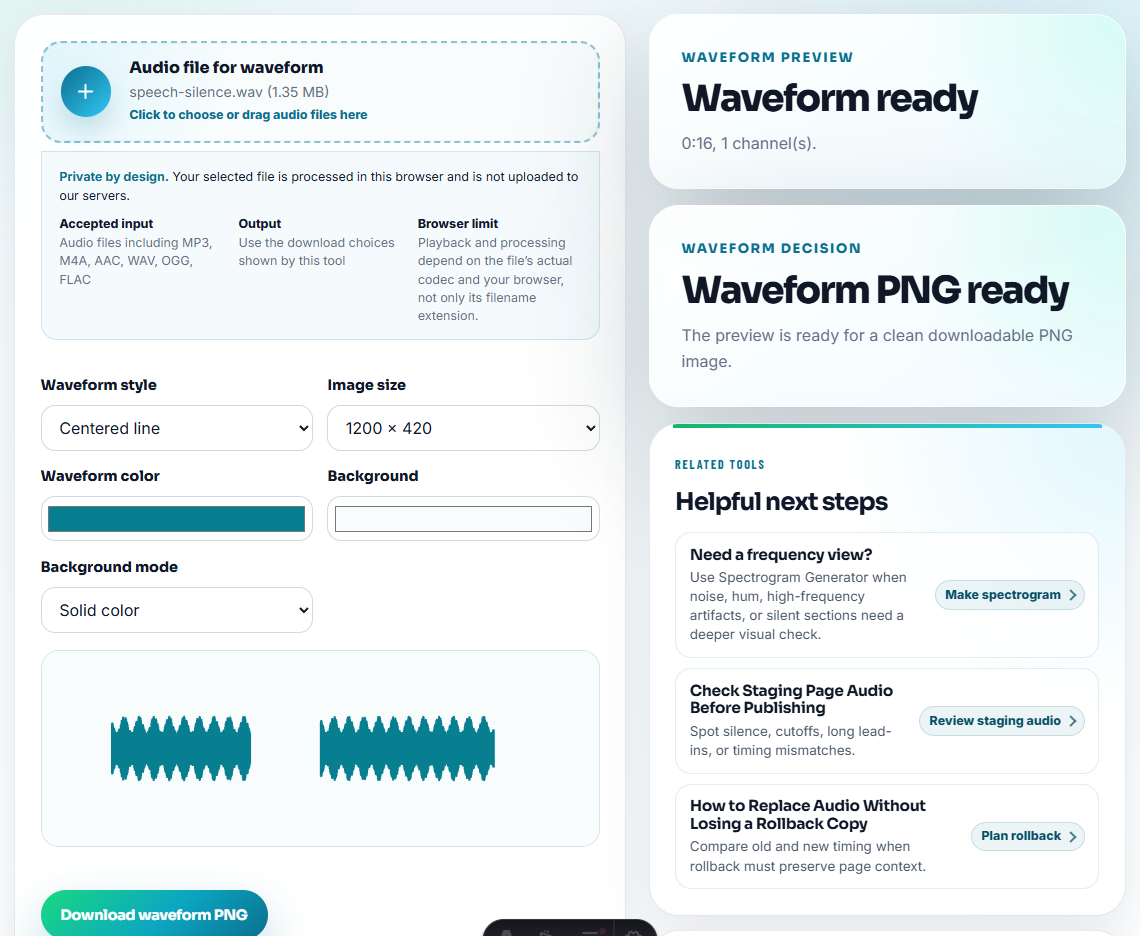
Evidence can include:
- Missing ending after a specific time.
- Silent first seconds.
- Clipping near the proof moment.
- Different duration than the trusted source.
- Much larger or smaller file than expected.
- Old metadata that points to the wrong source.
Keep the evidence short and factual.
Step 4: Give Temporary Guidance
If a workaround exists, explain it:
Temporary guidance: use demo-v2-confirmed-public.mp3 for customer replies. Do not reuse demo-v1-export.mp3.If no workaround exists, say that too:
Temporary guidance: do not publish affected files until the replacement source is confirmed.This is where a known issue note becomes useful instead of just descriptive.
Decide What Can Be Customer-Safe
Some known issue notes are internal only. Before reusing the wording in support replies or public pages, remove private context and turn the note into user action.
| Field | Internal note can include | Customer-safe version should say |
|---|---|---|
| Cause status | Suspected source, file owner, investigation notes | Confirmed effect and what the user should do now |
| Affected files | Full folder paths or internal filenames | Public page, download, or user-visible file name |
| Temporary guidance | Internal backup location and reviewer | The checked file, page, or workaround the user can use |
| Next review | Assignee and internal deadline | When users should expect another update, if relevant |
| Exclusions | Private case details | What is not affected in plain language |
If the note would embarrass a customer, expose private audio, or reveal internal blame, keep it internal and write a separate customer-safe version.
Step 5: Label Review Copies Safely
Use Audio Metadata Editor for safe internal labels:
Known issue: missing ending. Do not publish. Replacement pending. Owner: support.Avoid customer names, account IDs, private case text, and emotional wording inside file metadata.
Known Issue Note Template
issue:
affected files:
not affected:
evidence:
temporary guidance:
owner:
next review:
replacement status:
customer-safe wording:
Use the customer-safe wording only when the note may be reused in support replies.
Known Issue Details Users Need First
- Do not mark an issue as known without confirming a real file.
- Do not exaggerate scope.
- Do not hide whether the source is trusted.
- Do not mix private internal notes into customer-safe wording.
- Do not leave the note without an owner or review date.
- Do not let a known issue note replace the final fix.
When Browser Prep Is Enough for a Known Issue Note
For a known-issue note, browser tools can prepare the short audio example that helps users recognize the problem. Keep the source bug evidence separate, describe the expected workaround, and update the note when the issue is fixed.
Use a formal status, incident, or product workflow when the issue affects many customers, contracts, privacy-sensitive files, legal claims, or paid campaigns.
Helpful Next Steps
- Audio Metadata Viewer
- Recording Quality Checker
- Audio Waveform Generator
- Tell Users What to Do During an Audio Fix
- Give Users a Temporary Audio Workaround Safely
- Find the Real Cause of an Audio Problem
- Stop the Same Audio Problem From Returning
Last Review Points
What is an audio known issue note?
It is a short internal or customer-safe note that explains a known audio problem, affected files, evidence, temporary guidance, owner, and next review status.
When should I write a known issue note for audio?
Write one when the final fix is not ready but the problem is confirmed, repeated, public-facing, or likely to affect customers, reviewers, support, or website pages.
What should I verify on the source file first?
Show the known issue only if the clip helps users recognize it, then explain the workaround and avoid presenting the problem as fixed.