
How to Report Broken Audio Playback With Evidence
 By HenrikUpdated Aug 7, 20268 min read
Triage broken audio playback reports, separate file failure from delivery failure, and prepare safe replacement copies.
A broken playback report is usually vague: “the audio does not work,” “it is silent,” “it stops early,” or “this is the wrong clip.” The fastest fix is not always conversion.
First identify what failed. Then prepare a replacement only when the file itself, format, size, timing, or source record explains the problem.
Preserve the Broken Example Before Fixing It
| Pass | Tool to open | Check to make |
|---|---|---|
| 1 | Audio Metadata Viewer | Confirm the reported file, format, duration, size, source notes, and hidden labels. |
| 2 | Recording Quality Checker | Check for silence, clipping, incomplete playback, wrong levels, or obvious corruption. |
| 3 | Audio Waveform Generator | See whether the waveform shows silence, cutoffs, long gaps, or the wrong section. |
| 4 | Audio Trimmer | Repair a copy when the issue is a bad start, ending, or unintended section. |
| 5 | Online Audio Format Converter | Create a compatible test copy when format support may be the issue. |
| 6 | Audio Compressor | Create a smaller copy when size or slow loading may be involved. |
| 7 | Audio Metadata Editor | Add report status, replacement notes, source file, fixed copy, and review owner. |
Support teams, website editors, QA reviewers, and small product teams can avoid random file swapping by preserving the broken example and documenting the test result.
Do Not Lose the Failure Case
If you replace the file before saving evidence, the next person may not know whether the issue was real, fixed, or caused by the page.
| Before changing anything | Why it matters | Minimum evidence |
|---|---|---|
| Save the reported URL or file path | Prevents fixing the wrong asset | Page, filename, and report wording |
| Keep the failing copy | Lets QA compare before and after | Original reported file or hash-like note |
| Note where playback fails | Separates silence, cutoff, and loading problems | Timestamp or visible symptom |
| Test a local copy | Separates file failure from web delivery | ”Local pass” or “local fail” |
| Record the replacement name | Prevents stale references | Old file, new file, and owner |
Step 1: Capture the Report Clearly
Before editing, write down the exact report:
page: /free-tools/
file: public-demo-v1.mp3
reported issue: silent after first few seconds
reported by: internal QA
device/browser if known: unknown
expected audio: short product demo
If the report does not include the exact page or file, find that first. Otherwise you may fix the wrong audio.
Step 2: Inspect the Reported File
Use Audio Metadata Viewer to confirm:
- File type.
- Duration.
- Size.
- Title or comment fields.
- Source or page notes.
- Whether the filename matches the intended page.
Wrong-file reports often look like playback bugs at first. Metadata can reveal that the audio belongs to a different page or older workflow.
Step 3: Run a Basic Quality Check
Use Recording Quality Checker and classify the issue:
| Report type | What to check first |
|---|---|
| Silent audio | Waveform, level, duration, source copy |
| Stops early | Duration, cutoff, trim history |
| Distorted playback | Clipping, over-compression, wrong export |
| Wrong clip | Filename, metadata, source notes |
| Does not load | Size, format, page reference |
| Too quiet | Level, device context, review copy |
Do not skip this step. It separates real audio defects from page, naming, or format problems.
Separate File Failure From Delivery Failure
Before creating a replacement, decide whether the audio file is broken or the delivery path is broken.
| Evidence | More likely file problem | More likely delivery problem |
|---|---|---|
| Opens locally | No, if playback is complete | Yes, if page or download fails |
| Metadata and duration match source | No obvious file mismatch | Page may link, cache, or describe it incorrectly |
| Waveform shows silence or cutoff | Yes | Delivery may still be fine |
| File is huge for a web page | Maybe wrong delivery copy | Slow loading or timeout can look like broken playback |
| User reports one browser/device only | Not enough proof | Compatibility or page behavior may be involved |
This distinction saves time. Converting a healthy file will not fix a broken embed, expired link, or stale cached page.
Step 4: Use the Waveform for Fast Evidence
Use Audio Waveform Generator when someone reports silence, missing endings, or long gaps.
The waveform helps you answer:
- Is the file mostly flat?
- Does audio disappear at the reported point?
- Is there a long silent lead-in?
- Does the file include the expected section?
- Was it cut too aggressively?
This gives the support or web team a visible clue before replacing the file.
Step 5: Repair a Copy, Not the Source
If the audio has a bad start or ending, use Audio Trimmer on a copy.
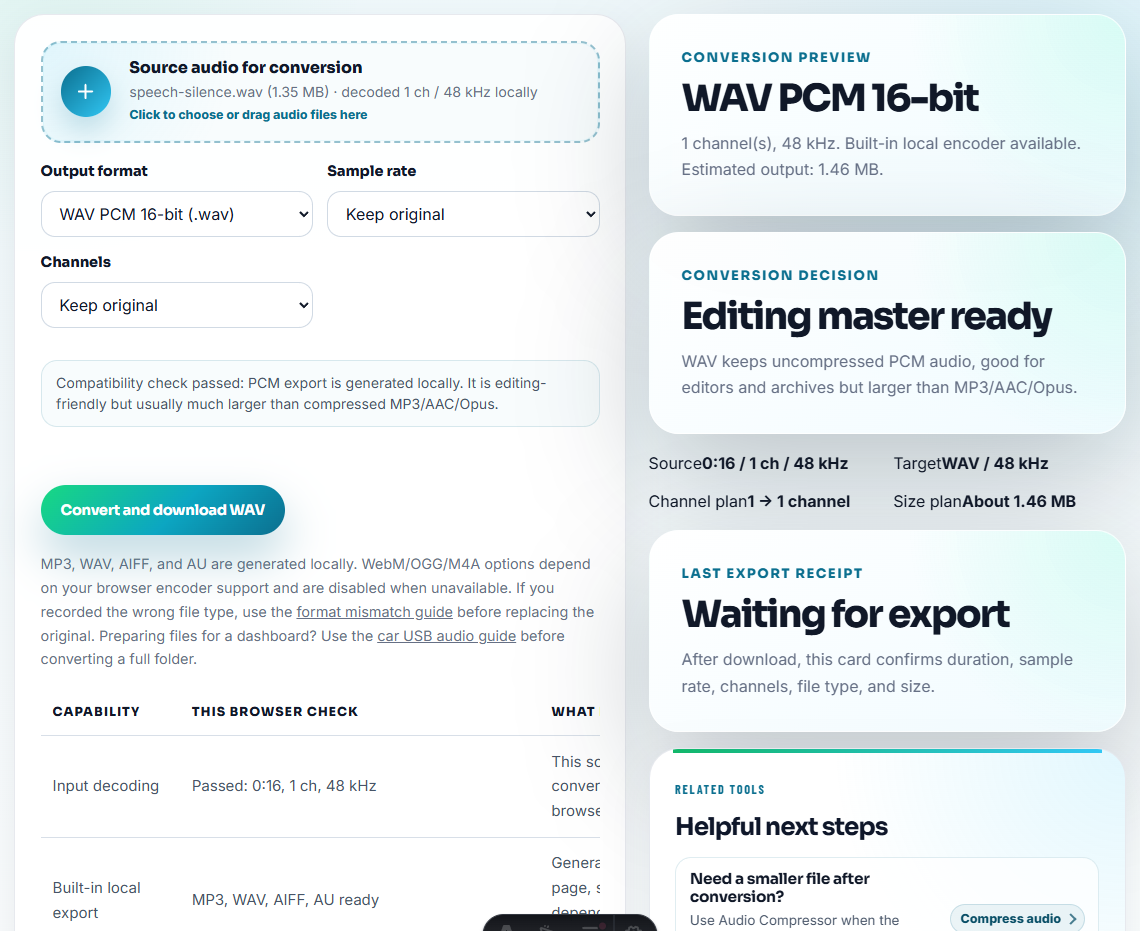
If the issue is compatibility, use Online Audio Format Converter to make a test delivery copy. If the issue is size, use Audio Compressor after confirming the content is correct.
Use filenames that describe the fix:
playback-fix-demo-v2-trimmed.mp3
playback-fix-demo-v2-compatible.mp3
playback-fix-demo-v2-compressed.mp3
Never let the fixed delivery copy replace the original source record.
Step 6: Mark the Status
Use Audio Metadata Editor to add a short status note:
Playback report fixed. Issue: silent ending in public-demo-v1.mp3. New copy: public-demo-v2.mp3. Source preserved.If the report is not an audio-file problem, mark that too:
Playback report reviewed. Audio file passed. Check page embed, cache, or link reference next.That note keeps the next reviewer from repeating the same test.
Step 7: Send a Useful Reply
If the report came from a teammate or customer, reply with the fix in plain language:
We checked the reported audio file and found the public copy ended early. A new copy was prepared from the source file and labeled as the replacement. The original source file was preserved.Avoid overexplaining audio terms unless the recipient needs them.
Evidence Package for the Next Owner
If support, web, or engineering needs to continue the fix, send a compact evidence package instead of a long story:
reported page or link:
reported wording:
file checked:
source or expected file:
metadata result:
playback result:
waveform or timing clue:
size or format clue:
temporary workaround:
recommended next owner:
This gives the next owner enough context to act without replaying the entire report.
Decide Whether to Replace, Relink, or Rebuild
Broken playback reports do not all need a new audio file. Pick the fix that matches the evidence.
| Evidence found | Better fix | Why |
|---|---|---|
| File is healthy locally but fails on the page | Relink, clear cache, or check embed code | Re-exporting the file will not fix the delivery path |
| File is silent or cut off locally | Rebuild from source or replace with a reviewed copy | The public file itself is bad |
| File is too large for the page use | Compress a delivery copy after confirming content | Smaller file may solve slow loading without changing the source |
| Format fails on one device class | Create a compatible copy and keep the original | The source may be fine, but the audience needs a safer format |
| Metadata or filename points to the wrong clip | Correct labels and page reference | The playback may work, but users are hearing the wrong asset |
This prevents the common mistake of converting a healthy file while the real problem is a stale link, cached page, or wrong public reference.
Playback Report Checks Before Closing
- Do not convert every broken file before checking whether it is the right file.
- Do not overwrite the source file during a playback fix.
- Do not assume “silent” means the whole file is silent.
- Do not ignore metadata when the report says the wrong clip is playing.
- Do not compress a file before confirming the content is correct.
- Do not close the report without recording what was tested.
Use Browser Tools for First Playback Triage
For broken playback reports, browser tools are enough when you need to prove whether the file is silent, corrupt, unsupported, or only failing in one player. Keep the failed file unchanged, record the player and device, and include a working comparison when possible.
Escalate when the problem appears to be site code, CDN caching, server headers, browser-specific playback behavior, signed download access, or a protected media workflow.
Next Audio Workflow Steps
- Recording Quality Checker
- Audio Metadata Viewer
- Audio Waveform Generator
- Plan Audio Replacement Without Broken References
- Keep Audio Versions Clear Before Final Approval
- How to Troubleshoot Audio Files Before Sharing
- Send Troubleshooting Audio That Shows One Symptom
- Compare Audio Fixes Without Fooling the Listener
Questions Worth Asking
How do I handle a broken audio playback report?
Confirm the exact file and page, inspect metadata, test the audio, check whether the issue is silence, clipping, wrong content, size, or format, then prepare a safe replacement copy if needed.
Should I immediately convert a file when audio will not play?
No. First confirm whether the source is correct and whether the file is silent, clipped, incomplete, or mislabeled. Convert only a copy when format compatibility is the likely issue.
What should I check for broken playback reports?
Include the file that fails, the player or device used, the exact symptom, and a short note about whether another copy plays normally.