
How to Replace Audio Without Losing a Rollback Copy
 By HenrikUpdated Aug 7, 20267 min read
Prepare rollback-ready audio copies before replacing public files, embeds, downloads, or proof clips.

Replacing public audio without rollback planning is risky. If the new file is wrong, too quiet, too large, unsupported, or mismatched with the page, the team may not know which old version should return.
Rollback planning keeps a safe path back.
Check the File Before Sharing
| Stage | Free tool | What it helps you decide |
|---|---|---|
| 1 | Audio Metadata Viewer | Capture old file details, version labels, source notes, and comments. |
| 2 | Recording Quality Checker | Confirm the old public copy is still usable if rollback is needed. |
| 3 | Audio Waveform Generator | Compare old and new timing when a rollback must preserve page context. |
| 4 | Audio File Size Calculator | Record size differences that might explain a rollback decision. |
| 5 | Audio Compressor | Prepare smaller fallback delivery copies when needed. |
| 6 | Online Audio Format Converter | Prepare compatible fallback copies only when the destination requires it. |
| 7 | Audio Metadata Editor | Add rollback status, old file, new file, source, owner, and reason notes. |
This is useful when changing website audio, public downloads, support examples, marketing proof, repeated-use clips, or files used in a launch.
Step 1: Identify the Current Public File
Before replacing anything, write down the public file that would return if needed:
current public file: support-example-public-v1.mp3
new candidate: support-example-public-v2.mp3
page: /support/
source: source-support-example-original.wav
rollback status: v1 can return if v2 fails
If you do not know the current public file, pause the replacement.
Step 2: Inspect and Test the Old Copy
Use Audio Metadata Viewer to capture the old file details. Then use Recording Quality Checker to confirm the old copy is still playable.
A rollback copy is useful only if it can actually be restored.
Decide Whether Rollback Is Allowed
Not every old file should be restored. Some files must be retired even if the new file fails.
| Old file condition | Rollback allowed? | Safer action |
|---|---|---|
| Plays correctly and still matches the page | Yes | Keep as rollback until new copy passes live proof |
| Contains private or permission-risk content | No | Remove public access and prepare a new approved copy |
| Supports outdated product wording | Conditional | Roll back only with page copy rollback |
| Was technically broken | Usually no | Restore from source or backup instead |
| Source is unclear | Hold | Review source traceability before rollback |
This prevents a rollback from reintroducing the same risk the replacement was meant to solve.
Step 3: Compare Old and New Context
Use Audio Waveform Generator if the page depends on timing, a before-and-after section, or a short example.
Record what changed:
| Change | Rollback note |
|---|---|
| New file is shorter | Check page copy before rollback |
| New file changes format | Old format may be safer |
| New file is louder | Compare at fair volume |
| New file supports new wording | Rollback may require page copy rollback too |
| New file replaces a claim clip | Keep approval trail visible |
Rollback planning is not just file storage. It includes page context.
Step 4: Prepare Fallback Delivery Copies
If the old file is too large but still needs to be a fallback, use Audio Compressor on a copy. If format compatibility is the issue, use Online Audio Format Converter on a copy.
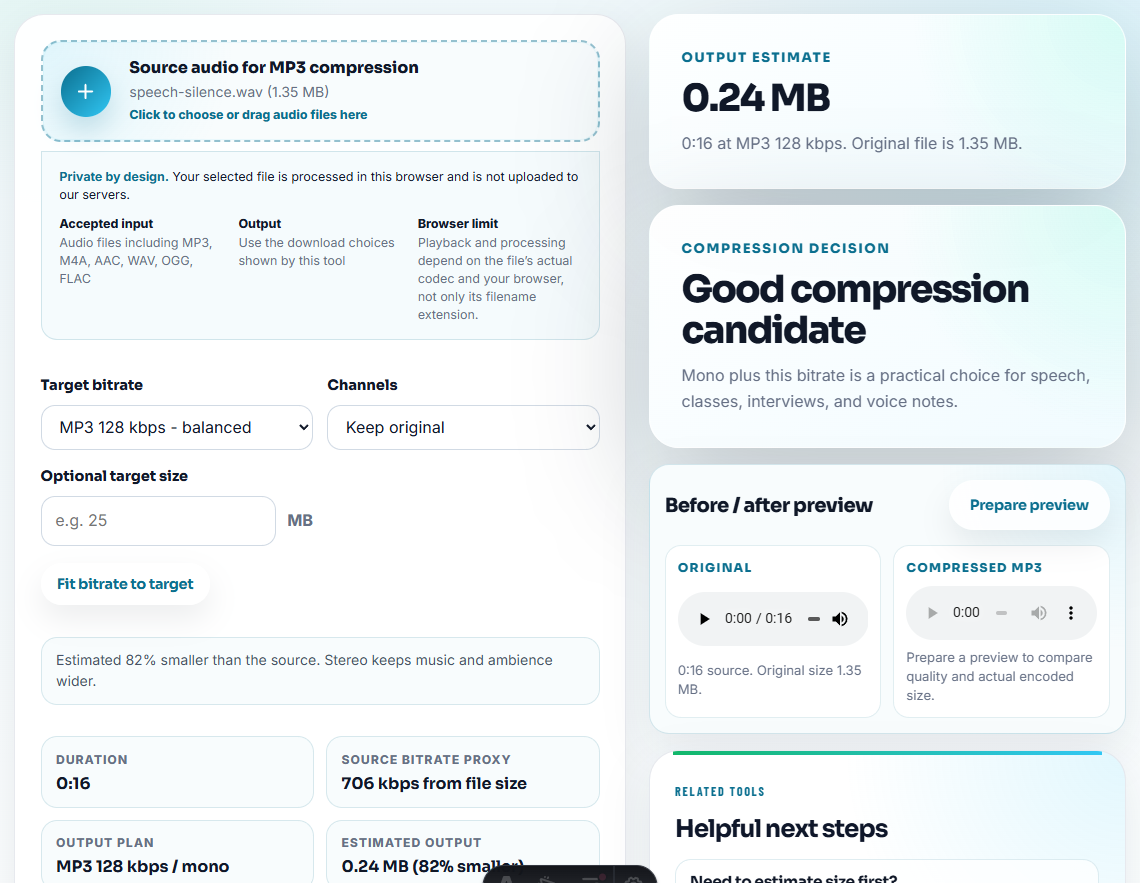
Never overwrite the rollback source:
rollback-source-support-example-v1.wav
rollback-public-support-example-v1.mp3
new-public-support-example-v2.mp3
Step 5: Add Rollback Metadata
Use Audio Metadata Editor to add a clear note:
Rollback copy for /support/. Old public: support-example-public-v1.mp3. New public: support-example-public-v2.mp3. Keep until v2 passes post-publication check.If rollback would also require page copy changes, say so.
Define the Rollback Trigger
Rollback should not depend on panic or opinion. Name the trigger before replacing the public file.
| Trigger | Roll back when | Also check |
|---|---|---|
| Playback failure | New file does not play, cuts off, or downloads incorrectly. | Link path and format. |
| Page mismatch | New audio no longer supports the nearby text. | Page copy may need rollback too. |
| Permission issue | New file is not approved for the live use. | Remove public access immediately. |
| Quality regression | New copy is clearly worse for the intended listener. | Source and compression settings. |
| Size or format problem | Users cannot open or reasonably load the new file. | Whether a smaller delivery copy is enough. |
This keeps rollback objective and fast.
Set a Rollback Window
Rollback copies should have a review end point. Otherwise old files linger without status.
| Window | Use when | End condition |
|---|---|---|
| Same-day | Small public link or support attachment change | New file passes post-rollout proof |
| One release cycle | Product demo, tutorial, or proof file changed | Next monitoring or page review passes |
| Until owner approval | Permission, claim, or sensitive content is involved | Owner accepts final replacement |
| No rollback | Old file is unsafe, private, or misleading | Old copy is retired immediately |
After the window closes, mark the old copy as archived, retired, or do-not-use.
Step 6: Close the Rollback Window
After the new audio passes post-publication checks, decide what happens to the old copy:
- Keep as source history.
- Archive as retired public copy.
- Mark do-not-use.
- Remove from active page references.
- Keep only if policy or review needs it.
Do not let rollback copies sit forever with no status.
Rollback Details to Record Before Replacing
- Do not replace public audio without knowing the previous public file.
- Do not assume an old file can roll back until it has been tested.
- Do not overwrite rollback copies with new exports.
- Do not forget that page copy may need rollback too.
- Do not keep multiple old files with no status labels.
- Do not delete the old public copy before the new file passes live checks.
When Free Browser Tools Are Enough
Browser tools are enough when rollback planning needs a small audio sample that shows what changed after a release. Keep pre-change and post-change copies separate, name them with version or date details, and do not normalize the files so much that the difference disappears.
Use a formal release process when audio rollback affects paid campaigns, legal claims, contracts, regulated content, or high-traffic pages.
Helpful Next Steps
- Audio Metadata Viewer
- Audio Metadata Editor
- Plan Audio Replacement Without Broken References
- How to Retire Outdated Audio Proof Safely
- Trace Public Audio Back to the Source File
Common Edge Cases
What is audio rollback planning?
It is the practice of keeping the previous public audio, source notes, page context, and replacement reason ready in case the new file needs to be reversed.
When do I need a rollback copy?
Use one before replacing public downloads, embedded examples, claim-supporting clips, support files, or audio used on several pages.
What should I check before preparing rollback-ready audio?
Keep a known-good copy, record where it is used, and define the signal that would trigger a rollback before replacing the live audio.