
Refresh Help Articles After an Audio Fix
 By HenrikUpdated Aug 7, 20266 min read
Refresh a help article after an audio fix with checked examples, updated steps, safe labels, and proof that the file works.
A help article can stay wrong after the audio file is fixed. The page may still describe the old workaround, link to the wrong example, show outdated timing, or tell users to retry a step that no longer applies.
An audio help article refresh turns a completed fix into better self-service support.
Match the Article to the Fixed Experience
The refreshed article should describe what users will now hear or do, not what the team did internally.
| Article element | Refresh when | User-facing update | Avoid |
|---|---|---|---|
| Example audio | Old clip is broken or misleading | Replace with checked current copy | Linking a temporary test file |
| Step wording | Fix changed the workflow | Rewrite the step in plain language | Explaining internal debugging |
| Timing reference | Trimmed file changed timestamps | Update the time cue or remove it | Leaving old second marks |
| Troubleshooting note | Workaround is no longer needed | Say what to try now | Keeping stale retry steps |
| FAQ answer | Same question keeps coming back | Add a short decision path | Turning the article into a changelog |
Separate Source, Review, and Final Copies
| Stage | Free tool | What it helps you decide |
|---|---|---|
| 1 | Audio Metadata Viewer | Confirm the example file, duration, format, size, tags, and source notes before rewriting the article. |
| 2 | Recording Quality Checker | Make sure the article example plays clearly and completely. |
| 3 | Audio Trimmer | Create a shorter article example when the old clip is longer than the written step needs. |
| 4 | Audio Waveform Generator | Check timing when the article mentions silence, endings, gaps, or a specific moment. |
| 5 | Audio File Size Calculator | Confirm the example is practical for page load, download, or email use. |
| 6 | Audio Metadata Editor | Add safe article, version, source, and review notes to the published copy. |
The refreshed article should reduce repeated support questions, not just mention that a fix happened.
Step 1: Compare the Article Against the Fixed File
Open the current article and the fixed audio side by side.
Check:
- Does the article still point to the correct file?
- Does the example start and end where the text says it does?
- Does the article mention a workaround that is no longer needed?
- Does the screenshot, file name, or label match the live audio?
- Does the user still need the same retry step?
If the article and audio disagree, users will trust neither.
Step 2: Check the Example Before Publishing
Use Recording Quality Checker before updating the help page.
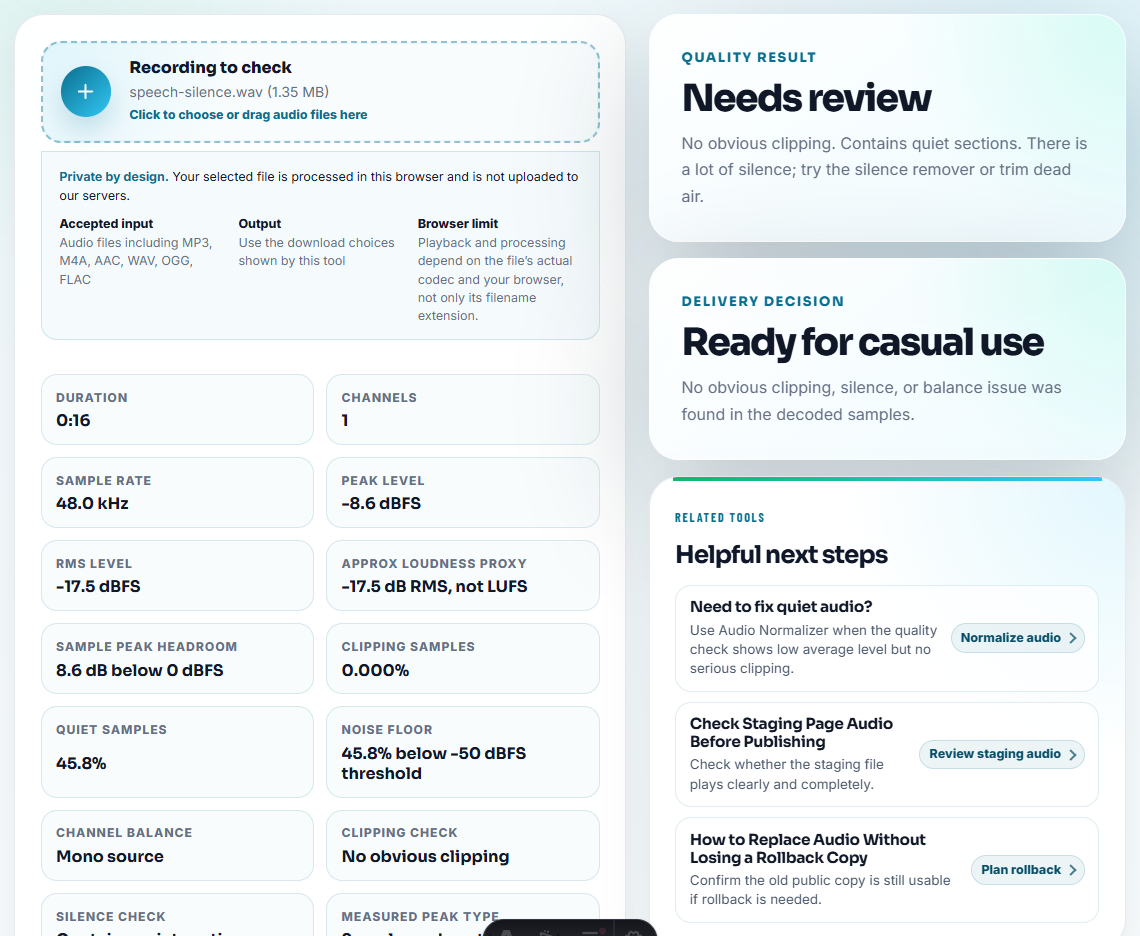
Confirm:
- Speech or audio is audible.
- The important section is present.
- The ending is complete.
- The file is not silent.
- It is not obviously clipped.
- It matches the troubleshooting step.
If the example is too long, use Audio Trimmer on a copy.
Step 3: Replace Workaround Language With Current Guidance
Before:
If the file does not play, use the temporary sample attached by support.After:
Open the updated example file from the article and replay the final 15 seconds. The fixed copy should include the full ending.Keep old workaround notes only when users may still have cached or downloaded copies.
Step 4: Update File Labels and Page Context
Use Audio Metadata Editor for safe labels:
Help article example. Fixed public copy. Reviewed 2026-07-31.Avoid private support case details, customer names, internal blame, and uncertain root-cause notes inside published files.
Step 5: Add a Short Verification Note
A useful internal note can be this simple:
Article refreshed after fix. Example file checked from public page. Workaround section removed. Old sample retired.This gives future editors enough context without turning the article into an incident report.
Help Article Refresh Checklist
- Article link points to the fixed file.
- Example plays from the final page.
- Text matches what users will hear.
- Workaround wording is updated or removed.
- File size and format fit the page.
- Metadata is safe.
- Old example is retired or labeled.
- Support team knows what changed.
Help Article Details That Prevent Confusion
- Do not update the article before checking the actual public file.
- Do not leave old workaround text beside new fix instructions.
- Do not publish a long raw support clip as the article example.
- Do not include private case notes in the downloadable file.
- Do not refresh dates for wording-only changes unless the visible guidance meaningfully changed.
- Do not let article text promise a result the audio example does not show.
When Free Browser Tools Are Enough
Use the browser workflow when refreshing a help article with one short example, comparison, or troubleshooting sample. Keep the original capture as the audit source, export a web-friendly copy, and make sure the article text explains the same step the audio demonstrates.
Use a formal documentation workflow when the update affects legal claims, multiple languages, versioned manuals, paid campaigns, or many product surfaces.
Helpful Next Steps
- Audio Metadata Viewer
- Recording Quality Checker
- Audio Trimmer
- Turn a Solved Audio Issue Into a Helpful FAQ
- Prove Audio Still Works After Rollout
- Write a Follow-Up Reply After an Audio Fix
- Make KB Audio Downloads Useful After Saving
- Help Users Troubleshoot Audio Before Support
Last Review Points
When should I refresh a help article after an audio fix?
Refresh it when the old article points to a broken file, outdated example, temporary workaround, wrong format, missing step, or support instruction that changed after the fix.
What must be true before this file is ready?
Check the example file identity, playback, duration, format, size, metadata, public link, and whether the article wording still matches what users will hear.
What must be true before this file is ready?
Check whether the audio still matches the help article, update the example only when it clarifies the fix, and remove old clips that teach outdated behavior.