
Turn a Solved Audio Issue Into a Helpful FAQ
 By HenrikUpdated Aug 7, 20266 min read
Turn a resolved audio issue into a helpful FAQ entry with checked examples, clear symptoms, safe wording, and next steps.
An FAQ entry is useful only when it prevents a real repeat question. After an audio fix, the team may know exactly what happened, but users still need a short answer they can understand without reading an internal repair note.
A resolved audio problem can become a useful FAQ entry when the sample, cause, fix, and next step are clear.
Decide If the Issue Deserves an FAQ
Not every solved issue should become a public answer. Use the FAQ only when it helps users act safely without internal context.
| Issue pattern | Good FAQ angle | Keep internal | User-facing proof |
|---|---|---|---|
| Repeated same question | What to check first | Customer names or private files | Generic symptom example |
| File will not play | Format, link, or device check | Internal hosting notes | Current working file details |
| Audio sounds broken | Quality symptom and next step | Raw debugging conversation | Short checked sample |
| Download or upload confusion | Size, format, or browser guidance | Account-specific details | Simple limit or workflow note |
| Fixed product behavior | What changed for the user | Engineering timeline | Clear expected result |
Build the FAQ From a Checked Example
| Sequence | Free tool | What to look for |
|---|---|---|
| 1 | Audio Metadata Viewer | Confirm the file or example the FAQ mentions. |
| 2 | Recording Quality Checker | Verify the symptom is fixed before telling users what should happen. |
| 3 | Audio Waveform Generator | Check timing when the FAQ mentions silence, endings, gaps, or cutoffs. |
| 4 | Audio Trimmer | Create a short example only when the FAQ needs a focused sample. |
| 5 | Audio File Size Calculator | Explain size or format limits when download or upload behavior matters. |
| 6 | Audio Metadata Editor | Remove confusing internal labels from any shared example copy. |
The FAQ should answer the user’s next question, not document the whole repair. Treat the checked example as evidence for the wording, not as material to expose by default.
Step 1: Start With the User Symptom
Write the question in the user’s language:
Why does the audio sample stop before the ending?Not:
Why did the v1 public copy fail rollout verification?Use the resolved case to make the wording accurate, but keep internal workflow terms out of the visible FAQ.
Step 2: Confirm the Current Example
Before writing, use Audio Metadata Viewer and Recording Quality Checker on the current file or link.
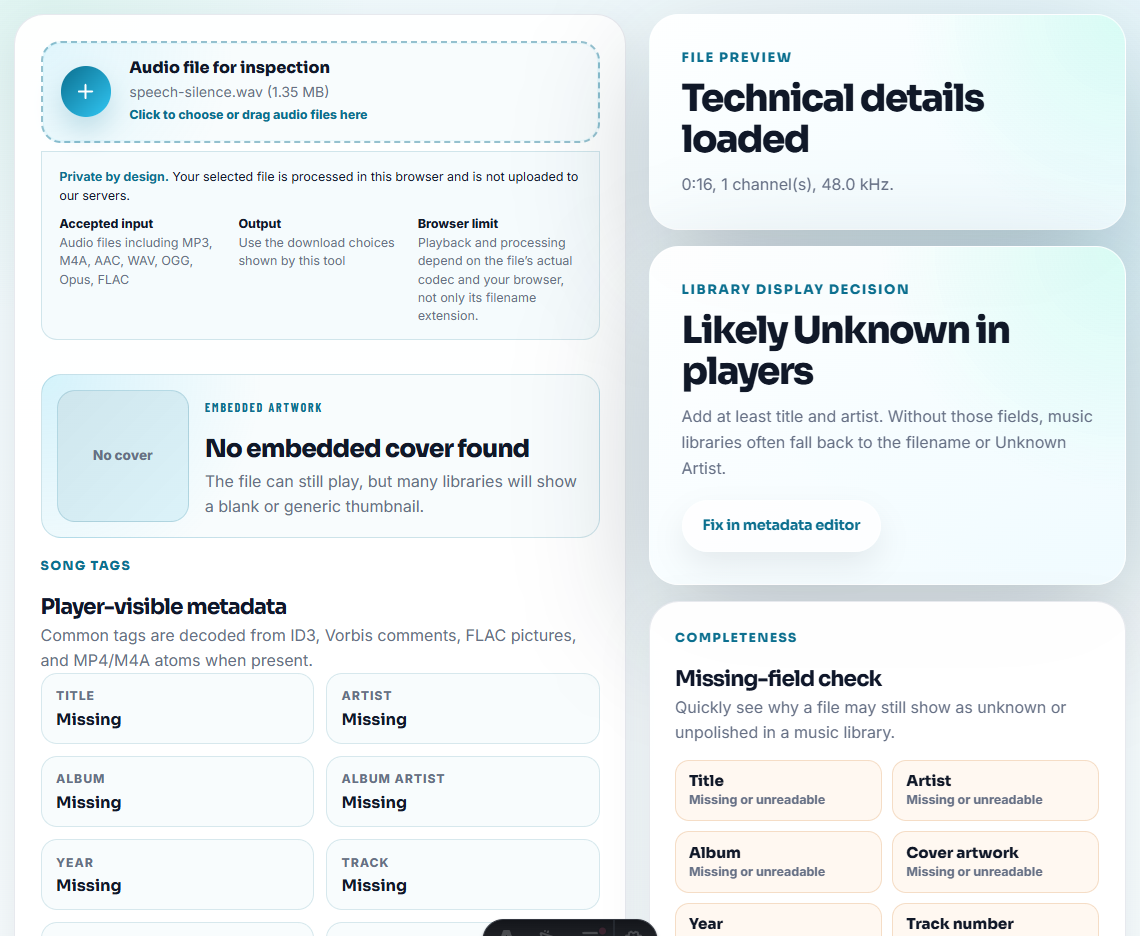
Check:
- Current file name.
- Duration.
- Format.
- Public link.
- Playback result.
- Whether the old issue is still visible.
- Whether a temporary workaround is still mentioned anywhere.
Do not publish an FAQ that points to a file you have not checked.
Step 3: Answer With a Small Decision Path
Good FAQ answer:
If the sample stops before the ending, reopen the page and play the current example again. The updated file should include the final section. If your downloaded copy still ends early, download it again and tell support the time where playback stops.This gives the user one likely fix and one useful escalation detail.
Step 4: Keep Support Evidence Out of the FAQ
Internal notes may say:
old demo-v1 export was linked after rolloutThe FAQ should say:
An older downloaded copy may not include the latest corrected audio.Clear does not mean exposing every internal detail.
Step 5: Link to the Right Next Step
A good FAQ entry can link to:
- A refreshed help article.
- A fixed public sample.
- A support contact path.
- A format or playback guide.
- A known issue note if the fix is not final.
Avoid sending users into a long chain of unrelated tools.
Know When Not to Publish the FAQ Yet
An FAQ should reduce support load, not freeze an uncertain answer into public content. Hold the entry until the user-facing fix and wording are both stable.
| Hold the FAQ when | Why | Publish after |
|---|---|---|
| The cause is still unknown | Users may follow the wrong fix | The team can describe one safe first check. |
| The workaround is temporary | Search visitors may keep using outdated advice | The final behavior or replacement path is clear. |
| The example contains private details | Public content may expose customer context | A neutral sample or text-only explanation is ready. |
| The issue affects billing or legal promises | Wording needs review | Approved support and policy language exists. |
| The fix changes by platform | One answer may mislead some users | Separate Windows, Mac, browser, or device paths are defined. |
FAQ Entry Template
question:
short answer:
what to check first:
current file or link:
when to contact support:
details to include:
related help article:
Keep it short enough to scan, but specific enough to prevent a duplicate ticket.
FAQ Checks Before Publishing
- Do not create an FAQ from a one-off unclear report.
- Do not answer with internal fix language.
- Do not link to a temporary workaround after the final fix is live.
- Do not include private case details.
- Do not send users through five tests when one checked step is enough.
- Do not publish a file example without checking playback first.
When Browser Checks Are Enough for an FAQ
Browser prep is enough when the FAQ needs one checked example and a short user-facing answer. Use documentation review when the answer affects billing, privacy, legal promises, known issues, or many translated support pages.
Use a formal documentation review when the FAQ affects legal claims, billing promises, privacy-sensitive files, regulated content, or many translated pages.
Related Fixes and Prep Guides
- Audio Metadata Viewer
- Recording Quality Checker
- Audio Waveform Generator
- Refresh Help Articles After an Audio Fix
- Update Support Macros After an Audio Fix
- Turn an Audio Fix Into Prevention Notes
- Help Users Troubleshoot Audio Before Support
Checks Worth Making First
When should an audio issue become an FAQ entry?
Create an FAQ entry when the same audio question repeats, the fix is now understood, and users can safely self-check the file, link, format, or playback symptom.
What should an audio FAQ entry include?
Include the symptom, likely cause, what users should check first, what file or link is current, and when they should contact support with details.
What should I write down before changing the file?
Use an example only when it answers the FAQ directly, removes private details, and shows the problem more clearly than text alone.