
How to Prove an Audio Rollout Worked
 By HenrikUpdated Aug 7, 20267 min read
Confirm public audio still plays after a rollout by checking links, file identity, playback, owners, and rollback status.
An audio fix is not finished when the new file plays on your computer. It is finished when the user-facing page, download, support reply, shared folder, or product example points to the right copy and that copy plays correctly.
Post-rollout proof keeps the team from closing a fix that only worked locally.
Record Proof at the User-Facing Location
The proof should answer one question: what will the user get now?
| Proof item | Good evidence | Weak evidence | Closeout note |
|---|---|---|---|
| Public link | Final URL opens the fixed audio | Local file plays | Record link and check time |
| File identity | Metadata matches approved copy | Filename looks similar | Record duration and size |
| Playback | Audio plays through the fixed section | Opening seconds only | Note device or browser used |
| Page context | Surrounding article or reply is updated | Audio file alone is fixed | Record page or macro location |
| Rollback | Previous copy is retained or retired | No old-file status | State rollback status clearly |
Check the Copy Before You Change It
| Decision point | Tool | Evidence to collect |
|---|---|---|
| 1 | Audio Metadata Viewer | Confirm the live file identity, duration, format, size, tags, and source clues. |
| 2 | Recording Quality Checker | Confirm the public copy is audible, complete, and not obviously clipped. |
| 3 | Audio Waveform Generator | Save a timing clue when the fix involved silence, missing endings, or wrong sections. |
| 4 | Audio File Size Calculator | Check whether the live copy matches the expected delivery size. |
| 5 | Audio Metadata Editor | Add safe rollout, owner, fixed-copy, and rollback notes to internal copies. |
| 6 | Audio Compressor | Confirm a smaller delivery copy was made from the approved fixed source. |
The goal is not to create a long report. The goal is to make the final public state easy to trust.
Step 1: Check the Final Location
Open the actual user-facing location:
- Public page.
- Download link.
- Help article.
- Support attachment.
- Shared folder.
- Customer confirmation sample.
- Internal demo library.
Do not rely on the file in your local working folder. The wrong link can keep serving the old audio.
Group Proof by Rollout Surface
A single audio fix may appear in more than one place. Record proof for each surface instead of assuming one checked file covers all users.
| Rollout surface | Proof to collect | Common miss |
|---|---|---|
| Public page embed | Page URL, visible player, live file identity, playback result | File is fixed but page still references the old asset |
| Download link | Downloaded file name, size, duration, and playback result | Link points to a cached or previous copy |
| Support macro | Reply text, linked file, and customer-safe wording | Macro still tells users to use the workaround |
| Shared folder | Folder path, final file label, retired-file status | Temporary copy remains beside final copy |
| Customer sample | Exact sample sent and question asked | Recipient tests a different file than the accepted fix |
If the fixed audio is reused across several pages, check at least the highest-value page and one reused location.
Step 2: Confirm the Live File Identity
Use Audio Metadata Viewer on the live or downloaded copy.
Record:
- File name.
- Duration.
- Format.
- Size.
- Source or version label.
- Public page or folder.
- Owner.
- Rollout date.
If the file identity does not match the approved fix, pause before telling anyone the issue is resolved.
Step 3: Check Playback From the User Path
Use Recording Quality Checker and a real listening pass.
Confirm:
- The file starts correctly.
- The repaired section is present.
- The ending is complete.
- The file is not silent.
- The file is not clipped.
- The audio still matches the page or reply text.
If the issue was timing-related, create a quick waveform reference with Audio Waveform Generator.
Step 4: Compare Size and Delivery Fit
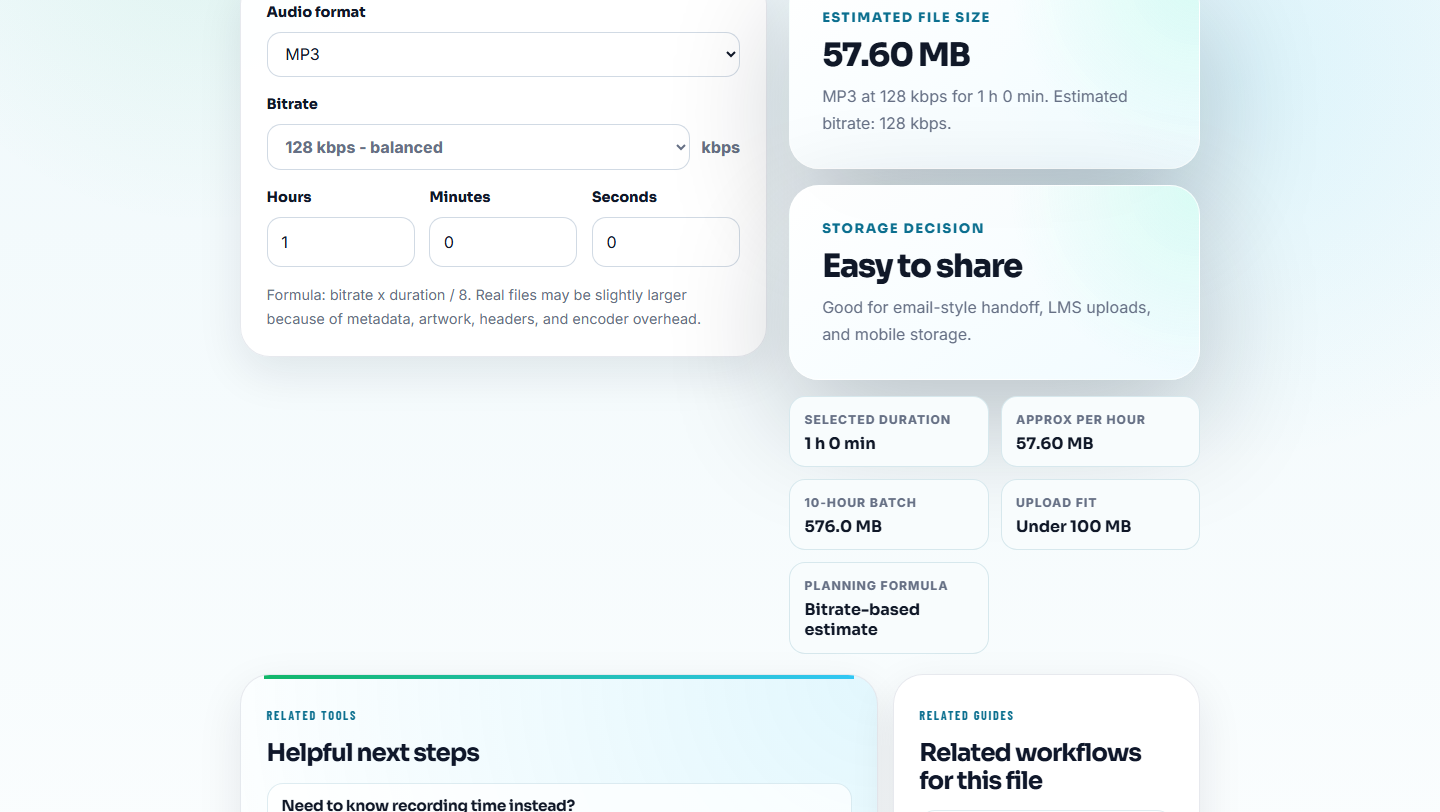
Use Audio File Size Calculator when the rollout involved compression, conversion, page embeds, downloads, or email attachments.
Watch for:
- A huge source file accidentally published.
- A tiny low-quality preview used as final.
- A format that the target page or recipient cannot play.
- A delivery copy that changed after the fix was approved.
Post-rollout proof should catch these before customers do.
Step 5: Record Rollback Status
Write a short rollback line:
rollback: previous public copy preserved in /audio/rollback/demo-v1.mp3 until 2026-08-07Or:
rollback: not allowed. Old copy contained the reported issue and should stay retired.This matters when someone asks whether to restore the old file during a second report.
Close Only After User-Path Proof
Use a clear closure status so “rolled out” does not mean only “uploaded.”
| Status | Use it when | Do not use it when |
|---|---|---|
| Rollout pending | Fixed copy is accepted but not user-facing yet | The public page already serves the new file |
| Rolled out, proof pending | File or page was updated but final playback has not been checked | Support is ready to tell users it is fixed |
| Proof accepted | Final user-facing location plays the correct file | Only the local copy was tested |
| Rolled back | New copy failed and old safe copy was restored | Old copy was retired for privacy or wrong content |
| Closed no rollback | New copy is live and old copy should not be restored | Old copy may still be needed for comparison |
This gives support a safer moment to send the final follow-up reply.
Post-Rollout Proof Template
fixed file:
public location:
checked from:
playback result:
metadata result:
file size:
evidence:
rollback:
owner:
follow-up date:
Keep it short enough that support, content, and engineering can all read it quickly.
What Can Go Wrong When You Prove an Audio Rollout Worked
- Do not close the issue after local playback only.
- Do not assume a page changed because a file was uploaded.
- Do not overwrite the old file without rollback notes.
- Do not publish a temporary workaround as final without checking labels.
- Do not send “fixed” to a customer before testing the final link.
- Do not leave proof in a private chat where future reviewers cannot find it.
When Browser Prep Is Enough for Post-Rollout Proof
Browser prep is enough when the rollout proof only needs a checked before-and-after clip, a public page playback check, or a small replacement note. Use formal rollout review when the change affects customers, claims, analytics, or multiple public locations.
Use formal release, monitoring, or incident tooling when the audio affects many customers, paid campaigns, regulated content, privacy-sensitive files, or business-critical pages.
Next Audio Checks to Try
- Audio Metadata Viewer
- Recording Quality Checker
- Audio File Size Calculator
- Roll Out an Audio Fix Without Missing Checks
- Monitor Public Audio Playback Before Users Complain
- Document What Changed in an Audio Fix
Reader Notes
What is post-rollout proof for an audio fix?
It is a short record that confirms the fixed audio is live, the public link points to the right file, playback works, metadata is safe, and rollback status is known.
Why is local playback not enough proof?
A file can play locally while the website, download link, support article, or shared folder still points to the old copy. Post-rollout proof checks the final user-facing location.
What should I check after an audio rollout?
Collect a short before-and-after proof, label where the fix shipped, and note who confirmed the public result after rollout.