
How to Send Audio Proof in a Support Reply
 By HenrikUpdated Aug 7, 20268 min read
Prepare a support reply audio clip that proves one point, protects private context, and tells the customer what to check next.

Support reply audio should reduce confusion. It can show a customer what a problem sounds like, provide a short example of the expected result, or help support explain what to check next.
The clip should not become another support problem. Long raw recordings, unclear names, hidden private labels, or files that are too quiet can slow the reply down.
Check the File Before Sharing
| Review pass | Tool | What it catches |
|---|---|---|
| 1 | Audio Metadata Viewer | Check duration, format, size, channels, and existing labels. |
| 2 | Recording Quality Checker | Confirm the clip is audible and complete. |
| 3 | Audio Trimmer | Cut only the support example or explanation section. |
| 4 | Audio Normalizer | Make a listening copy easier to hear when needed. |
| 5 | Audio Waveform Generator | Add a visual cue for silence, clipping, gaps, or timing. |
| 6 | Audio Compressor | Create a smaller reply copy after review. |
| 7 | Audio Metadata Editor | Add issue, ticket, product, or reply-status labels. |
The recipient should understand why the audio was included before opening it.
Step 1: Choose the Reply Purpose
Use audio in a support reply when it helps answer one specific question:
- What should the expected result sound like?
- Where does the problem happen?
- Is the file silent, clipped, or too quiet?
- Does the issue happen before or after export?
- Which section should the customer compare?
- What example should the customer send back?
If the answer is purely a setting, license, or account instruction, text is usually better.
Step 2: Inspect Before Sending
Use Audio Metadata Viewer to check file size, duration, format, channels, and labels. Remove or avoid private project names, customer names, or internal notes.
Use Recording Quality Checker to confirm the support copy is not silent, clipped, or missing the ending.
Step 3: Trim to the Relevant Moment
Use Audio Trimmer on a copy. Keep just enough context for the customer to understand the support point.
Good support reply clips are:
- Short enough to preview quickly.
- Focused on one issue or example.
- Free of private conversation.
- Labeled by purpose.
- Paired with a written explanation.
Step 4: Keep the Evidence Honest
Use Audio Normalizer only when the clip is too quiet to understand. If the reply is about low volume, clipping, silence, or noise, do not process the clip so much that the issue disappears.
Use Audio Waveform Generator when a visual clue helps show where the problem happens.
Step 5: Create the Reply Copy
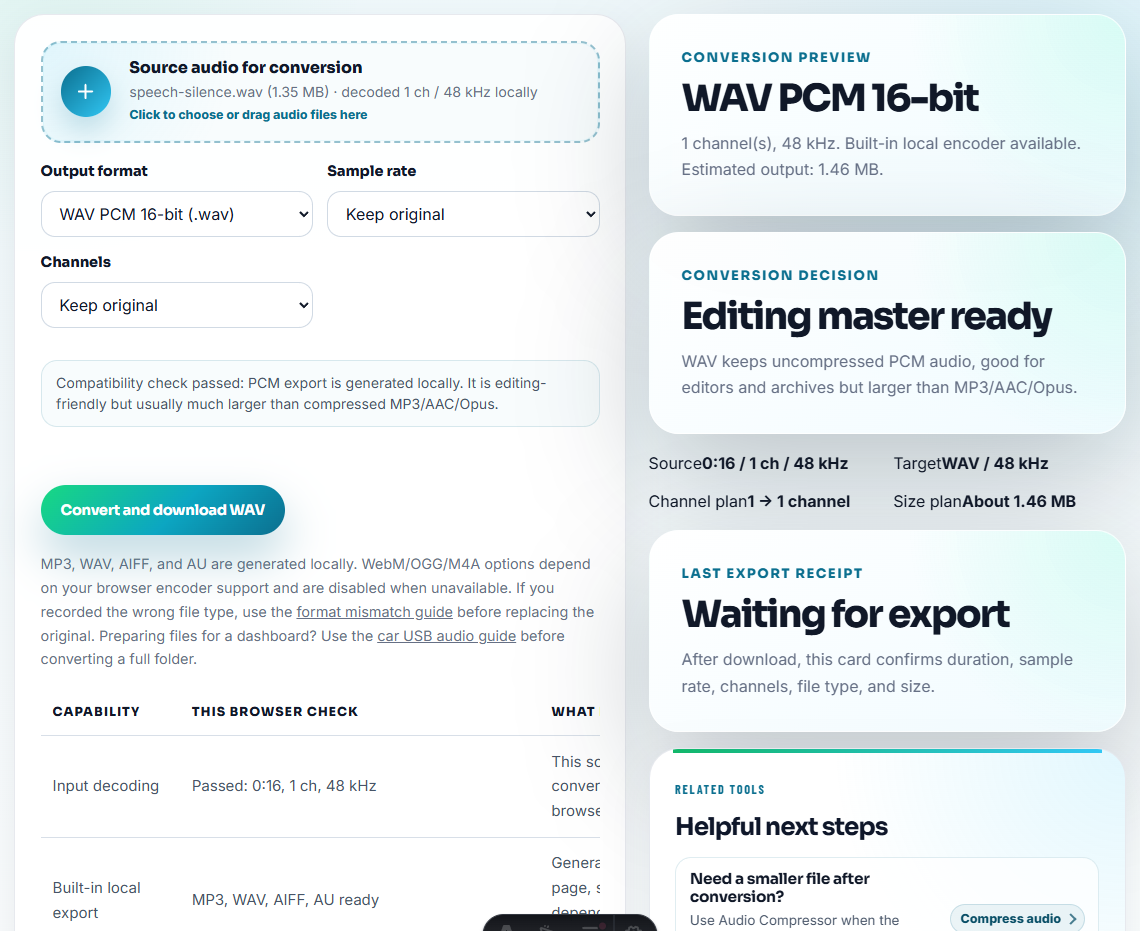
Use Audio Compressor after checking the clip. If the customer cannot open the source format, use Online Audio Format Converter on a copy and mention that it is a converted copy.
Keep the support reply copy separate from the original source.
Step 6: Label the File Clearly
Use filenames such as:
support-reply-expected-output-sample.mp3
support-reply-silence-at-start-example.mp3
customer-check-this-short-section.mp3
ticket-audio-example-normalized-copy.mp3
Use Audio Metadata Editor if files may be forwarded or stored in a ticket system.
Write the Reply Around the Clip
A support reply clip should not stand alone. The text around it should tell the customer what changed, what to listen for, and what to do after checking it.
Use a short structure:
What this file shows: the corrected output should play continuously from 00:00 to 00:15.
What to compare: your previous export had a silent gap near 00:08.
What to do next: try this copy first, then reply with the player name if it still fails.
That note keeps the audio from becoming a mystery attachment. It also helps if the reply is forwarded to another teammate later.
Match the Clip to the Reply Type
Choose the clip based on what the customer is trying to confirm, not based on what file is easiest to attach.
| Reply type | Audio to include | Written note to add | Do not include |
|---|---|---|---|
| Expected output sample | A short clean example of the intended result | ”Compare your export to this section.” | Full internal test recording. |
| Broken playback report | The smallest clip that shows silence, clipping, or missing ending | ”The issue is audible at the start/end.” | Private customer source if a recreated sample works. |
| Customer retry request | Confirmed corrected copy or converted copy | ”Please try this version and tell us whether it opens.” | Old draft files with confusing names. |
| Escalation evidence | Original problem section plus metadata notes | ”This is for internal review, not public sharing.” | Customer names, order details, or unrelated conversation. |
This keeps the support answer focused and safer to forward.
Decide the Reply Outcome Before Attaching Audio
Audio should support the reply outcome. Before you attach a file, choose what the customer should do after listening.
| Reply outcome | Audio role | Next sentence to write |
|---|---|---|
| Solved | Confirm the corrected or expected result. | ”If your copy now sounds like this sample, no further file is needed.” |
| Needs sample from customer | Show the section type you need back. | ”Please send the same short section from your file, not the full recording.” |
| Needs logs or settings | Audio proves the symptom but not the cause. | ”The clip confirms the sound issue; the next step is the export setting or log detail.” |
| Account or download issue | Audio is usually unnecessary. | ”This looks like an access/download step, so a screenshot or order detail is more useful.” |
| Escalation | Audio becomes internal evidence. | ”We will keep this clip with the case notes and preserve the original separately.” |
This small decision keeps support replies from adding random attachments. It also tells the customer exactly whether to listen, compare, resend, or wait for the next support step.
Make the Reply Useful Even If It Gets Forwarded
Support replies often move from the customer to a teammate, manager, or engineering contact. The clip needs enough context to survive that handoff without exposing private details.
| Add this context | Why it helps |
|---|---|
| One sentence naming the issue | The listener knows what to compare before opening the file |
| The time range to check | The recipient does not need to scrub through the whole clip |
| Whether the clip is original, trimmed, normalized, or converted | The next reviewer knows whether the sound was changed |
| What the customer should do next | The audio becomes part of a clear support path, not a random attachment |
This is the difference between “please see attached” and a reply that actually reduces back-and-forth.
Final Reply Check Before Sending Audio Proof
- Do not include private customer audio unless permission and context are clear.
- Do not send a full raw recording when one section answers the question.
- Do not edit out the problem being discussed.
- Do not send files named
test-final-new.mp3. - Do not make audio the only explanation in a reply.
- Do not overwrite the original source file.
When a Reply Clip Is the Wrong Tool
Do not attach audio just because an audio file exists. A text-only reply is usually better when the customer needs:
- A license or activation step.
- A download or reinstall link.
- A setting name that is already clear.
- A refund, billing, or account answer.
- A privacy-sensitive explanation where the sound adds no value.
Use a larger workflow when the reply needs logs, screenshots, screen recordings, customer approval, legal review, or a formal support article.
Use Free Tools for a Small Reply Clip
A browser pass is enough when support only needs to send a small, non-sensitive example that explains the fix. Trim to the relevant sound, avoid exposing other customer details, and listen once after export so the reply does not attach a confusing or silent file.
Where to Go After This Check
- Audio Metadata Viewer
- Recording Quality Checker
- Audio Trimmer
- Audio Waveform Generator
- Add Audio Evidence That Makes Bug Reports Clear
- Send Troubleshooting Audio That Shows One Symptom
- Escalate Audio Issues With Reproducible Evidence
- Make a Focused Support Audio Clip
- Show Support the Exact Audio Problem
Questions People Usually Ask
What should I check before using audio for a support reply?
Send a short relevant clip, remove private or unrelated sections, check that the issue or explanation is audible, label the purpose, and keep the original file separate.
Should a support reply include a full recording?
Only when the customer or support team needs the full context. Most replies work better with one short clip and a clear explanation.
What should I check for support reply audio?
Send one labeled proof clip, explain what changed, keep the source separate, and avoid edits that hide the issue the user originally reported.