
How to Show Support the Exact Audio Problem
 By HenrikUpdated Aug 7, 20266 min read
Isolate a support audio problem, inspect file details, add waveform evidence, compress a copy, and explain what changed.

Support teams can solve audio problems faster when the example is short, clear, and repeatable. A 90-minute file with a vague note like “it sounds wrong” is hard to diagnose. A 20-second clip with file details and a clear description is much more useful.
Support teams need to hear the problem, not a polished version that hides it. Cut a short clip that preserves the symptom, removes private material, and includes enough context to reproduce the issue.
Choose the Support Sample Type
Support does not always need the full recording. Send the smallest sample that still proves the problem.
| Problem type | Best sample | Include | Avoid |
|---|---|---|---|
| Silence at the start | Opening seconds plus file details | Timestamp and expected sound | A full long session |
| Clipping or distortion | Short loud section | Whether the source also clips | Normalized copy only |
| Wrong channel balance | Same moment in stereo | Left/right note | Mono conversion before support sees it |
| File will not play | Original plus metadata details | App or device that rejects it | Re-exporting until the clue is lost |
| Missing ending | Last seconds before cutoff | Expected ending note | Trimming the damaged area away |
Check the File Before Sharing
| Task | Tool | Result to verify |
|---|---|---|
| 1 | Audio Metadata Viewer | Capture format, duration, bitrate, channels, size, and tag clues. |
| 2 | Recording Quality Checker | Check silence, clipping, loud peaks, and level problems. |
| 3 | Audio Trimmer | Cut a short copy that contains the issue. |
| 4 | Audio Waveform Generator | Create a visual clue for silence, clipping, peaks, or rough cuts. |
| 5 | Audio Spectrogram Generator | Add a frequency view when hum, hiss, or artifacts are part of the report. |
| 6 | Audio Compressor | Make a smaller support copy only after the issue is preserved. |
| 7 | Online Audio Format Converter | Make a playback test copy when format compatibility may be the issue. |
The important rule: do not overwrite the original file.
Step 1: Write Down What Happens
Before editing, write one plain sentence:
- “The first 12 seconds are silent.”
- “The voice clips when the speaker laughs.”
- “The file plays on my computer but not on my car stereo.”
- “The ending is missing after export.”
- “The left channel is much louder than the right.”
This note decides which tool you should open next.
Step 2: Inspect the File
Use Audio Metadata Viewer to check the basics. File type, duration, channels, size, and tags often explain why a file behaves differently across players.
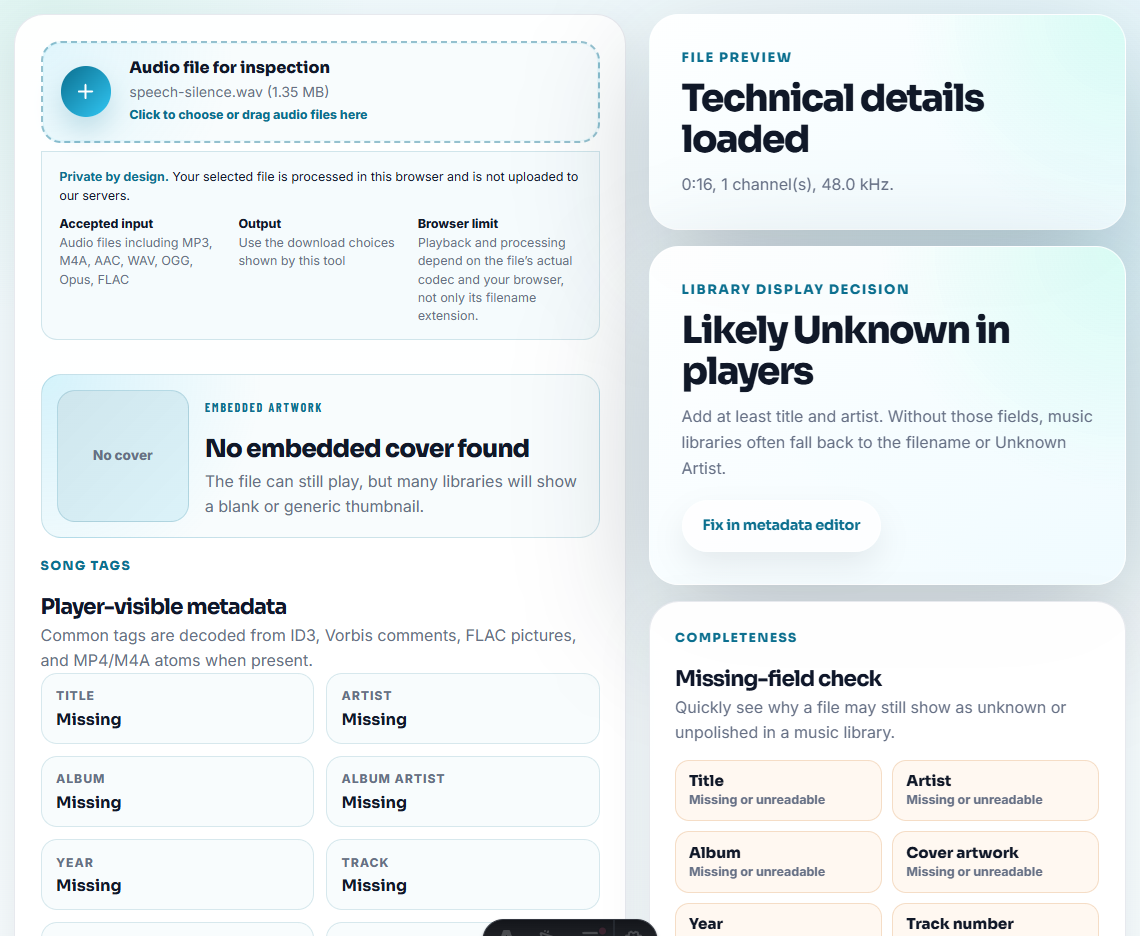
Copy only the details that matter. Do not include private names, email addresses, or unrelated metadata in a public support post.
Step 3: Check the Audio Problem
Use Recording Quality Checker to see whether the issue is obvious:
- Silence at the start.
- Missing audio.
- Clipping.
- Sudden peaks.
- Very low level.
- Long gaps.
If the checker shows a problem, include that in your support note.
Step 4: Trim a Short Example
Use Audio Trimmer to create the smallest clip that still contains the issue. Include a few seconds before and after the problem so support can hear the transition.
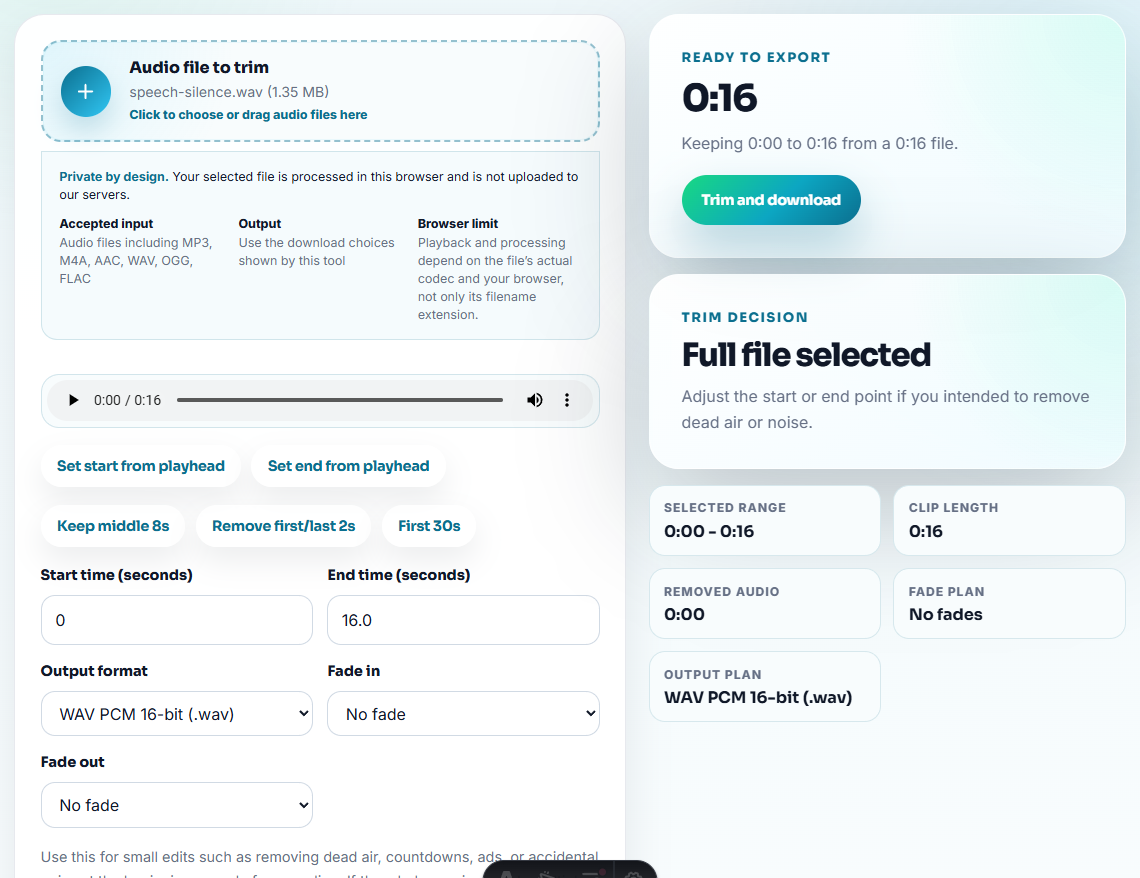
Good support clips are usually short:
- 10 to 30 seconds for clicks, cuts, or level jumps.
- 30 to 60 seconds for sync or repeated dropouts.
- A longer section only when the issue takes time to appear.
Step 5: Add a Visual Clue
Use Audio Waveform Generator when the problem is silence, clipping, peaks, or a rough cut. Use Audio Spectrogram Generator when the problem is hum, hiss, buzzing, or a strange high-frequency artifact.
A picture does not replace the audio. It helps another person find the same moment quickly.
Step 6: Compress Only a Copy
Use Audio Compressor only after confirming the problem is still audible. If compression removes or changes the problem, send the original short clip instead.
When the issue might be format-related, use Online Audio Format Converter to create a test copy and compare behavior.
Add the Detail That Changes the Next Reply
The best support clip does not only prove that a problem exists. It helps support decide what to ask next.
| If the clip shows | Add this detail | Why it changes the next reply |
|---|---|---|
| Silence | Whether the source was audible while recording | Separates capture failure from playback failure |
| Distortion | Whether the source file also distorts | Separates bad source from export or processing issue |
| Wrong audio | Which app or tab should have been captured | Points support toward routing instead of quality fixes |
| Missing ending | Expected full duration and actual saved duration | Shows whether the issue is trim, export, or stop timing |
| Player failure | One player/device that works and one that fails | Separates file health from compatibility |
This is why a 20-second clip with one precise note usually beats a large folder of unlabeled samples.
Slow Down Before You Send the Clip to Support
- Do not send a huge file without a timestamp.
- Do not overwrite the original.
- Do not remove the problem while cleaning the clip.
- Do not send private meeting or customer audio publicly.
- Do not claim a format fix worked until you test the converted copy.
When You Do Not Need a Desktop Recorder
For support clips, browser tools are best when one sound explains the issue faster than a paragraph. Trim to the symptom, remove unrelated account details, and attach the clip with device or app context so the receiver knows what to listen for.
For desktop recording problems, Cinch Audio Recorder support is the better next step after you prepare a clear clip and short description.
More Ways to Check the File
- Audio Metadata Viewer
- Recording Quality Checker
- Audio Trimmer
- Audio Waveform Generator
- Audio Spectrogram Generator
- Find the Right Support and Troubleshooting Path
- Find Why an Audio File Will Not Play Correctly
Common Edge Cases
What should I send when reporting an audio problem?
Send a short copy that contains the problem, basic file details, a clear note about what happens, and the original file only when support asks for it.
Should I edit the original audio before sending it to support?
No. Keep the original untouched. Make a short copy for sharing and note every change you made.
Can a waveform prove what is wrong with audio?
A waveform can show silence, peaks, rough cuts, or timing clues, but it should be paired with listening notes and file details.