
How to Escalate Audio Bugs With Clear Evidence
 By HenrikUpdated Aug 7, 20268 min read
Create short reproducible audio samples for escalation with expected results, actual results, timestamps, and safe context.
Support escalations are different from normal replies. A regular reply may help one customer understand the next step. An escalation has to help another team diagnose, reproduce, or make a decision.
The audio file should preserve the issue, remove unnecessary private details, and make the important section easy to inspect.
Start With the Source File
| Task | Tool | Result to verify |
|---|---|---|
| 1 | Audio Metadata Viewer | Check format, duration, channels, size, and hidden labels. |
| 2 | Recording Quality Checker | Confirm the issue remains audible before editing. |
| 3 | Audio Trimmer | Cut a focused evidence copy with enough context. |
| 4 | Audio Waveform Generator | Show silence, clipping, gaps, peaks, or timing clues. |
| 5 | Audio Compressor | Create a smaller escalation copy after review. |
| 6 | Online Audio Format Converter | Convert only when the escalation team needs another format. |
| 7 | Audio Metadata Editor | Add issue, product, build, case, and review labels. |
The key rule: keep the original source separate from the edited evidence copy.
Step 1: State the Escalation Question
Write the question the next team needs to answer:
- Is the source audio missing?
- Is the output clipped or distorted?
- Does the problem happen after export?
- Is one channel wrong or silent?
- Is metadata missing or unexpected?
- Does the file fail only in one player or workflow?
That question tells you what audio evidence to preserve.
Step 2: Inspect the File Before Sharing
Use Audio Metadata Viewer to check the basics before escalation. Capture the format, duration, size, channels, and any labels that explain where the file came from.
Remove or avoid private customer names, account identifiers, internal notes, or unrelated filenames in the copy you share.
Step 3: Confirm the Issue Is Still Present
Use Recording Quality Checker before trimming or compressing. If the issue is silence, clipping, weak level, missing ending, or channel imbalance, the escalation copy must still contain it.
Do not normalize, denoise, or trim away the exact part the next team needs to inspect.
Step 4: Trim a Focused Evidence Copy
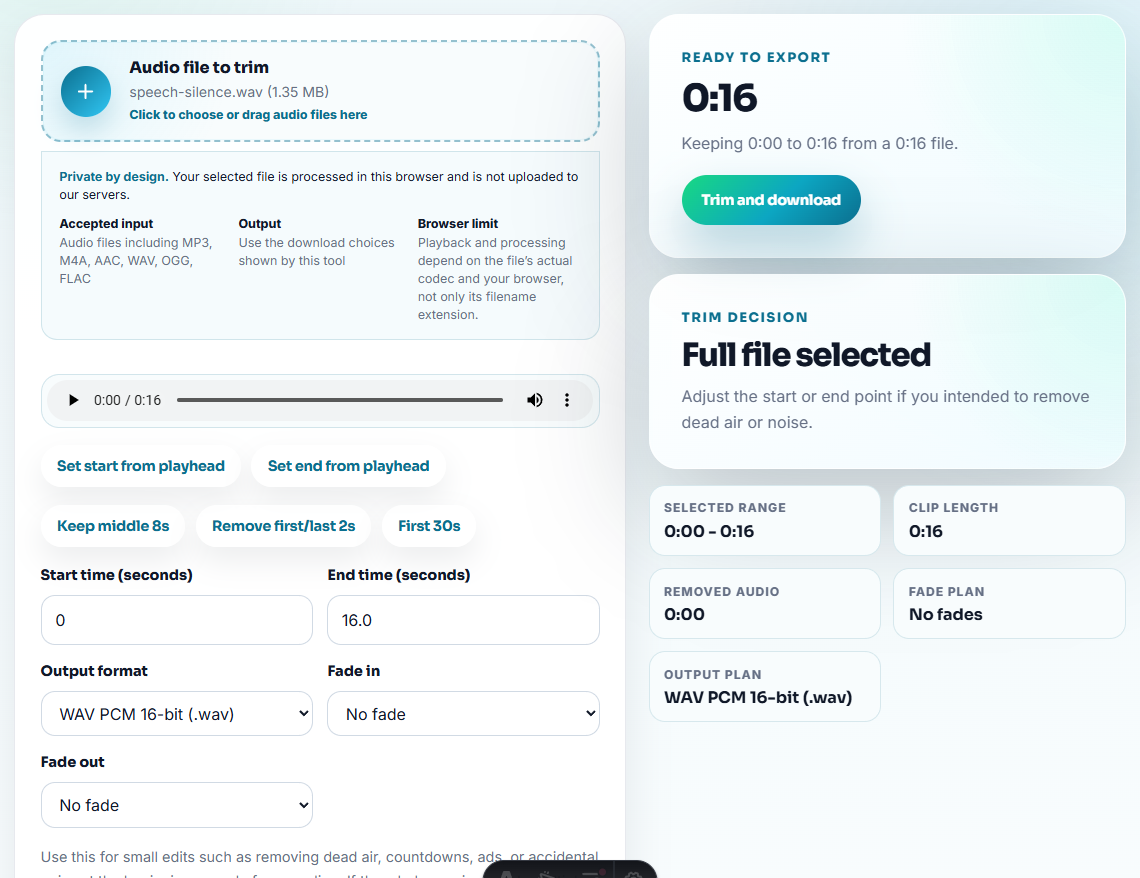
Use Audio Trimmer on a copy. Keep a few seconds before and after the problem so the escalation team can hear context.
Useful filenames include:
escalation-output-clipping-evidence.mp3
escalation-silent-section-short-copy.mp3
escalation-channel-issue-reviewed-clip.mp3
escalation-export-result-with-context.mp3
Use the case notes for private customer or account details instead of putting them in filenames.
Step 5: Add Visual Evidence When Helpful
Use Audio Waveform Generator when a visual clue helps the next team see the issue quickly. This is useful for silence, clipping, missing endings, repeated gaps, or rough cut points.
A waveform does not replace listening, but it can point reviewers to the right section.
Step 6: Create a Practical Handoff Copy
Use Audio Compressor only after confirming the issue remains audible. Smaller files are easier to attach, but over-compression can hide artifacts.
Use Online Audio Format Converter only if the escalation team requests another format or cannot open the source copy.
Step 7: Label the Evidence and Add Notes
Use Audio Metadata Editor to add safe labels:
- Product or feature.
- Version or build.
- Issue type.
- Expected result.
- Actual result.
- Source or reproduction context.
- Review status.
Pair the file with a short note:
Issue starts around 00:12. Expected continuous audio; actual result is a silent gap after export. Source file is preserved separately.Separate Customer Help From Engineering Evidence
Escalation audio should be packaged differently depending on who receives it. A customer-facing copy can be short and friendly; an engineering copy needs reproducible context.
| Audience | Include | Leave out |
|---|---|---|
| Customer support lead | Short symptom clip, customer-safe wording, current workaround. | Internal blame, speculative root cause, unrelated test files. |
| QA or engineering | Source-safe clip, expected vs actual result, timestamp, format, version, exact edit history. | Customer names, billing details, unsupported claims. |
| Content or docs owner | Public sample status, affected page or article, replacement recommendation. | Private raw recordings or unapproved customer quotes. |
This makes the escalation easier to route and safer to reuse.
Route the Escalation Before Sending the Clip
Escalation audio should point the next team to the right kind of decision. Otherwise, a clip can bounce between support, product, and QA without progress.
| Escalation type | Audio evidence | Primary owner |
|---|---|---|
| Reproducible playback defect. | Short source-safe clip plus expected and actual result. | QA or engineering. |
| Customer access or reinstall issue. | Usually a note is more useful than audio unless playback changed. | Support operations. |
| Metadata, naming, or split behavior. | Example file labels and one representative audio output. | Product/docs with support context. |
| Public article or sample is wrong. | Current public copy and proposed replacement. | Content owner plus support reviewer. |
This keeps the escalated clip from becoming a vague attachment with no decision path.
Check Escalation Readiness
Do not escalate only because a customer sent an audio file. Escalate when the package gives the next team enough signal to act.
| Readiness check | Ready to escalate when | Hold and clarify when |
|---|---|---|
| Reproducible | The symptom appears in a short reviewed clip or can be recreated. | The only evidence is a vague description. |
| Severity | The issue blocks playback, export, recording, recognition, or customer trust. | The issue is cosmetic and lacks affected context. |
| Owner | Support knows whether QA, engineering, docs, or billing should review it. | The case mixes account, setup, and audio evidence together. |
| Evidence | Expected result, actual result, timestamp, format, and edit history are included. | The clip has no note and no one knows what to hear. |
This does not make the escalation longer. It prevents the same customer from being asked for the same file, timestamp, and expected result again.
Add the Reproduction Path Before the Attachment
An escalation clip is strongest when the next reviewer can repeat the path that created it. Add the route in plain language:
Source:
Device or browser:
Output route:
Action that creates the issue:
Expected:
Actual:
Timestamp:
Original preserved: yes / no
If the same issue appears only after Bluetooth reconnects, after browser playback pauses, after export, or after a format conversion, say that directly. That single line often decides whether the case belongs with support, QA, engineering, or documentation.
Stop Before You Escalate the Audio Case
- Do not send a polished copy that removes the issue.
- Do not overwrite the original source.
- Do not expose private customer details in filenames or tags.
- Do not attach a long file without pointing to the problem time.
- Do not convert formats unless the escalation team needs it.
- Do not rely on audio alone without expected and actual result notes.
When an Escalation Should Stop
Pause before sending the audio onward when permission is unclear, the source is customer-owned, the issue is no longer reproducible, or the edited copy no longer contains the symptom. In those cases, the next best step is usually to document what is missing instead of forwarding weak evidence.
Use a deeper workflow when the escalation needs logs, screen recordings, app version data, device details, original source files, privacy approval, or repeated reproduction steps.
When Browser Prep Is Enough for Escalation Evidence
For support escalations, browser tools help create a focused symptom clip that shortens triage. Keep the original ticket evidence intact, label the timestamp and customer environment, and escalate with logs or screenshots when audio alone cannot prove the issue.
More Ways to Check the File
- Audio Metadata Viewer
- Recording Quality Checker
- Audio Trimmer
- Audio Waveform Generator
- Send Help Desk Audio Without Private Clues
- Add Audio Evidence That Makes Bug Reports Clear
- Prepare Remote Support Audio Before the Session
Questions People Usually Ask
What should I check before using audio for a support escalation?
Inspect the source, preserve a copy, trim the relevant evidence, check that the issue remains audible, add safe labels, and include expected-result and actual-result notes.
Should I clean up audio before escalating it?
Only edit a copy, and do not remove the problem being escalated. The escalation team needs evidence, not a polished file that hides the issue.
What should I check for support escalation audio?
Include the shortest reproducible sample, the file details, the device or browser context, and a note that explains exactly what the next support level should listen for.