
How to Add Audio Evidence to a Bug Report
 By HenrikUpdated Aug 7, 20268 min read
Create a short bug report audio sample with one symptom, expected result, actual result, timestamp, and safe file details.
A good bug report audio file helps support reproduce or understand the issue quickly. It should show the problem clearly, include enough context, and avoid private material that the support team does not need.
The wrong approach is sending a long folder of unclear recordings with names like test2-final.mp3. The right approach is one or two short clips, labeled by what went wrong.
Make the Review Copy Easy to Trust
| Stage | Free tool | What it helps you decide |
|---|---|---|
| 1 | Audio Metadata Viewer | Capture duration, format, size, channels, and labels. |
| 2 | Recording Quality Checker | Confirm the reported issue is still audible. |
| 3 | Audio Trimmer | Cut a short reproduction clip with enough context. |
| 4 | Audio Waveform Generator | Show silence, clipping, gaps, peaks, or timing clues. |
| 5 | Audio Compressor | Create a smaller support copy after checking. |
| 6 | Online Audio Format Converter | Create a compatibility copy only when needed. |
| 7 | Audio Metadata Editor | Add issue, app version, source, or support-case labels. |
The support team should be able to answer: what happened, where it happens, and which file proves it.
Step 1: State the Audio Problem
Before editing the file, name the issue:
- No sound in the result.
- Silence at the beginning.
- Clipping or distortion.
- Left or right channel missing.
- Volume suddenly drops.
- File plays in one app but not another.
- Recording stops too early.
- Metadata or cover art is missing.
One bug report clip should prove one problem.
Step 2: Inspect the File Details
Use Audio Metadata Viewer and note the practical details: format, duration, file size, channels, and visible labels.
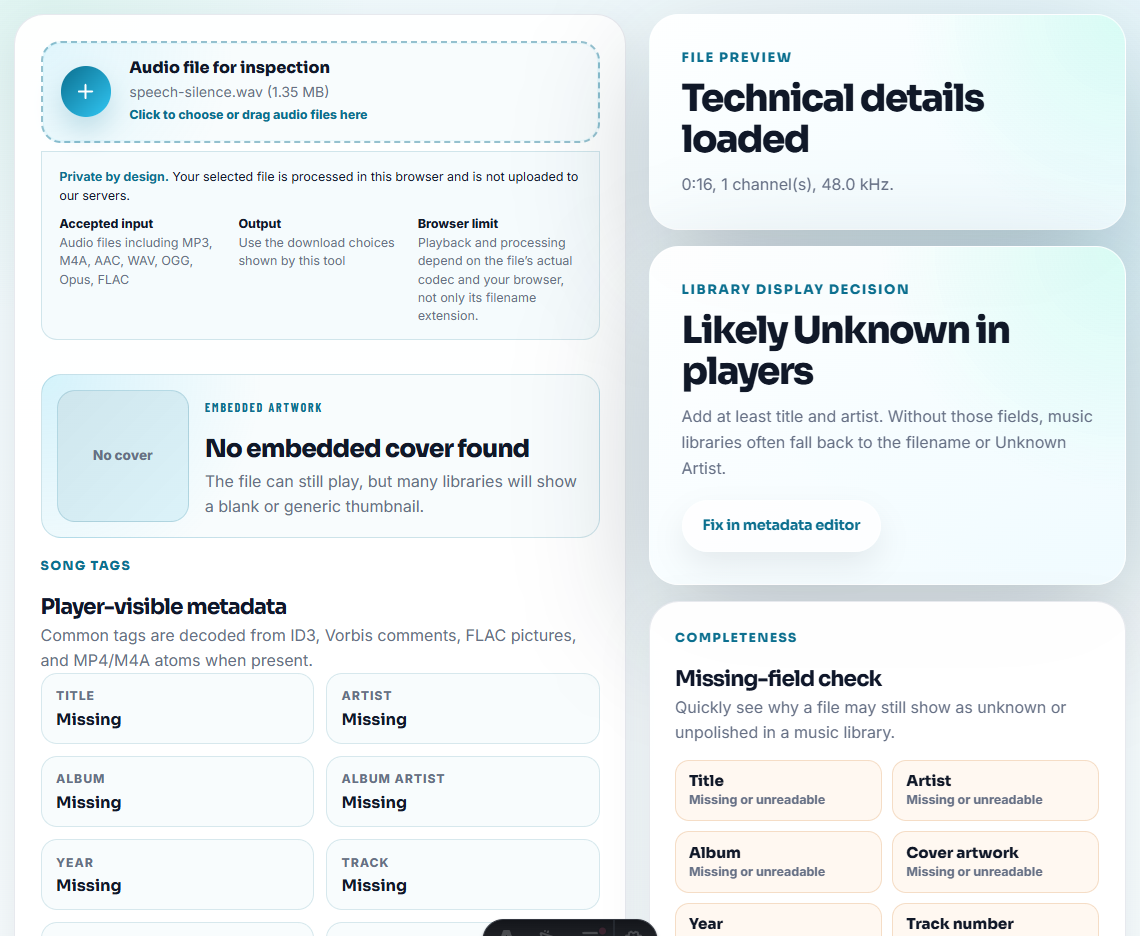
These details help support avoid guessing whether the problem is a format issue, a channel issue, a broken file, or an editing mistake.
Step 3: Keep the Issue Audible
Use Recording Quality Checker before and after trimming. If the bug is silence, clipping, rough level, or missing audio, make sure the final support copy still shows it.
Do not normalize, clean, or compress the file in a way that hides the actual problem.
Step 4: Trim the Reproduction Clip
Use Audio Trimmer on a copy. Keep:
- A few seconds before the issue.
- The full problem moment.
- A few seconds after the issue.
- Any sound cue that explains expected behavior.
Remove:
- Private conversation.
- Long setup.
- Duplicate attempts.
- Sections unrelated to the report.
Step 5: Add Visual Evidence When Useful
Use Audio Waveform Generator when the problem involves timing, silence, peaks, gaps, or clipping.
A waveform can help support see that the issue exists before they even listen.
Step 6: Make a Support Copy
Use Audio Compressor only after confirming the issue remains audible. If support asks for another format, use Online Audio Format Converter on a copy and say that it is converted.
Never replace the original with the support copy.
Step 7: Label Expected and Actual Result
Use filenames such as:
bug-report-no-sound-actual-result.mp3
expected-output-working-sample.mp3
actual-output-left-channel-missing.mp3
support-case-clipping-after-export-short.mp3
Use Audio Metadata Editor when files may move between support, engineering, and QA.
Add a Tiny Reproduction Packet
A bug report works better when the audio copy is paired with the minimum context needed to reproduce the result. Keep it short:
| Field | What to write |
|---|---|
| Source | Browser recording, exported file, converted copy, or customer sample. |
| Expected | What the listener should hear if the workflow works. |
| Actual | What the listener hears in the attached clip. |
| Timestamp | The first moment the defect appears. |
| Changed by edit? | Say whether you trimmed, converted, compressed, or left the copy untouched. |
This prevents a common failure: the audio is useful, but nobody knows which step created the problem.
Match the Bug Clip to the Failure Mode
The best bug report audio is not the longest file. It is the smallest file that proves the failure mode without hiding the conditions that created it.
| Failure mode | Clip should include | Written note should include |
|---|---|---|
| Fast, scratchy, or distorted result. | The first moment the defect appears plus a few seconds before it. | Source format, playback app, and whether the issue repeats. |
| No sound or silent gap. | The silent section and surrounding audio. | Expected sound, actual silence, and timestamp. |
| Missing metadata or wrong names. | Audio only if the sound matters; otherwise a filename or metadata example. | Expected title, actual title, and source workflow. |
| Export or conversion failure. | Source-safe input and actual output if both are needed. | Format, duration, and exact step that changed the file. |
This gives support and QA a clearer path from report to reproduction.
Build a Bug Evidence Bundle
For a bug report, the audio clip is only one part of the evidence. A small bundle is stronger and still easy to review.
| Bundle item | Include this | Avoid this |
|---|---|---|
| Symptom | One sentence naming the audible failure. | A long story without the failure moment. |
| Reproduction | The step that created the attached output. | Guessing steps that were not actually tried. |
| Environment | App version, player, browser, device, or source type when known. | Private account details in the public attachment. |
| Audio sample | Short source-safe clip plus timestamp. | Full private recording when a sample proves the issue. |
| File details | Format, duration, size, channels, and whether the copy was trimmed or converted. | Renamed files that hide expected vs actual result. |
This bundle lets support decide whether the next step is playback testing, export testing, metadata review, or engineering reproduction.
Write the Bug Note So Someone Can Reproduce It
The audio attachment should answer one question, but the note should explain how that audio was created. Use a tight format:
Problem: exported file becomes silent after 00:18.
Expected: source audio should continue through the whole clip.
Actual: silence starts after the transition.
How I made this copy: trimmed from the original, no normalization, no format conversion.
Reproduces with: same source and export settings twice.
This makes the bug report harder to misroute. Support can tell whether the next step is to test recording, export, playback, metadata, or a specific device route.
Bug Report Details Developers Need
- Do not edit out the problem you are reporting.
- Do not send a huge raw folder without a short example.
- Do not expose private customer or account audio.
- Do not overwrite the original reproduction file.
- Do not rename files so expected and actual results become unclear.
- Do not send only a waveform when support needs the audio too.
When a Bug Report Needs More Than Audio
Audio is strong evidence, but it is not always enough. Add logs, screenshots, or screen recording when the report depends on:
- A button sequence or export setting.
- A crash, freeze, or failed download.
- A metadata field that does not appear in the audio itself.
- A player-specific failure.
- A file that changes only after upload or cloud processing.
Use a larger workflow when the bug needs logs, screen recordings, exact device information, app version tracking, or formal QA reproduction steps.
When Browser Prep Is Enough for a Bug Report
For bug reports, browser tools are useful when the audio sample makes a failure easy to hear. Keep the raw recording unchanged, trim only the relevant timestamp, and attach device, browser, app version, and expected-result notes so QA can reproduce the issue.
Helpful Next Steps
- Audio Metadata Viewer
- Recording Quality Checker
- Audio Trimmer
- Audio Waveform Generator
- Check Whether the Reproduction Recording Is Usable
- Show Support the Exact Audio Problem
- Find Why an Audio File Will Not Play Correctly
Last Review Points
What should I check before using audio for a bug report?
Send a short reproduction clip, include file details, keep the issue audible, remove private sections, label the expected and actual result, and preserve the source file.
Should I clean up bug report audio before sending it?
Only remove unrelated or private sections. Do not edit out the noise, silence, clipping, or playback issue that the support team needs to hear.
What should I check for bug report audio?
Keep the symptom audible, include the expected and actual result, remove private sections, and attach only the shortest clip support needs to reproduce the bug.