
How to Email Audio That Shows One Clear Problem
 By HenrikUpdated Aug 7, 20267 min read
Prepare troubleshooting email audio that shows one reproducible symptom, protects private labels, and tells support where to listen.
Troubleshooting emails work best when the audio makes one issue easier to understand. A vague attachment forces the recipient to guess: what should they listen for, where does the problem start, and what result was expected?
A prepared clip reduces that back-and-forth.
Start With the Source File
| Checkpoint | Tool | Why it matters |
|---|---|---|
| 1 | Audio Metadata Viewer | Check file details, format, duration, size, channels, and labels. |
| 2 | Recording Quality Checker | Confirm the problem or result is audible. |
| 3 | Audio Trimmer | Cut the shortest useful email copy. |
| 4 | Audio Waveform Generator | Add a visual clue for silence, clipping, gaps, or timing. |
| 5 | Audio Compressor | Create a smaller email attachment after review. |
| 6 | Online Audio Format Converter | Convert a copy only when the recipient cannot open the source. |
| 7 | Audio Metadata Editor | Add issue, product, date, status, or reply labels. |
The written email should tell the recipient exactly what the audio demonstrates.
Step 1: Write the Listening Goal
Before editing, write a one-line goal:
- “Listen for the silence after export.”
- “Compare the before and after volume.”
- “Check whether the right source was captured.”
- “Confirm the clip is missing the ending.”
- “Review the noise that appears after conversion.”
That goal guides the trim and the email note.
Step 2: Inspect the File
Use Audio Metadata Viewer to check whether the file contains private labels, old filenames, internal notes, or confusing source details.
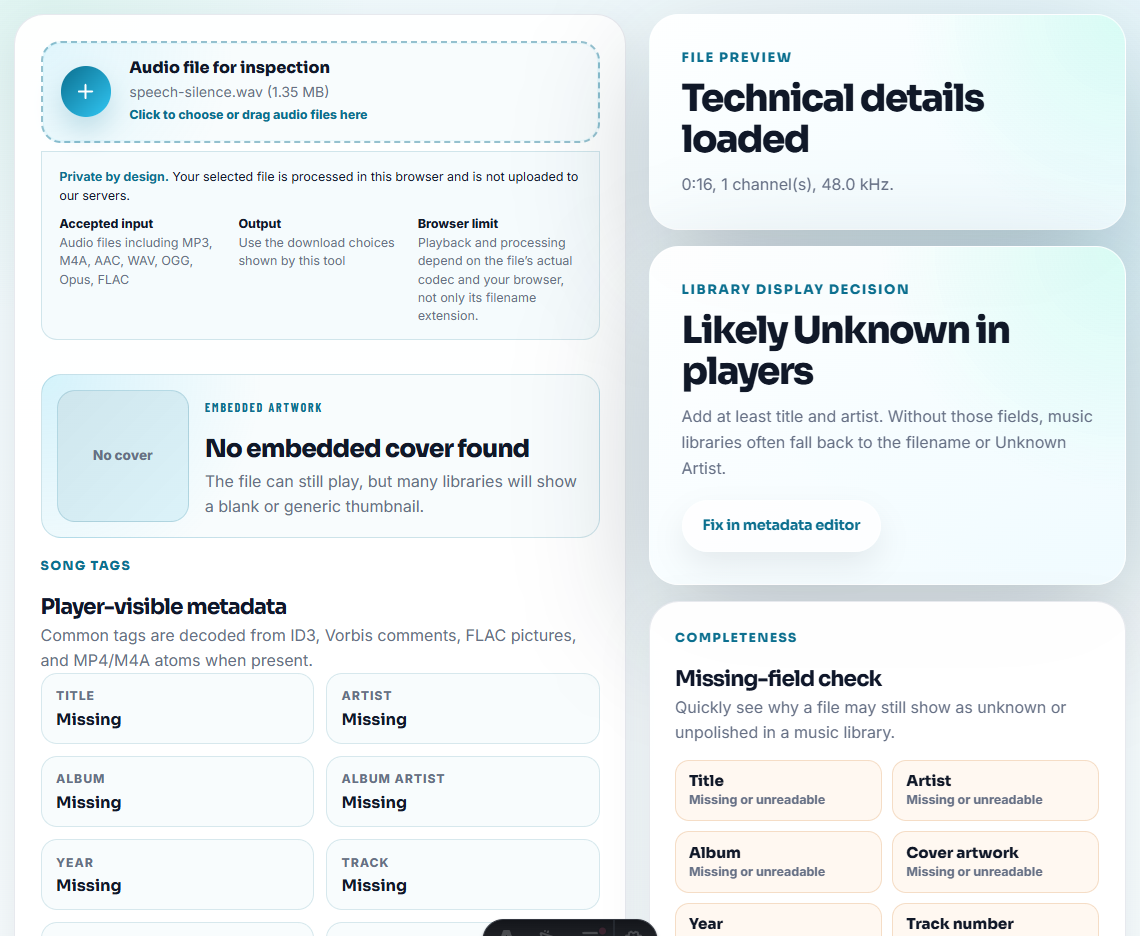
If the file came from a customer, call, private folder, or internal QA set, create a clean copy before sending it by email.
Step 3: Check the Audio Before Editing
Use Recording Quality Checker to confirm that the problem or result is still audible.
If the issue is low volume, do not normalize it before explaining that the source is too quiet. If the issue is silence, do not trim away the silent section.
Step 4: Trim a Focused Email Copy
Use Audio Trimmer on a copy and keep a few seconds of context around the important section.
Good troubleshooting filenames include:
troubleshooting-silent-gap-example.mp3
troubleshooting-low-volume-source-copy.mp3
troubleshooting-export-ending-missing.mp3
troubleshooting-before-after-short-copy.mp3
Keep private account or ticket details in the email body or support system, not in the filename.
Step 5: Add a Visual Clue When Helpful
Use Audio Waveform Generator if the issue is easier to explain visually: silence, clipping, sudden peaks, missing endings, or repeated gaps.
The waveform can help the recipient jump to the right part, especially when email strips context from attachments.
Step 6: Make the File Easy to Send
Use Audio Compressor after review. Smaller copies are useful for email, but check that the issue still remains audible.
Use Online Audio Format Converter only when the recipient cannot open the original format.
Step 7: Add Labels and Email Context
Use Audio Metadata Editor to label the copy with issue type, product, date, and review status.
Then add a short email note:
The problem starts around 00:09. Expected continuous playback; actual result is a short silent gap after export.This makes the attachment useful even if it is forwarded.
Include the Three Lines Support Actually Needs
Troubleshooting emails fail when the attachment is clearer than the message. Add three short lines before or after the file:
Expected: the recording should continue after the intro music.
Actual: there is a silent gap from 00:09 to 00:13.
Checked: this copy was trimmed only; the silence was not removed.
Those lines answer the first questions a support person normally asks. They also reduce the chance that someone “fixes” the audio before understanding what the symptom is.
Send the Smallest Evidence That Answers the Email
Troubleshooting email audio should reduce guessing. Decide whether the recipient needs the source, a reproduction clip, or a safer recreated sample.
| Email situation | Best attachment | Why |
|---|---|---|
| Support needs to hear a defect. | Short copied section where the symptom appears. | Keeps the issue audible without exposing the whole recording. |
| The problem is missing metadata or filenames. | Screenshot or neutral sample name may be better than audio. | The issue may not be audible. |
| The source contains private conversation. | Recreated or trimmed sample with private parts removed. | Protects privacy while showing the pattern. |
| The case needs engineering escalation. | Source-safe clip plus timing, format, and expected/actual result. | Gives reviewers reproduction context. |
This makes the email more helpful than a vague “see attached” message.
Use a One-Symptom Email Gate
Before sending, check whether the email asks the recipient to solve one thing or five things at once.
| Gate | Pass | Rewrite if |
|---|---|---|
| One symptom | The email names one audible problem. | It mentions volume, metadata, download, and activation together. |
| One test | The recipient knows exactly what to play or compare. | The attachment is a folder with no listening instruction. |
| One timestamp | The first problem moment is named. | The note says “somewhere near the middle.” |
| One next reply | The recipient knows what to send back. | The email ends with “please advise” and no requested detail. |
This is especially useful for support teams because the first reply can be specific: “Send a sample from the same 10-second section” or “Try this converted copy and tell us which player fails.”
Use the Email Subject to Set the Diagnosis
The subject line can make the attachment easier to handle before anyone opens it. Avoid vague subjects like “audio problem” or “please check.” Use the failure mode.
| Weak subject | Better subject |
|---|---|
| Audio issue | Silent gap after MP3 export, sample attached |
| Recording problem | Browser recording captures notifications, timestamp included |
| File not working | Audio plays locally but fails on phone speaker |
| Need help | Left channel missing in short reviewed clip |
This small change helps the recipient route the email to playback, recording, export, metadata, device testing, or support escalation without guessing.
Problems to Catch Before You Email the Clip
- Do not send a full source recording when a short clip explains the problem.
- Do not remove the issue while editing the clip.
- Do not expose private labels or internal filenames.
- Do not attach audio without a written listening goal.
- Do not compress the only source file.
- Do not convert formats unless the recipient needs it.
When Email Is Not Enough
Move beyond a simple troubleshooting email when the issue needs:
- App version, device, or browser details.
- A before-and-after comparison.
- A screen recording of the export step.
- Permission to share customer-owned content.
- A full source file because the defect cannot be reproduced in a short copy.
Use a deeper workflow when the case needs logs, screenshots, device details, original source files, privacy approval, or a formal support escalation.
When a Quick Local Check Is Enough
For troubleshooting emails, browser prep is enough when a short audio example helps the user recognize the issue or test a fix. Keep the attachment small, avoid private customer material, and describe exactly what the recipient should listen for.
More Ways to Check the File
- Audio Metadata Viewer
- Recording Quality Checker
- Audio Trimmer
- Audio Compressor
- Send Help Desk Audio Without Private Clues
- Send Support Replies With One Clear Audio Proof
- Prepare Remote Support Audio Before the Session
- Help Users Troubleshoot Audio Before Support
Before You Share the File
What should I check before using audio for troubleshooting emails?
Inspect the source, trim the problem or result section, check playback, keep private details out of labels, attach a compact copy, and explain what the recipient should hear.
Should troubleshooting email audio include the full source?
Usually no. Send a short reviewed copy first, then keep the full source available if the support team asks for it.
What should I check for troubleshooting email audio?
Show one symptom at a time, keep the clip short, label the source and date, and remove unrelated conversation before attaching it to the email.