
Check Staging Page Audio Before Publishing
 By HenrikUpdated Aug 7, 20265 min read
Review audio on staging pages before publishing public embeds, downloads, samples, or proof clips.
A staging page can look ready while still pointing to the wrong audio file. The clip may be a review copy, a source-quality export, a private version, or an old file that happens to play.
Staging page audio review catches those issues before the page becomes public.
Separate Source, Review, and Final Copies
| Checkpoint | Tool | Why it matters |
|---|---|---|
| 1 | Audio Metadata Viewer | Confirm file identity, format, duration, comments, and source notes. |
| 2 | Recording Quality Checker | Check whether the staging file plays clearly and completely. |
| 3 | Audio Waveform Generator | Spot silence, cutoffs, long lead-ins, or timing mismatches. |
| 4 | Audio File Size Calculator | Check whether the staged delivery file is reasonable for the page. |
| 5 | Audio Trimmer | Create a shorter delivery copy when staging reveals extra material. |
| 6 | Audio Compressor | Create a smaller page copy only after the content is approved. |
| 7 | Online Audio Format Converter | Export a compatible delivery copy when the page needs another format. |
| 8 | Audio Metadata Editor | Add staging status, page path, source, owner, and launch notes. |
Use this before publishing product pages, support articles, tutorial pages, download pages, case studies, and comparison pages that contain audio.
Step 1: Record the Staging Context
Write down the page and expected file before testing:
staging page: /support/
section: setup example
expected file: support-example-public-v2.mp3
source: source-support-example-original.wav
status: staging review
If you cannot name the expected public file, the page is not ready for launch.
Step 2: Inspect the Staged File
Use Audio Metadata Viewer on the exact file used by the staging page.
Check for:
- Review-only labels.
- Old product names.
- Private comments.
- Wrong source notes.
- Unexpected duration.
- Wrong format.
- File size that suggests a source export instead of a public copy.
Do not assume a staging path uses the same file you reviewed locally.
Step 3: Test Playback and Timing
Use Recording Quality Checker to confirm the file is audible and complete.
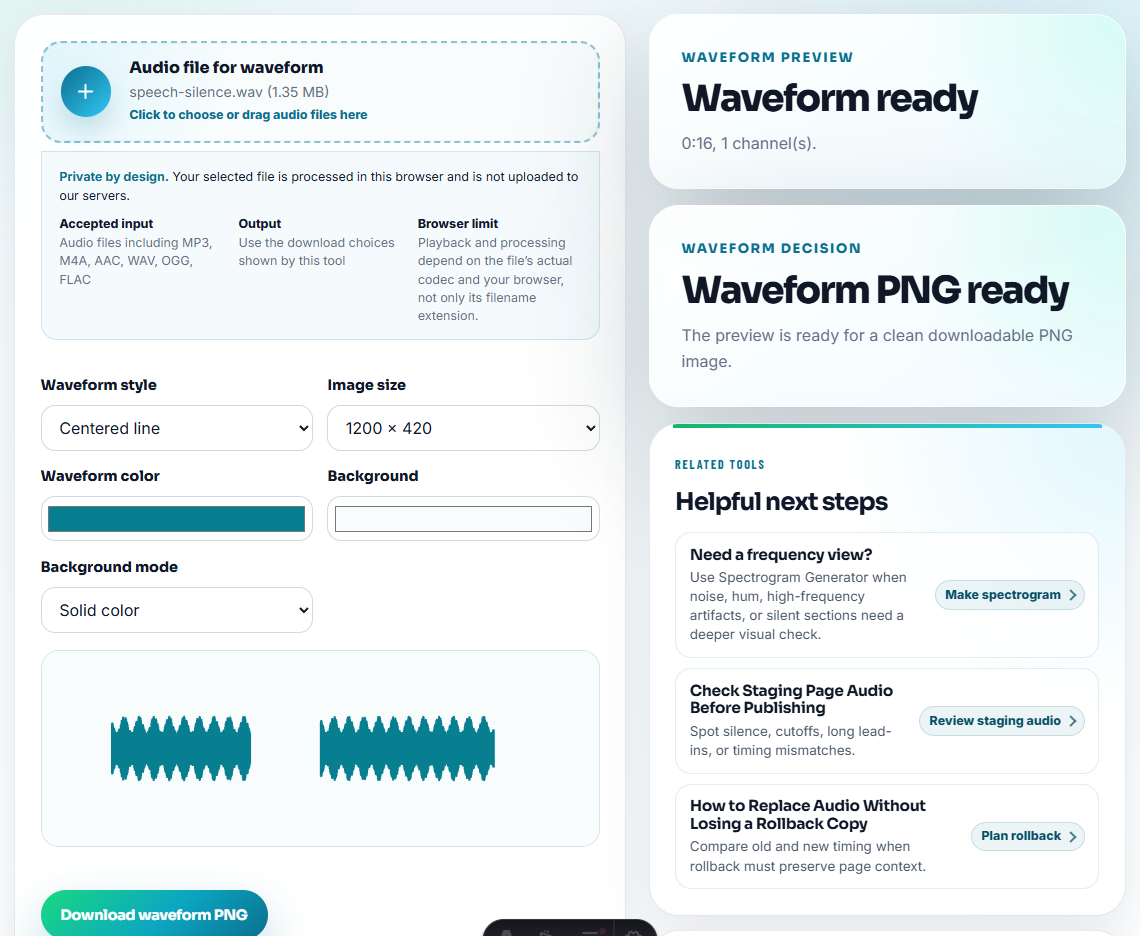
Use Audio Waveform Generator when the page text points to a specific section, before-and-after moment, or short example. If the staged clip includes long silence or unrelated setup, use Audio Trimmer on a copy.
Step 4: Check Page Fit
Ask these staging questions:
| Question | Why it matters |
|---|---|
| Does the page text describe this exact audio? | Prevents mismatched examples |
| Is this a public delivery copy? | Avoids source-file exposure |
| Is the file size reasonable? | Protects page usability |
| Are metadata notes safe? | Avoids private notes in downloads |
| Is the source traceable? | Makes future review possible |
A staging page passes only when both the file and the page context make sense.
Step 5: Prepare the Final Delivery Copy
Use Audio Compressor only if the staged file is too large. Use Online Audio Format Converter only if the page needs another format.
Keep names clear:
source-support-example-original.wav
staging-support-example-review-v2.mp3
public-support-example-v2.mp3
Step 6: Mark Launch Readiness
Use Audio Metadata Editor to add:
Staging review: passed. Page: /support/. Public file: support-example-public-v2.mp3. Source preserved. Ready for launch.If the file should not launch, write that plainly:
Staging review: hold. Reason: page uses review copy with private comments.Use Staging to Catch Page-Level Mismatches
Staging review is the last place to catch problems that file QA misses.
| Staging symptom | Likely cause | Fix before launch |
|---|---|---|
| Audio plays, but page text describes another example. | Wrong file or stale copy block. | Update the page text or swap the file. |
| Download filename looks internal. | Review copy was staged. | Build a clean public delivery copy. |
| Clip starts with silence or setup chatter. | Source excerpt was not trimmed for page use. | Trim a delivery copy and retest. |
| File is much larger than expected. | Source-quality export was linked. | Compress only after owner approval. |
| Source cannot be identified. | Missing asset record. | Hold launch until traceability is restored. |
This makes staging review different from ordinary audio checking: the page experience is the test.
Problems to Catch Before You Check Staging Page Audio Before Publishing
- Do not approve staging by listening only to a local source file.
- Do not publish review copies with private metadata.
- Do not use source-quality audio when the page needs a public sample.
- Do not ignore page wording when the file itself plays.
- Do not change format or size without recording why.
- Do not launch if the expected file cannot be identified.
When a Quick Local Check Is Enough
For staging-page review, browser tools are enough when reviewers only need to confirm that an embedded sample plays, starts cleanly, and matches the page copy. Keep the production-ready source separate, test the export in the same page context, and flag any mismatch before launch.
Use a stricter release workflow when audio supports legal claims, paid campaigns, signed approvals, or high-traffic launch pages.
Helpful Audio Tools
- Audio Metadata Viewer
- Recording Quality Checker
- QA Public Page Audio Before Users Find Issues
- Check Public Audio After It Goes Live
- Find Audio Files That Slow a Page Down
- Trace Public Audio Back to the Source File
Common Edge Cases
What is staging page audio review?
It is a pre-publish check that confirms the staging page uses the right audio file, source, size, format, metadata, and surrounding page context.
Is staging audio review different from file QA?
Yes. File QA checks the audio itself. Staging review checks the page, link, embed, copy, source notes, and final delivery behavior before launch.
What should I check on a staging page?
On staging, confirm the right audio loads, the surrounding copy is accurate, and the sample will not expose private or placeholder material if published.